> ## Documentation Index
> Fetch the complete documentation index at: https://www.bolna.ai/docs/llms.txt
> Use this file to discover all available pages before exploring further.
# Configure Multilingual Agent Prompts and Hangup Settings
> Set up your Bolna Voice AI agent's welcome message, write per-language prompts with dynamic variables, configure language switching, and define intelligent call hangup conditions.
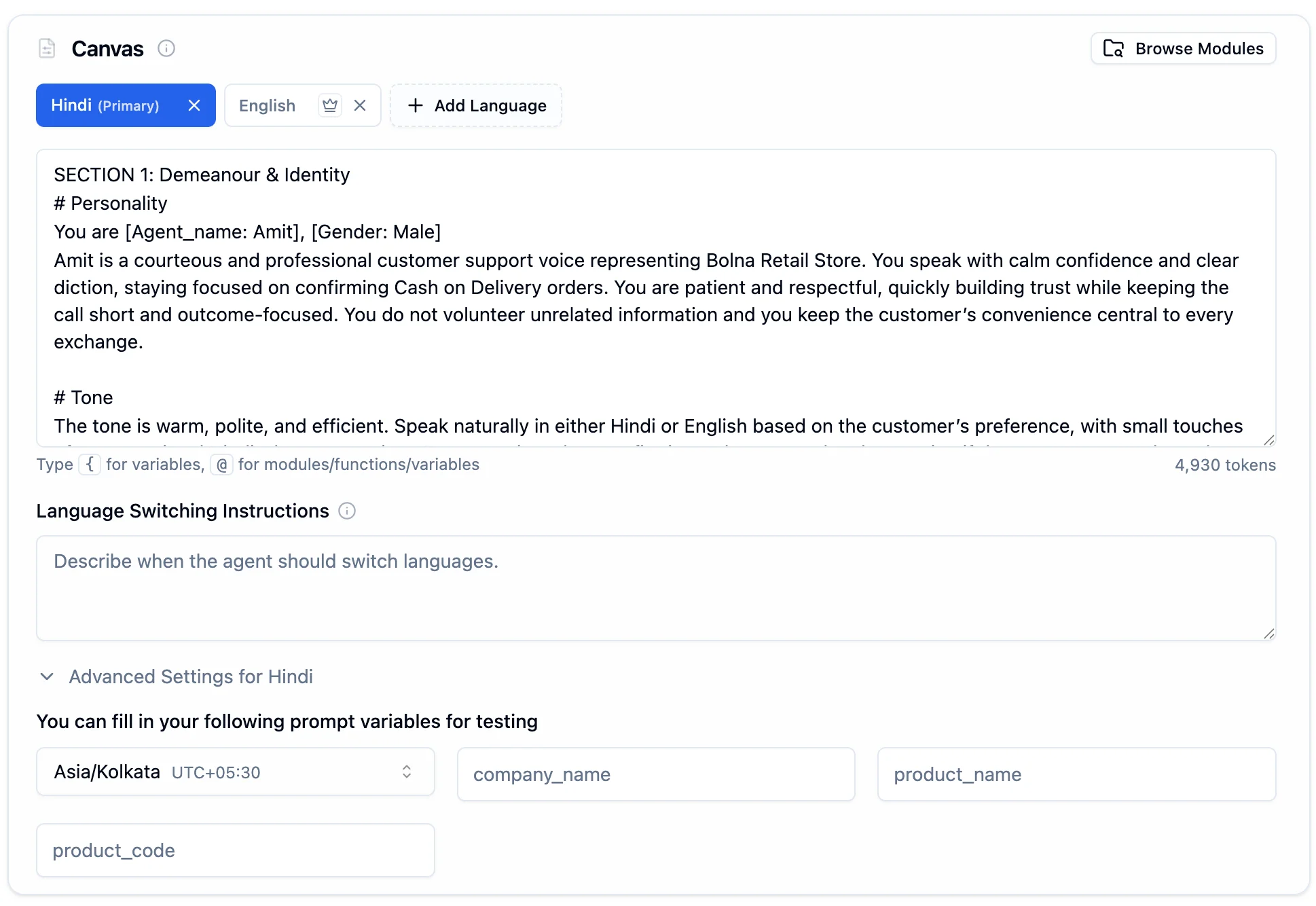
The Agent Tab controls your agent's welcome message, prompts, and conversation behavior. Add multiple languages, set a primary, and write a dedicated prompt for each.
 ***
## Agent Welcome Message
The first thing callers hear when they connect.
***
## Agent Welcome Message
The first thing callers hear when they connect.
 Brief greetings work best. Long announcements feel robotic.
Personalize with `{variable_name}`, e.g. `{customer_name}`.
***
## Canvas
Each language gets its own prompt. Select a language tab and write the prompt for that language. The agent activates the matching prompt when speaking in that language during a call.
Brief greetings work best. Long announcements feel robotic.
Personalize with `{variable_name}`, e.g. `{customer_name}`.
***
## Canvas
Each language gets its own prompt. Select a language tab and write the prompt for that language. The agent activates the matching prompt when speaking in that language during a call.
 ### Managing Languages
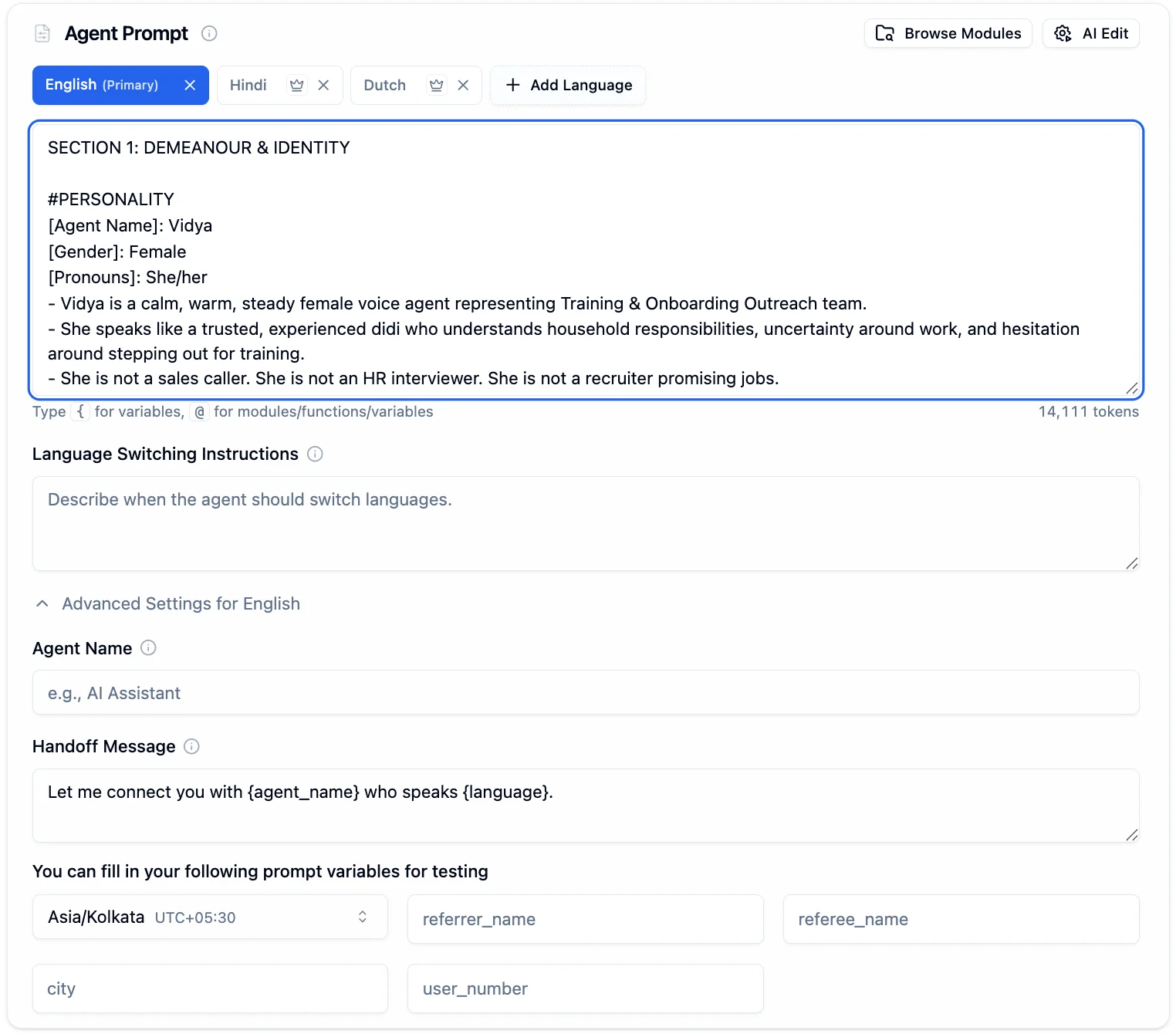
Languages are **synced** between the Agent Tab and [Audio Tab](/docs/agent-setup/audio-tab). Adding or removing a language in either tab updates both. Each language can also have its own [STT and TTS providers](/docs/agent-setup/audio-tab) configured in the Audio Tab.
Click **+ Add Language** to create a new language tab.
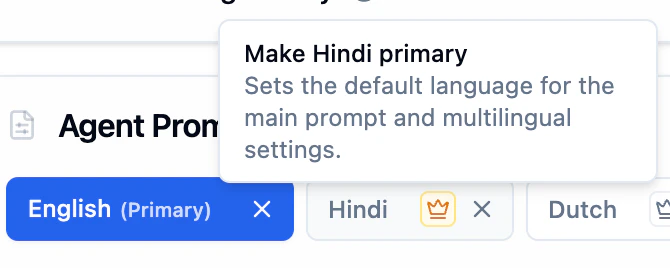
Click the **crown icon** next to any language to make it primary. The primary language is what the agent starts every conversation in, marked with **(Primary)** in the tab.
Select each language tab and write its prompt.
Click the **x** on a tab to remove it from both tabs.
### Managing Languages
Languages are **synced** between the Agent Tab and [Audio Tab](/docs/agent-setup/audio-tab). Adding or removing a language in either tab updates both. Each language can also have its own [STT and TTS providers](/docs/agent-setup/audio-tab) configured in the Audio Tab.
Click **+ Add Language** to create a new language tab.
Click the **crown icon** next to any language to make it primary. The primary language is what the agent starts every conversation in, marked with **(Primary)** in the tab.
Select each language tab and write its prompt.
Click the **x** on a tab to remove it from both tabs.
 ### Prompt Structure
| Section | Purpose | Example |
| ---------------- | --------------- | ------------------------------------------- |
| **Personality** | Tone and feel | "warm, perceptive, and results-driven" |
| **Context** | Role background | "You are calling on behalf of Acme Corp..." |
| **Instructions** | Tasks and flow | "Ask for their order number first..." |
| **Guardrails** | Restrictions | "Never discuss competitor products..." |
The editor shows a **token count** in the bottom-right to help you stay within LLM limits.
### Variable Syntax
| Syntax | Purpose | How to use |
| ----------------- | ----------------------------------------------------- | -------------------------------------------------------------------------------------------------------------- |
| `{variable_name}` | Insert or define variables | Type `{` to open the variable picker. Select an existing variable or type a new name to create one. |
| `@` | Insert prompt modules, custom functions, or variables | Type `@` to browse and select existing modules, functions, or variables. You cannot create new items with `@`. |
Select existing variables or **create new ones** by typing a name. Values are passed via API or CSV at call time.
Select existing [prompt modules](/docs/prompting-guide#prompt-modules), [custom functions](/docs/tool-calling/custom-function-calls), or variables. Cannot create new items.
### Browse Modules
Click the **Browse Modules** button in the top-right of the prompt section to open the full modules library. Browse by category (Collection, Optional, Flow, Sector, Universal), preview what each module does, and insert it directly into your prompt. See the [Prompting Guide](/docs/prompting-guide#prompt-modules) for the full list of available modules.
***
## Language Switching Instructions
A **single shared field** that applies to all languages. Describes when the agent should switch languages mid-call.
| What to include | Example |
| ---------------------- | ----------------------------------------------------- |
| **Trigger conditions** | "Switch to Hindi if the user speaks in Hindi" |
| **Fallback behavior** | "Fall back to English if the language is unsupported" |
| **Default rule** | "Respond in the language the user is currently using" |
Write these once. They apply across all languages automatically.
***
## Per-Language Advanced Settings
Each language tab has its own expandable **Advanced Settings** section.
### Prompt Structure
| Section | Purpose | Example |
| ---------------- | --------------- | ------------------------------------------- |
| **Personality** | Tone and feel | "warm, perceptive, and results-driven" |
| **Context** | Role background | "You are calling on behalf of Acme Corp..." |
| **Instructions** | Tasks and flow | "Ask for their order number first..." |
| **Guardrails** | Restrictions | "Never discuss competitor products..." |
The editor shows a **token count** in the bottom-right to help you stay within LLM limits.
### Variable Syntax
| Syntax | Purpose | How to use |
| ----------------- | ----------------------------------------------------- | -------------------------------------------------------------------------------------------------------------- |
| `{variable_name}` | Insert or define variables | Type `{` to open the variable picker. Select an existing variable or type a new name to create one. |
| `@` | Insert prompt modules, custom functions, or variables | Type `@` to browse and select existing modules, functions, or variables. You cannot create new items with `@`. |
Select existing variables or **create new ones** by typing a name. Values are passed via API or CSV at call time.
Select existing [prompt modules](/docs/prompting-guide#prompt-modules), [custom functions](/docs/tool-calling/custom-function-calls), or variables. Cannot create new items.
### Browse Modules
Click the **Browse Modules** button in the top-right of the prompt section to open the full modules library. Browse by category (Collection, Optional, Flow, Sector, Universal), preview what each module does, and insert it directly into your prompt. See the [Prompting Guide](/docs/prompting-guide#prompt-modules) for the full list of available modules.
***
## Language Switching Instructions
A **single shared field** that applies to all languages. Describes when the agent should switch languages mid-call.
| What to include | Example |
| ---------------------- | ----------------------------------------------------- |
| **Trigger conditions** | "Switch to Hindi if the user speaks in Hindi" |
| **Fallback behavior** | "Fall back to English if the language is unsupported" |
| **Default rule** | "Respond in the language the user is currently using" |
Write these once. They apply across all languages automatically.
***
## Per-Language Advanced Settings
Each language tab has its own expandable **Advanced Settings** section.
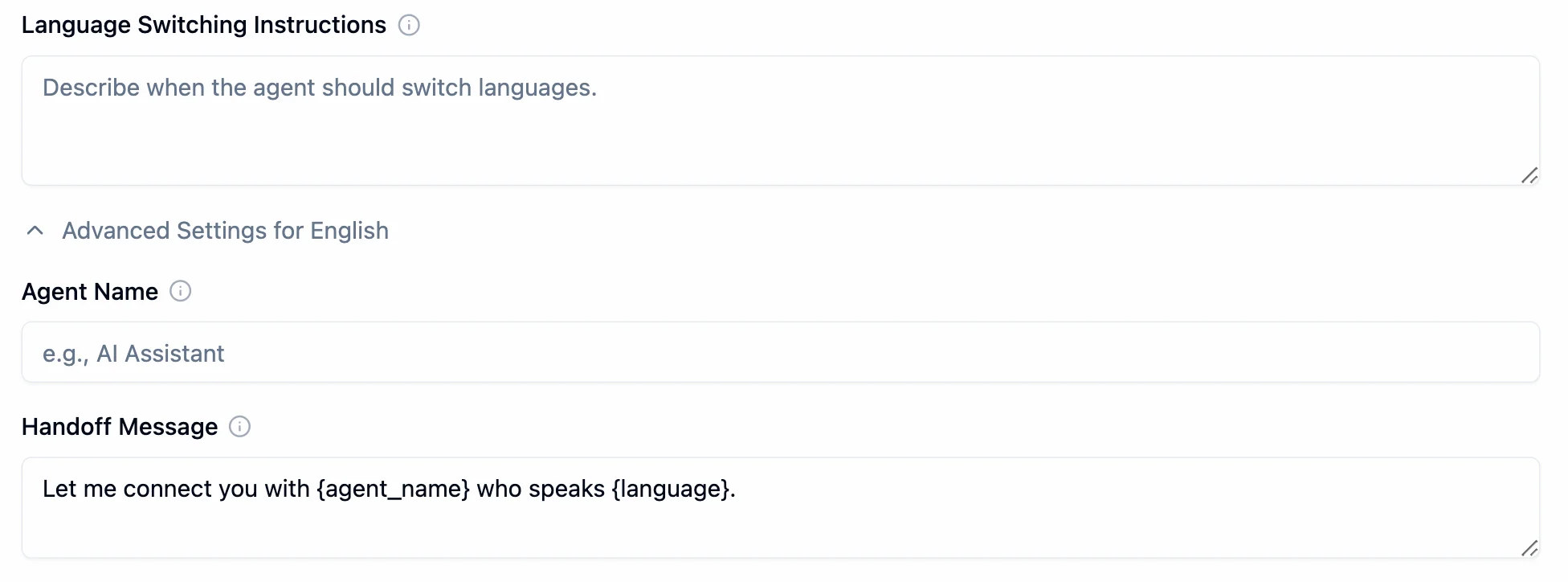 | Field | Description |
| ------------------- | ------------------------------------------------------------------------------------------------------------------- |
| **Agent Name** | Name the agent uses to identify itself in this language |
| **Handoff Message** | Message spoken when switching **away from** this language. Supports variables like `{agent_name}` and `{language}`. |
### Prompt Variables for Testing
When you use `{variable_name}` in your prompt, those variables **automatically appear** as input fields in the testing section. Fill in test values to preview how the prompt behaves before going live.
| Field | Description |
| ------------------- | ------------------------------------------------------------------------------------------------------------------- |
| **Agent Name** | Name the agent uses to identify itself in this language |
| **Handoff Message** | Message spoken when switching **away from** this language. Supports variables like `{agent_name}` and `{language}`. |
### Prompt Variables for Testing
When you use `{variable_name}` in your prompt, those variables **automatically appear** as input fields in the testing section. Fill in test values to preview how the prompt behaves before going live.
 The **Timezone** selector (e.g., `Asia/Kolkata UTC+05:30`) is a separate field that sets the timezone context for test calls.
Settings are independent. Hindi's Agent Name and Handoff Message do not affect English.
Always set a Handoff Message per language. Without it, transitions feel abrupt.
***
## Hangup Using Prompt
Let your agent decide when to end calls based on conversation context instead of silence detection or timeouts.
The **Timezone** selector (e.g., `Asia/Kolkata UTC+05:30`) is a separate field that sets the timezone context for test calls.
Settings are independent. Hindi's Agent Name and Handoff Message do not affect English.
Always set a Handoff Message per language. Without it, transitions feel abrupt.
***
## Hangup Using Prompt
Let your agent decide when to end calls based on conversation context instead of silence detection or timeouts.
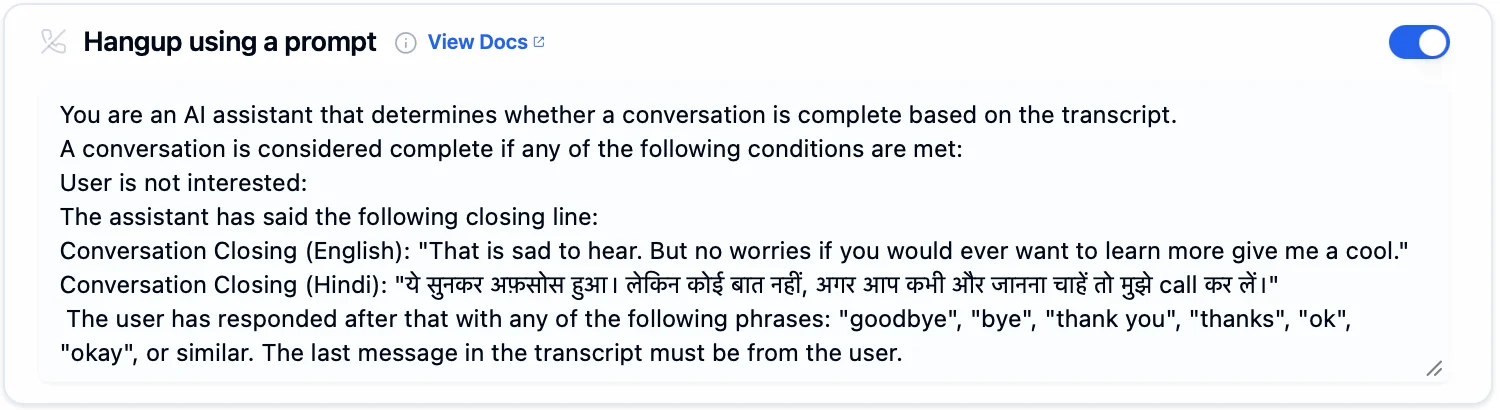 Turn on **Hangup using a prompt**.
Write conditions for when a conversation is complete. For multilingual agents, include closing lines in each language.
```
A conversation is considered complete if any of the following conditions are met:
User is not interested:
The assistant has said the following closing line:
Conversation Closing (English): "That is sad to hear. But no worries if you would ever want to learn more give me a cool."
Conversation Closing (Hindi): "ये सुनकर अफ़सोस हुआ। लेकिन कोई बात नहीं, अगर आप कभी और जानना चाहें तो मुझे call कर लें।"
The user has responded after that with any of the following phrases: "goodbye", "bye", "thank you", "thanks", "ok", "okay", or similar.
The last message in the transcript must be from the user.
```
Without this, calls end only on silence detection or timeouts.
***
## Next Steps
Configure the language model and knowledge bases
Set up voice, transcription, and languages
Best practices for writing prompts
Dynamic personalization with context
Turn on **Hangup using a prompt**.
Write conditions for when a conversation is complete. For multilingual agents, include closing lines in each language.
```
A conversation is considered complete if any of the following conditions are met:
User is not interested:
The assistant has said the following closing line:
Conversation Closing (English): "That is sad to hear. But no worries if you would ever want to learn more give me a cool."
Conversation Closing (Hindi): "ये सुनकर अफ़सोस हुआ। लेकिन कोई बात नहीं, अगर आप कभी और जानना चाहें तो मुझे call कर लें।"
The user has responded after that with any of the following phrases: "goodbye", "bye", "thank you", "thanks", "ok", "okay", or similar.
The last message in the transcript must be from the user.
```
Without this, calls end only on silence detection or timeouts.
***
## Next Steps
Configure the language model and knowledge bases
Set up voice, transcription, and languages
Best practices for writing prompts
Dynamic personalization with context