> ## Documentation Index
> Fetch the complete documentation index at: https://www.bolna.ai/docs/llms.txt
> Use this file to discover all available pages before exploring further.
# Set Up Webhooks and Post-Call Analytics
> Configure webhooks, call summarization, and data extraction for Bolna Voice AI. Push data to your CRM from every call.
## What is the Analytics Tab?
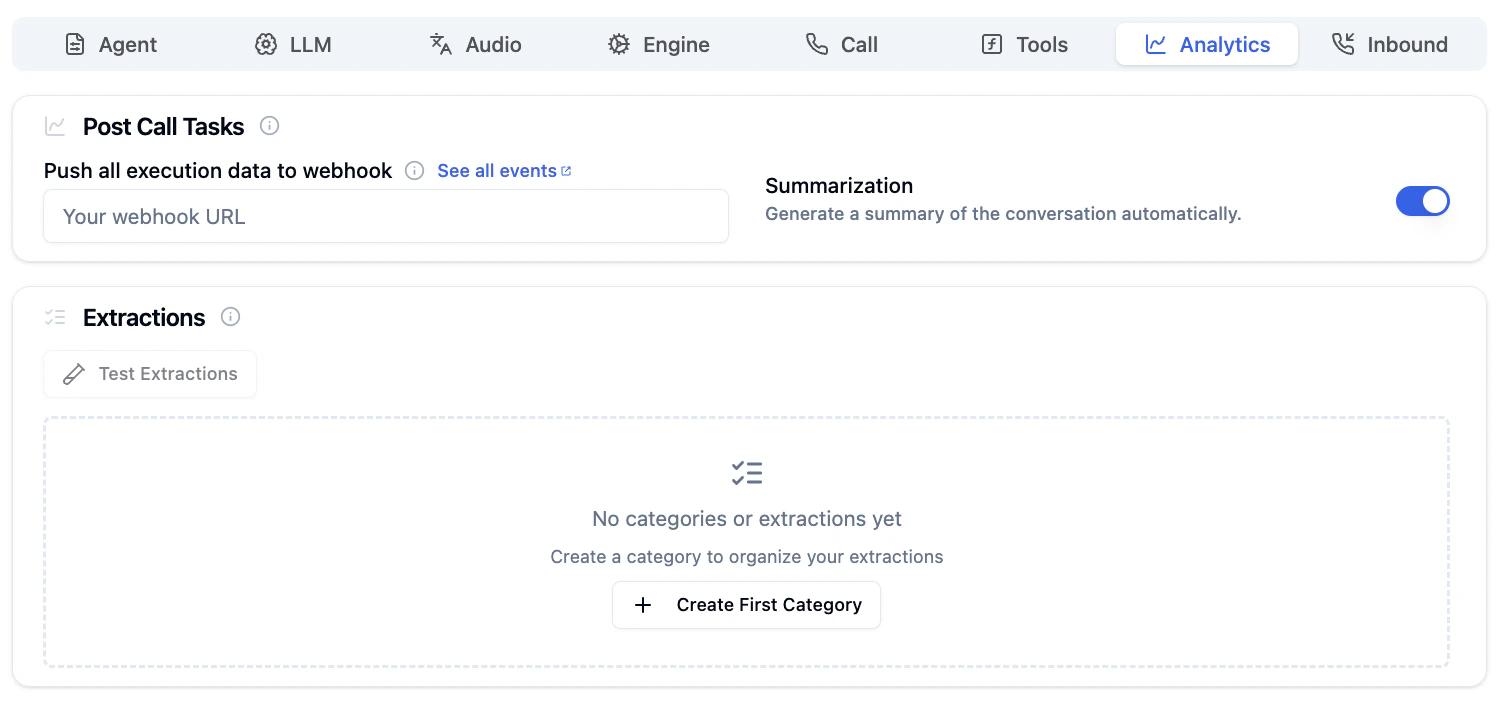
The Analytics Tab is where you configure webhooks for real-time data and post-call processing tasks. Automatically summarize conversations, extract structured data, and push execution data to your systems.
 ***
## Configuration Options
### Push Execution Data to Webhook
**Don't miss real-time updates!** Configure a webhook to receive all execution data as calls happen — essential for CRM integrations and live dashboards.
Enter your webhook URL to automatically receive all execution data for this agent.
Click **[See all events](/docs/guides/post-call/polling-call-status-webhooks)** to view the complete list of webhook event types you can receive.
***
### Post Call Tasks
Choose tasks to execute after the agent conversation is complete.
***
## Configuration Options
### Push Execution Data to Webhook
**Don't miss real-time updates!** Configure a webhook to receive all execution data as calls happen — essential for CRM integrations and live dashboards.
Enter your webhook URL to automatically receive all execution data for this agent.
Click **[See all events](/docs/guides/post-call/polling-call-status-webhooks)** to view the complete list of webhook event types you can receive.
***
### Post Call Tasks
Choose tasks to execute after the agent conversation is complete.
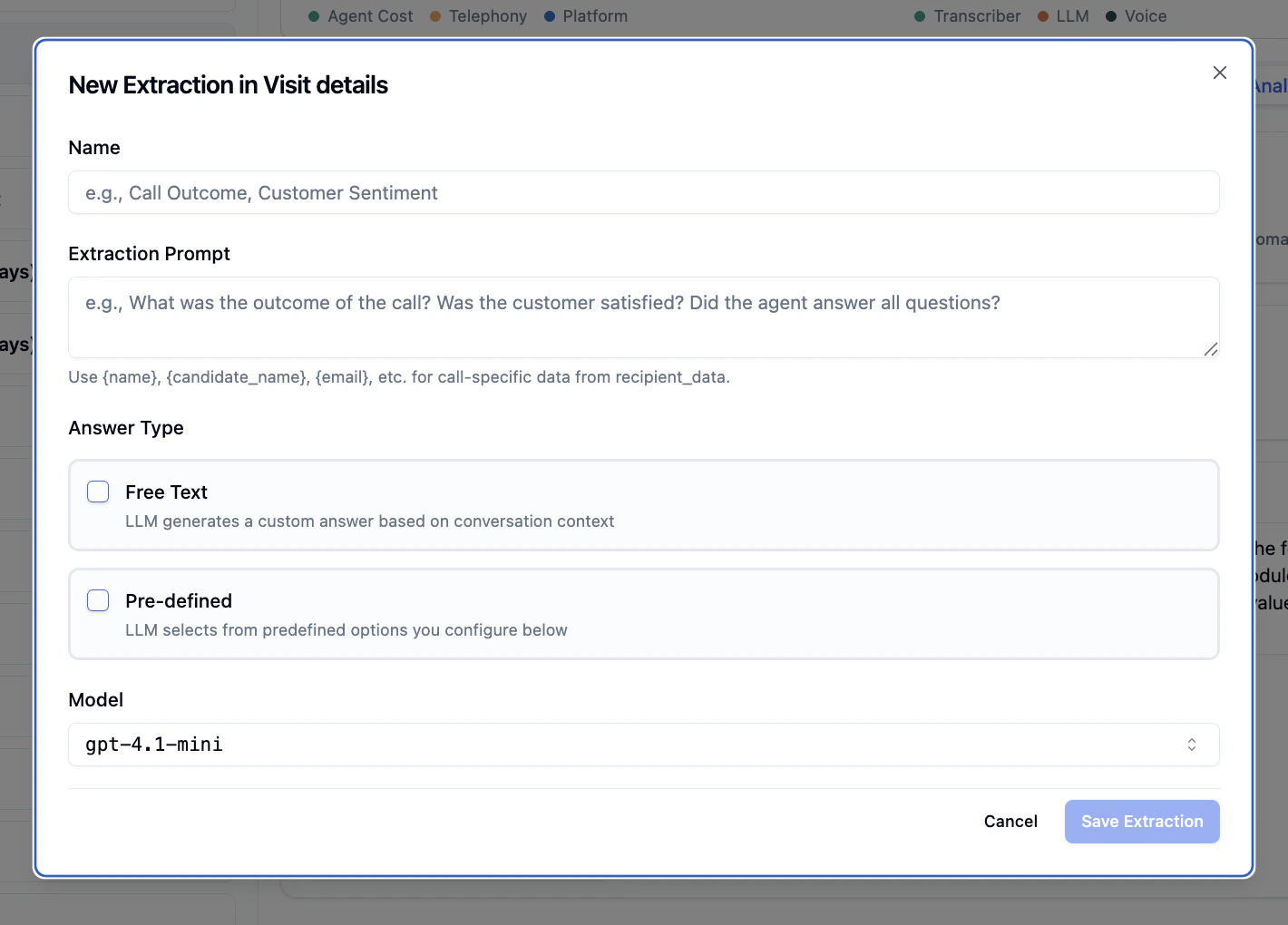 Automatically generate a summary of every conversation. Great for quick review and logging.
Toggle on to enable automatic conversation summarization.
Create custom extraction templates organized by categories to automatically capture structured data from call transcripts.
Automatically generate a summary of every conversation. Great for quick review and logging.
Toggle on to enable automatic conversation summarization.
Create custom extraction templates organized by categories to automatically capture structured data from call transcripts.
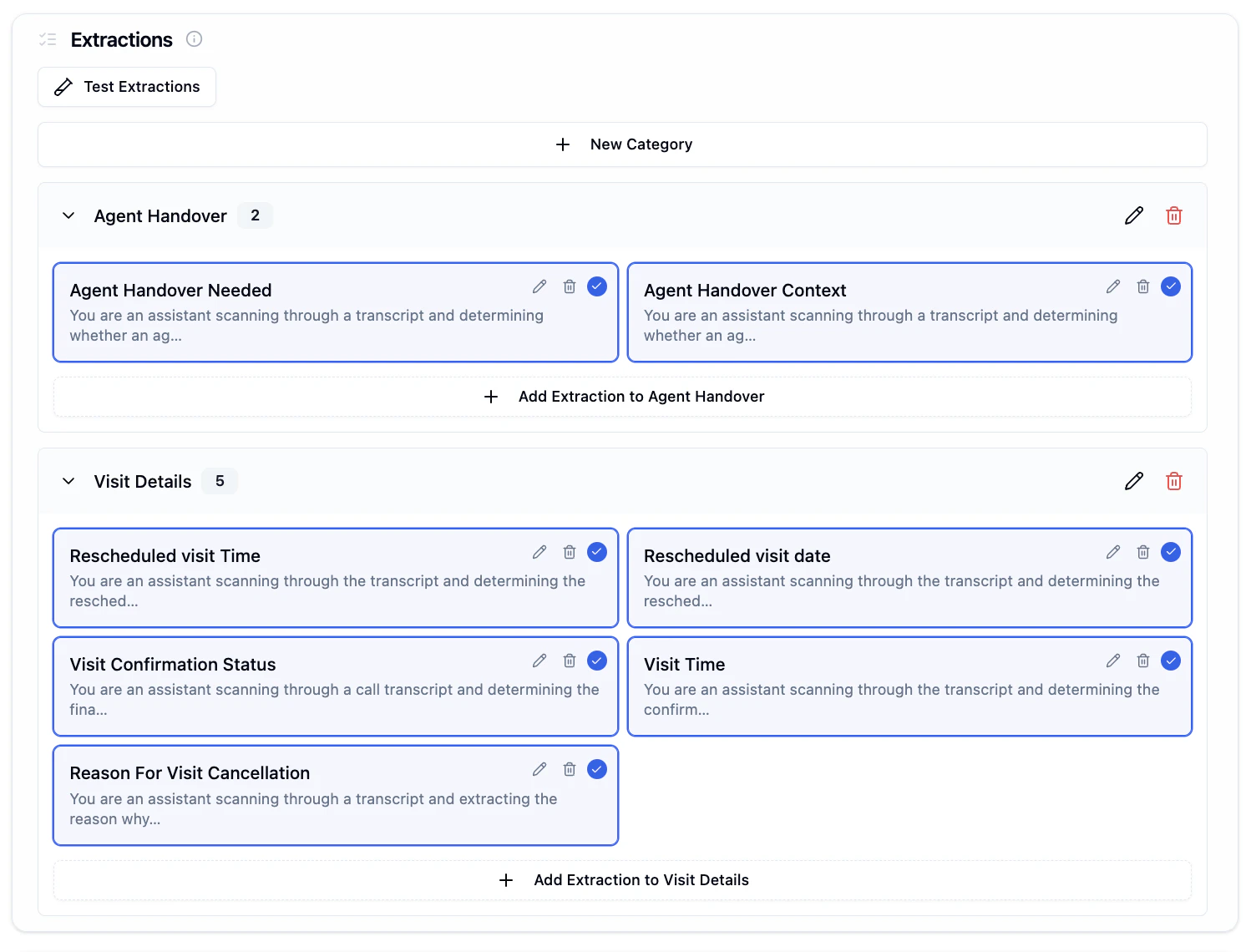 **Extractions** allow you to automatically capture structured data from call transcripts. Organize extractions into categories and define custom questions to extract specific information like lead quality, appointment details, customer sentiment, and more.
### Key Features
**Categories** - Organize related extractions together (e.g., "Agent Handover", "Visit Details", "Lead Qualification")
**Extraction Templates** - Define what data to capture with:
* **Name** - Descriptive identifier (e.g., "Call Outcome", "Customer Sentiment")
* **Extraction Prompt** - Instructions guiding the LLM on what to extract
* **Answer Type** - Choose between Free Text (open-ended) or Pre-defined (categorical options)
* **Model** - Select LLM for extraction processing (default: gpt-4.1-mini)
**Testing** - Validate extractions against sample or real transcripts before production deployment
**Extractions** allow you to automatically capture structured data from call transcripts. Organize extractions into categories and define custom questions to extract specific information like lead quality, appointment details, customer sentiment, and more.
### Key Features
**Categories** - Organize related extractions together (e.g., "Agent Handover", "Visit Details", "Lead Qualification")
**Extraction Templates** - Define what data to capture with:
* **Name** - Descriptive identifier (e.g., "Call Outcome", "Customer Sentiment")
* **Extraction Prompt** - Instructions guiding the LLM on what to extract
* **Answer Type** - Choose between Free Text (open-ended) or Pre-defined (categorical options)
* **Model** - Select LLM for extraction processing (default: gpt-4.1-mini)
**Testing** - Validate extractions against sample or real transcripts before production deployment
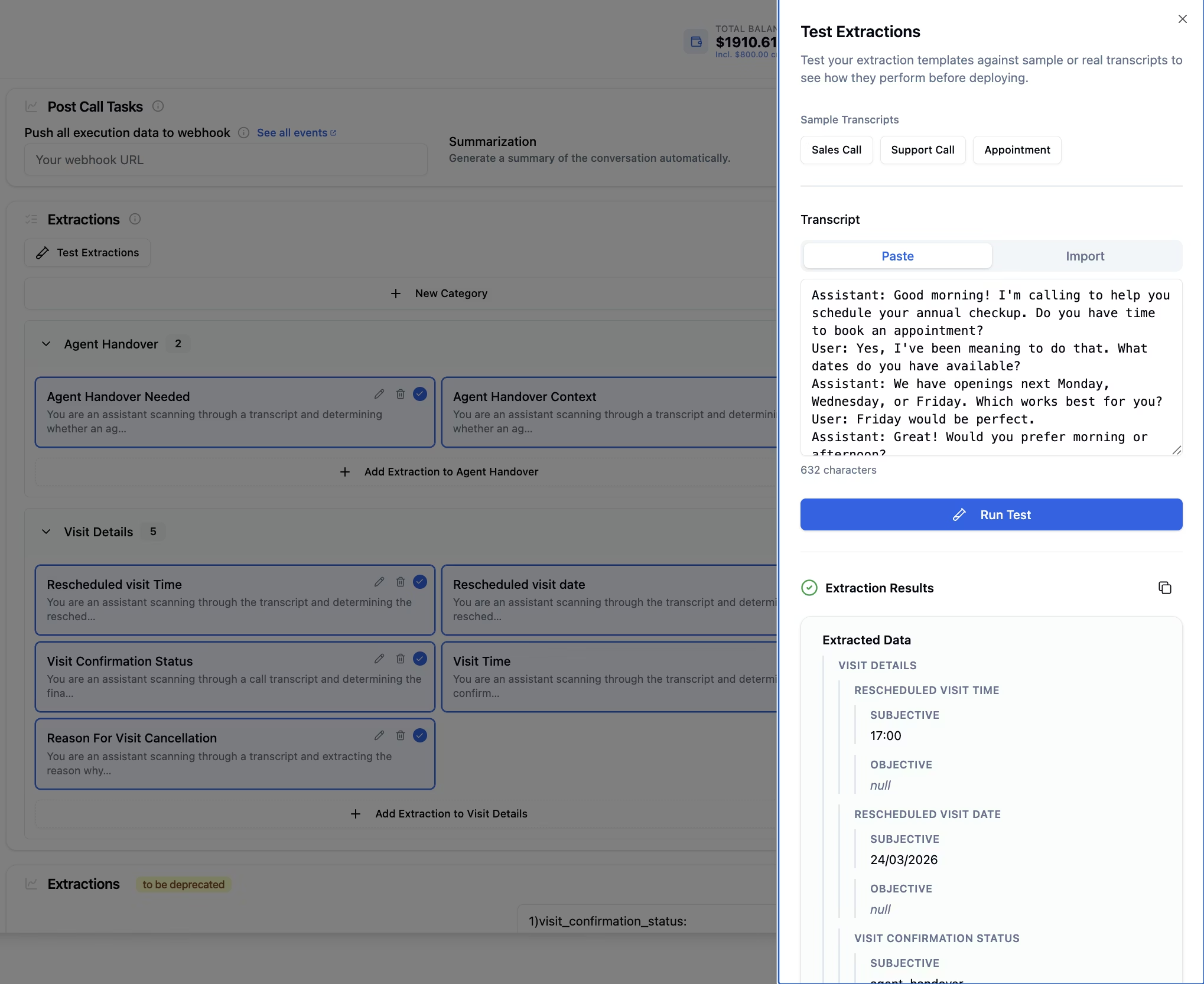 ### Common Extraction Categories
Detect when calls need human intervention
Extract budget, timeline, decision-maker info
Capture appointment times, dates, confirmation status
Analyze satisfaction levels and feedback
Learn how to create and manage extraction templates, configure answer types, and test extractions in the [Using Extractions](/docs/guides/prompting/using-extractions) guide.
***
## Use Cases
Automatically update customer records after calls
Extract qualification data from sales calls
Capture required data points for regulations
Analyze conversation outcomes and metrics
***
## Next Steps
Configure inbound call settings
Add function tools and APIs
View call logs and transcripts
Learn about webhook events
### Common Extraction Categories
Detect when calls need human intervention
Extract budget, timeline, decision-maker info
Capture appointment times, dates, confirmation status
Analyze satisfaction levels and feedback
Learn how to create and manage extraction templates, configure answer types, and test extractions in the [Using Extractions](/docs/guides/prompting/using-extractions) guide.
***
## Use Cases
Automatically update customer records after calls
Extract qualification data from sales calls
Capture required data points for regulations
Analyze conversation outcomes and metrics
***
## Next Steps
Configure inbound call settings
Add function tools and APIs
View call logs and transcripts
Learn about webhook events