> ## Documentation Index
> Fetch the complete documentation index at: https://www.bolna.ai/docs/llms.txt
> Use this file to discover all available pages before exploring further.
# Configure Voice and Transcription Settings
> Set up languages, speech-to-text, and text-to-speech for your Bolna Voice AI agent. Pick providers, select voices, clone custom voices, and tune audio quality.
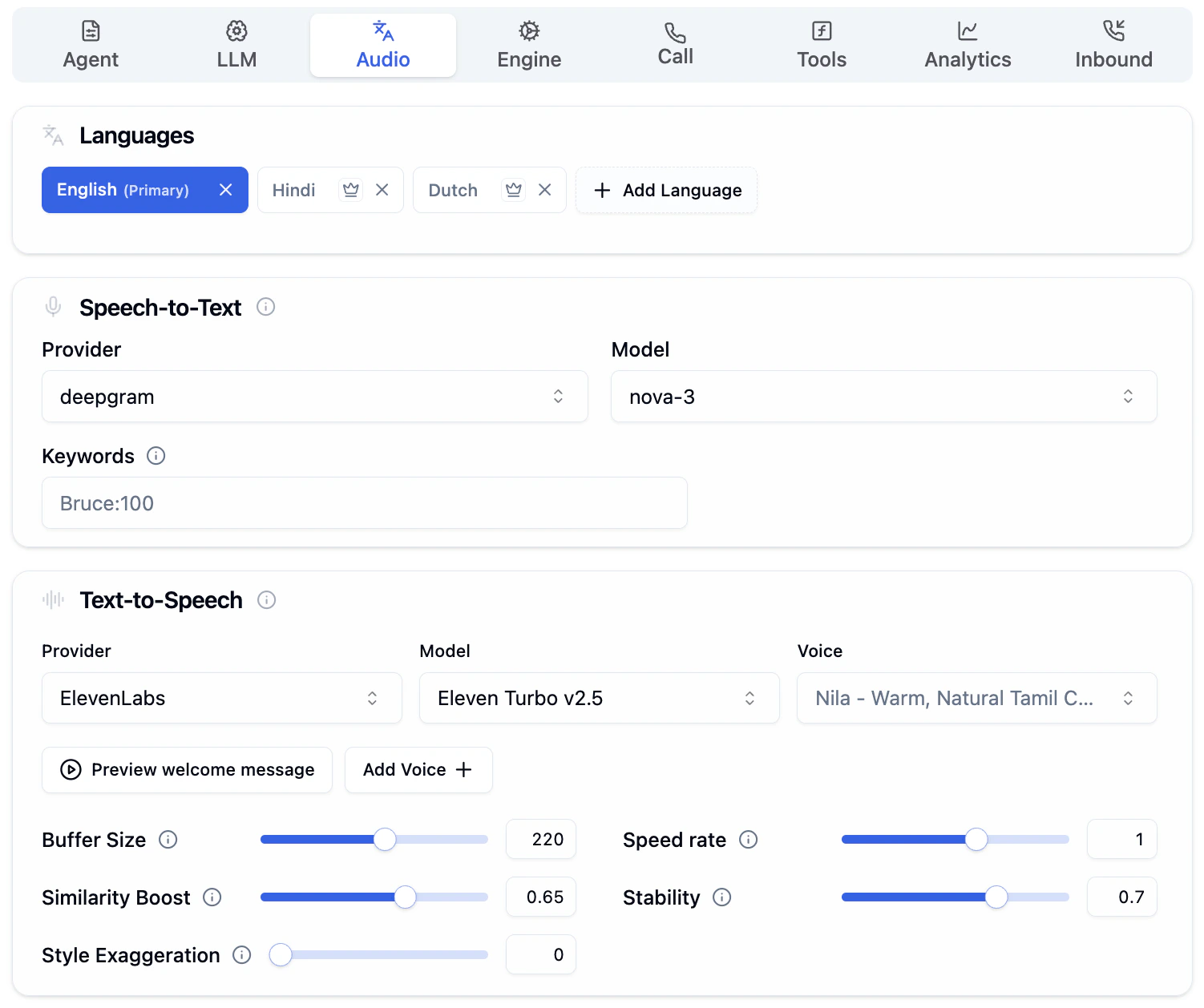
The Audio Tab controls how your agent listens and speaks. Configure languages, choose transcription and voice providers, and tune audio quality. For multilingual agents, you can select **different STT and TTS providers per language**.
 ***
## Languages
Set the languages your agent can understand and speak. Pick a primary language and add secondary languages for multilingual conversations.
***
## Languages
Set the languages your agent can understand and speak. Pick a primary language and add secondary languages for multilingual conversations.
 * **Primary Language** is marked with `(Primary)` and is the language your agent uses at the start of every conversation. The main prompt and multilingual settings are tied to this language.
* **Secondary Languages** allow the agent to understand and respond when a caller switches languages mid-call.
* Click **+ Add Language** to add more languages.
* Remove any language by clicking the **x** next to it.
### Changing the Primary Language
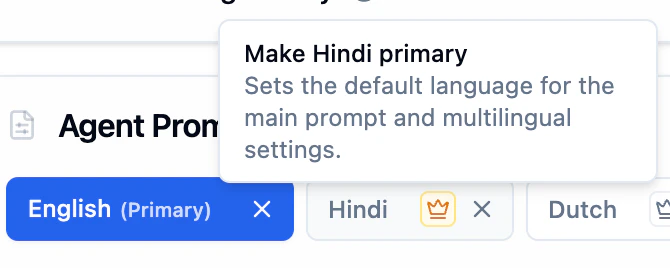
Click the **crown icon** next to any secondary language to make it primary. A tooltip will confirm the action, for example "Make Hindi primary". This sets the selected language as the default for the main prompt and multilingual settings.
* **Primary Language** is marked with `(Primary)` and is the language your agent uses at the start of every conversation. The main prompt and multilingual settings are tied to this language.
* **Secondary Languages** allow the agent to understand and respond when a caller switches languages mid-call.
* Click **+ Add Language** to add more languages.
* Remove any language by clicking the **x** next to it.
### Changing the Primary Language
Click the **crown icon** next to any secondary language to make it primary. A tooltip will confirm the action, for example "Make Hindi primary". This sets the selected language as the default for the main prompt and multilingual settings.
 ### Supported Languages
| Language | Code |
| ---------- | ---- |
| English | `en` |
| Hindi | `hi` |
| Bengali | `bn` |
| Assamese | `as` |
| French | `fr` |
| Gujarati | `gu` |
| Indonesian | `id` |
| Kannada | `kn` |
| Malay | `ms` |
| Malayalam | `ml` |
| Marathi | `mr` |
| Odia | `od` |
| Punjabi | `pa` |
| Spanish | `es` |
| Tamil | `ta` |
| Telugu | `te` |
| Urdu | `ur` |
| Dutch | `nl` |
For agents that handle multiple languages in a single call, see the [Multilingual Support](/docs/customizations/multilingual-languages-support) guide.
***
## Speech-to-Text
Controls how your agent converts the caller's spoken words into text before the LLM processes them. For multilingual agents, each language can have its own STT provider and model. Select a language tab to configure its transcription settings independently.
Different languages may perform better with different providers. For example, use **Sarvam** for Hindi and **Deepgram** for English.
### Supported Languages
| Language | Code |
| ---------- | ---- |
| English | `en` |
| Hindi | `hi` |
| Bengali | `bn` |
| Assamese | `as` |
| French | `fr` |
| Gujarati | `gu` |
| Indonesian | `id` |
| Kannada | `kn` |
| Malay | `ms` |
| Malayalam | `ml` |
| Marathi | `mr` |
| Odia | `od` |
| Punjabi | `pa` |
| Spanish | `es` |
| Tamil | `ta` |
| Telugu | `te` |
| Urdu | `ur` |
| Dutch | `nl` |
For agents that handle multiple languages in a single call, see the [Multilingual Support](/docs/customizations/multilingual-languages-support) guide.
***
## Speech-to-Text
Controls how your agent converts the caller's spoken words into text before the LLM processes them. For multilingual agents, each language can have its own STT provider and model. Select a language tab to configure its transcription settings independently.
Different languages may perform better with different providers. For example, use **Sarvam** for Hindi and **Deepgram** for English.
 ### Provider and Model
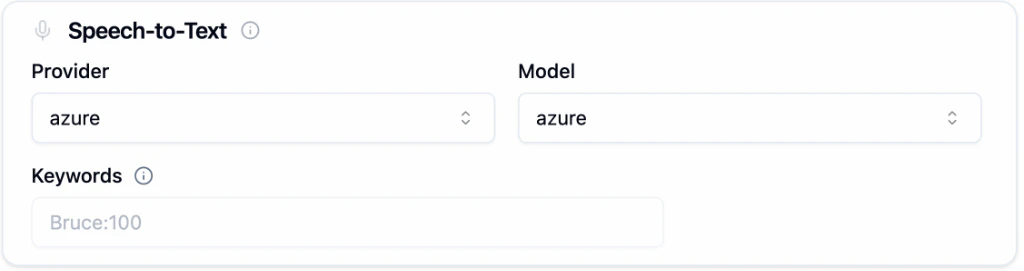
Choose a transcription provider from the **Provider** dropdown, then pick the specific model from the **Model** dropdown.
| Provider | What it offers |
| -------------- | -------------------------------------------------------------- |
| **AssemblyAI** | Real-time transcription with strong punctuation and formatting |
| **Azure** | Microsoft Azure Speech Services |
| **Deepgram** | High-accuracy, low-latency transcription with keyword boosting |
| **ElevenLabs** | Transcription powered by ElevenLabs |
| **Gladia** | Multilingual transcription service |
| **Google** | Google Cloud Speech-to-Text |
| **OpenAI** | OpenAI Whisper-based transcription |
| **Sarvam** | Optimized for Indian languages like Hindi, Tamil, and Telugu |
| **Smallest** | Lightweight, fast transcription provider |
### Keywords
Boost recognition accuracy for specific words the transcriber might miss, such as brand names, product names, or technical terms. Enter keywords in the format `word:boost_value` (e.g., `Bruce:100`).
Keyword boosting is **only available with Deepgram**. The Keywords field has no effect when using other providers.
***
## Text-to-Speech
Controls how your agent sounds when speaking to the caller. For multilingual agents, each language can have its own TTS provider, model, and voice. Select a language tab to configure voice settings independently.
### Provider and Model
Choose a transcription provider from the **Provider** dropdown, then pick the specific model from the **Model** dropdown.
| Provider | What it offers |
| -------------- | -------------------------------------------------------------- |
| **AssemblyAI** | Real-time transcription with strong punctuation and formatting |
| **Azure** | Microsoft Azure Speech Services |
| **Deepgram** | High-accuracy, low-latency transcription with keyword boosting |
| **ElevenLabs** | Transcription powered by ElevenLabs |
| **Gladia** | Multilingual transcription service |
| **Google** | Google Cloud Speech-to-Text |
| **OpenAI** | OpenAI Whisper-based transcription |
| **Sarvam** | Optimized for Indian languages like Hindi, Tamil, and Telugu |
| **Smallest** | Lightweight, fast transcription provider |
### Keywords
Boost recognition accuracy for specific words the transcriber might miss, such as brand names, product names, or technical terms. Enter keywords in the format `word:boost_value` (e.g., `Bruce:100`).
Keyword boosting is **only available with Deepgram**. The Keywords field has no effect when using other providers.
***
## Text-to-Speech
Controls how your agent sounds when speaking to the caller. For multilingual agents, each language can have its own TTS provider, model, and voice. Select a language tab to configure voice settings independently.
 ### Provider, Model, and Voice
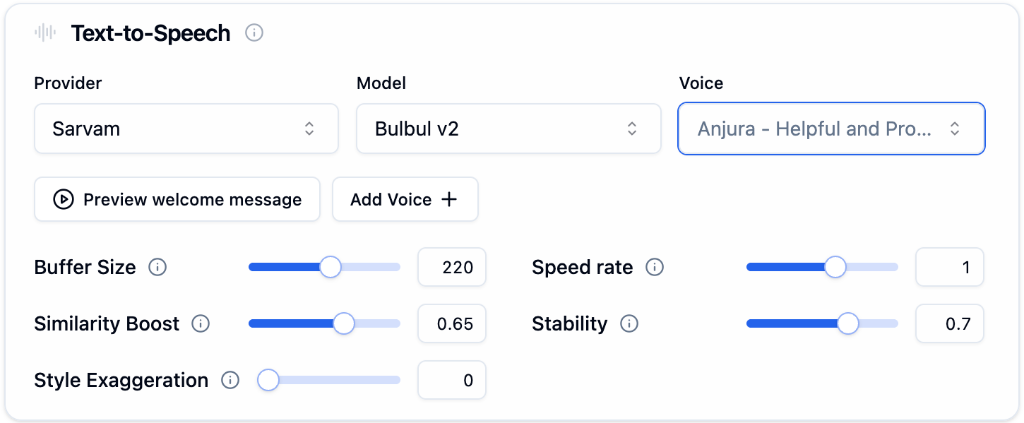
Choose from **AzureTTS**, **Cartesia**, **ElevenLabs**, or **Sarvam**.
Select the model that fits your latency and quality needs (e.g., ElevenLabs `eleven_turbo_v2_5` for low latency).
Click the **Voice** dropdown to browse all voices for the selected provider and model.
### Browsing Voices
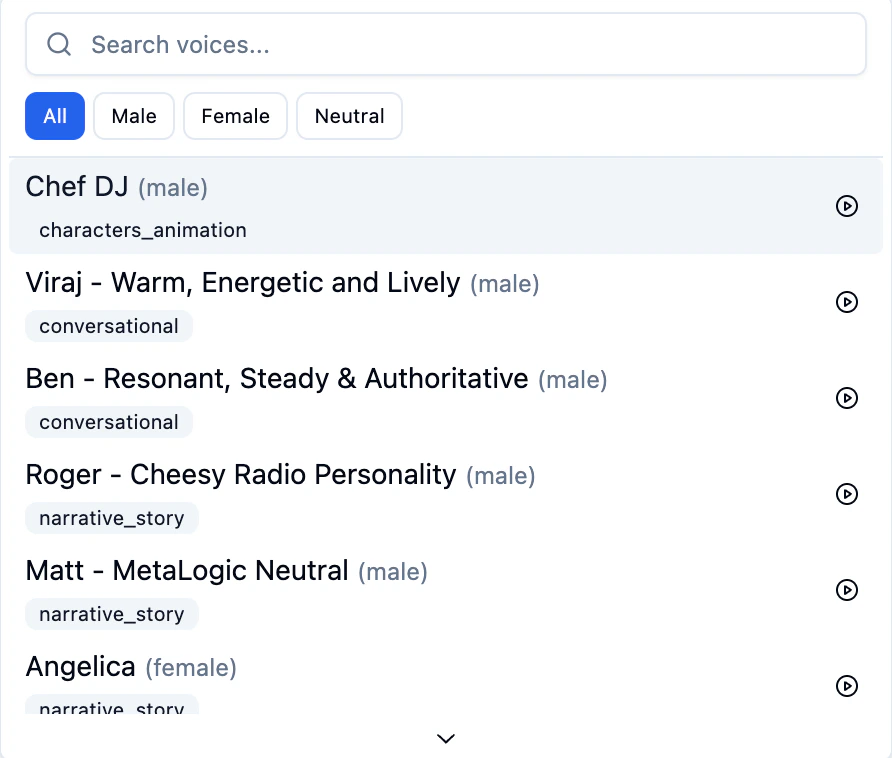
Click the Voice dropdown to see a searchable list of all available voices. Filter by gender using the **All**, **Male**, **Female**, and **Neutral** tabs. Each voice shows a **play button** so you can preview it before selecting.
### Provider, Model, and Voice
Choose from **AzureTTS**, **Cartesia**, **ElevenLabs**, or **Sarvam**.
Select the model that fits your latency and quality needs (e.g., ElevenLabs `eleven_turbo_v2_5` for low latency).
Click the **Voice** dropdown to browse all voices for the selected provider and model.
### Browsing Voices
Click the Voice dropdown to see a searchable list of all available voices. Filter by gender using the **All**, **Male**, **Female**, and **Neutral** tabs. Each voice shows a **play button** so you can preview it before selecting.
 ### Preview Welcome Message
Click **Preview welcome message** to hear the selected voice speak your agent's welcome prompt (configured in the [Agent Tab](/docs/agent-setup/agent-tab)). This lets you test how the voice sounds before going live.
### Voice Tuning Parameters
Fine-tune your agent's voice using the sliders below the voice selector. Available parameters may vary by provider.
| Parameter | What it controls |
| ---------------------- | ----------------------------------------------------------------------------------------------------------------------------------------------------------------- |
| **Buffer Size** | Audio buffered before playback begins. Higher values produce smoother audio but increase delay. Values between 150 and 250 work well for real-time conversations. |
| **Speed Rate** | Speaking speed. `1` is natural pace, above `1` is faster, below `1` is slower. |
| **Similarity Boost** | How closely the output matches the original voice sample. Higher values are more faithful but may reduce naturalness. |
| **Stability** | Voice consistency across sentences. Higher values keep tone steady, lower values add expressive variation. |
| **Style Exaggeration** | Emphasis on stylistic characteristics. `0` is neutral, higher values add more personality. |
High **Buffer Size** improves quality but adds latency. If callers notice a delay before the agent speaks, lower this value.
***
## Adding and Cloning Voices
Click the **Add Voice +** button in the Text-to-Speech section to add a custom voice by ID or clone one from an audio sample.
Custom voice uploads are **only available for ElevenLabs and Cartesia**.
### Add a Voice by ID
Use this when you already have a voice ID from your provider's voice library.
### Preview Welcome Message
Click **Preview welcome message** to hear the selected voice speak your agent's welcome prompt (configured in the [Agent Tab](/docs/agent-setup/agent-tab)). This lets you test how the voice sounds before going live.
### Voice Tuning Parameters
Fine-tune your agent's voice using the sliders below the voice selector. Available parameters may vary by provider.
| Parameter | What it controls |
| ---------------------- | ----------------------------------------------------------------------------------------------------------------------------------------------------------------- |
| **Buffer Size** | Audio buffered before playback begins. Higher values produce smoother audio but increase delay. Values between 150 and 250 work well for real-time conversations. |
| **Speed Rate** | Speaking speed. `1` is natural pace, above `1` is faster, below `1` is slower. |
| **Similarity Boost** | How closely the output matches the original voice sample. Higher values are more faithful but may reduce naturalness. |
| **Stability** | Voice consistency across sentences. Higher values keep tone steady, lower values add expressive variation. |
| **Style Exaggeration** | Emphasis on stylistic characteristics. `0` is neutral, higher values add more personality. |
High **Buffer Size** improves quality but adds latency. If callers notice a delay before the agent speaks, lower this value.
***
## Adding and Cloning Voices
Click the **Add Voice +** button in the Text-to-Speech section to add a custom voice by ID or clone one from an audio sample.
Custom voice uploads are **only available for ElevenLabs and Cartesia**.
### Add a Voice by ID
Use this when you already have a voice ID from your provider's voice library.
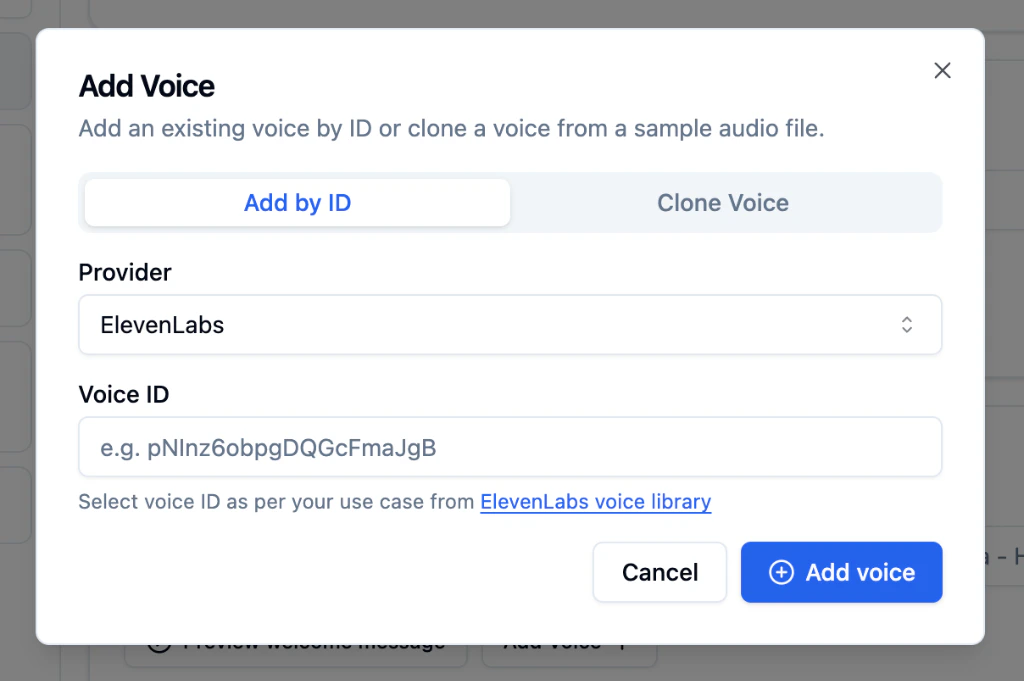 Make sure the **Add by ID** tab is selected in the dialog.
Select **ElevenLabs** or **Cartesia**.
Paste the voice ID from your provider. For ElevenLabs, find IDs in the [ElevenLabs voice library](https://elevenlabs.io/voice-library).
The voice will appear in the Voice dropdown for all your agents.
### Clone a Voice
Create a new voice by uploading an audio recording. Useful for maintaining a consistent brand voice or using a specific person's voice (with their permission).
Make sure the **Add by ID** tab is selected in the dialog.
Select **ElevenLabs** or **Cartesia**.
Paste the voice ID from your provider. For ElevenLabs, find IDs in the [ElevenLabs voice library](https://elevenlabs.io/voice-library).
The voice will appear in the Voice dropdown for all your agents.
### Clone a Voice
Create a new voice by uploading an audio recording. Useful for maintaining a consistent brand voice or using a specific person's voice (with their permission).
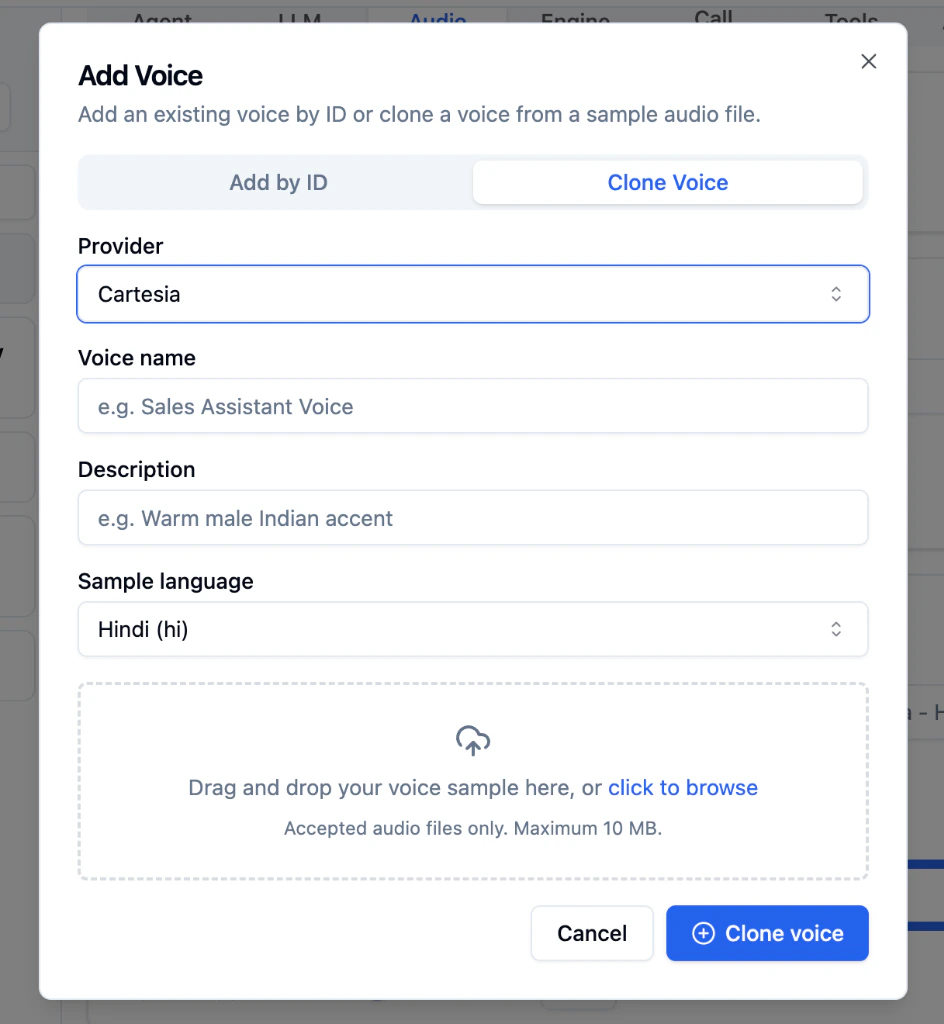 Switch to the **Clone Voice** tab in the dialog.
Select **ElevenLabs** or **Cartesia**.
Add a **Voice name** (e.g., "Sales Assistant Voice") and **Description** (e.g., "Warm male Indian accent").
Choose the language of your audio sample.
Drag and drop your audio file or click **click to browse**. Audio files only, maximum 10 MB.
The platform processes your sample and adds the new voice to the Voice dropdown.
### Supported Languages for Voice Cloning
Both ElevenLabs and Cartesia support the same set of languages for cloning:
| Language | Code | Language | Code |
| ------------------- | ---- | ---------- | ---- |
| English | `en` | Hindi | `hi` |
| Bengali | `bn` | Assamese | `as` |
| Dutch | `nl` | French | `fr` |
| Gujarati | `gu` | Indonesian | `id` |
| Kannada | `kn` | Malay | `ms` |
| Malayalam | `ml` | Marathi | `mr` |
| Odia | `od` | Punjabi | `pa` |
| Spanish | `es` | Tamil | `ta` |
| Telugu | `te` | Urdu | `ur` |
| Indian Multilingual | - | | |
For best results, use a clean recording with no background noise, a single speaker, and at least 30 seconds of continuous speech.
***
## Next Steps
Configure interruption handling, endpointing, and latency
Set up agents that speak multiple languages in a single call
Create a custom voice from an audio sample
Explore Deepgram transcription models and keyword boosting
Switch to the **Clone Voice** tab in the dialog.
Select **ElevenLabs** or **Cartesia**.
Add a **Voice name** (e.g., "Sales Assistant Voice") and **Description** (e.g., "Warm male Indian accent").
Choose the language of your audio sample.
Drag and drop your audio file or click **click to browse**. Audio files only, maximum 10 MB.
The platform processes your sample and adds the new voice to the Voice dropdown.
### Supported Languages for Voice Cloning
Both ElevenLabs and Cartesia support the same set of languages for cloning:
| Language | Code | Language | Code |
| ------------------- | ---- | ---------- | ---- |
| English | `en` | Hindi | `hi` |
| Bengali | `bn` | Assamese | `as` |
| Dutch | `nl` | French | `fr` |
| Gujarati | `gu` | Indonesian | `id` |
| Kannada | `kn` | Malay | `ms` |
| Malayalam | `ml` | Marathi | `mr` |
| Odia | `od` | Punjabi | `pa` |
| Spanish | `es` | Tamil | `ta` |
| Telugu | `te` | Urdu | `ur` |
| Indian Multilingual | - | | |
For best results, use a clean recording with no background noise, a single speaker, and at least 30 seconds of continuous speech.
***
## Next Steps
Configure interruption handling, endpointing, and latency
Set up agents that speak multiple languages in a single call
Create a custom voice from an audio sample
Explore Deepgram transcription models and keyword boosting