> ## Documentation Index
> Fetch the complete documentation index at: https://www.bolna.ai/docs/llms.txt
> Use this file to discover all available pages before exploring further.
# Configure Telephony, Noise, and Call Timing for Voice AI
> Set up telephony providers like Plivo and Twilio, enable noise cancellation, voicemail detection, DTMF keypad input, ambient noise, and outbound call timing restrictions in the Bolna Call Tab.
## What is the Call Tab?
The Call Tab is where you configure how your agent handles phone calls. Set up your telephony provider, enable call features like noise cancellation and voicemail detection, and manage call timing and hangup behavior.
 ***
## Configuration Options
### Telephony Provider & Call Features
Configure your telephony provider and toggle powerful call capabilities.
***
## Configuration Options
### Telephony Provider & Call Features
Configure your telephony provider and toggle powerful call capabilities.
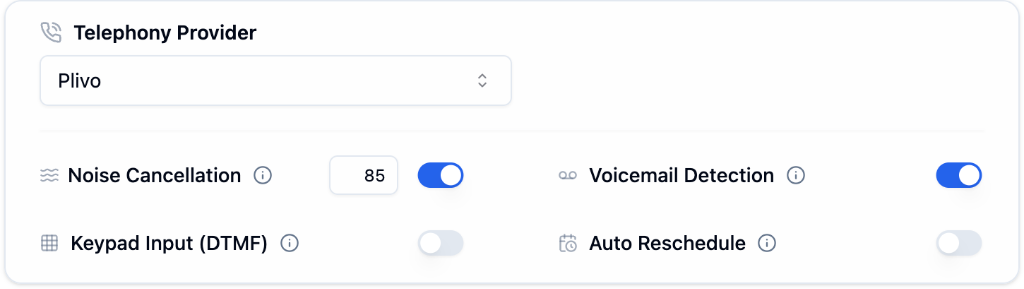 Filter background noise for clearer calls (adjustable intensity)
Detect voicemail systems to avoid awkward messages
Accept touch-tone input for IVR-style menus
Automatically retry failed calls later
Connect your own telephony provider in [Providers](/docs/getting-started/providers) for more control and cost savings.
***
### Ambient Noise
Add background ambient noise to your calls for a more natural, human-like experience. Ambient noise is available for **Plivo** and **Vobiz** telephony providers.
Filter background noise for clearer calls (adjustable intensity)
Detect voicemail systems to avoid awkward messages
Accept touch-tone input for IVR-style menus
Automatically retry failed calls later
Connect your own telephony provider in [Providers](/docs/getting-started/providers) for more control and cost savings.
***
### Ambient Noise
Add background ambient noise to your calls for a more natural, human-like experience. Ambient noise is available for **Plivo** and **Vobiz** telephony providers.
 Bolna supports both **preset** and **custom** ambient noise tracks. Select a preset or upload your own custom track to use as background noise during calls.
#### Preset Tracks
Three preset tracks are available to all users out of the box:
| Track | Description |
| ------------------- | ---------------------------------------------- |
| **Coffee Shop** | Background sounds of a coffee shop environment |
| **Office Ambience** | Subtle office background noise |
| **Call Center** | Call center ambient sounds |
Set ambient noise to **None** to disable it (default).
#### Custom Tracks
You can upload your own custom ambient noise tracks for a personalized experience:
* **Supported formats**: `wav`, `mp3`
* **Maximum file size**: 10 MB
* You can upload, list, and delete your custom tracks from the dashboard or via the API
* Custom tracks are private to your account, while presets are available to everyone
Ambient noise is only supported with **Plivo** and **Vobiz** telephony providers.
***
### Final Call Message
Configure the last message your agent says before disconnecting.
Bolna supports both **preset** and **custom** ambient noise tracks. Select a preset or upload your own custom track to use as background noise during calls.
#### Preset Tracks
Three preset tracks are available to all users out of the box:
| Track | Description |
| ------------------- | ---------------------------------------------- |
| **Coffee Shop** | Background sounds of a coffee shop environment |
| **Office Ambience** | Subtle office background noise |
| **Call Center** | Call center ambient sounds |
Set ambient noise to **None** to disable it (default).
#### Custom Tracks
You can upload your own custom ambient noise tracks for a personalized experience:
* **Supported formats**: `wav`, `mp3`
* **Maximum file size**: 10 MB
* You can upload, list, and delete your custom tracks from the dashboard or via the API
* Custom tracks are private to your account, while presets are available to everyone
Ambient noise is only supported with **Plivo** and **Vobiz** telephony providers.
***
### Final Call Message
Configure the last message your agent says before disconnecting.
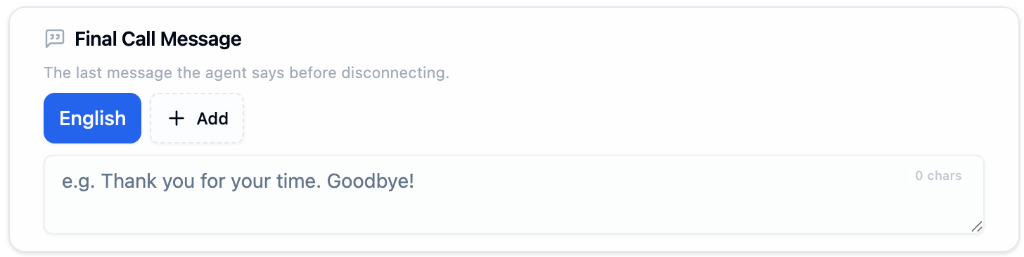 Choose the language for your final message (supports multi-language).
Enter a warm, professional closing (e.g., "Thank you for your time. Goodbye!")
Click **+ Add** to include final messages in other languages.
A warm, professional final message leaves a positive lasting impression on callers.
***
### Call Management
Configure how and when calls should end.
Choose the language for your final message (supports multi-language).
Enter a warm, professional closing (e.g., "Thank you for your time. Goodbye!")
Click **+ Add** to include final messages in other languages.
A warm, professional final message leaves a positive lasting impression on callers.
***
### Call Management
Configure how and when calls should end.
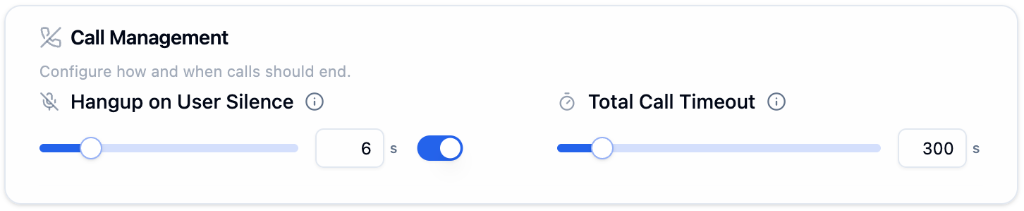 | Setting | Description | Recommended |
| -------------------------- | -------------------------------------- | ------------------------------------------ |
| **Hangup on User Silence** | Auto-hangup after X seconds of silence | 6-10 seconds |
| **Total Call Timeout** | Maximum call duration in seconds | 300s (5 min) for support, higher for sales |
**Set reasonable timeouts** to manage costs and prevent stuck calls. Very long calls can indicate issues or abandoned calls.
***
### Outbound Call Timing Restrictions
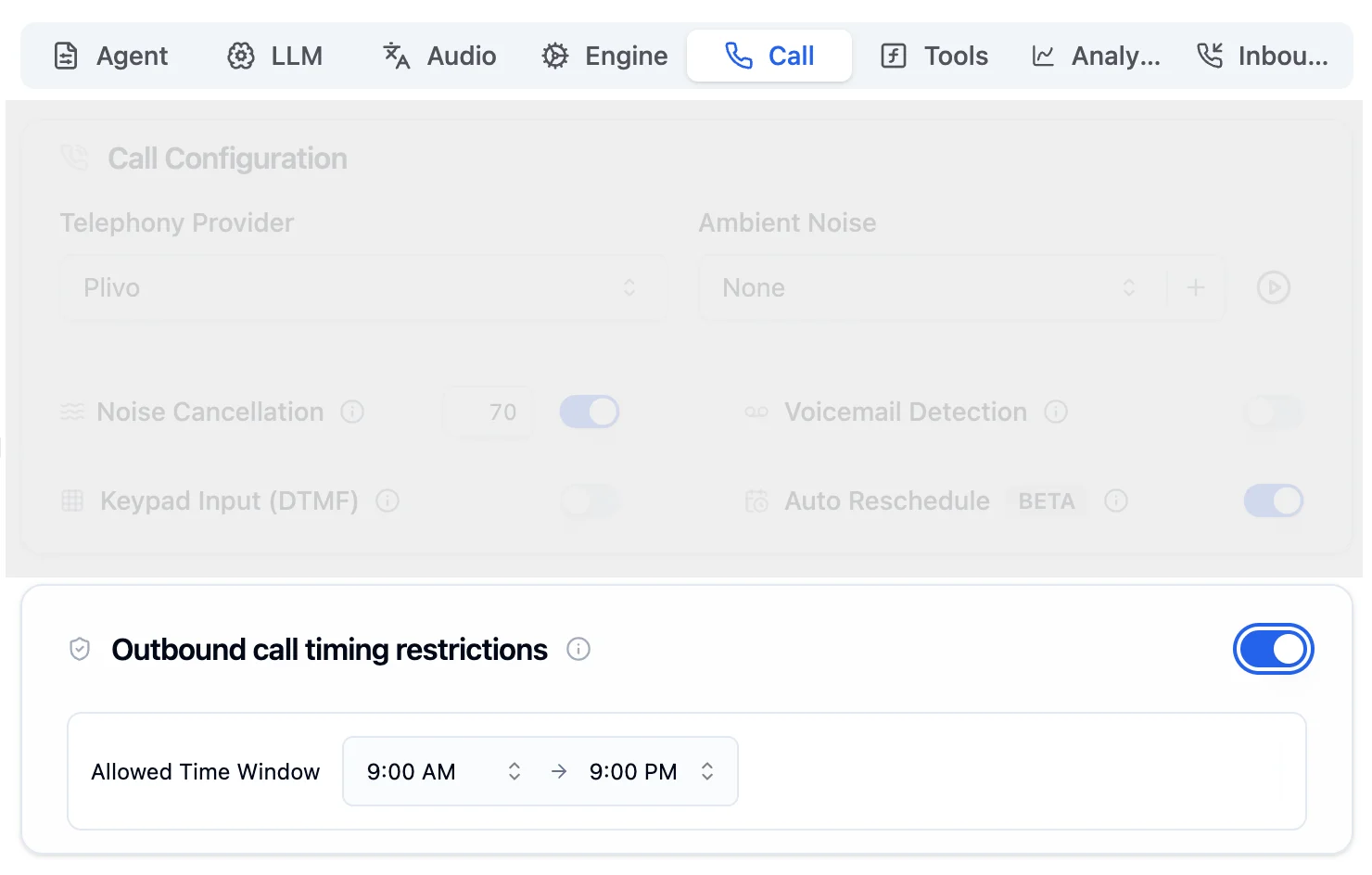
Restrict outbound calls to a specific time window. This is **off by default**. Toggle it on to set an allowed calling window.
| Setting | Description | Recommended |
| -------------------------- | -------------------------------------- | ------------------------------------------ |
| **Hangup on User Silence** | Auto-hangup after X seconds of silence | 6-10 seconds |
| **Total Call Timeout** | Maximum call duration in seconds | 300s (5 min) for support, higher for sales |
**Set reasonable timeouts** to manage costs and prevent stuck calls. Very long calls can indicate issues or abandoned calls.
***
### Outbound Call Timing Restrictions
Restrict outbound calls to a specific time window. This is **off by default**. Toggle it on to set an allowed calling window.
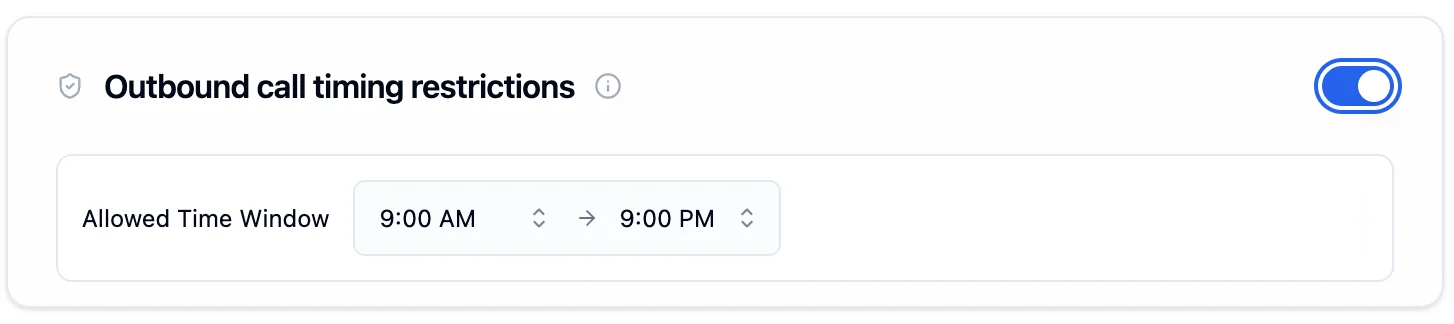 | Field | Description |
| ----------------------- | -------------------------------------------------------------------------------------------------------------------------------------- |
| **Allowed Time Window** | Set a start and end time (e.g., 9:00 AM to 9:00 PM). Calls outside this window are automatically rescheduled to the next allowed time. |
The time window is validated against the **recipient's local timezone**, detected automatically from their phone number. For example, a 9 AM start means 9 AM in the recipient's timezone, not yours.
Many regions have laws restricting when you can make outbound calls. Enable timing restrictions to stay compliant with local regulations.
You can also configure call timing restrictions via the API and bypass them for urgent calls. See the full [Calling Guardrails](/docs/guides/outbound/calling-guardrails) guide for details.
***
## Next Steps
Set allowed hours, bypass rules, and compliance
Configure latency and interruptions
Add function tools and APIs
Connect Twilio, Plivo, or Exotel
| Field | Description |
| ----------------------- | -------------------------------------------------------------------------------------------------------------------------------------- |
| **Allowed Time Window** | Set a start and end time (e.g., 9:00 AM to 9:00 PM). Calls outside this window are automatically rescheduled to the next allowed time. |
The time window is validated against the **recipient's local timezone**, detected automatically from their phone number. For example, a 9 AM start means 9 AM in the recipient's timezone, not yours.
Many regions have laws restricting when you can make outbound calls. Enable timing restrictions to stay compliant with local regulations.
You can also configure call timing restrictions via the API and bypass them for urgent calls. See the full [Calling Guardrails](/docs/guides/outbound/calling-guardrails) guide for details.
***
## Next Steps
Set allowed hours, bypass rules, and compliance
Configure latency and interruptions
Add function tools and APIs
Connect Twilio, Plivo, or Exotel