> ## Documentation Index
> Fetch the complete documentation index at: https://www.bolna.ai/docs/llms.txt
> Use this file to discover all available pages before exploring further.
# Configure Voice AI Latency and Interruptions
> Fine-tune your Bolna Voice AI agent's performance. Configure transcription accuracy, interruption thresholds, response latency, and user detection.
## What is the Engine Tab?
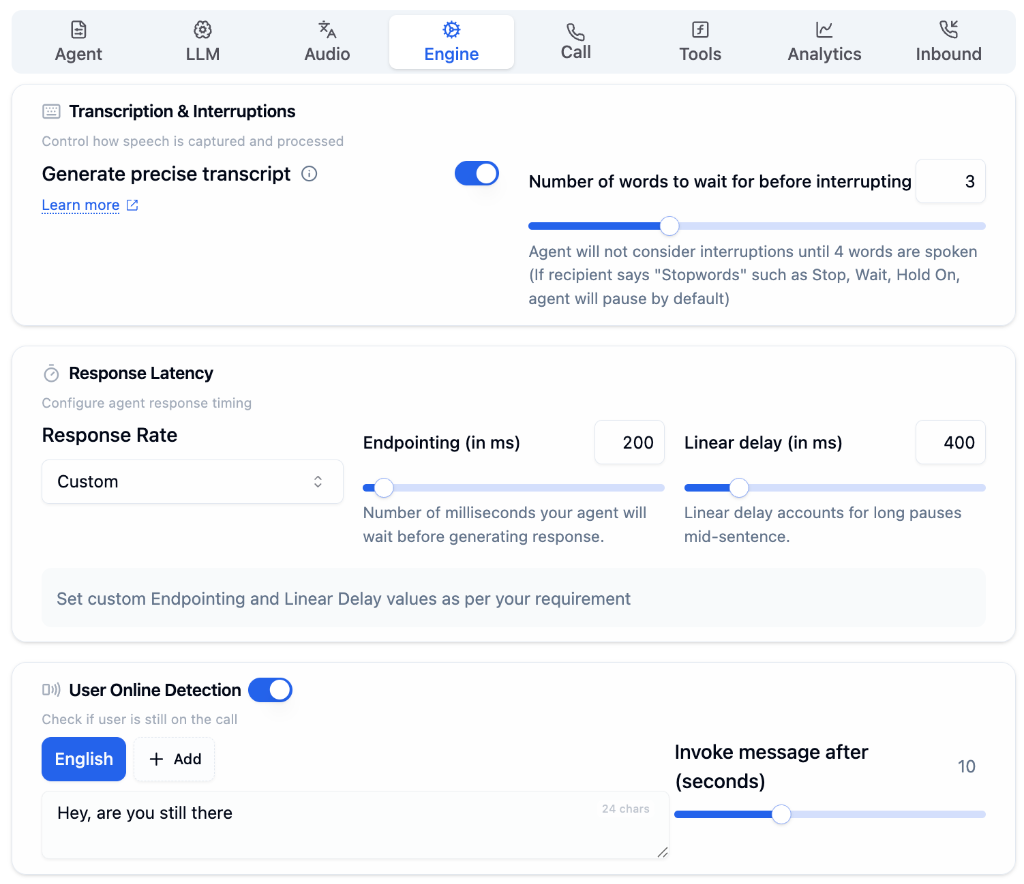
The Engine Tab controls the core performance settings of your voice AI agent. Fine-tune transcription accuracy, interruption behavior, response timing, and user presence detection for optimal conversation quality.
 ***
## Configuration Options
### Transcription & Interruptions
Control how speech is captured and processed during conversations.
***
## Configuration Options
### Transcription & Interruptions
Control how speech is captured and processed during conversations.
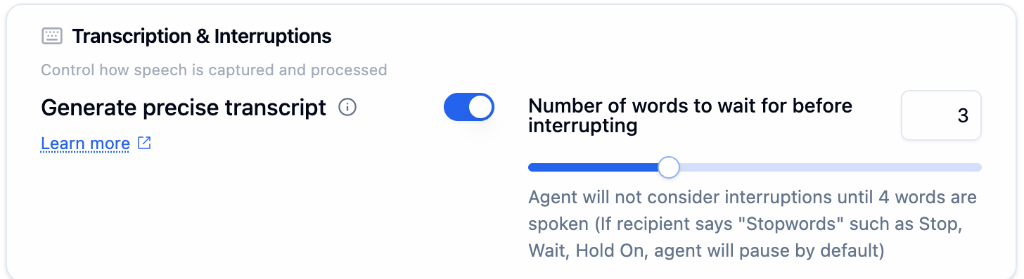 Enable for higher accuracy transcription. Essential for compliance and call analytics.
Number of words to wait before considering user input as an interruption.
**Stopwords like "Stop", "Wait", "Hold On"** will always pause the agent immediately, regardless of the interruption threshold.
***
### Response Latency
Configure how quickly your agent responds to user input.
Enable for higher accuracy transcription. Essential for compliance and call analytics.
Number of words to wait before considering user input as an interruption.
**Stopwords like "Stop", "Wait", "Hold On"** will always pause the agent immediately, regardless of the interruption threshold.
***
### Response Latency
Configure how quickly your agent responds to user input.
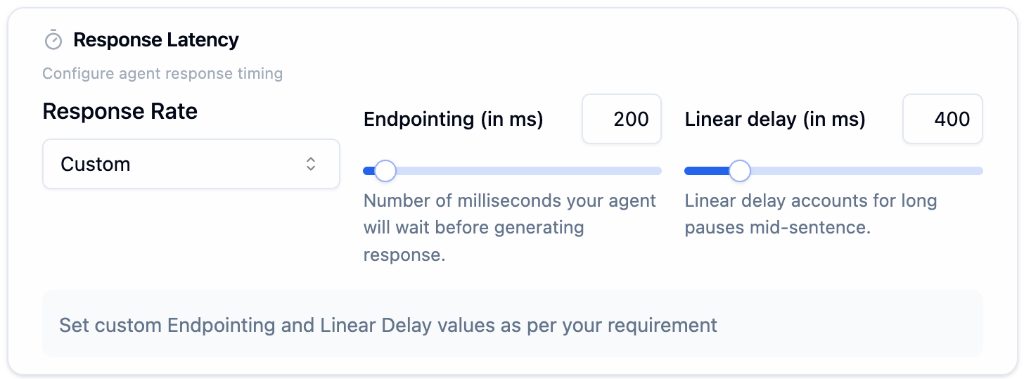 | Setting | Description | Impact |
| --------------------- | ------------------------------------ | ----------------------------------- |
| **Response Rate** | Choose preset or Custom | Balanced, Fast, or Custom timing |
| **Endpointing (ms)** | Wait time before generating response | Lower = faster but may cut off user |
| **Linear Delay (ms)** | Accounts for mid-sentence pauses | Prevents premature responses |
**Lower latency isn't always better!** Setting values too low may cause the agent to interrupt users mid-sentence. Start with defaults and adjust based on testing.
For **natural conversations**, use Endpointing around 200-300ms and Linear Delay around 400-500ms.
***
### User Online Detection
Detect when users go silent and automatically re-engage them.
| Setting | Description | Impact |
| --------------------- | ------------------------------------ | ----------------------------------- |
| **Response Rate** | Choose preset or Custom | Balanced, Fast, or Custom timing |
| **Endpointing (ms)** | Wait time before generating response | Lower = faster but may cut off user |
| **Linear Delay (ms)** | Accounts for mid-sentence pauses | Prevents premature responses |
**Lower latency isn't always better!** Setting values too low may cause the agent to interrupt users mid-sentence. Start with defaults and adjust based on testing.
For **natural conversations**, use Endpointing around 200-300ms and Linear Delay around 400-500ms.
***
### User Online Detection
Detect when users go silent and automatically re-engage them.
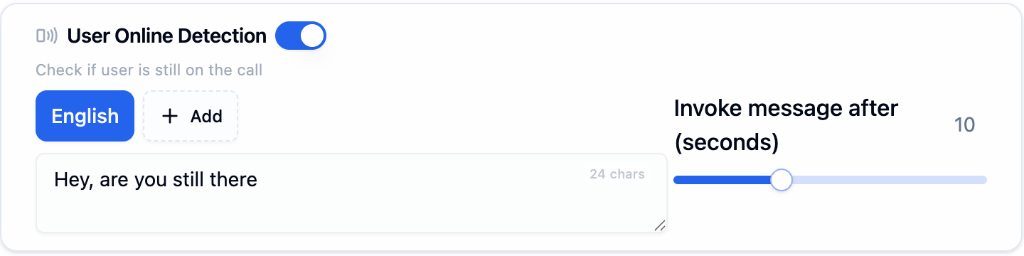 Toggle **User Online Detection** to check if the user is still on the call.
Customize the prompt (e.g., "Hey, are you still there?") with multi-language support.
Set **Invoke message after (seconds)** to control when the check triggers.
Set the timer between **8-15 seconds** to give users enough time to respond without seeming impatient.
***
## Best Practices
Use default settings initially and adjust based on real call feedback
Make test calls to experience the timing and interruption handling
Customer support may need longer pauses; sales may prefer faster responses
Review call recordings to identify timing issues
***
## Next Steps
Configure telephony and call features
Set up voice and transcription providers
Configure language model settings
Review call logs and recordings
Toggle **User Online Detection** to check if the user is still on the call.
Customize the prompt (e.g., "Hey, are you still there?") with multi-language support.
Set **Invoke message after (seconds)** to control when the check triggers.
Set the timer between **8-15 seconds** to give users enough time to respond without seeming impatient.
***
## Best Practices
Use default settings initially and adjust based on real call feedback
Make test calls to experience the timing and interruption handling
Customer support may need longer pauses; sales may prefer faster responses
Review call recordings to identify timing issues
***
## Next Steps
Configure telephony and call features
Set up voice and transcription providers
Configure language model settings
Review call logs and recordings