> ## Documentation Index
> Fetch the complete documentation index at: https://www.bolna.ai/docs/llms.txt
> Use this file to discover all available pages before exploring further.
# Choose and Configure LLM Models for Voice AI
> Select and configure the language model for your Bolna Voice AI agent. Choose from OpenAI, Azure, Anthropic, and connect knowledge bases.
## What is the LLM Tab?
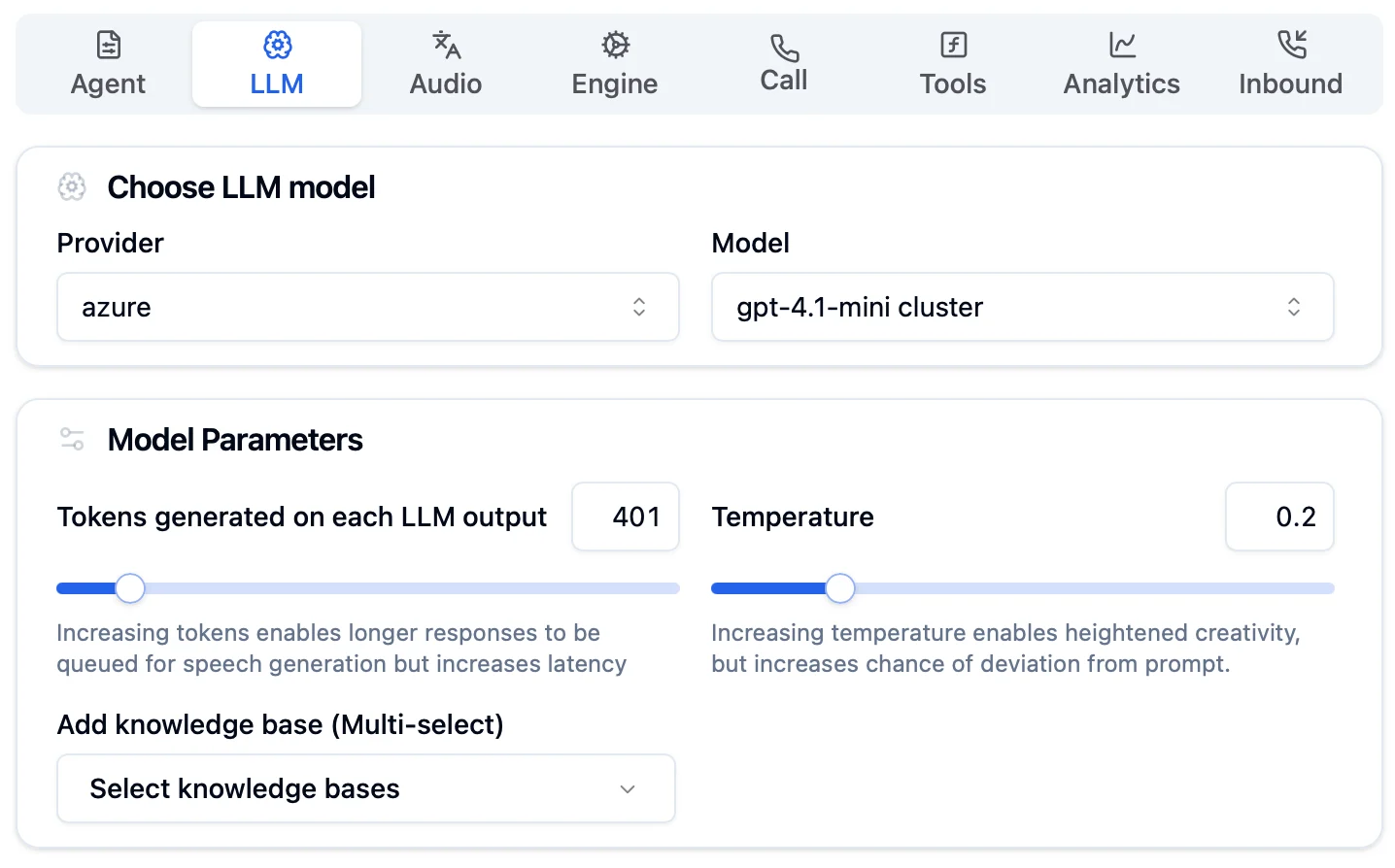
The LLM Tab is where you select and configure the intelligence behind your voice AI agent. Choose your language model provider, adjust response parameters, and connect knowledge bases for enhanced conversations.
 ***
## Configuration Options
### Choose LLM Model
Select your AI provider and model for conversation intelligence.
***
## Configuration Options
### Choose LLM Model
Select your AI provider and model for conversation intelligence.
 Choose from Azure, OpenAI, Anthropic, Groq, and more
Pick the specific model (e.g., `gpt-4.1-mini cluster`)
Connect your own provider keys in [Providers](/docs/getting-started/providers) to reduce costs and access more models.
***
### Model Parameters
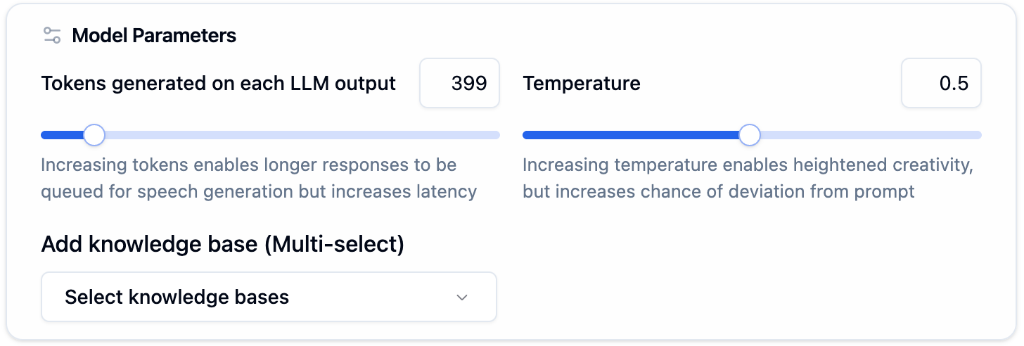
Fine-tune how your agent generates responses.
Choose from Azure, OpenAI, Anthropic, Groq, and more
Pick the specific model (e.g., `gpt-4.1-mini cluster`)
Connect your own provider keys in [Providers](/docs/getting-started/providers) to reduce costs and access more models.
***
### Model Parameters
Fine-tune how your agent generates responses.
 | Parameter | Description | Recommended |
| -------------------- | ------------------------------ | ------------------------------ |
| **Tokens Generated** | Max tokens per LLM output | 300-500 for concise responses |
| **Temperature** | Controls creativity/randomness | 0.3-0.5 for balanced responses |
**Keep temperature low** (0.3-0.5) if you want consistent, controlled responses. Higher temperature increases creativity but may cause deviation from your prompt instructions.
***
### Add Knowledge Base
Connect your knowledge bases to give your agent accurate, contextual information.
| Parameter | Description | Recommended |
| -------------------- | ------------------------------ | ------------------------------ |
| **Tokens Generated** | Max tokens per LLM output | 300-500 for concise responses |
| **Temperature** | Controls creativity/randomness | 0.3-0.5 for balanced responses |
**Keep temperature low** (0.3-0.5) if you want consistent, controlled responses. Higher temperature increases creativity but may cause deviation from your prompt instructions.
***
### Add Knowledge Base
Connect your knowledge bases to give your agent accurate, contextual information.
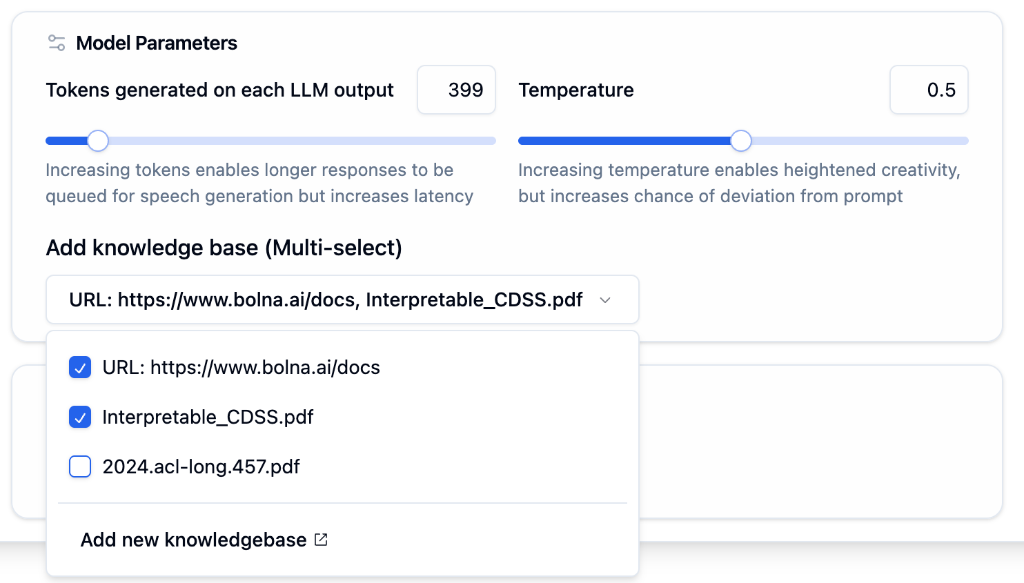 Open the **"Select knowledge bases"** multi-select dropdown.
Check one or more knowledge bases (PDFs, URLs) to connect.
Click **"Add new knowledgebase"** to create and upload new content.
Knowledge bases enable your agent to answer questions with accurate, up-to-date information from your documents and URLs. Connect multiple knowledge bases for comprehensive coverage.
Create knowledge bases in the [Knowledge Base](/docs/getting-started/knowledge-base) section by uploading PDFs or adding URLs.
***
## Next Steps
Create and manage knowledge bases
Configure prompts and welcome message
Set up voice, transcription, and languages
Connect your own LLM provider
Open the **"Select knowledge bases"** multi-select dropdown.
Check one or more knowledge bases (PDFs, URLs) to connect.
Click **"Add new knowledgebase"** to create and upload new content.
Knowledge bases enable your agent to answer questions with accurate, up-to-date information from your documents and URLs. Connect multiple knowledge bases for comprehensive coverage.
Create knowledge bases in the [Knowledge Base](/docs/getting-started/knowledge-base) section by uploading PDFs or adding URLs.
***
## Next Steps
Create and manage knowledge bases
Configure prompts and welcome message
Set up voice, transcription, and languages
Connect your own LLM provider