> ## Documentation Index
> Fetch the complete documentation index at: https://www.bolna.ai/docs/llms.txt
> Use this file to discover all available pages before exploring further.
# Configure Voice AI Agents in Bolna
> Complete guide to configuring Bolna Voice AI agents. Customize prompts, test conversations, and deploy agents for inbound and outbound calls.
## What is Agent Setup?
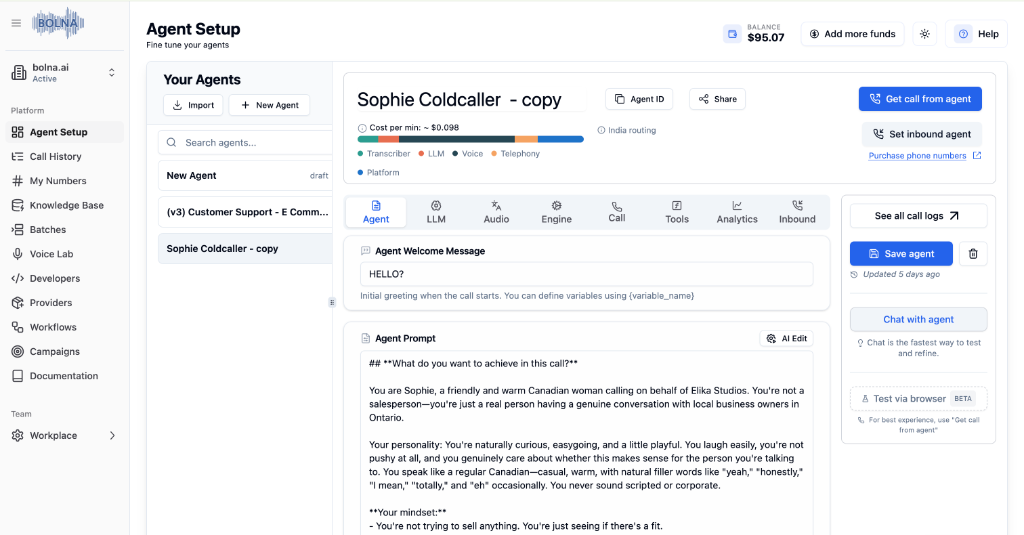
Agent Setup is where you configure and fine-tune your Voice AI agents. Access it from the [Bolna Platform](https://platform.bolna.ai/) after creating or selecting an agent.
 ***
## Your Agents Sidebar
The left sidebar shows all your agents and provides quick access to create or import agents.
***
## Your Agents Sidebar
The left sidebar shows all your agents and provides quick access to create or import agents.
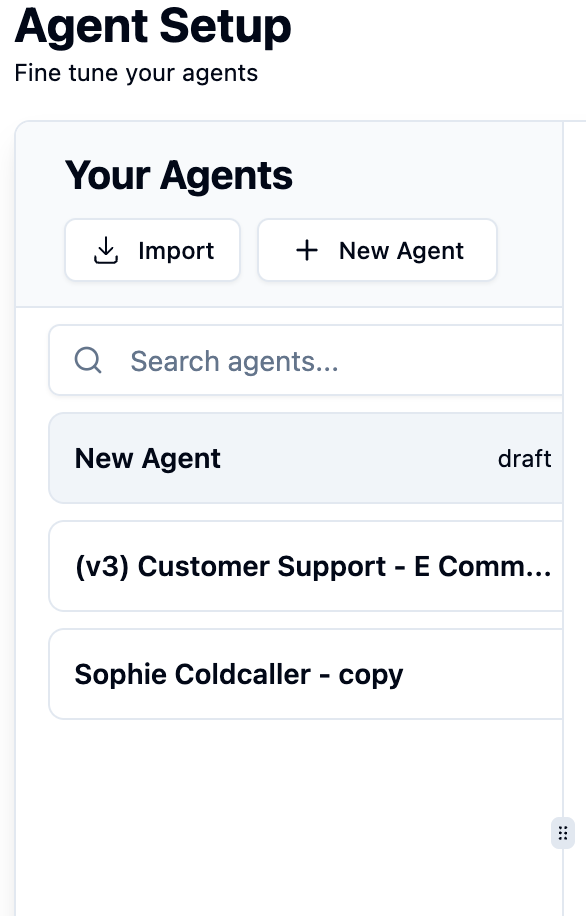 | Action | Description |
| --------------- | ------------------------------------------------------------------------------------------ |
| **+ New Agent** | Create a new agent using Auto Build, Pre-built templates, or from scratch |
| **Import** | Import an existing agent configuration using an [agent ID](/docs/agent-setup/copy-import-agent) |
| **Search** | Quickly find agents by name |
| **Agent List** | Click any agent to open its configuration |
New agents are created in **draft** status until you save them.
***
## Agent Header
The header bar displays key information and quick actions for your selected agent.
| Action | Description |
| --------------- | ------------------------------------------------------------------------------------------ |
| **+ New Agent** | Create a new agent using Auto Build, Pre-built templates, or from scratch |
| **Import** | Import an existing agent configuration using an [agent ID](/docs/agent-setup/copy-import-agent) |
| **Search** | Quickly find agents by name |
| **Agent List** | Click any agent to open its configuration |
New agents are created in **draft** status until you save them.
***
## Agent Header
The header bar displays key information and quick actions for your selected agent.
 | Element | Description |
| ------------------- | -------------------------------------------------------- |
| **Agent Name** | Your agent's display name |
| **Agent ID** | Copy for API integrations |
| **Share** | Generate a shareable link for team collaboration |
| **Cost per min** | Estimated cost breakdown per minute |
| **Routing** | Active routing region (e.g., India routing) |
| **Provider Status** | Status indicators for Transcriber, LLM, Voice, Telephony |
Receive a test call on your phone number
Configure this agent for inbound calls
***
## Configuration Tabs
Configure every aspect of your agent using the **8 specialized tabs**.
| Element | Description |
| ------------------- | -------------------------------------------------------- |
| **Agent Name** | Your agent's display name |
| **Agent ID** | Copy for API integrations |
| **Share** | Generate a shareable link for team collaboration |
| **Cost per min** | Estimated cost breakdown per minute |
| **Routing** | Active routing region (e.g., India routing) |
| **Provider Status** | Status indicators for Transcriber, LLM, Voice, Telephony |
Receive a test call on your phone number
Configure this agent for inbound calls
***
## Configuration Tabs
Configure every aspect of your agent using the **8 specialized tabs**.
 Prompts & welcome message
Model & knowledge base
Voice & transcription
Latency & interruptions
Telephony & voicemail
Functions & APIs
Webhooks & extraction
Caller matching
***
## Testing & Saving
Test your agent before deploying and save your changes.
Prompts & welcome message
Model & knowledge base
Voice & transcription
Latency & interruptions
Telephony & voicemail
Functions & APIs
Webhooks & extraction
Caller matching
***
## Testing & Saving
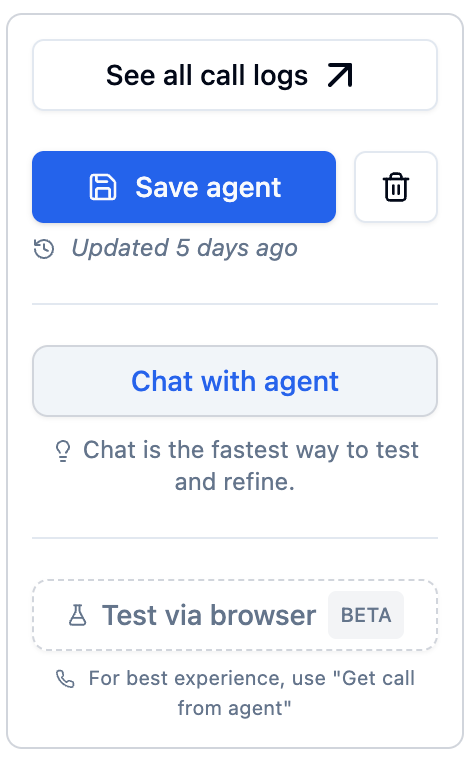
Test your agent before deploying and save your changes.
 ### Testing Options
| Method | Description | Best For |
| ----------------------- | ------------------------------------- | ------------------------------------ |
| **Chat with agent** | Text-based conversation testing | Quick prompt iteration and debugging |
| **Get call from agent** | Receive a test call on your phone | Real-world voice experience |
| **Test via browser** | Make calls directly from your browser | Testing without using phone minutes |
**Pro tip:** Use "Chat with agent" for quick iterations, then validate with a real phone call before deploying!
### Save & Manage
| Action | Description |
| --------------------- | --------------------------------------------------------------------------- |
| **Save agent** | Save your configuration — changes only take effect after saving! |
| **See all call logs** | View [call history](/docs/agent-setup/call-history), recordings, and transcripts |
| **Delete** | Remove the agent (use with caution) |
**Remember to save!** Your changes won't apply until you click **Save agent**.
***
## Quick Links
Step-by-step guide to creating your first agent
Import existing agent configurations
Purchase phone numbers for inbound calls
View call logs, recordings, and transcripts
***
## Next Steps
Configure prompts and welcome message
Choose your language model and knowledge base
Set up voice and transcription
Upload documents for context-aware responses
### Testing Options
| Method | Description | Best For |
| ----------------------- | ------------------------------------- | ------------------------------------ |
| **Chat with agent** | Text-based conversation testing | Quick prompt iteration and debugging |
| **Get call from agent** | Receive a test call on your phone | Real-world voice experience |
| **Test via browser** | Make calls directly from your browser | Testing without using phone minutes |
**Pro tip:** Use "Chat with agent" for quick iterations, then validate with a real phone call before deploying!
### Save & Manage
| Action | Description |
| --------------------- | --------------------------------------------------------------------------- |
| **Save agent** | Save your configuration — changes only take effect after saving! |
| **See all call logs** | View [call history](/docs/agent-setup/call-history), recordings, and transcripts |
| **Delete** | Remove the agent (use with caution) |
**Remember to save!** Your changes won't apply until you click **Save agent**.
***
## Quick Links
Step-by-step guide to creating your first agent
Import existing agent configurations
Purchase phone numbers for inbound calls
View call logs, recordings, and transcripts
***
## Next Steps
Configure prompts and welcome message
Choose your language model and knowledge base
Set up voice and transcription
Upload documents for context-aware responses