> ## Documentation Index
> Fetch the complete documentation index at: https://www.bolna.ai/docs/llms.txt
> Use this file to discover all available pages before exploring further.
# Connect Function Tools and API Integrations
> Add built-in function tools and custom API integrations to your Bolna Voice AI agent. Enable calendar booking, call transfers, and connect any external API endpoint.
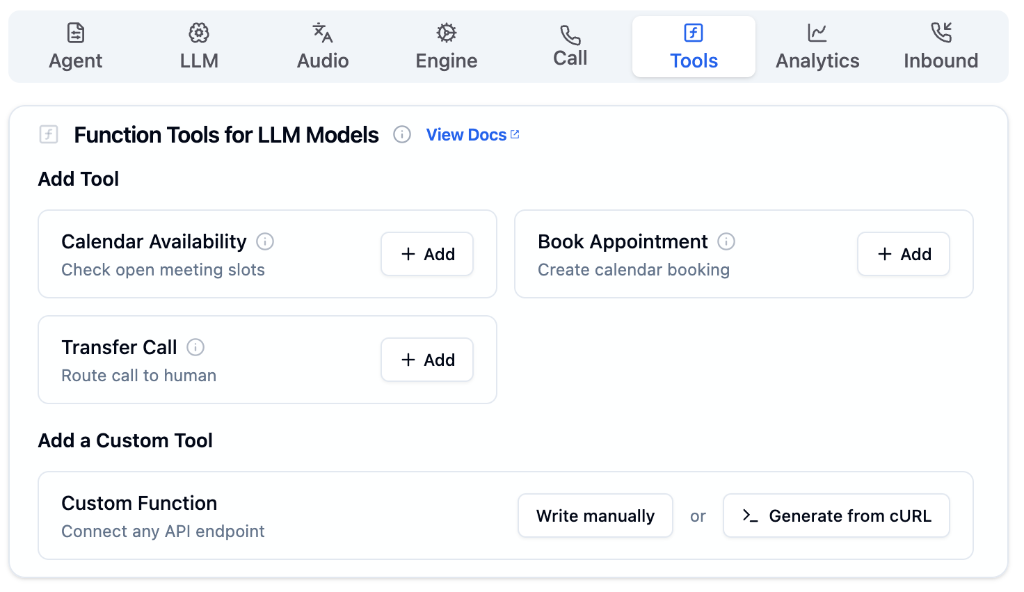
The Tools Tab is where you connect external tools and APIs that your agent's LLM can call during live conversations. This lets your agent take real-time actions like booking appointments, transferring calls, or fetching data from your own backend.
 ***
## Built-in Tools
Bolna provides ready-to-use tools for common voice agent workflows. Click **+ Add** next to any tool to enable it for your agent.
Check open meeting slots from Cal.com in real-time during a call
Create calendar bookings directly via Cal.com during the conversation
Route the call to a human agent or another phone number — with an optional [pre-call webhook](/docs/tool-calling/transfer-calls#pre-call-webhook)
Connect any external API endpoint with a custom function schema
***
## Custom Functions
For integrations beyond the built-in tools, use **Custom Functions** to connect any API endpoint. You can create a custom function in two ways:
***
## Built-in Tools
Bolna provides ready-to-use tools for common voice agent workflows. Click **+ Add** next to any tool to enable it for your agent.
Check open meeting slots from Cal.com in real-time during a call
Create calendar bookings directly via Cal.com during the conversation
Route the call to a human agent or another phone number — with an optional [pre-call webhook](/docs/tool-calling/transfer-calls#pre-call-webhook)
Connect any external API endpoint with a custom function schema
***
## Custom Functions
For integrations beyond the built-in tools, use **Custom Functions** to connect any API endpoint. You can create a custom function in two ways:
 ### Write Manually
Click **Write manually** to open a JSON editor where you define the function schema from scratch. This gives you full control over the function name, description, parameters, and API configuration.
### Write Manually
Click **Write manually** to open a JSON editor where you define the function schema from scratch. This gives you full control over the function name, description, parameters, and API configuration.
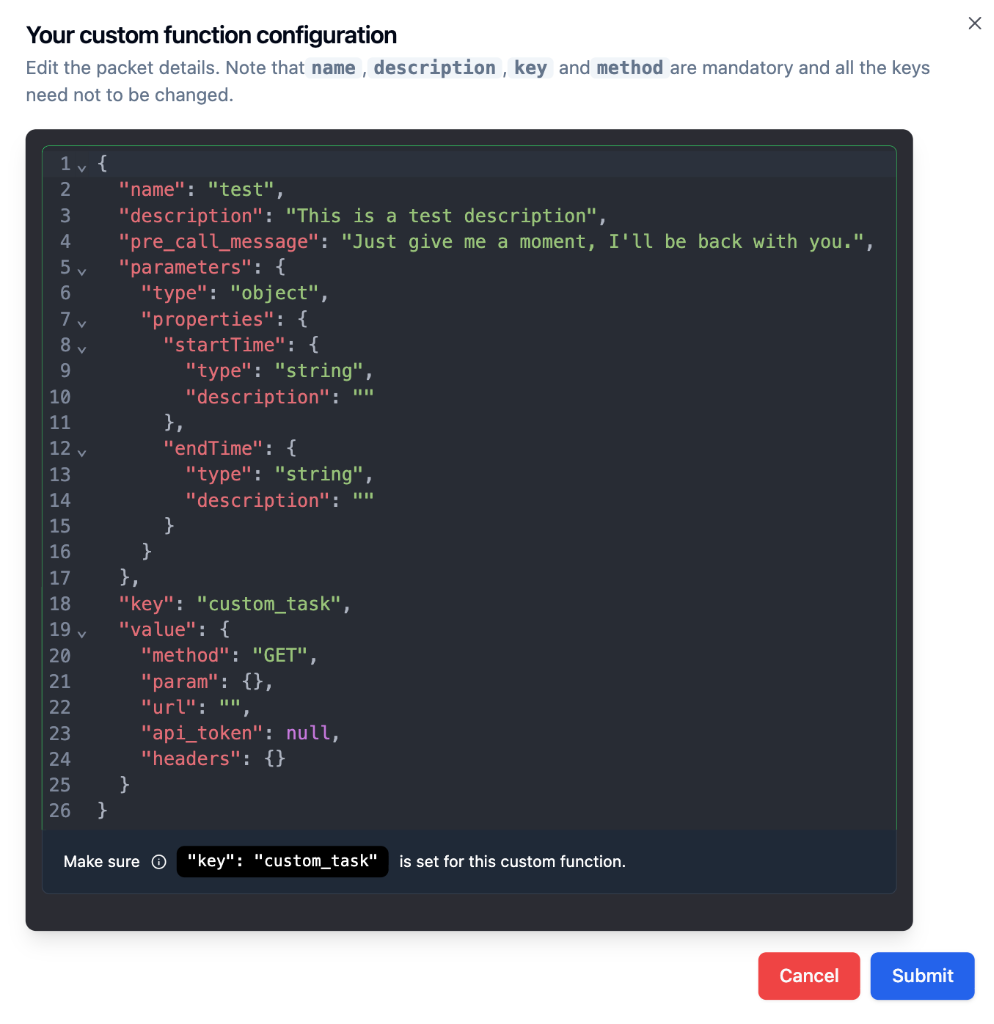 The fields `name`, `description`, `key`, and `method` are mandatory. The `key` must always be set to `"custom_task"`. Do not change this value.
### Generate from cURL
Click **Generate from cURL** to paste an existing cURL command. Bolna will parse the request and auto-generate a function schema that you can review and edit before adding it to your agent.
The fields `name`, `description`, `key`, and `method` are mandatory. The `key` must always be set to `"custom_task"`. Do not change this value.
### Generate from cURL
Click **Generate from cURL** to paste an existing cURL command. Bolna will parse the request and auto-generate a function schema that you can review and edit before adding it to your agent.
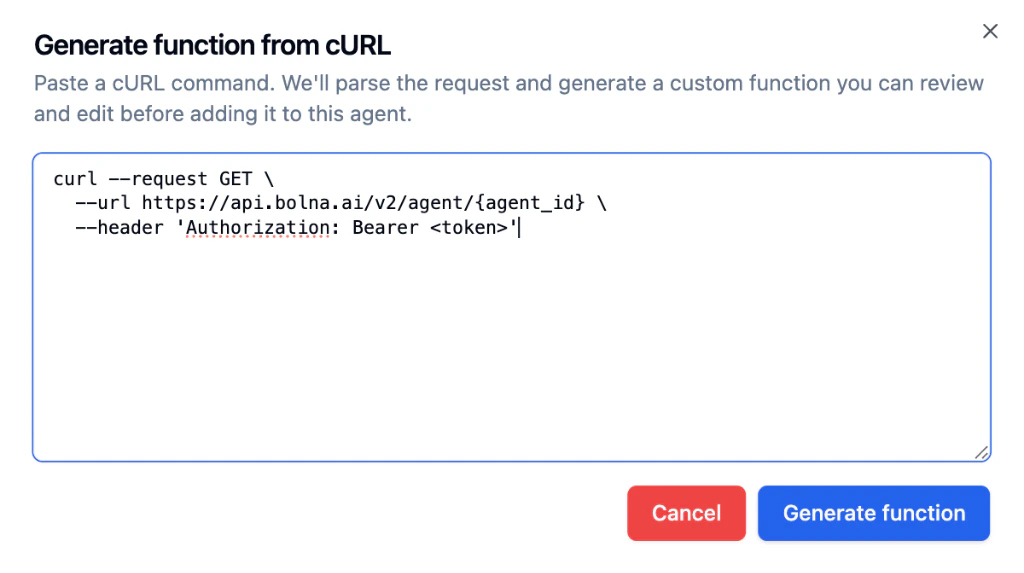 After clicking **Generate function**, Bolna parses the cURL and produces a ready-to-edit function configuration:
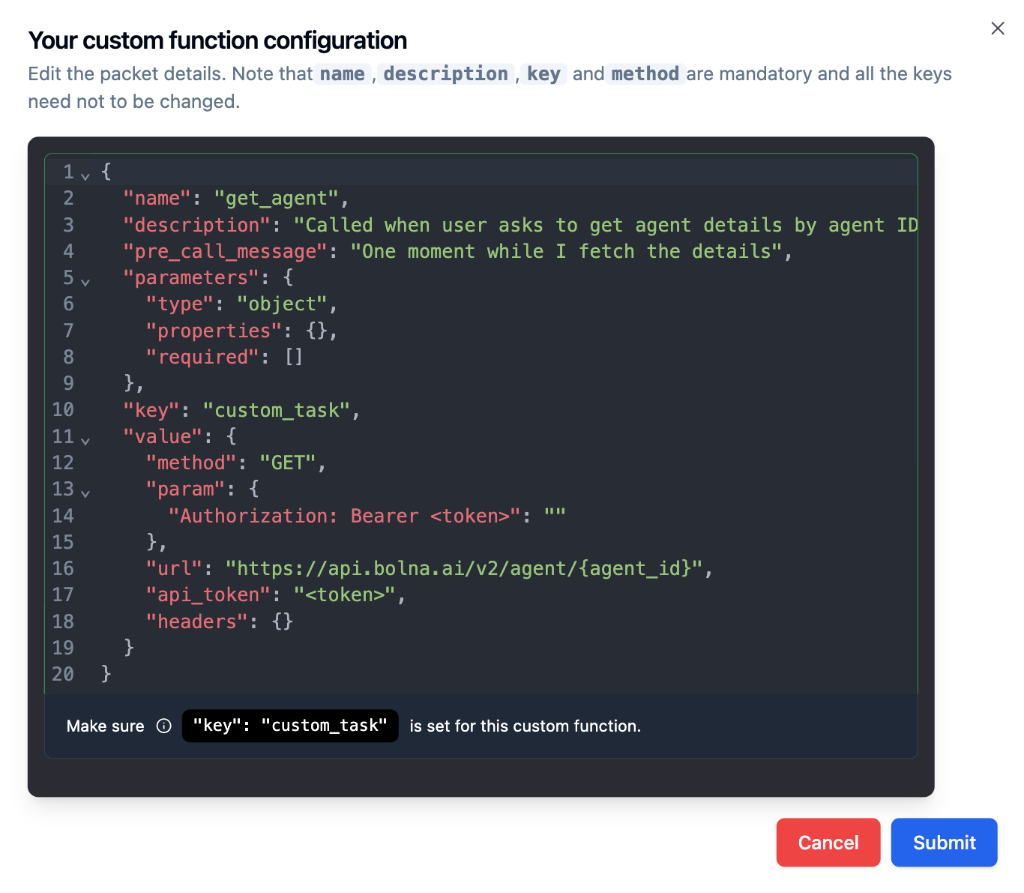 The cURL import is a starting point. Always review the generated function name, description, and parameters before submitting. See the [Custom Functions guide](/docs/tool-calling/custom-function-calls#generate-from-curl) for a detailed walkthrough.
### Pre-call Webhook (optional)
Each custom tool also has two optional inputs to fire a [pre-call webhook](/docs/tool-calling/custom-function-calls#pre-call-webhooks) *before* the tool's main API call runs:
* **Pre-call webhook URL** — the endpoint to notify. If left blank, the agent-level Webhook URL is used.
* **Pre-call webhook parameters** — the JSON body template, with `%(field)s` substitution for the tool's arguments. Leaving this empty disables the pre-call webhook.
Both save with the tool and round-trip on edit.
The built-in [Transfer Call](/docs/tool-calling/transfer-calls#pre-call-webhook) tool supports the same pre-call webhook fields via a **Send a pre-call webhook before transfer** toggle in its configuration modal.
***
## Managing Added Tools
Once you add a tool, it appears as a configurable card in the Tools Tab.
| Action | How to do it |
| ------------- | ------------------------------------------------------------- |
| **Configure** | Click the tool card to edit its parameters and API connection |
| **Delete** | Click the delete icon on the tool card to remove it |
***
## Next Steps
Full schema reference, examples, and best practices
Set up call routing to human agents
Configure webhooks and post-call extractions
Pass dynamic data into your function tools
The cURL import is a starting point. Always review the generated function name, description, and parameters before submitting. See the [Custom Functions guide](/docs/tool-calling/custom-function-calls#generate-from-curl) for a detailed walkthrough.
### Pre-call Webhook (optional)
Each custom tool also has two optional inputs to fire a [pre-call webhook](/docs/tool-calling/custom-function-calls#pre-call-webhooks) *before* the tool's main API call runs:
* **Pre-call webhook URL** — the endpoint to notify. If left blank, the agent-level Webhook URL is used.
* **Pre-call webhook parameters** — the JSON body template, with `%(field)s` substitution for the tool's arguments. Leaving this empty disables the pre-call webhook.
Both save with the tool and round-trip on edit.
The built-in [Transfer Call](/docs/tool-calling/transfer-calls#pre-call-webhook) tool supports the same pre-call webhook fields via a **Send a pre-call webhook before transfer** toggle in its configuration modal.
***
## Managing Added Tools
Once you add a tool, it appears as a configurable card in the Tools Tab.
| Action | How to do it |
| ------------- | ------------------------------------------------------------- |
| **Configure** | Click the tool card to edit its parameters and API connection |
| **Delete** | Click the delete icon on the tool card to remove it |
***
## Next Steps
Full schema reference, examples, and best practices
Set up call routing to human agents
Configure webhooks and post-call extractions
Pass dynamic data into your function tools