> ## Documentation Index
> Fetch the complete documentation index at: https://www.bolna.ai/docs/llms.txt
> Use this file to discover all available pages before exploring further.
# Bolna API Documentation
> Use and leverage Bolna Voice AI using APIs through HTTP requests from any language in your applications and workflows.
## What is the Bolna API?
The Bolna API enables you to programmatically create, configure, and manage Voice AI agents from your own applications. Whether you are building complex workflows, automating customer support, or integrating voice capabilities into your existing products, our REST API provides everything you need.
The API uses predictable, resource-oriented URLs, accepts JSON-encoded request bodies, returns JSON-encoded responses, and uses standard HTTP response codes and authentication.
You must have an active Bolna account to generate and use API keys. If you don't have one, [sign up here](https://platform.bolna.ai).
***
## Authentication
All Bolna API endpoints require authentication using an API key. You must include this key in the `Authorization` header of all your HTTP requests using the `Bearer` scheme.
### How to generate an API Key
Log in to the [Bolna Dashboard](https://platform.bolna.ai). From the left sidebar navigation menu, select the **Developers** tab.
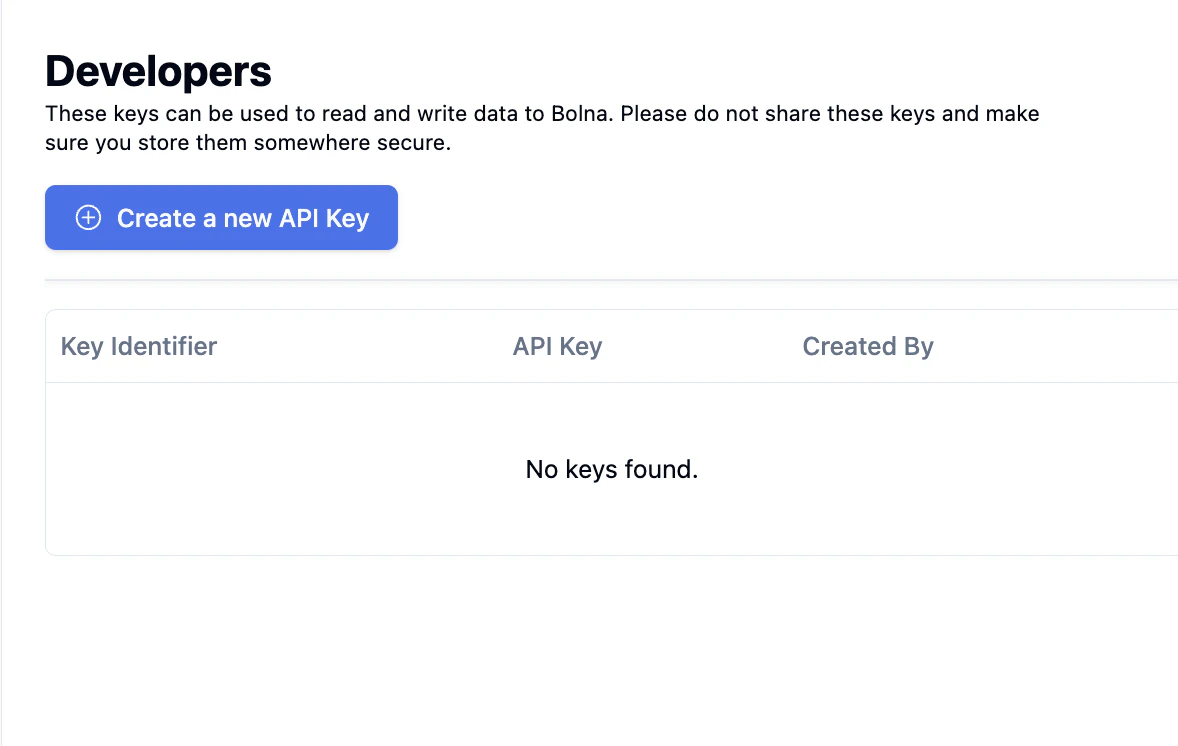
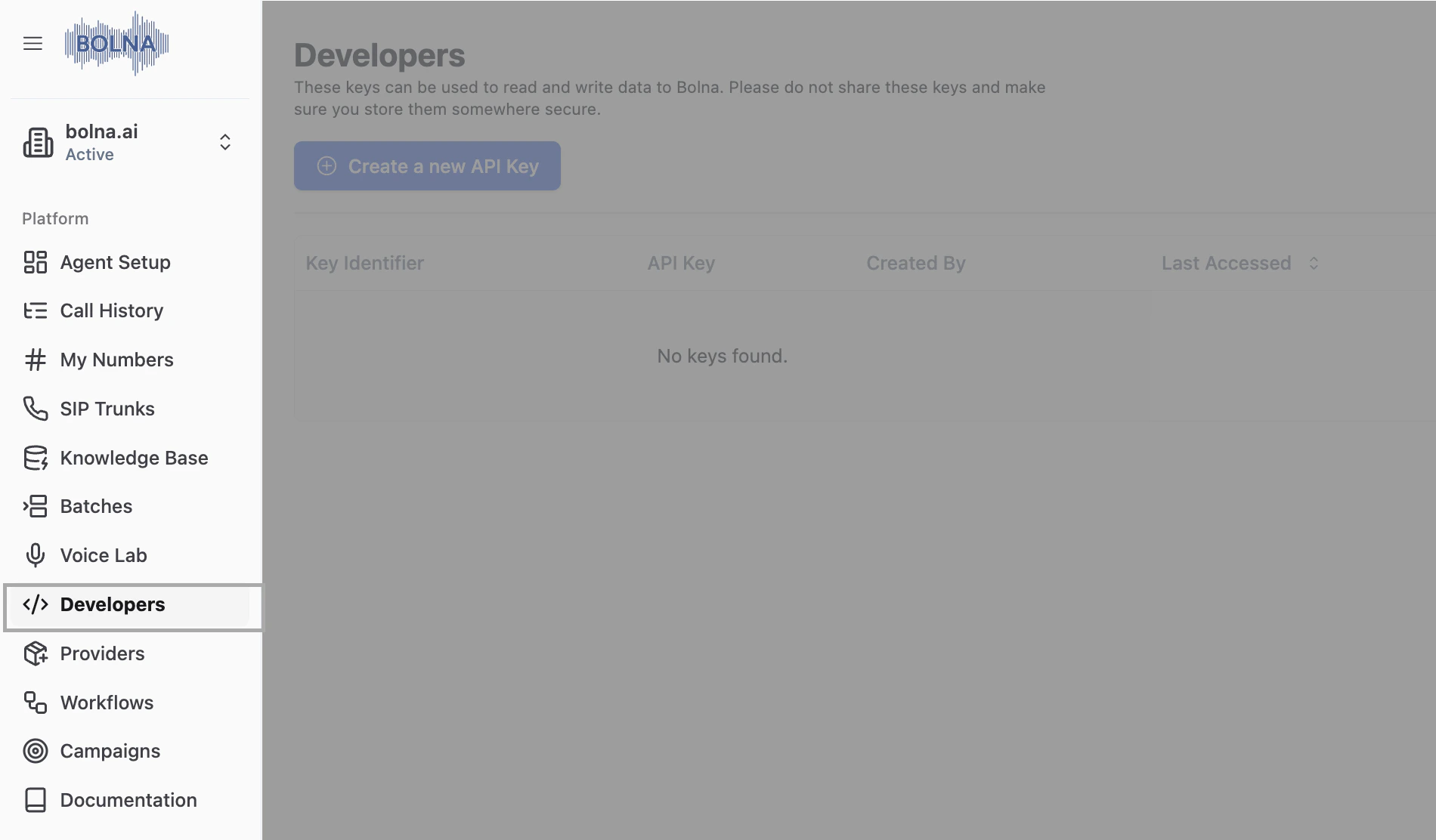 Click the **Create a new API Key** button to generate your unique authentication credentials.
 Your newly generated API key will be displayed in a pop-up modal. **Copy this key and save it securely.**
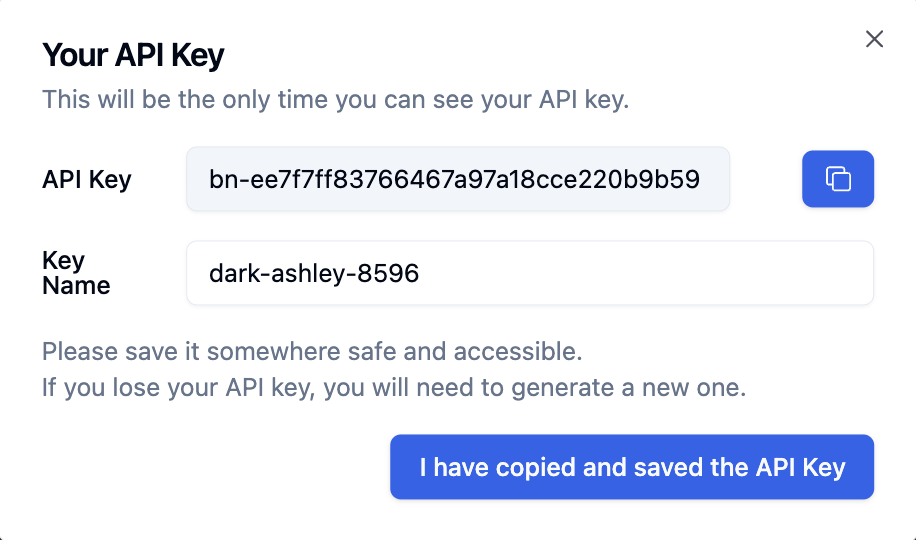 **For your security, the API key will only be shown once.** If you lose your API key, you will need to delete it and generate a new one.
API keys generated for a **Subaccount** will start with `sa-`.
***
**For your security, the API key will only be shown once.** If you lose your API key, you will need to delete it and generate a new one.
API keys generated for a **Subaccount** will start with `sa-`.
***