> ## Documentation Index
> Fetch the complete documentation index at: https://www.bolna.ai/docs/llms.txt
> Use this file to discover all available pages before exploring further.
# Agent Conversations, Metrics & Logs
> Access Voice AI agent conversations, recordings, transcripts, and execution data. Monitor performance metrics, debug with logs, and export data for analysis.
## What is Call History?
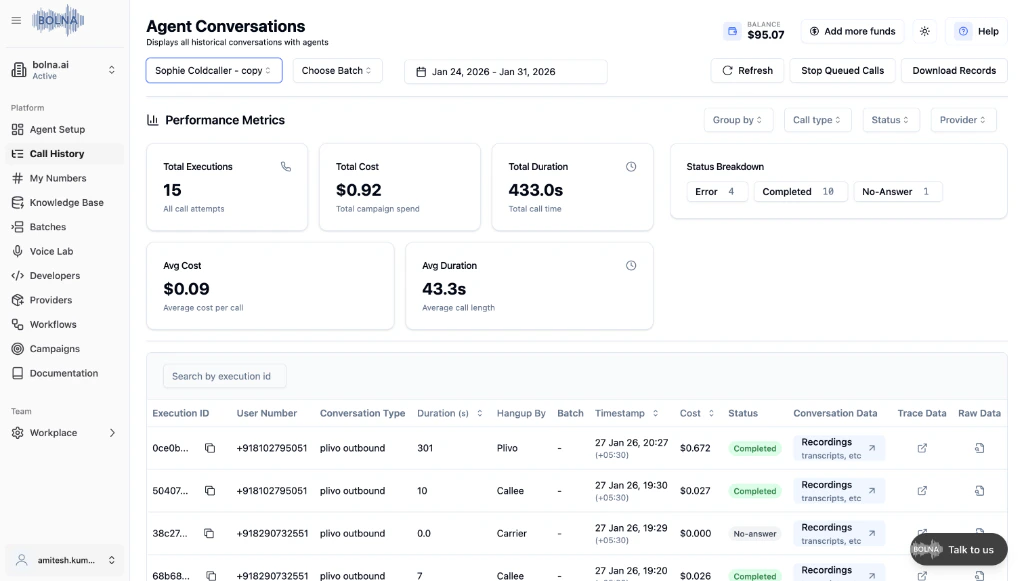
Call History (Agent Conversations) displays all historical conversations with your agents. View performance metrics, listen to recordings, read transcripts, and access raw execution data for debugging and analysis.
 ***
## How to Access Call History
Click **Call History** in the left navigation menu.
Click **See all call logs** in the actions panel.
***
## Performance Metrics
The top section displays **real-time metrics** for your selected agent and date range. Use these to monitor campaign performance at a glance.
| Metric | Description |
| -------------------- | ---------------------------------------------- |
| **Total Executions** | Total number of call attempts |
| **Total Cost** | Total campaign spend |
| **Total Duration** | Total call time in seconds |
| **Status Breakdown** | Count of Error, Completed, and No-Answer calls |
| **Avg Cost** | Average cost per call |
| **Avg Duration** | Average call length |
***
## Filtering Calls
| Filter | Description |
| -------------- | ----------------------------------------- |
| **Agent** | Select a specific agent to view its calls |
| **Batch** | Filter by batch campaign |
| **Date Range** | Choose a date range for the calls |
| **Group By** | Group calls by different criteria |
| **Call Type** | Filter by inbound or outbound calls |
| **Status** | Filter by Completed, Error, or No-Answer |
| **Provider** | Filter by telephony provider |
Use the **search by execution ID** box to quickly find a specific call.
***
## Call Table
Each call is displayed with the following information:
| Column | Description |
| --------------------- | --------------------------------------------------- |
| **Execution ID** | Unique identifier for the call |
| **User Number** | Phone number of the caller/recipient |
| **Conversation Type** | Type of call (plivo outbound, twilio inbound, etc.) |
| **Duration (s)** | Call duration in seconds |
| **Hangup By** | Who ended the call (Callee, Carrier, Plivo, etc.) |
| **Batch** | Batch campaign if applicable |
| **Timestamp** | When the call occurred |
| **Cost** | Cost of the call |
| **Status** | Call status (Completed, No-answer, Error) |
***
## Call Details
Click **Recordings, transcripts, etc** to view the full conversation data.
***
## How to Access Call History
Click **Call History** in the left navigation menu.
Click **See all call logs** in the actions panel.
***
## Performance Metrics
The top section displays **real-time metrics** for your selected agent and date range. Use these to monitor campaign performance at a glance.
| Metric | Description |
| -------------------- | ---------------------------------------------- |
| **Total Executions** | Total number of call attempts |
| **Total Cost** | Total campaign spend |
| **Total Duration** | Total call time in seconds |
| **Status Breakdown** | Count of Error, Completed, and No-Answer calls |
| **Avg Cost** | Average cost per call |
| **Avg Duration** | Average call length |
***
## Filtering Calls
| Filter | Description |
| -------------- | ----------------------------------------- |
| **Agent** | Select a specific agent to view its calls |
| **Batch** | Filter by batch campaign |
| **Date Range** | Choose a date range for the calls |
| **Group By** | Group calls by different criteria |
| **Call Type** | Filter by inbound or outbound calls |
| **Status** | Filter by Completed, Error, or No-Answer |
| **Provider** | Filter by telephony provider |
Use the **search by execution ID** box to quickly find a specific call.
***
## Call Table
Each call is displayed with the following information:
| Column | Description |
| --------------------- | --------------------------------------------------- |
| **Execution ID** | Unique identifier for the call |
| **User Number** | Phone number of the caller/recipient |
| **Conversation Type** | Type of call (plivo outbound, twilio inbound, etc.) |
| **Duration (s)** | Call duration in seconds |
| **Hangup By** | Who ended the call (Callee, Carrier, Plivo, etc.) |
| **Batch** | Batch campaign if applicable |
| **Timestamp** | When the call occurred |
| **Cost** | Cost of the call |
| **Status** | Call status (Completed, No-answer, Error) |
***
## Call Details
Click **Recordings, transcripts, etc** to view the full conversation data.
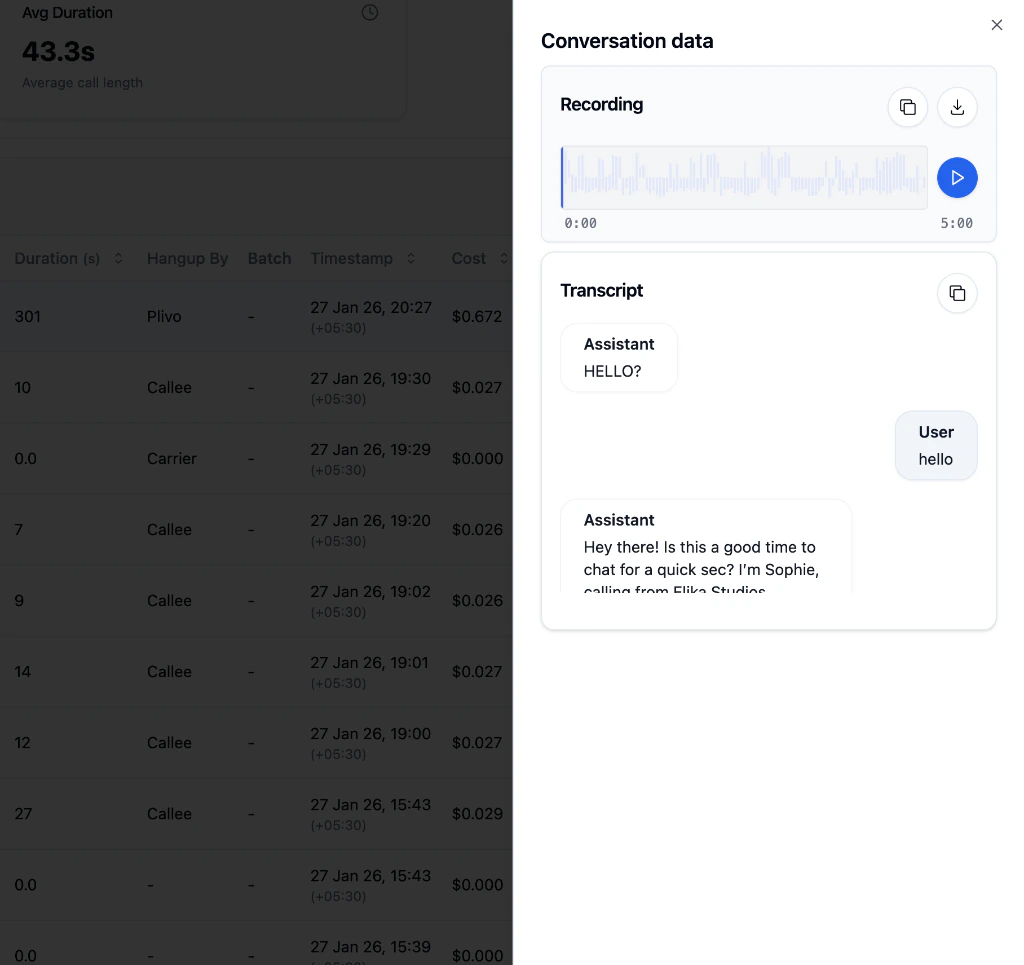 | Section | Description |
| -------------- | ----------------------------------------------------- |
| **Recording** | Audio waveform with play, copy, and download options |
| **Transcript** | Full conversation showing Assistant and User messages |
Use the copy button to quickly copy the recording URL or transcript text.
Click the **Trace Data** icon to view detailed execution logs for debugging.
| Section | Description |
| -------------- | ----------------------------------------------------- |
| **Recording** | Audio waveform with play, copy, and download options |
| **Transcript** | Full conversation showing Assistant and User messages |
Use the copy button to quickly copy the recording URL or transcript text.
Click the **Trace Data** icon to view detailed execution logs for debugging.
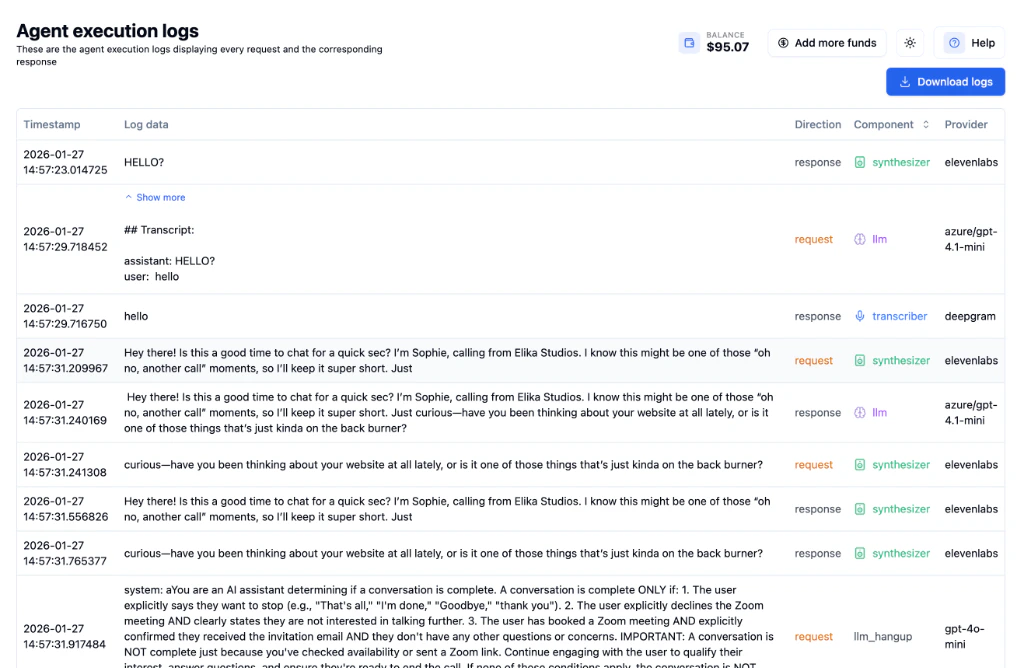 | Column | Description |
| ------------- | ---------------------------------------------------------- |
| **Timestamp** | Exact time of each log entry |
| **Log Data** | The actual request or response content |
| **Direction** | Whether it's a request or response |
| **Component** | Which component handled it (synthesizer, transcriber, llm) |
| **Provider** | Provider used (elevenlabs, deepgram, azure, etc.) |
When you fetch logs via the [Get execution raw logs API](/api-reference/executions/get_execution_raw_logs), LLM assistant responses may also include **`reasoning_content`** (model thinking or reasoning summary) when the provider returns it.
**Trace data is essential for debugging!** Use it to identify latency issues, transcription errors, or unexpected LLM responses.
Click **Download logs** to export all trace data for detailed analysis.
Click the **Raw Data** icon to view the complete JSON execution data.
| Column | Description |
| ------------- | ---------------------------------------------------------- |
| **Timestamp** | Exact time of each log entry |
| **Log Data** | The actual request or response content |
| **Direction** | Whether it's a request or response |
| **Component** | Which component handled it (synthesizer, transcriber, llm) |
| **Provider** | Provider used (elevenlabs, deepgram, azure, etc.) |
When you fetch logs via the [Get execution raw logs API](/api-reference/executions/get_execution_raw_logs), LLM assistant responses may also include **`reasoning_content`** (model thinking or reasoning summary) when the provider returns it.
**Trace data is essential for debugging!** Use it to identify latency issues, transcription errors, or unexpected LLM responses.
Click **Download logs** to export all trace data for detailed analysis.
Click the **Raw Data** icon to view the complete JSON execution data.
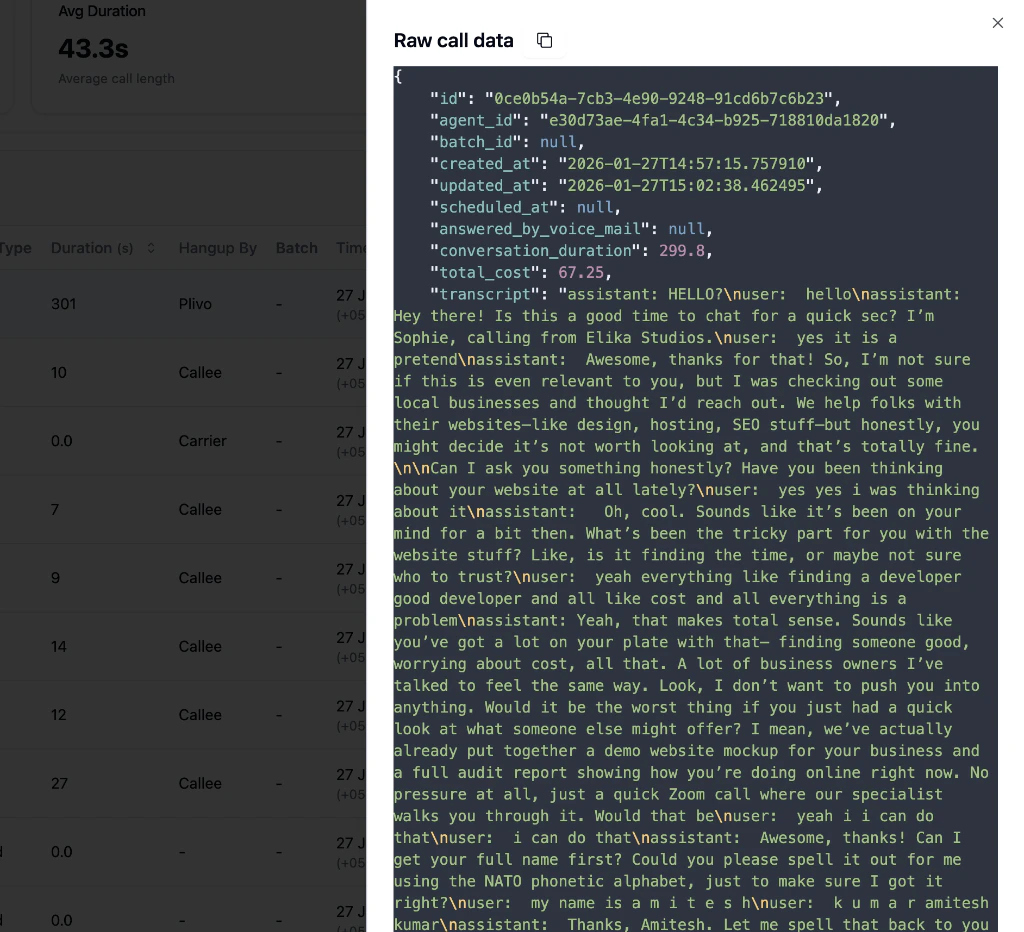 The raw data format matches the [Get Execution API](/api-reference/executions/get_execution) response, making it easy to integrate with your systems programmatically.
***
## Quick Actions
| Action | Description |
| --------------------- | --------------------------------- |
| **Refresh** | Reload the call list |
| **Stop Queued Calls** | Cancel pending calls in the queue |
| **Download Records** | Export call data as CSV |
Export call data as CSV for analysis in spreadsheet tools or to share with your team.
***
## Next Steps
Configure webhooks and post-call tasks
Access call data programmatically
Configure your agent settings
Set up automated calling campaigns
The raw data format matches the [Get Execution API](/api-reference/executions/get_execution) response, making it easy to integrate with your systems programmatically.
***
## Quick Actions
| Action | Description |
| --------------------- | --------------------------------- |
| **Refresh** | Reload the call list |
| **Stop Queued Calls** | Cancel pending calls in the queue |
| **Download Records** | Export call data as CSV |
Export call data as CSV for analysis in spreadsheet tools or to share with your team.
***
## Next Steps
Configure webhooks and post-call tasks
Access call data programmatically
Configure your agent settings
Set up automated calling campaigns