> ## Documentation Index
> Fetch the complete documentation index at: https://www.bolna.ai/docs/llms.txt
> Use this file to discover all available pages before exploring further.
# Clone Your Voice
> Clone your voice with Bolna AI. Upload a short sample to create lifelike custom voices and personalize your AI agents with any licensed voice.
## What is Voice Cloning?
Create custom AI voices by uploading a short audio sample (1-2 minutes) of any voice you have rights to use. Perfect for brand consistency, personalized customer experiences, or using specific voice talent across all your agents.
Use the same voice across all customer touchpoints
Create unique voices for different agent personas
***
## How to Clone a Voice
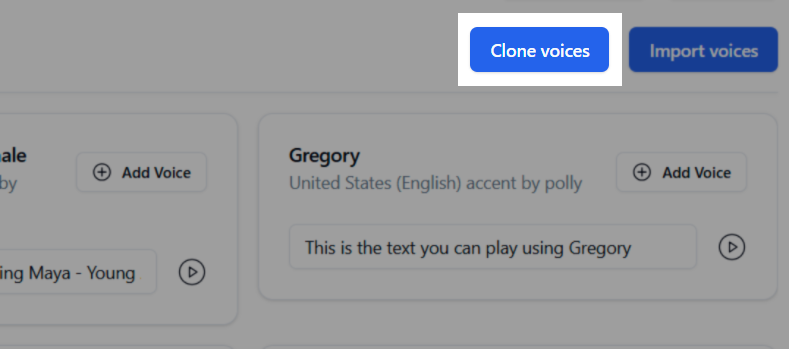
Go to your agent in the Bolna Playground and click the **Audio** tab. Scroll down to the **Text-to-Speech** section and click **Add Voice +**.
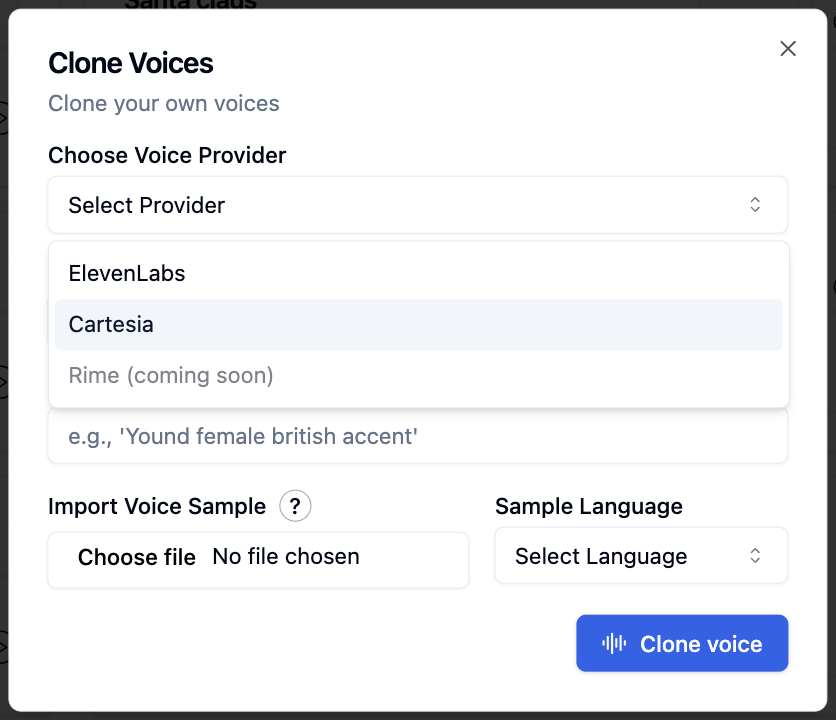
 Choose your voice cloning provider: **ElevenLabs** or **Cartesia**
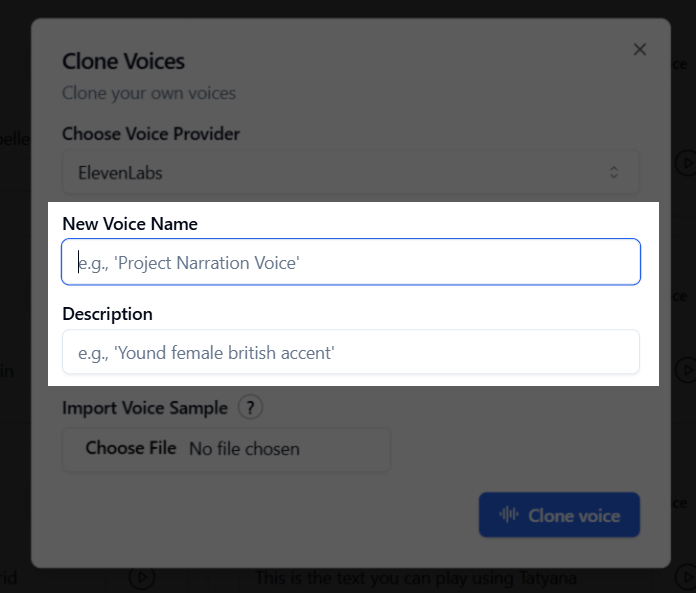
 Enter a **name** and **description** to identify your voice when building agents
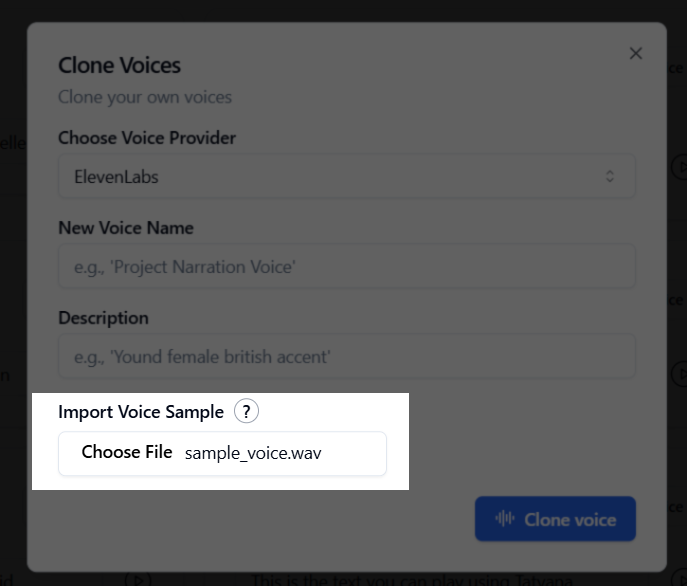
 Upload a high-quality audio file (MP3, WAV) that is **1-2 minutes** long
 Click **"Clone Voice"** and wait for processing. Your new voice will appear in Voice Lab!
For best results, use clean audio with **no background noise** and only the voice you want to clone.
***
## Next Steps
Import custom voices from your voice provider
Configure voice settings in the Playground
Set up multilingual agents with custom voices
Access your cloned voices
Click **"Clone Voice"** and wait for processing. Your new voice will appear in Voice Lab!
For best results, use clean audio with **no background noise** and only the voice you want to clone.
***
## Next Steps
Import custom voices from your voice provider
Configure voice settings in the Playground
Set up multilingual agents with custom voices
Access your cloned voices