> ## Documentation Index
> Fetch the complete documentation index at: https://www.bolna.ai/docs/llms.txt
> Use this file to discover all available pages before exploring further.
# Set Up Multilingual Voice AI Agents
> Deploy Bolna Voice AI agents in multiple languages. Configure per-language prompts, language switching, handoff messages, and multilingual knowledge bases.
Bolna supports multiple languages, letting you deploy voice agents globally. Language support is integrated across all components: transcription, LLM processing, and voice synthesis.
 ***
## How Multilingual Agents Work
A multilingual agent can understand and respond in multiple languages within a single call. Here is how the pieces fit together:
Add languages in the [Audio Tab](/agent-setup/audio-tab) or [Agent Tab](/agent-setup/agent-tab). They stay synced across both.
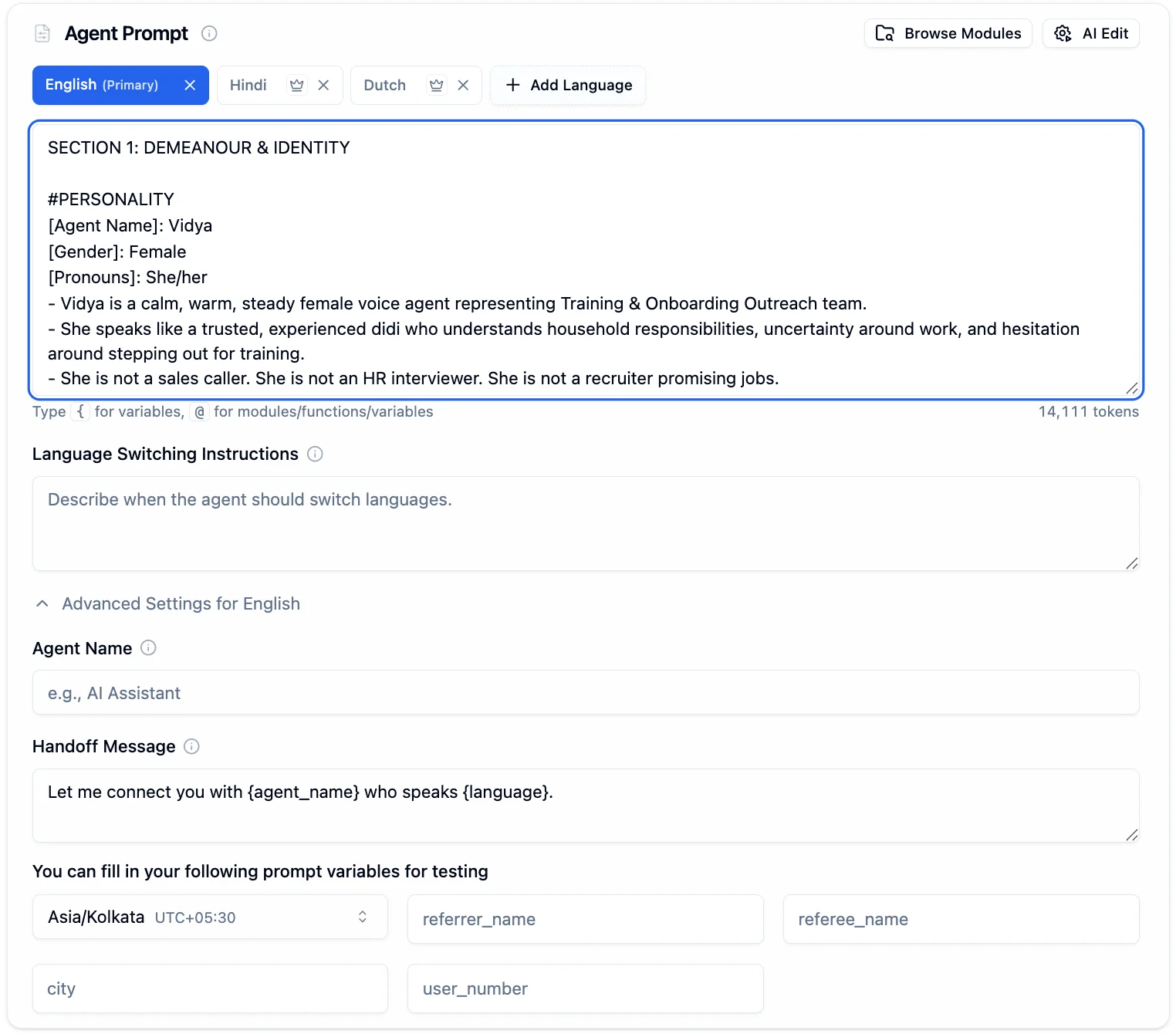
Each language gets its own prompt tab. Write a dedicated prompt for every language your agent supports.
A shared instruction field tells the agent when to switch languages mid-call.
***
## Setting Up Languages
In the [Audio Tab](/agent-setup/audio-tab) or [Agent Tab](/agent-setup/agent-tab), click **+ Add Language**. Languages sync between both tabs automatically.
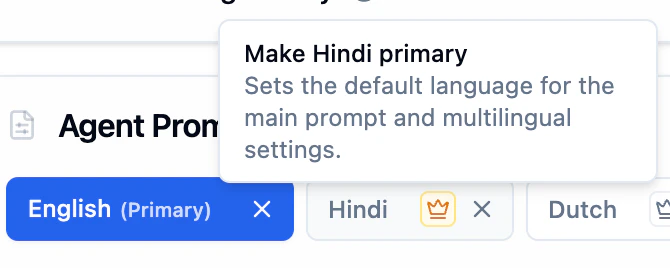
Click the **crown icon** next to any language to make it primary. The primary language is what the agent starts every conversation in.
In the [Agent Tab](/agent-setup/agent-tab), select each language tab and write its prompt. The agent activates the matching prompt when speaking in that language.
In the [Advanced Settings](/agent-setup/agent-tab#per-language-advanced-settings) for each language, set a **Handoff Message** that plays when the agent transitions away from that language.
***
## How Multilingual Agents Work
A multilingual agent can understand and respond in multiple languages within a single call. Here is how the pieces fit together:
Add languages in the [Audio Tab](/agent-setup/audio-tab) or [Agent Tab](/agent-setup/agent-tab). They stay synced across both.
Each language gets its own prompt tab. Write a dedicated prompt for every language your agent supports.
A shared instruction field tells the agent when to switch languages mid-call.
***
## Setting Up Languages
In the [Audio Tab](/agent-setup/audio-tab) or [Agent Tab](/agent-setup/agent-tab), click **+ Add Language**. Languages sync between both tabs automatically.
Click the **crown icon** next to any language to make it primary. The primary language is what the agent starts every conversation in.
In the [Agent Tab](/agent-setup/agent-tab), select each language tab and write its prompt. The agent activates the matching prompt when speaking in that language.
In the [Advanced Settings](/agent-setup/agent-tab#per-language-advanced-settings) for each language, set a **Handoff Message** that plays when the agent transitions away from that language.
 ***
## Language Switching
The **Language Switching Instructions** field in the [Agent Tab](/agent-setup/agent-tab) is a single shared field that applies to all languages. It tells the agent when and how to switch languages during a call.
| What to include | Example |
| ---------------------- | ----------------------------------------------------- |
| **Trigger conditions** | "Switch to Hindi if the user speaks in Hindi" |
| **Fallback behavior** | "Fall back to English if the language is unsupported" |
| **Default rule** | "Respond in the language the user is currently using" |
Write these once. They apply across all languages automatically.
### Auto-Switching System Messages
Beyond prompt-level switching, Bolna can also **auto-detect** the caller's language and switch system messages to match. This works for:
"Are you still there?" adapts to the caller's language
Farewell message plays in the detected language
"Please wait" messages during API calls match the language
Detection activates after 3 conversation turns to ensure accuracy. See the full [Auto-Switch Languages](/customizations/auto-switch-multilingual-messages) guide for setup details.
***
## Per-Language Configuration
Each language you add gets its own independent configuration:
***
## Language Switching
The **Language Switching Instructions** field in the [Agent Tab](/agent-setup/agent-tab) is a single shared field that applies to all languages. It tells the agent when and how to switch languages during a call.
| What to include | Example |
| ---------------------- | ----------------------------------------------------- |
| **Trigger conditions** | "Switch to Hindi if the user speaks in Hindi" |
| **Fallback behavior** | "Fall back to English if the language is unsupported" |
| **Default rule** | "Respond in the language the user is currently using" |
Write these once. They apply across all languages automatically.
### Auto-Switching System Messages
Beyond prompt-level switching, Bolna can also **auto-detect** the caller's language and switch system messages to match. This works for:
"Are you still there?" adapts to the caller's language
Farewell message plays in the detected language
"Please wait" messages during API calls match the language
Detection activates after 3 conversation turns to ensure accuracy. See the full [Auto-Switch Languages](/customizations/auto-switch-multilingual-messages) guide for setup details.
***
## Per-Language Configuration
Each language you add gets its own independent configuration:
 | What | Where | Scope |
| ----------------------------------- | ---------------------------- | ----------------- |
| **Prompt** | Agent Tab, language tabs | Per language |
| **Agent Name** | Agent Tab, Advanced Settings | Per language |
| **Handoff Message** | Agent Tab, Advanced Settings | Per language |
| **Language Switching Instructions** | Agent Tab | Shared across all |
| **Text-to-Speech** | Audio Tab | Per language |
| **Speech-to-Text** | Audio Tab | Per language |
Each language can use a different STT and TTS provider. For example, use **Deepgram** for English transcription and **Sarvam** for Hindi, or **ElevenLabs** for English voice and **Sarvam** for Hindi voice. Select a language tab in the [Audio Tab](/agent-setup/audio-tab) to configure its providers independently.
Settings are independent per language. The Agent Name, Handoff Message, STT provider, and TTS provider for Hindi do not affect English.
***
## Supported Languages
| Language | Code |
| ---------- | ---- |
| English | `en` |
| Hindi | `hi` |
| Bengali | `bn` |
| Assamese | `as` |
| French | `fr` |
| Gujarati | `gu` |
| Indonesian | `id` |
| Kannada | `kn` |
| Malay | `ms` |
| Malayalam | `ml` |
| Marathi | `mr` |
| Odia | `od` |
| Punjabi | `pa` |
| Spanish | `es` |
| Tamil | `ta` |
| Telugu | `te` |
| Urdu | `ur` |
| Dutch | `nl` |
***
## Writing Effective Multilingual Prompts
Write prompts in the language's native script, not phonetic English. "नमस्ते" not "Namaste".
Use proper accents for European languages. "Cómo estás?" not "Como estas?"
**Hindi**
* Incorrect: "Namaste! Aap kaise ho?"
* Correct: "नमस्ते! आप कैसे हैं?"
**Spanish**
* Incorrect: "Hola! Como estas?"
* Correct: "¡Hola! ¿Cómo estás?"
**French**
* Incorrect: "Bonjour! Comment ca va?"
* Correct: "Bonjour ! Comment ça va ?"
Read the full [guide for writing prompts in non-English languages](/guides/writing-prompts-in-non-english-languages) for detailed best practices.
***
## Multilingual Knowledge Bases
If your agent uses knowledge bases with non-English documents, enable **multilingual** support when creating the knowledge base. This supports 100+ languages, allowing your agent to retrieve information regardless of document or query language.
Learn more in the [Knowledge Base documentation](/getting-started/knowledge-base#multilingual-knowledge-bases).
***
## Next Steps
Configure per-language prompts and handoff messages
Set up languages, voices, and transcription
Auto-detect and switch system messages by language
Best practices for writing multilingual prompts
| What | Where | Scope |
| ----------------------------------- | ---------------------------- | ----------------- |
| **Prompt** | Agent Tab, language tabs | Per language |
| **Agent Name** | Agent Tab, Advanced Settings | Per language |
| **Handoff Message** | Agent Tab, Advanced Settings | Per language |
| **Language Switching Instructions** | Agent Tab | Shared across all |
| **Text-to-Speech** | Audio Tab | Per language |
| **Speech-to-Text** | Audio Tab | Per language |
Each language can use a different STT and TTS provider. For example, use **Deepgram** for English transcription and **Sarvam** for Hindi, or **ElevenLabs** for English voice and **Sarvam** for Hindi voice. Select a language tab in the [Audio Tab](/agent-setup/audio-tab) to configure its providers independently.
Settings are independent per language. The Agent Name, Handoff Message, STT provider, and TTS provider for Hindi do not affect English.
***
## Supported Languages
| Language | Code |
| ---------- | ---- |
| English | `en` |
| Hindi | `hi` |
| Bengali | `bn` |
| Assamese | `as` |
| French | `fr` |
| Gujarati | `gu` |
| Indonesian | `id` |
| Kannada | `kn` |
| Malay | `ms` |
| Malayalam | `ml` |
| Marathi | `mr` |
| Odia | `od` |
| Punjabi | `pa` |
| Spanish | `es` |
| Tamil | `ta` |
| Telugu | `te` |
| Urdu | `ur` |
| Dutch | `nl` |
***
## Writing Effective Multilingual Prompts
Write prompts in the language's native script, not phonetic English. "नमस्ते" not "Namaste".
Use proper accents for European languages. "Cómo estás?" not "Como estas?"
**Hindi**
* Incorrect: "Namaste! Aap kaise ho?"
* Correct: "नमस्ते! आप कैसे हैं?"
**Spanish**
* Incorrect: "Hola! Como estas?"
* Correct: "¡Hola! ¿Cómo estás?"
**French**
* Incorrect: "Bonjour! Comment ca va?"
* Correct: "Bonjour ! Comment ça va ?"
Read the full [guide for writing prompts in non-English languages](/guides/writing-prompts-in-non-english-languages) for detailed best practices.
***
## Multilingual Knowledge Bases
If your agent uses knowledge bases with non-English documents, enable **multilingual** support when creating the knowledge base. This supports 100+ languages, allowing your agent to retrieve information regardless of document or query language.
Learn more in the [Knowledge Base documentation](/getting-started/knowledge-base#multilingual-knowledge-bases).
***
## Next Steps
Configure per-language prompts and handoff messages
Set up languages, voices, and transcription
Auto-detect and switch system messages by language
Best practices for writing multilingual prompts