> ## Documentation Index
> Fetch the complete documentation index at: https://www.bolna.ai/docs/llms.txt
> Use this file to discover all available pages before exploring further.
# Using Custom LLMs with Bolna Voice AI
> Integrate custom large language models (LLMs) into Bolna Voice AI to enhance agent capabilities and tailor responses to your unique requirements
We expect your custom LLM to be an OpenAI compatible server.
* [https://platform.openai.com/docs/api-reference/chat/create](https://platform.openai.com/docs/api-reference/chat/create)
* [https://platform.openai.com/docs/api-reference/chat/streaming](https://platform.openai.com/docs/api-reference/chat/streaming)
## Adding your Custom LLM using dashboard
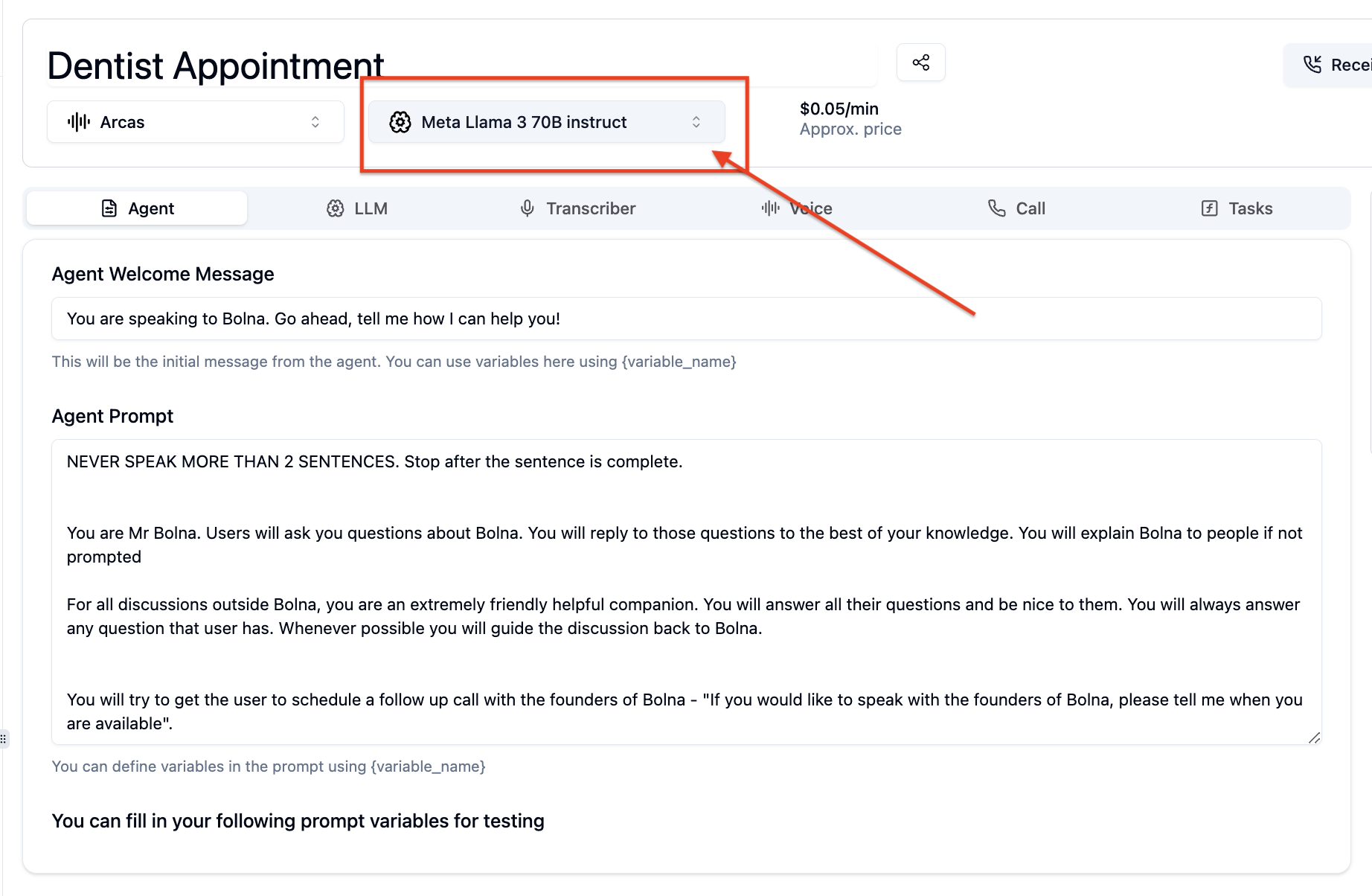
1. Click on LLM select dropdown as shown in the image
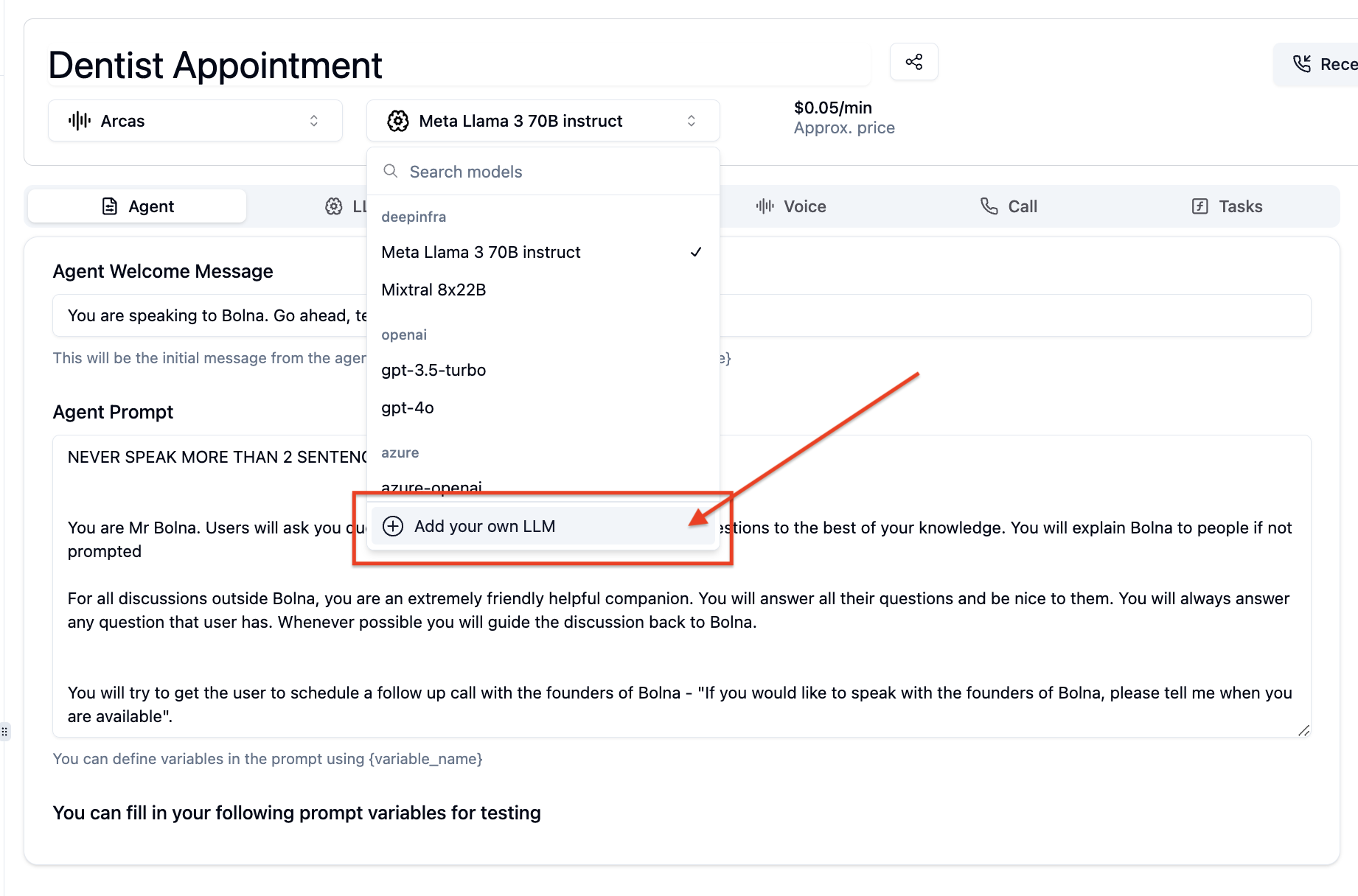
 2. From the dropdown click on `Add your own LLM`.
 3. A dialog box will be displayed. Fill in the following details:
* `LLM URL`: the endpoint of your custom LLM
* `LLM Name`: a name for your custom LLM
click on `Add Custom LLM` to connect this LLM to Bolna
3. A dialog box will be displayed. Fill in the following details:
* `LLM URL`: the endpoint of your custom LLM
* `LLM Name`: a name for your custom LLM
click on `Add Custom LLM` to connect this LLM to Bolna
 4. **Refresh the page**
5. In the LLM settings tab, choose `Custom` in the first dropdown to select LLM Providers
4. **Refresh the page**
5. In the LLM settings tab, choose `Custom` in the first dropdown to select LLM Providers
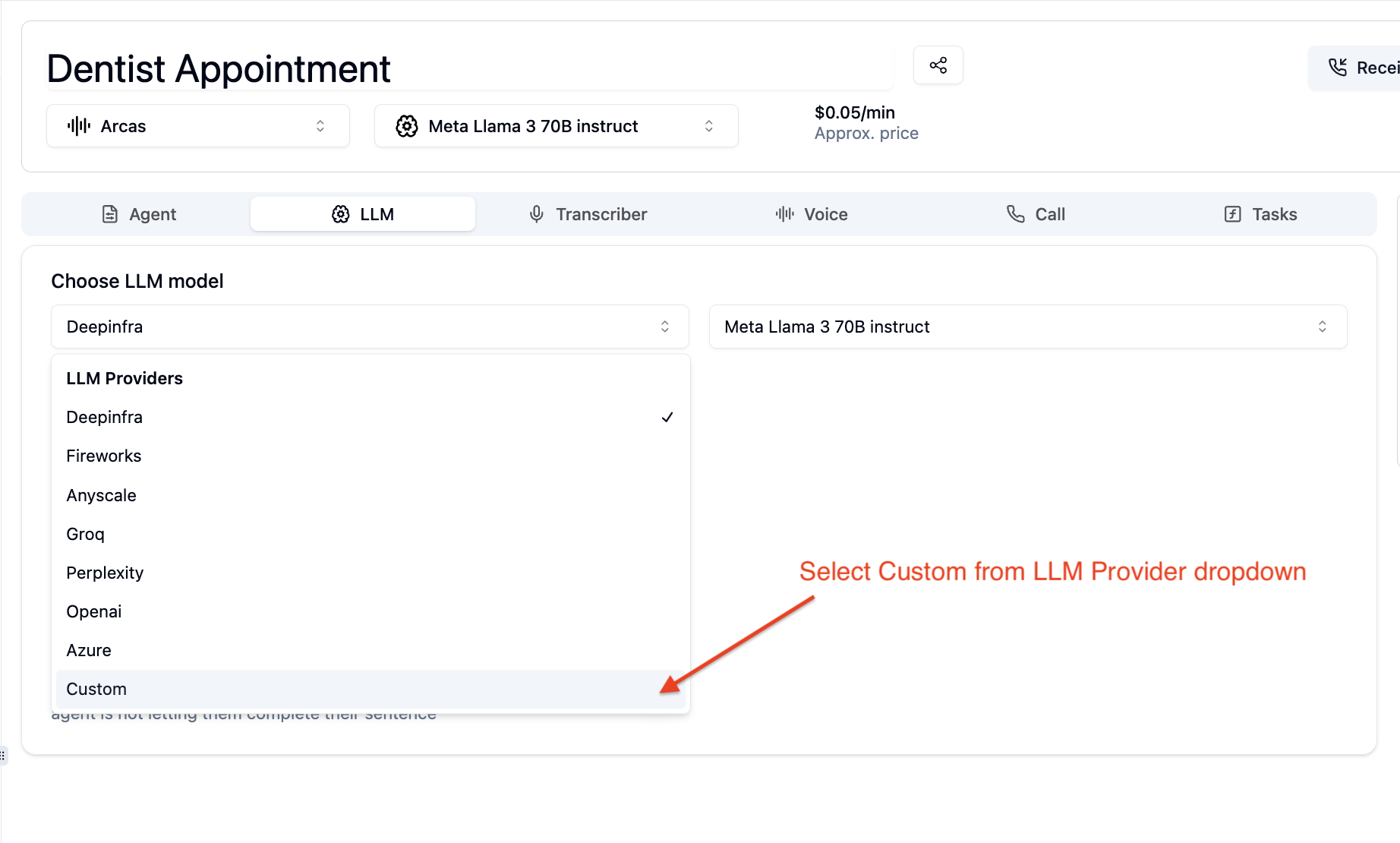 6. In the LLM settings tab, you'l now see your custom LLM model name appearing. Select this and save the agent.
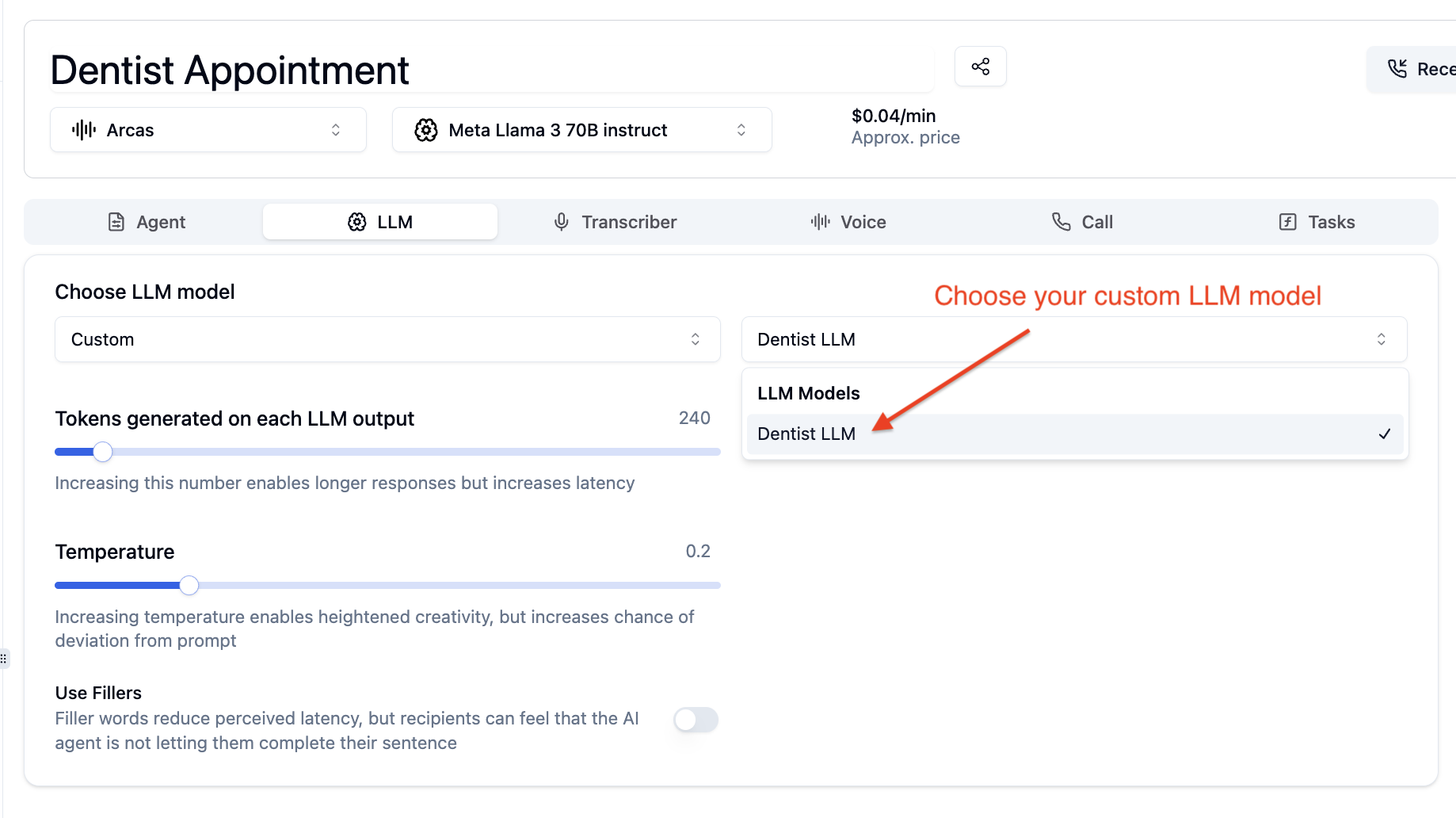 **Using the above steps will make sure the agent uses your Custom LLM URL**.
## Demo video
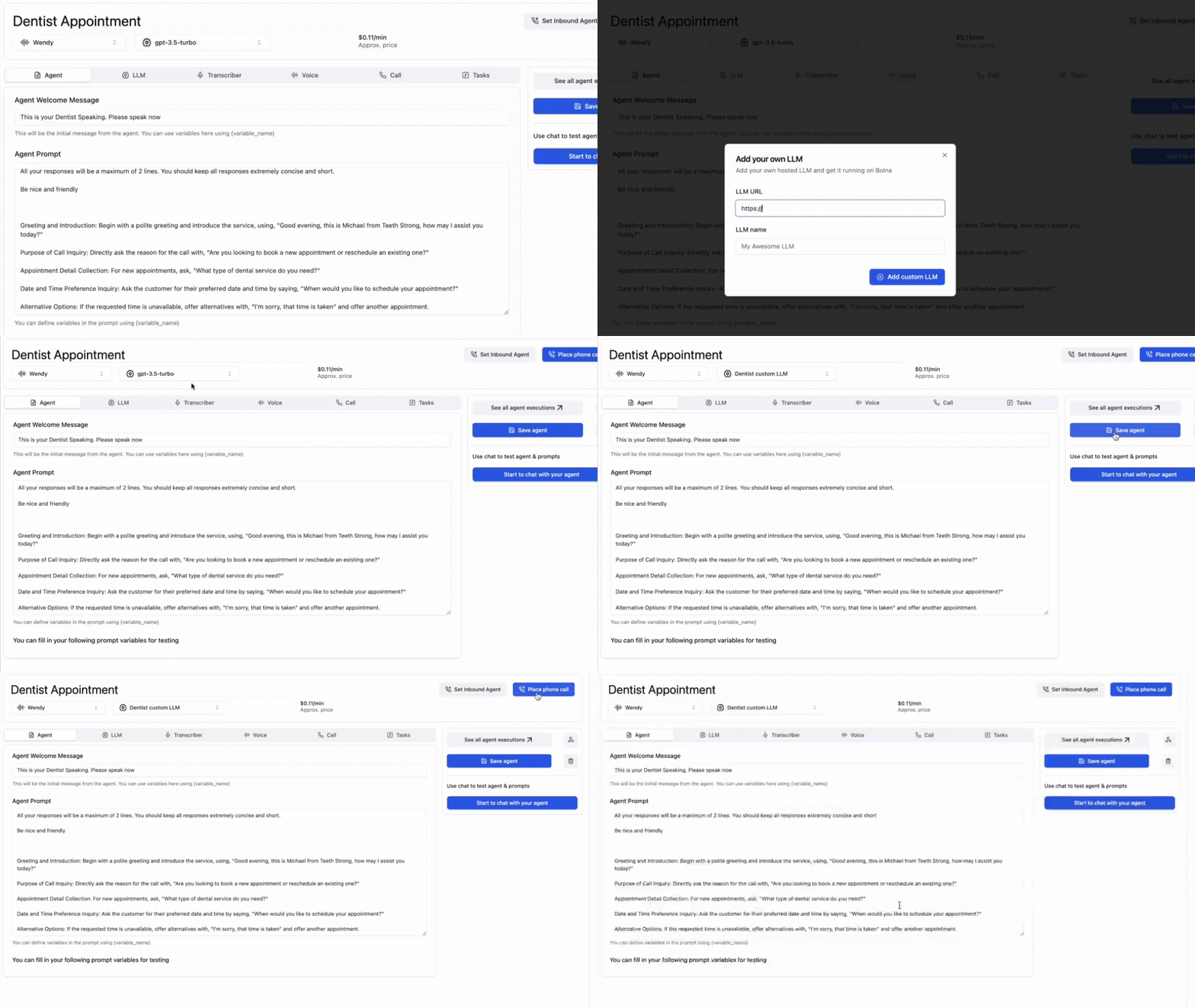
Here's a working video highlighting the flow:
**Using the above steps will make sure the agent uses your Custom LLM URL**.
## Demo video
Here's a working video highlighting the flow: