> ## Documentation Index
> Fetch the complete documentation index at: https://www.bolna.ai/docs/llms.txt
> Use this file to discover all available pages before exploring further.
# Connect Your Exotel Account to Bolna
> Securely connect your Exotel account with Bolna. Enable your Voice AI agents to utilize Exotel phone numbers for managing inbound and outbound calls.
## Connecting Your Exotel Account for AI-Powered Calling
Linking your personal or business Exotel account to Bolna gives you complete ownership and control over your telephony infrastructure. Once connected, all voice calls initiated by Bolna's AI agents will route through your Exotel account, utilizing your provisioned phone numbers and billing directly to your Exotel subscription.
This approach ensures transparency in call costs, maintains your existing phone number reputation, and provides full visibility into call analytics through both Bolna and Exotel dashboards.
## Step-by-Step Integration Process
### Step 1: Access the Providers Configuration Panel
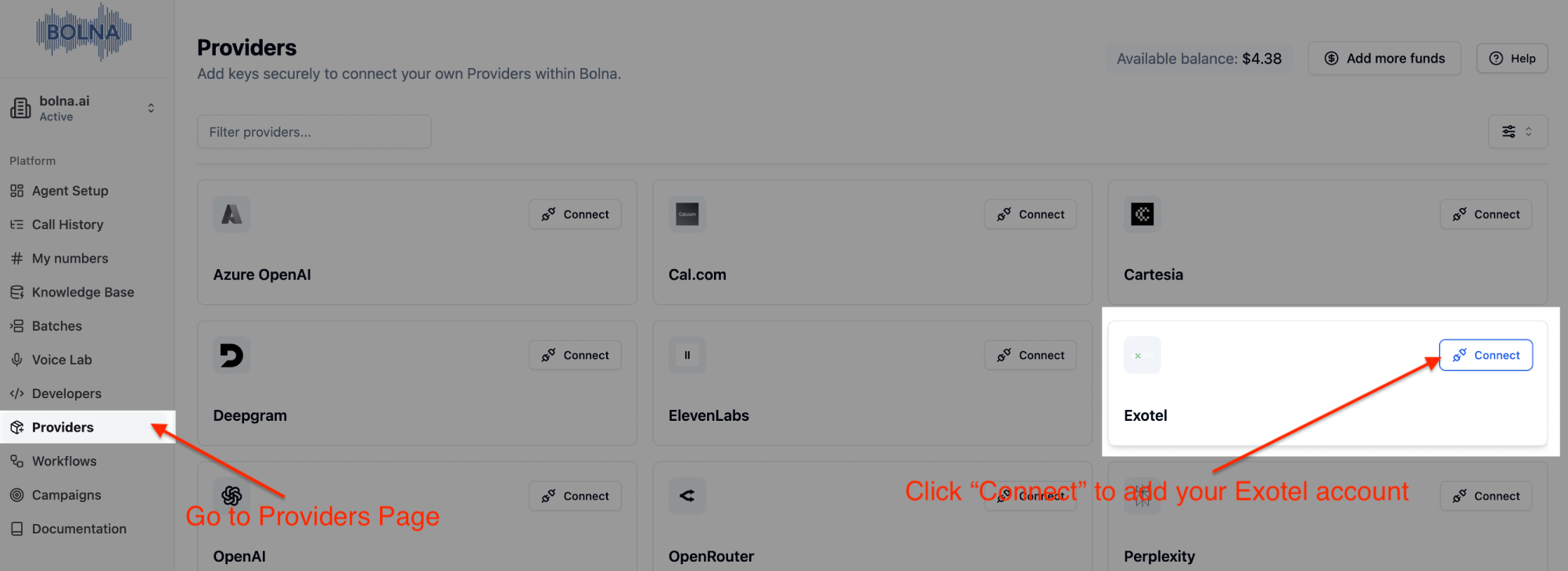
Begin by logging into your Bolna platform account and locating the `Providers` section in the left navigation menu. Click the **Exotel connect button** to initiate the account linking process.
### Step 2: Enter Your Exotel Authentication Credentials
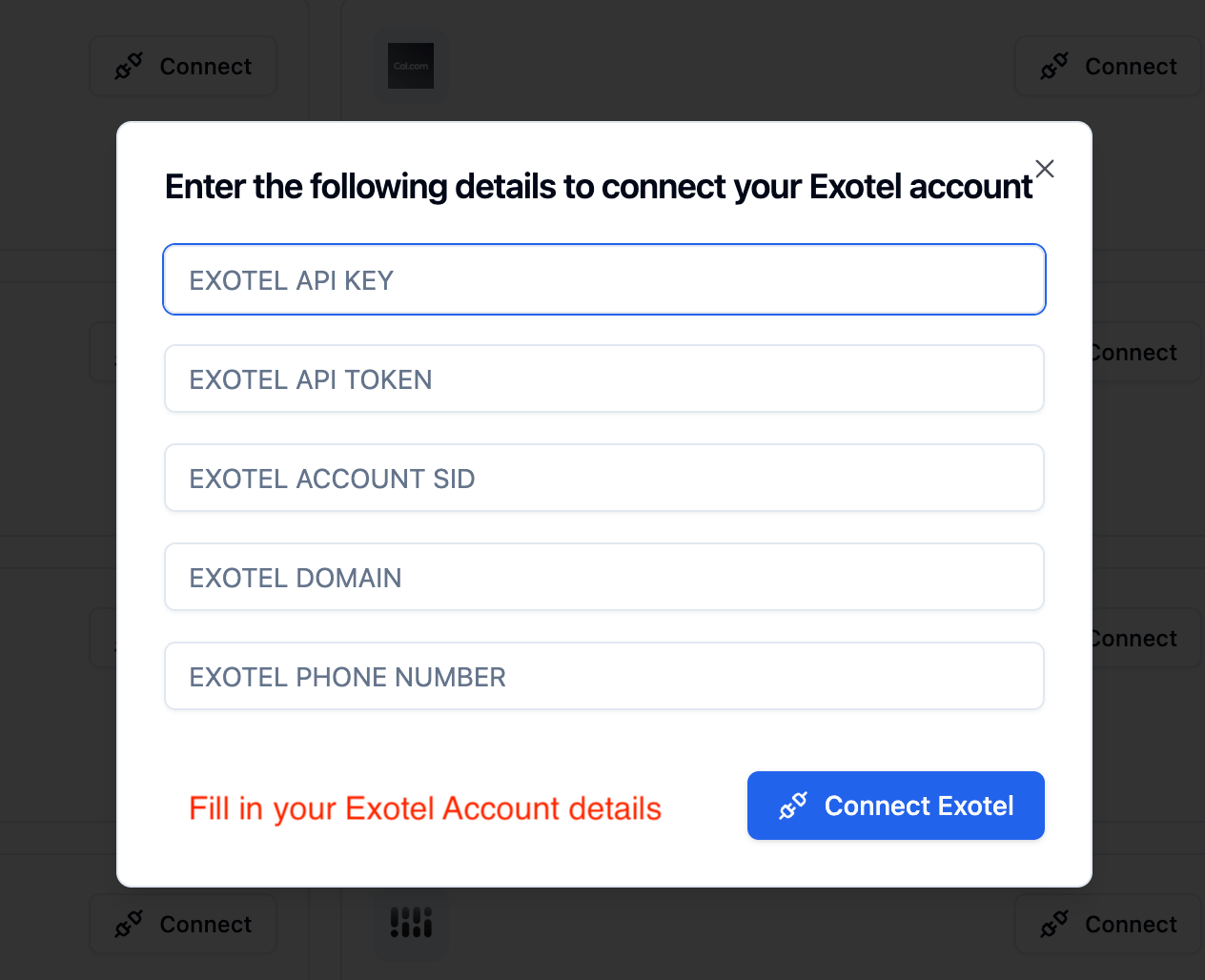
You'll need to provide your Exotel API credentials, which include your `API_KEY`, `API_TOKEN`, `ACCOUNT_SID`, `DOMAIN` and `PHONE_NUMBER`. These credentials can be found in your Exotel account dashboard under API settings.
These credentials allow Bolna to securely communicate with Exotel's API on your behalf.
### Step 3: Finalize the Connection
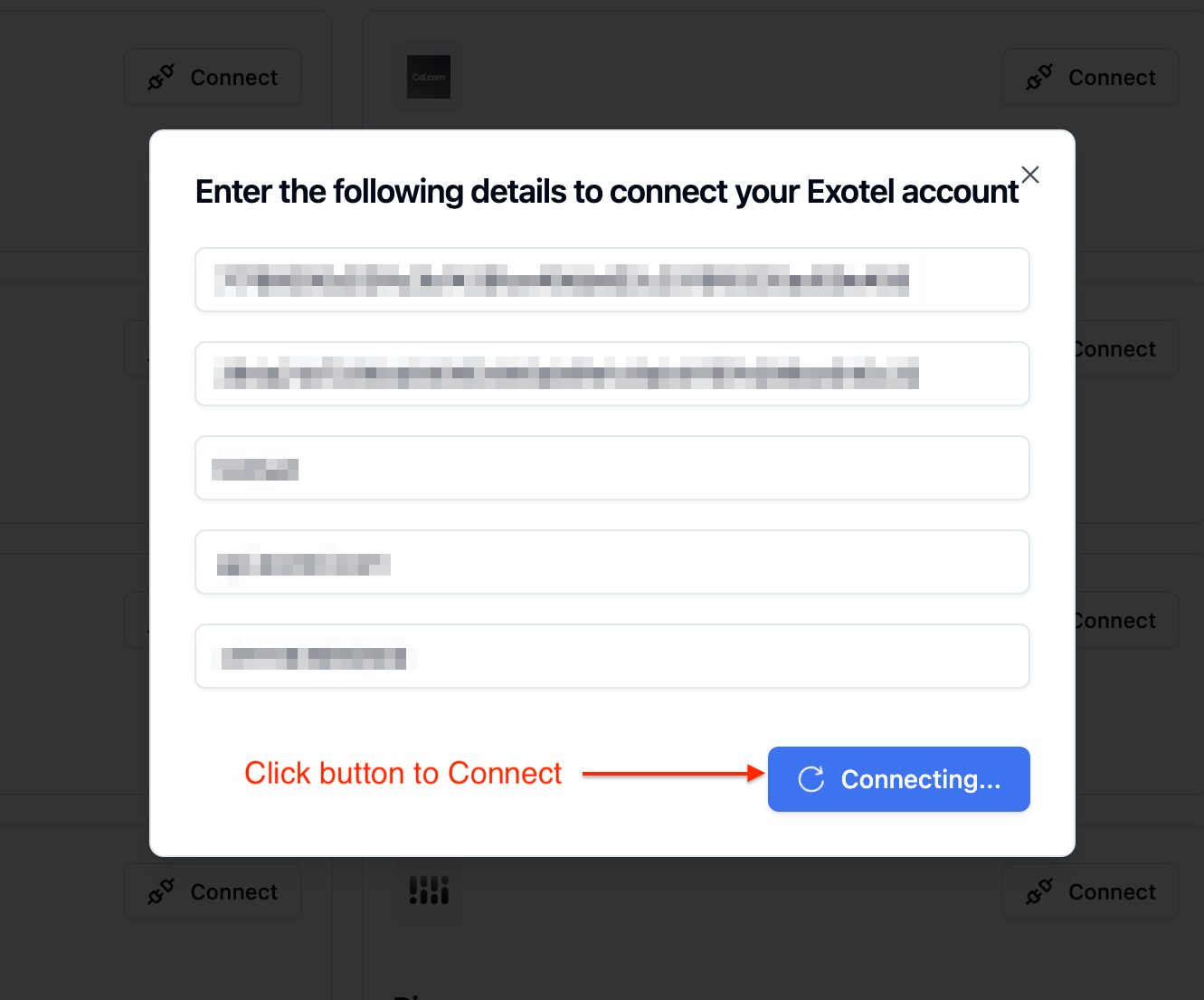
After entering your credentials click the **connect button** to establish the secure link between your Exotel account and Bolna's Voice AI platform. The system will validate your credentials and establish the integration.
### Step 4: Verify Successful Integration
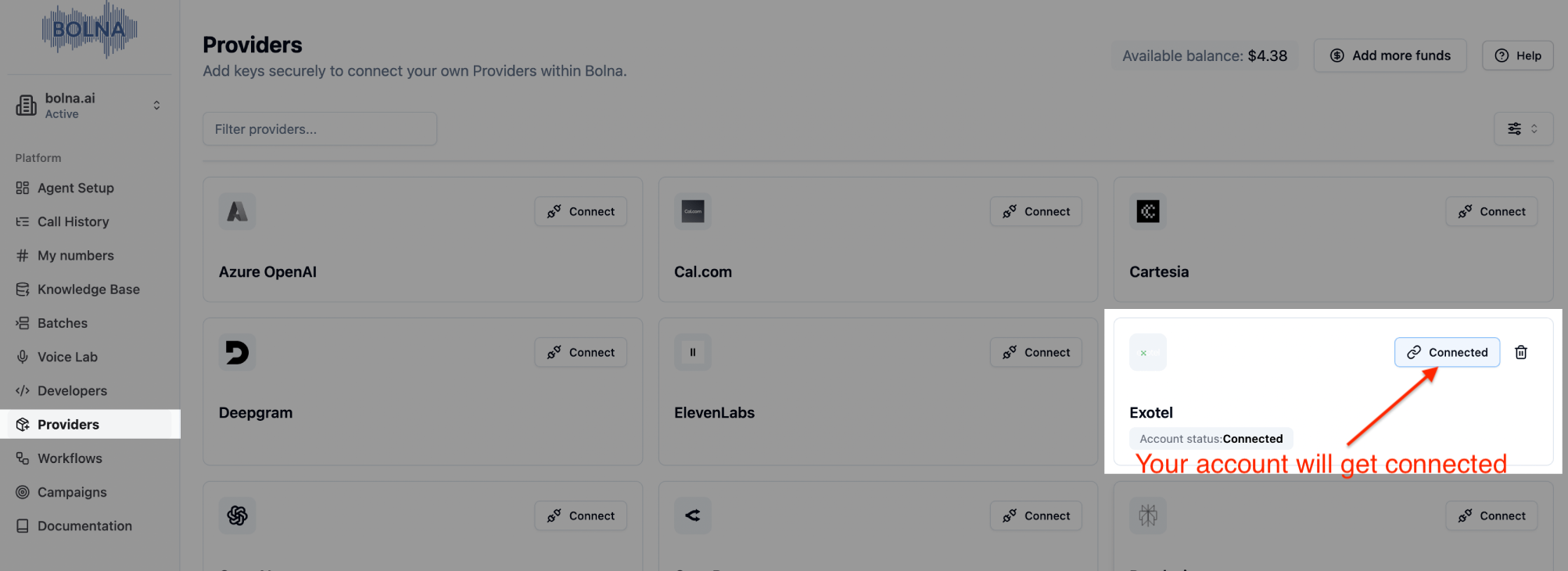
Upon successful connection, you'll receive a confirmation message indicating that your Exotel account is now active on Bolna.
From this point forward, all AI-powered voice calls initiated through Bolna cab be utilized with your Exotel infrastructure, phone numbers, and account balance. You can now configure your AI agents to make outbound calls or handle inbound calls using your Exotel telephony resources.