> ## Documentation Index
> Fetch the complete documentation index at: https://www.bolna.ai/docs/llms.txt
> Use this file to discover all available pages before exploring further.
# Build Knowledge Base with PDFs & URLs
> Upload PDFs and add URLs to create knowledge bases for your Bolna Voice AI agents. Enable context-aware responses with RAG-powered retrieval.
## What is Knowledge Base?
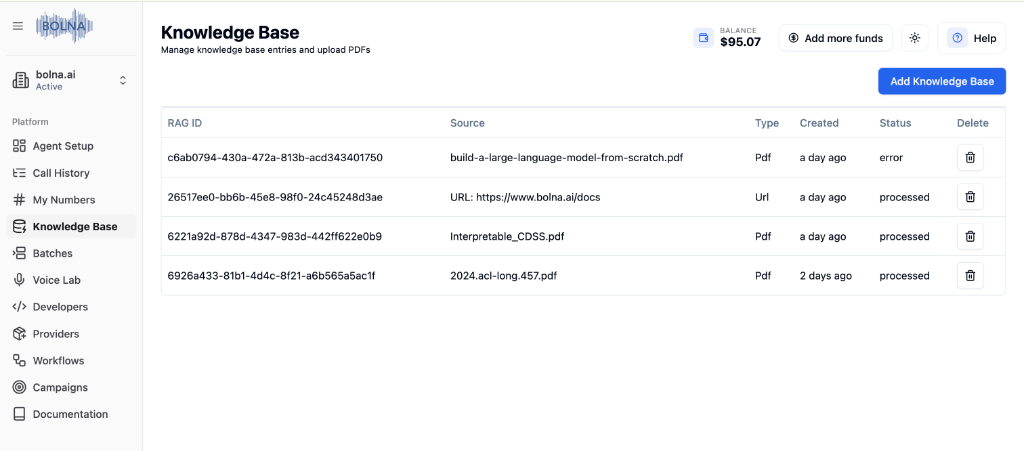
Knowledge Base allows you to upload documents and add URLs that your AI agent can reference during conversations. Using RAG (Retrieval-Augmented Generation), your agent retrieves relevant information and provides accurate, context-aware responses.
 ***
## How to Access Knowledge Base
Navigate to [platform.bolna.ai](https://platform.bolna.ai/)
Click **Knowledge Base** in the left sidebar.
Click the blue **Add Knowledge Base** button to get started.
***
## Adding a Knowledge Base
Upload PDF documents for your agent to reference.
***
## How to Access Knowledge Base
Navigate to [platform.bolna.ai](https://platform.bolna.ai/)
Click **Knowledge Base** in the left sidebar.
Click the blue **Add Knowledge Base** button to get started.
***
## Adding a Knowledge Base
Upload PDF documents for your agent to reference.
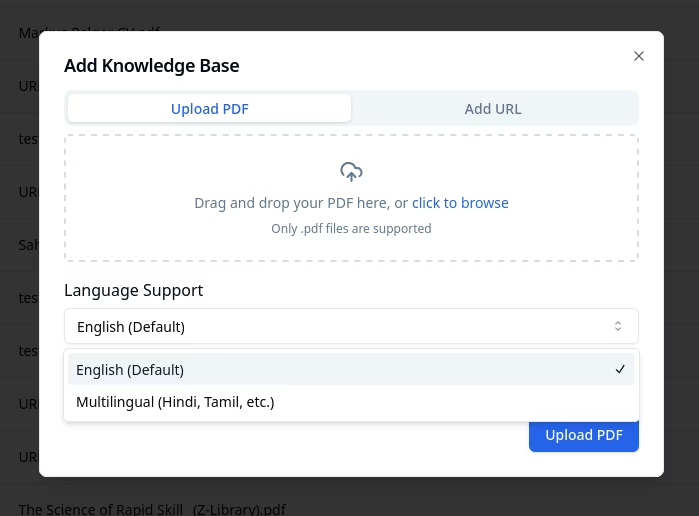 Open the modal from the main Knowledge Base page.
The **Upload PDF** tab is selected by default.
Drag and drop your PDF file, or click **"click to browse"** to select.
Choose **English (Default)** or **Multilingual (Hindi, Tamil, etc.)** from the **Language Support** dropdown.
Click **Upload PDF** to start processing.
Only `.pdf` files are supported for document upload.
Add website URLs for your agent to reference.
Open the modal from the main Knowledge Base page.
The **Upload PDF** tab is selected by default.
Drag and drop your PDF file, or click **"click to browse"** to select.
Choose **English (Default)** or **Multilingual (Hindi, Tamil, etc.)** from the **Language Support** dropdown.
Click **Upload PDF** to start processing.
Only `.pdf` files are supported for document upload.
Add website URLs for your agent to reference.
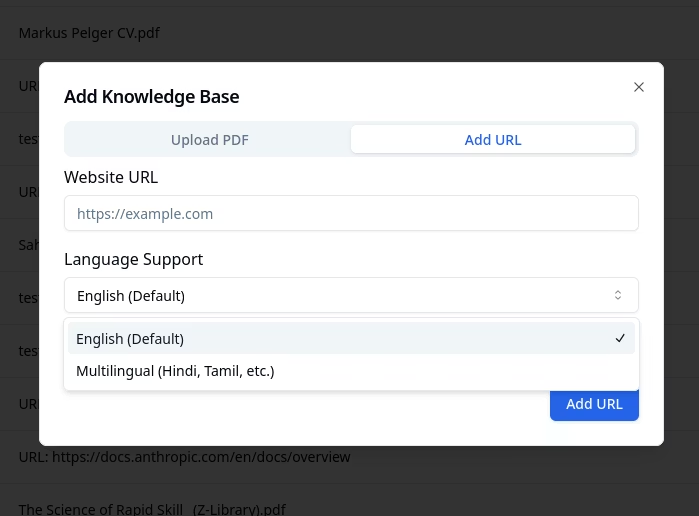 Open the modal from the main Knowledge Base page.
Click the **Add URL** tab.
Paste the full URL (e.g., `https://example.com`).
Choose **English (Default)** or **Multilingual (Hindi, Tamil, etc.)** from the **Language Support** dropdown.
Click **Add URL** to start processing.
Add your company website, FAQ pages, or product documentation URLs for comprehensive agent knowledge.
***
## Multilingual Knowledge Bases
By default, knowledge bases are optimized for English content. If your documents are in **non-English languages** (Hindi, Spanish, French, etc.) or you need **cross-lingual retrieval** (e.g., query in English, retrieve from Hindi documents), enable **Multilingual** language support when creating a knowledge base.
| Mode | Best for |
| -------------------------- | ---------------------------------------------------------------------- |
| **Default** (no selection) | English-only documents and queries |
| **Multilingual** | Non-English documents, mixed-language queries, cross-lingual retrieval |
Choose the language support mode **before** uploading. Existing knowledge bases cannot be switched between default and multilingual — you'll need to create a new one.
If your agent handles calls in multiple languages using [multilingual voice support](/docs/customizations/multilingual-languages-support), pair it with a multilingual knowledge base for consistent cross-lingual performance.
***
## Managing Your Knowledge Bases
Your uploaded knowledge bases are displayed in a table with full management capabilities.
| Column | Description |
| ----------- | ------------------------------------------------------ |
| **RAG ID** | Unique identifier for the knowledge base |
| **Source** | Original file name or URL |
| **Type** | Content type (Pdf, Url) |
| **Created** | When the knowledge base was added |
| **Status** | Processing status (`processed`, `processing`, `error`) |
| **Delete** | Remove the knowledge base |
Wait for the status to show **"processed"** before connecting to your agent. If status shows **"error"**, try re-uploading the file.
***
## Connecting to Your Agent
**Don't forget this step!** Knowledge bases must be connected to your agent in the LLM Tab to take effect.
Open the modal from the main Knowledge Base page.
Click the **Add URL** tab.
Paste the full URL (e.g., `https://example.com`).
Choose **English (Default)** or **Multilingual (Hindi, Tamil, etc.)** from the **Language Support** dropdown.
Click **Add URL** to start processing.
Add your company website, FAQ pages, or product documentation URLs for comprehensive agent knowledge.
***
## Multilingual Knowledge Bases
By default, knowledge bases are optimized for English content. If your documents are in **non-English languages** (Hindi, Spanish, French, etc.) or you need **cross-lingual retrieval** (e.g., query in English, retrieve from Hindi documents), enable **Multilingual** language support when creating a knowledge base.
| Mode | Best for |
| -------------------------- | ---------------------------------------------------------------------- |
| **Default** (no selection) | English-only documents and queries |
| **Multilingual** | Non-English documents, mixed-language queries, cross-lingual retrieval |
Choose the language support mode **before** uploading. Existing knowledge bases cannot be switched between default and multilingual — you'll need to create a new one.
If your agent handles calls in multiple languages using [multilingual voice support](/docs/customizations/multilingual-languages-support), pair it with a multilingual knowledge base for consistent cross-lingual performance.
***
## Managing Your Knowledge Bases
Your uploaded knowledge bases are displayed in a table with full management capabilities.
| Column | Description |
| ----------- | ------------------------------------------------------ |
| **RAG ID** | Unique identifier for the knowledge base |
| **Source** | Original file name or URL |
| **Type** | Content type (Pdf, Url) |
| **Created** | When the knowledge base was added |
| **Status** | Processing status (`processed`, `processing`, `error`) |
| **Delete** | Remove the knowledge base |
Wait for the status to show **"processed"** before connecting to your agent. If status shows **"error"**, try re-uploading the file.
***
## Connecting to Your Agent
**Don't forget this step!** Knowledge bases must be connected to your agent in the LLM Tab to take effect.
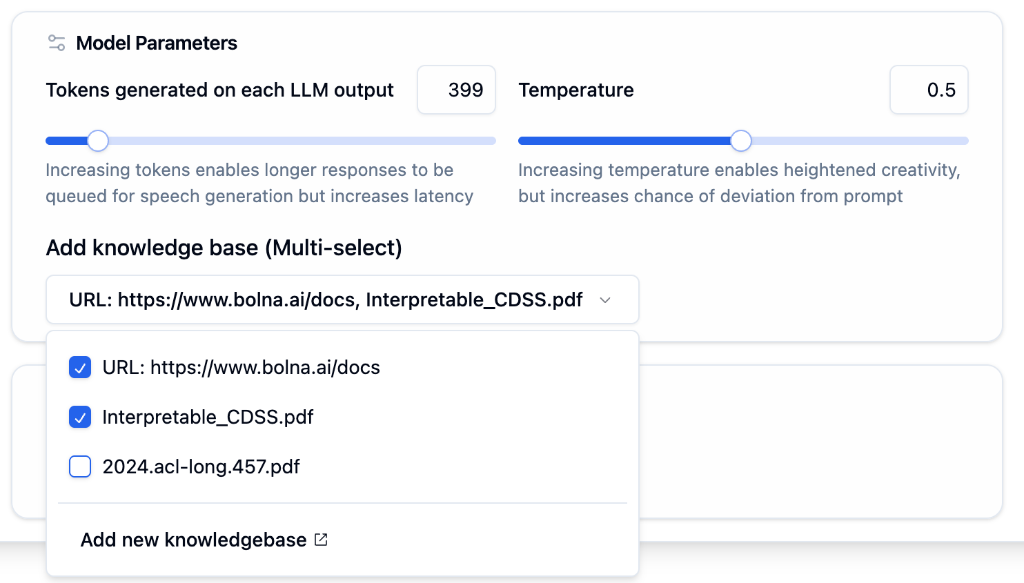 Go to your agent's **[LLM Tab](/docs/agent-setup/llm-tab)**.
Locate **Add knowledge base (Multi-select)**.
Check one or more knowledge bases from the dropdown.
Click **Save agent** to apply changes.
You can connect multiple knowledge bases to a single agent for comprehensive responses across different topics.
***
## Use Cases
Answer questions about your products and services
Provide accurate answers from your FAQ pages
Reference company policies during calls
Help agents access training and onboarding content
***
## Next Steps
Connect knowledge base to your agent
Configure prompts to use knowledge
Set safety rules and structured responses
Prompting best practices
Go to your agent's **[LLM Tab](/docs/agent-setup/llm-tab)**.
Locate **Add knowledge base (Multi-select)**.
Check one or more knowledge bases from the dropdown.
Click **Save agent** to apply changes.
You can connect multiple knowledge bases to a single agent for comprehensive responses across different topics.
***
## Use Cases
Answer questions about your products and services
Provide accurate answers from your FAQ pages
Reference company policies during calls
Help agents access training and onboarding content
***
## Next Steps
Connect knowledge base to your agent
Configure prompts to use knowledge
Set safety rules and structured responses
Prompting best practices