> ## Documentation Index
> Fetch the complete documentation index at: https://www.bolna.ai/docs/llms.txt
> Use this file to discover all available pages before exploring further.

# Importing your voices to use with Bolna Voice AI

> Easily import voices from multiple providers like ElevenLabs, Cartesia including custom voices into Bolna for seamless voice agent personalization.

## What is Voice Importing?

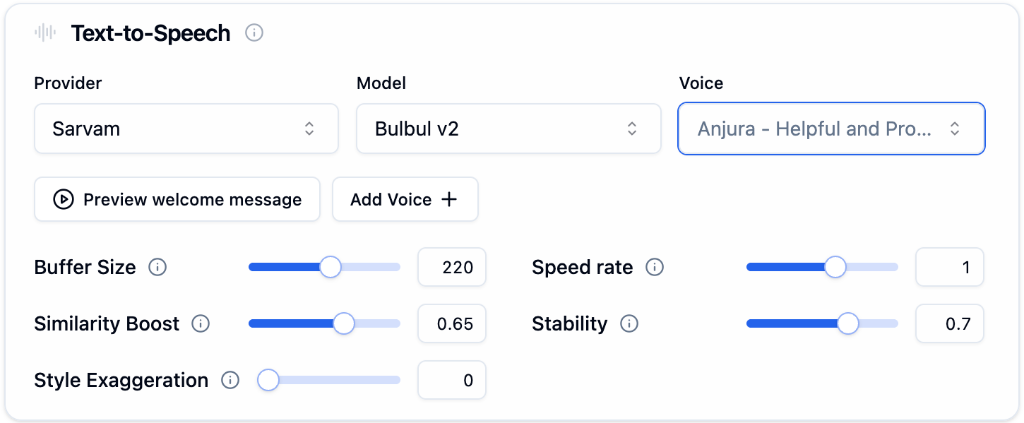
Voice importing allows you to bring voices from external providers (like ElevenLabs, Cartesia) into your Bolna workspace. This enables you to use provider-specific voices or custom voices you've created with those providers in your Bolna Voice AI agents.

***

## How to Import Voices

<Steps>
  <Step title="Open Voice Lab">
    Navigate to [Voice Lab](https://platform.bolna.ai/voices) and click **"Import Voices"**

    <Frame caption="Click Import Voices">
      <img src="https://mintcdn.com/bolna-54a2d4fe/DqJpudnR0YtgOS49/images/import_voices_1.png?fit=max&auto=format&n=DqJpudnR0YtgOS49&q=85&s=6b7f6b2c347a034af1abba4fb4398c0d" alt="Voice import interface in Bolna Voice Lab" width="1448" height="718" data-path="images/import_voices_1.png" />
    </Frame>
  </Step>

  <Step title="Select Provider">
    Choose your voice provider from the list
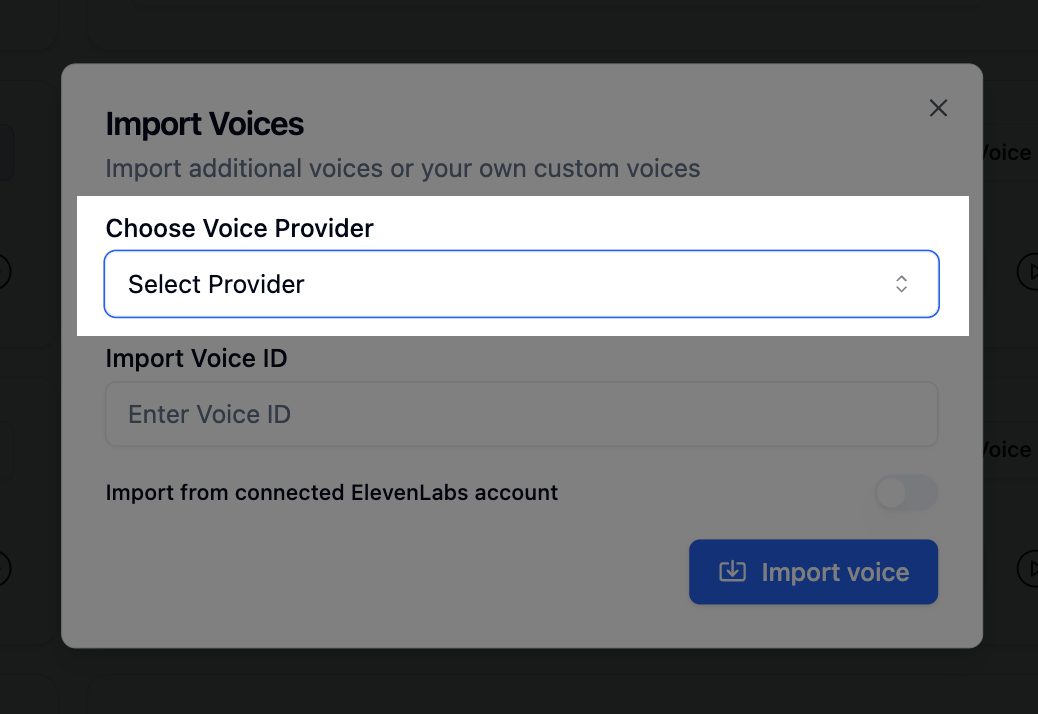
    <Frame caption="Selecting Voice Provider">
      <img src="https://mintcdn.com/bolna-54a2d4fe/DqJpudnR0YtgOS49/images/import_voices_2.png?fit=max&auto=format&n=DqJpudnR0YtgOS49&q=85&s=26de13c5e84604459e7d12260fae2921" alt="Voice provider selection screen" width="1038" height="714" data-path="images/import_voices_2.png" />
    </Frame>
  </Step>

  <Step title="Enter Voice ID">
    Provide the **Voice ID** you want to import
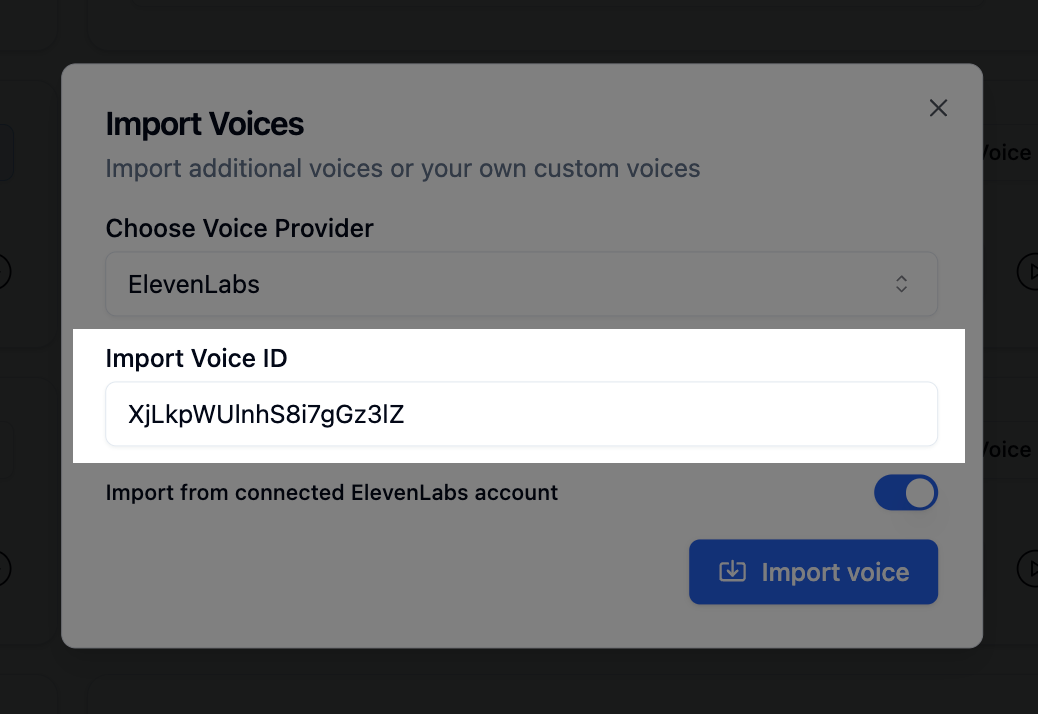
    <Frame caption="Providing the Voice ID">
      <img src="https://mintcdn.com/bolna-54a2d4fe/DqJpudnR0YtgOS49/images/import_voices_3.png?fit=max&auto=format&n=DqJpudnR0YtgOS49&q=85&s=caa7c99bad8bcb975006b67cb807d347" alt="Voice ID input field" width="1038" height="714" data-path="images/import_voices_3.png" />
    </Frame>
  </Step>

  <Step title="Enable Connected Account (Optional)">
    Toggle to import custom voices from your own connected account
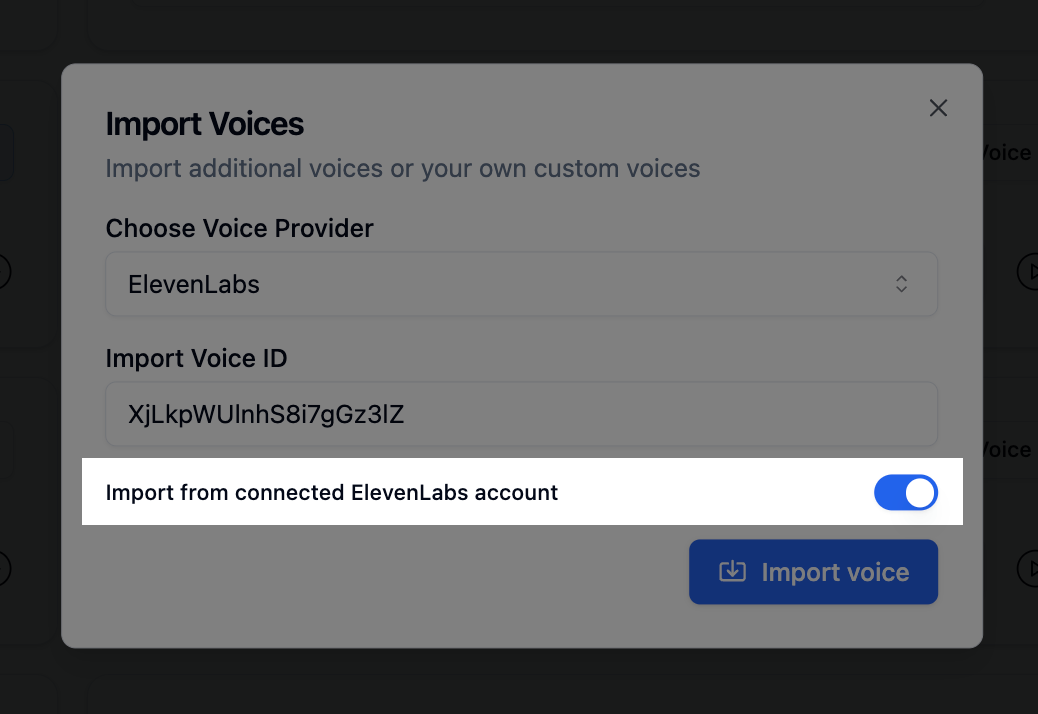
    <Frame caption="Enabling import from connected account">
      <img src="https://mintcdn.com/bolna-54a2d4fe/DqJpudnR0YtgOS49/images/import_voices_4.png?fit=max&auto=format&n=DqJpudnR0YtgOS49&q=85&s=63632d2f59ab23e33b9209423f642d1f" alt="Connected account toggle" width="1038" height="714" data-path="images/import_voices_4.png" />
    </Frame>
  </Step>

  <Step title="Import">
    Click **"Import"** - your voice will be available within seconds!
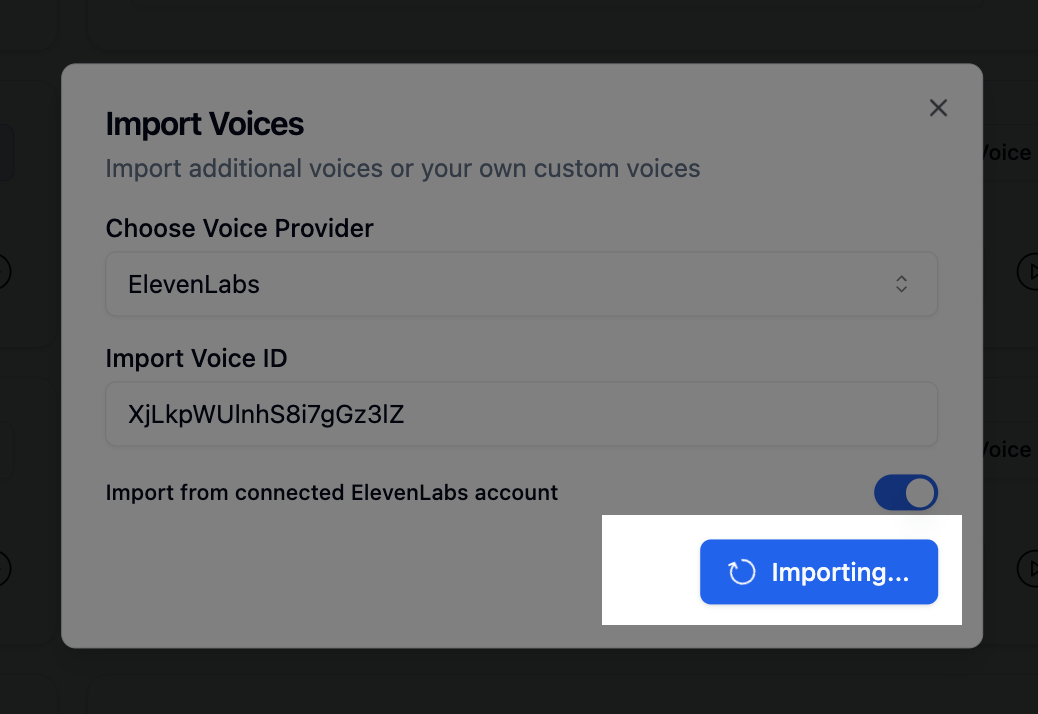
    <Frame caption="Proceed with importing">
      <img src="https://mintcdn.com/bolna-54a2d4fe/DqJpudnR0YtgOS49/images/import_voices_5.png?fit=max&auto=format&n=DqJpudnR0YtgOS49&q=85&s=f45f1b42b1b8f84b7b7376baf6f18fb3" alt="Voice import confirmation screen" width="1038" height="714" data-path="images/import_voices_5.png" />
    </Frame>
  </Step>
</Steps>

<Tip>
  Need help finding Voice IDs? Check your voice provider's dashboard or [contact support](mailto:support@bolna.ai).
</Tip>

***

## Next Steps

<CardGroup cols={2}>
  <Card title="Clone Voices" icon="microphone" href="/clone-voices">
    Create brand-specific voice identities
  </Card>

  <Card title="Voice Settings" icon="sliders" href="/agent-setup/audio-tab">
    Configure voice settings in the Playground
  </Card>

  <Card title="Voice Providers" icon="plug" href="/providers/voice/elevenlabs">
    Browse voice provider integrations
  </Card>

  <Card title="Multilingual" icon="globe" href="/customizations/multilingual-languages-support">
    Set up multilingual agents with imported voices
  </Card>
</CardGroup>


Built with [Mintlify](https://mintlify.com).