> ## Documentation Index
> Fetch the complete documentation index at: https://www.bolna.ai/docs/llms.txt
> Use this file to discover all available pages before exploring further.
# Testing extractions
> Test Bolna extractions against sample or real call transcripts, read the test results, and refine prompts before deploying to production.
Before deploying extractions to production, test them against sample or real transcripts to validate accuracy and refine your prompts.
 ## How to test extractions
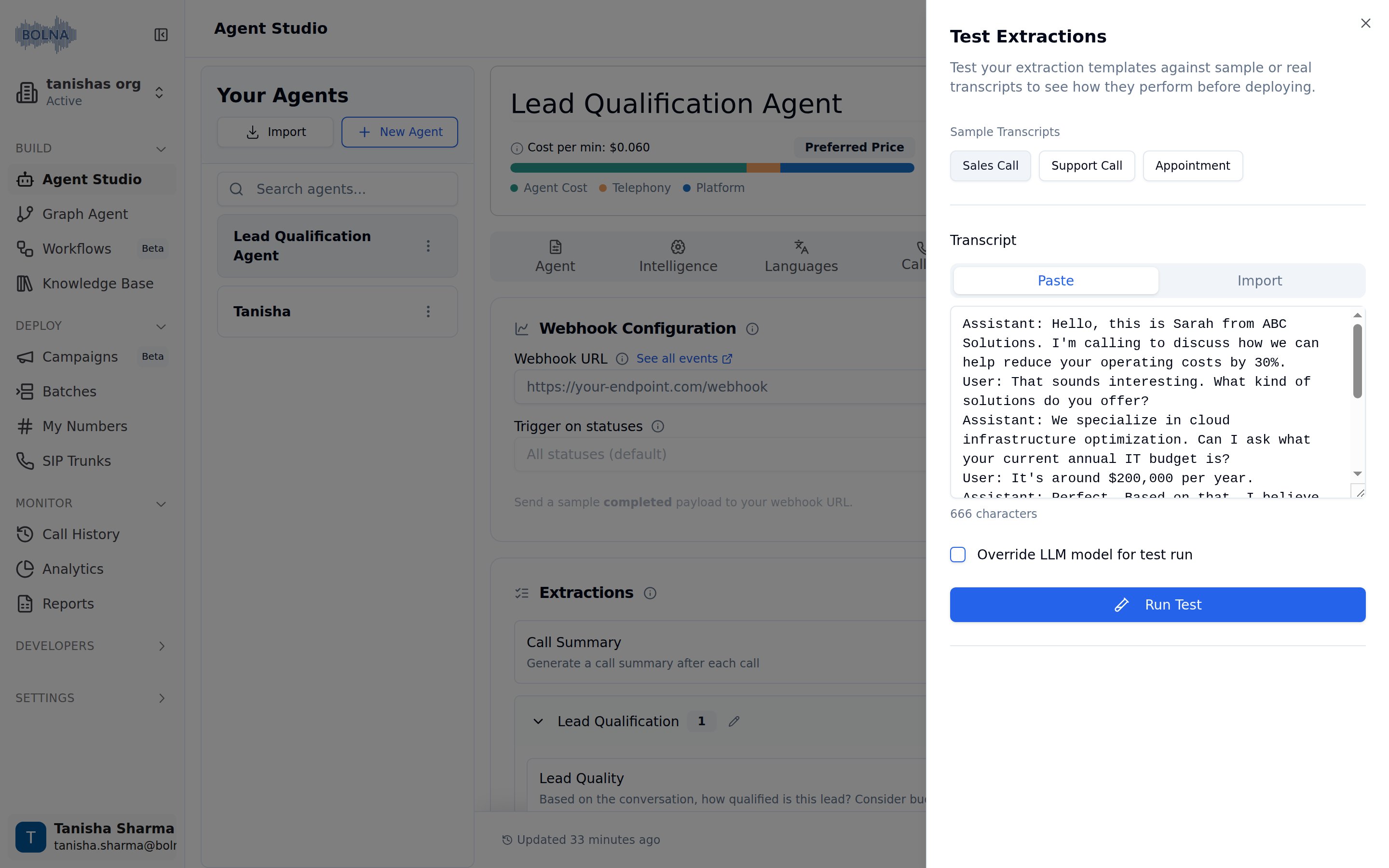
In the Extractions section, click the **Test Extractions** button to open the testing modal.
Select from sample transcripts (Sales Call, Support Call, Appointment) or provide your own:
* **Paste** - Paste a transcript directly into the text area
* **Import** - Upload a transcript file
Click the **Run Test** button to process the transcript through all your extraction templates.
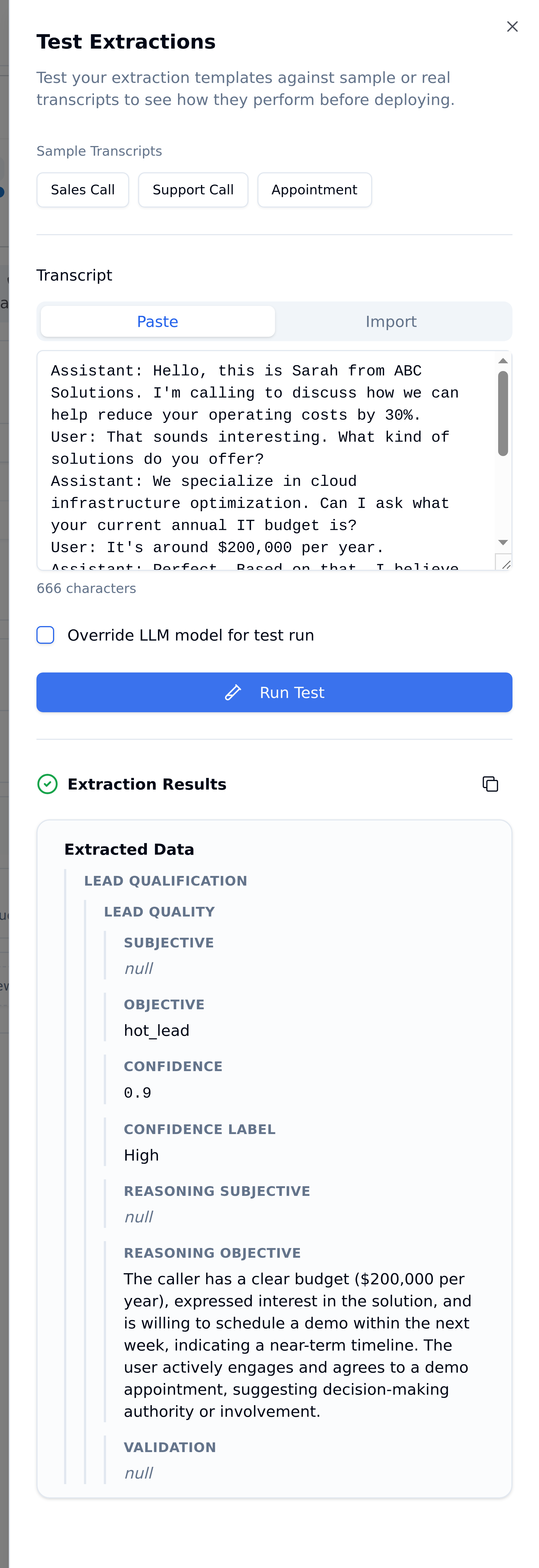
View extraction results organized by category. Each extraction shows:
* **SUBJECTIVE** - Free text responses generated by the LLM
* **OBJECTIVE** - Pre-defined values selected by the LLM
## How to test extractions
In the Extractions section, click the **Test Extractions** button to open the testing modal.
Select from sample transcripts (Sales Call, Support Call, Appointment) or provide your own:
* **Paste** - Paste a transcript directly into the text area
* **Import** - Upload a transcript file
Click the **Run Test** button to process the transcript through all your extraction templates.
View extraction results organized by category. Each extraction shows:
* **SUBJECTIVE** - Free text responses generated by the LLM
* **OBJECTIVE** - Pre-defined values selected by the LLM
 ## Understanding test results
Extraction results are displayed hierarchically by category. Each extraction shows its full result including confidence and reasoning:
```
CATEGORY NAME
├─ EXTRACTION NAME
│ ├─ SUBJECTIVE: [Free text response]
│ ├─ OBJECTIVE: [Pre-defined value or null]
│ ├─ CONFIDENCE: 0.92 (High)
│ ├─ REASONING (SUBJECTIVE): [LLM explanation]
│ └─ REASONING (OBJECTIVE): [LLM explanation]
```
**Example:**
```
VISIT DETAILS
├─ RESCHEDULED VISIT TIME
│ ├─ SUBJECTIVE: 14:00
│ ├─ OBJECTIVE: null
│ └─ CONFIDENCE: 0.89 (High)
├─ RESCHEDULED VISIT DATE
│ ├─ SUBJECTIVE: 24/03/2026
│ ├─ OBJECTIVE: null
│ └─ CONFIDENCE: 0.91 (High)
```
`null` appears when an extraction type isn't configured or no matching value is found. Low-confidence results (below 0.5) are worth reviewing manually.
## Testing best practices
Test your extractions against various conversation types to ensure they work across different scenarios.
If using both free text and pre-defined answers, verify both are extracting correctly.
If results aren't accurate, edit your extraction prompts and conditions, then test again.
For production validation, test with actual call transcripts from your agent.
## Sample transcripts
The Test Extractions interface provides three sample transcript types:
* **Sales Call** - Conversation about products and services
* **Support Call** - Customer support interaction
* **Appointment** - Scheduling and booking conversation
These samples help you quickly validate extraction logic without needing your own transcripts.
## Next steps
This documentation is built and hosted on [Mintlify](https://mintlify.com), a developer documentation platform.
## Understanding test results
Extraction results are displayed hierarchically by category. Each extraction shows its full result including confidence and reasoning:
```
CATEGORY NAME
├─ EXTRACTION NAME
│ ├─ SUBJECTIVE: [Free text response]
│ ├─ OBJECTIVE: [Pre-defined value or null]
│ ├─ CONFIDENCE: 0.92 (High)
│ ├─ REASONING (SUBJECTIVE): [LLM explanation]
│ └─ REASONING (OBJECTIVE): [LLM explanation]
```
**Example:**
```
VISIT DETAILS
├─ RESCHEDULED VISIT TIME
│ ├─ SUBJECTIVE: 14:00
│ ├─ OBJECTIVE: null
│ └─ CONFIDENCE: 0.89 (High)
├─ RESCHEDULED VISIT DATE
│ ├─ SUBJECTIVE: 24/03/2026
│ ├─ OBJECTIVE: null
│ └─ CONFIDENCE: 0.91 (High)
```
`null` appears when an extraction type isn't configured or no matching value is found. Low-confidence results (below 0.5) are worth reviewing manually.
## Testing best practices
Test your extractions against various conversation types to ensure they work across different scenarios.
If using both free text and pre-defined answers, verify both are extracting correctly.
If results aren't accurate, edit your extraction prompts and conditions, then test again.
For production validation, test with actual call transcripts from your agent.
## Sample transcripts
The Test Extractions interface provides three sample transcript types:
* **Sales Call** - Conversation about products and services
* **Support Call** - Customer support interaction
* **Appointment** - Scheduling and booking conversation
These samples help you quickly validate extraction logic without needing your own transcripts.
## Next steps
This documentation is built and hosted on [Mintlify](https://mintlify.com), a developer documentation platform.