> ## Documentation Index
> Fetch the complete documentation index at: https://www.bolna.ai/docs/llms.txt
> Use this file to discover all available pages before exploring further.
# Using Extractions in Bolna Dashboard
> Learn how to create and manage extraction templates in the Bolna dashboard to capture structured data from call transcripts.
## What are Extractions?
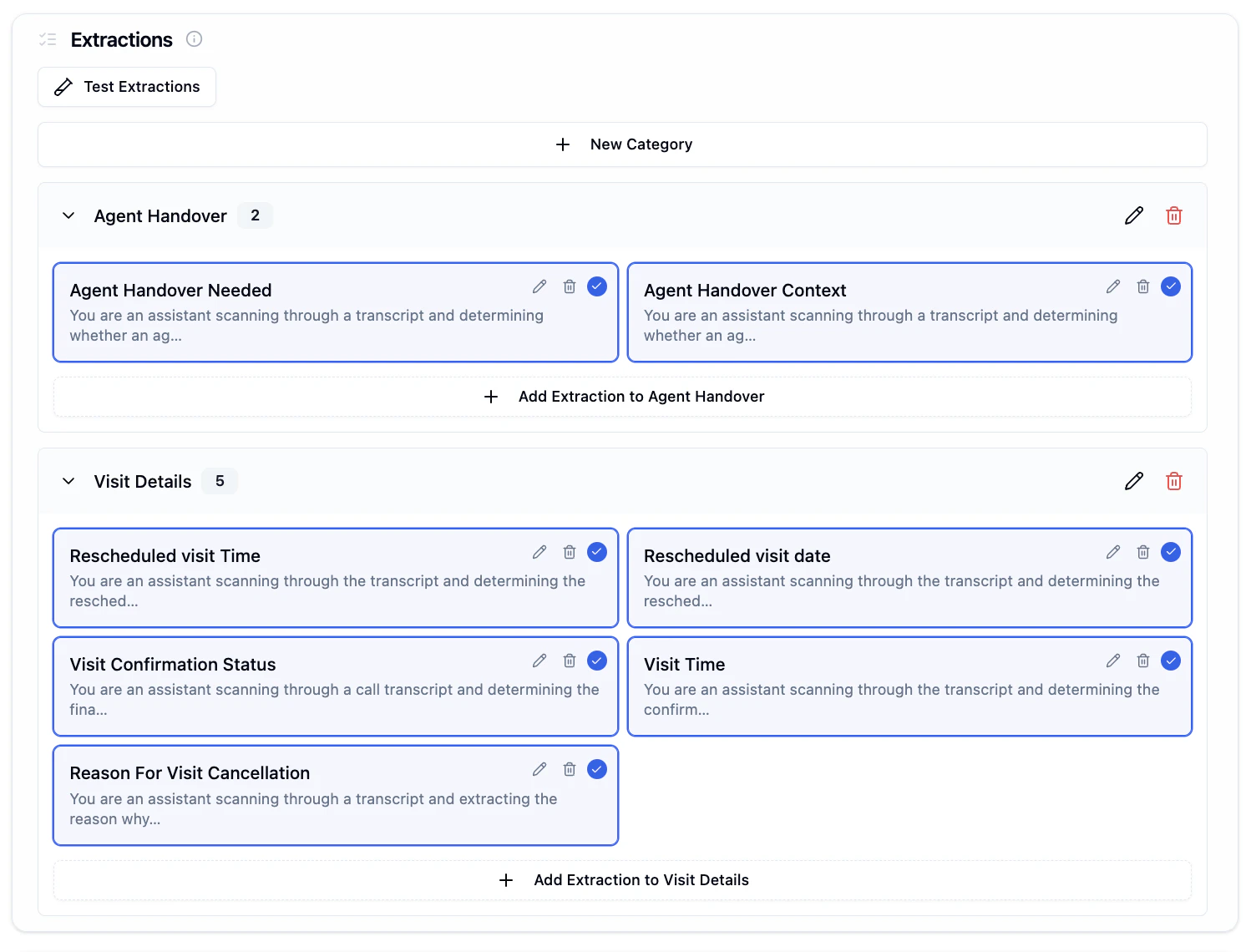
Extractions allow you to automatically capture structured data from call transcripts. Organize extractions into categories and define custom questions to extract specific information like lead quality, appointment details, customer sentiment, and more.
 Configuring extractions via the API instead of the dashboard? The new Extractions feature is powered by the [Dispositions API](/docs/api-reference/dispositions/overview).
***
## Getting Started with Extractions
### Step 1: Access the Extractions Tab
Navigate to the **Extractions** tab in your agent configuration to find the **Extractions** section.
Configuring extractions via the API instead of the dashboard? The new Extractions feature is powered by the [Dispositions API](/docs/api-reference/dispositions/overview).
***
## Getting Started with Extractions
### Step 1: Access the Extractions Tab
Navigate to the **Extractions** tab in your agent configuration to find the **Extractions** section.
 ***
## Creating Categories
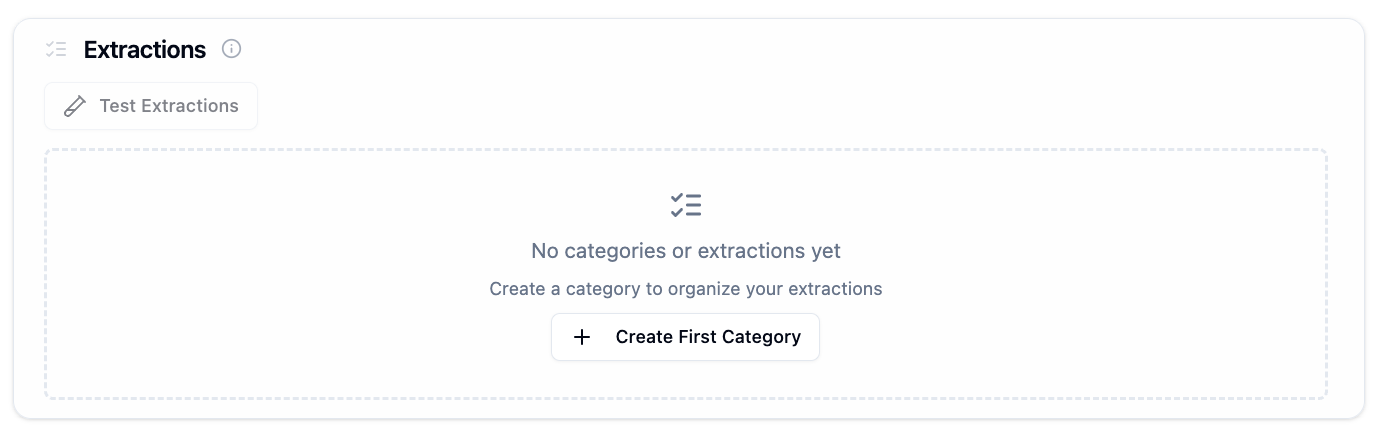
Categories help you organize related extractions together. For example, "Agent Handover", "Visit Details", or "Lead Qualification".
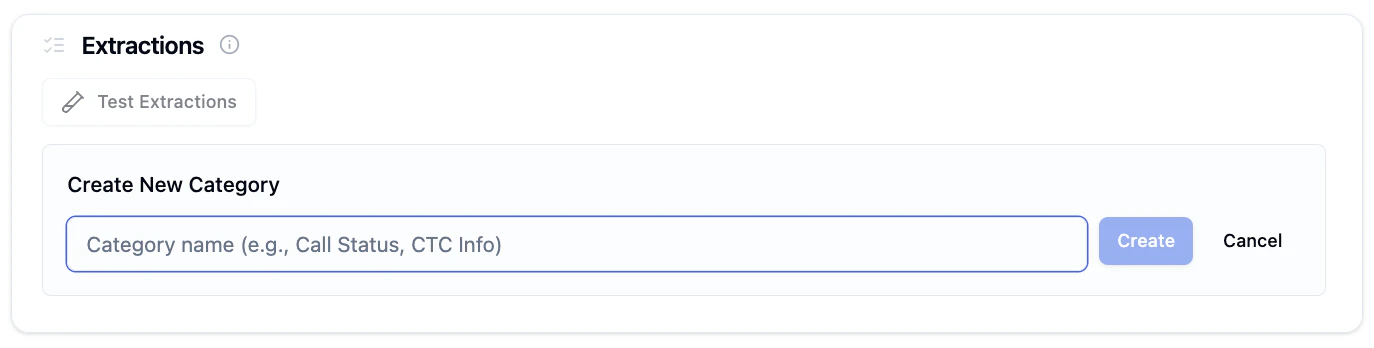
Start by creating a category to organize your extractions.
Choose a descriptive name like "Agent Handover" or "Visit Details".
Your category is now ready for extractions.
***
## Creating Categories
Categories help you organize related extractions together. For example, "Agent Handover", "Visit Details", or "Lead Qualification".
Start by creating a category to organize your extractions.
Choose a descriptive name like "Agent Handover" or "Visit Details".
Your category is now ready for extractions.
 ***
## Creating Extractions
Within each category, you can create multiple extraction templates to capture different data points.
***
## Creating Extractions
Within each category, you can create multiple extraction templates to capture different data points.
 ### Extraction Fields
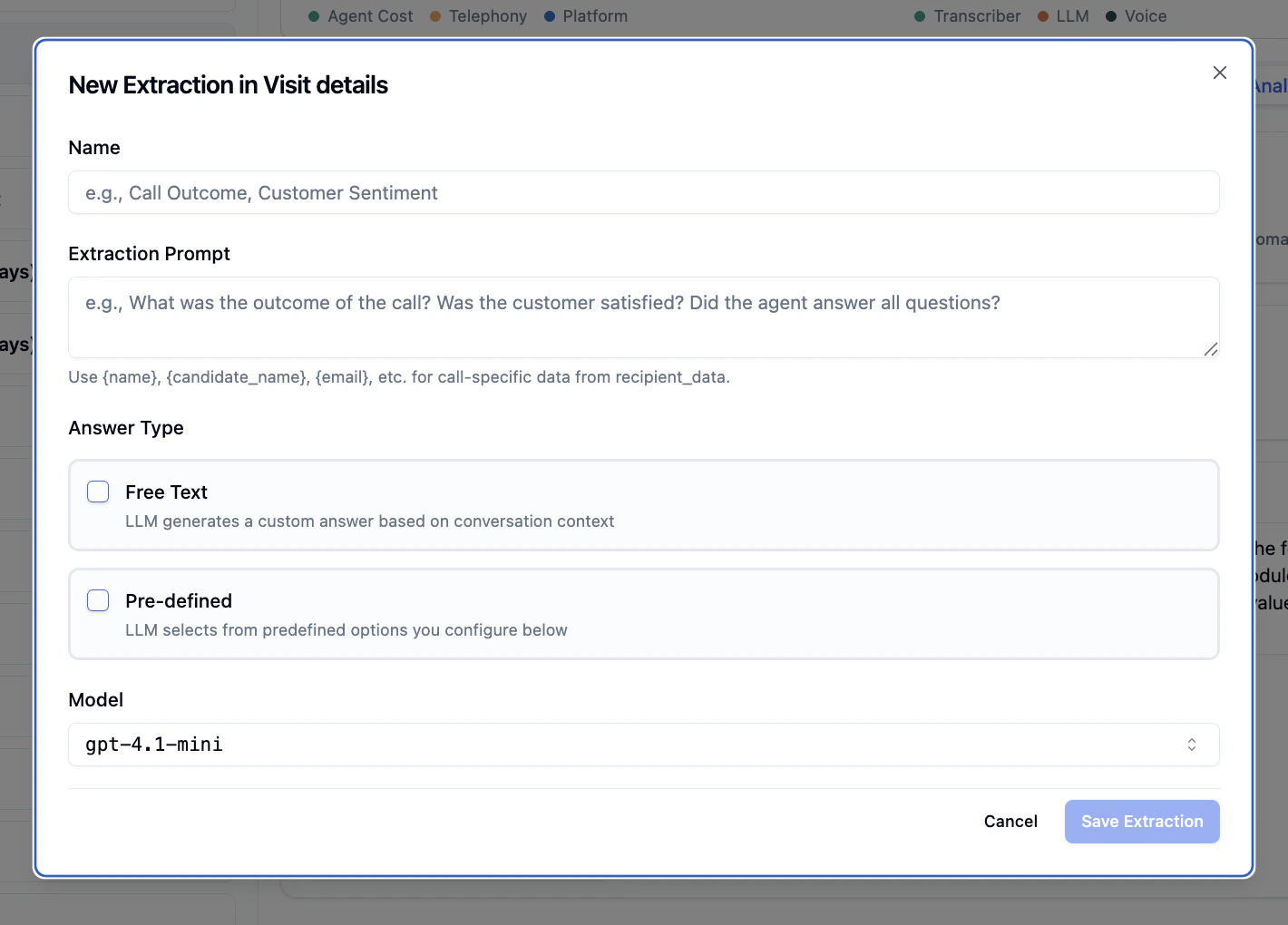
A descriptive name for the extraction (e.g., "Call Outcome", "Customer Sentiment", "Agent Handover Needed").
This name will appear in your extraction results and webhooks.
Instructions that guide the LLM on what to extract from the transcript.
**Example prompts:**
```
What was the outcome of the call? Was the customer satisfied?
Did the agent answer all questions?
```
```
Determine whether an agent handover is required based on the
customer's statements.
```
You can use variables like `{{name}}`, `{{candidate_name}}`, `{{email}}` to reference call-specific data from recipient\_data.
Choose how the LLM should structure its response:
**Free Text**
* LLM generates a custom answer based on conversation context
* Best for open-ended questions and detailed responses
* Example: "Describe the customer's main concern"
**Pre-defined**
* LLM selects from predefined options you configure
* Best for categorical data and structured responses
* Example: Lead quality (hot/warm/cold), Yes/No questions
When creating extractions with Free Text enabled, you can constrain the response format using the **Expected Format** dropdown:
| Format | Description | Example Value |
| ------------------ | ------------------------------ | ---------------------------------------- |
| **Text** (default) | Any free-form text | `"Customer was satisfied with the demo"` |
| **Timestamp** | ISO 8601 date/time | `"2026-04-08T14:30:00"` |
| **Numeric** | Integer or decimal number | `"42"`, `"3.14"` |
| **Boolean** | Exactly `true` or `false` | `"true"` |
| **Email** | Valid email address | `"user@example.com"` |
| **Custom Regex** | Matches a custom regex pattern | `"1234567890"` |
When **Custom Regex** is selected, two additional fields appear:
* **Pattern (required)** — The regex the response must match (e.g., `^\d{10}$`)
* **Description (optional)** — Human-readable label (e.g., "10-digit phone number")
Responses are automatically validated against the expected format. Invalid responses are flagged but preserved — the original response is still returned so no data is lost.
Select the LLM model for extraction processing.
Default: `gpt-4.1-mini` (recommended for most use cases)
***
## Answer Types Explained
### Free Text Extractions
Use free text when you want the LLM to generate custom responses based on the conversation.
**Best for:**
* Summarizing customer concerns
* Extracting reasons or explanations
* Capturing qualitative feedback
* Open-ended questions
**Example:**
* Name: "Customer Concern"
* Prompt: "Summarize the main issue the customer raised during the call"
* Answer Type: Free Text
***
### Pre-defined Extractions
Use pre-defined options when you want structured, categorical responses.
### Extraction Fields
A descriptive name for the extraction (e.g., "Call Outcome", "Customer Sentiment", "Agent Handover Needed").
This name will appear in your extraction results and webhooks.
Instructions that guide the LLM on what to extract from the transcript.
**Example prompts:**
```
What was the outcome of the call? Was the customer satisfied?
Did the agent answer all questions?
```
```
Determine whether an agent handover is required based on the
customer's statements.
```
You can use variables like `{{name}}`, `{{candidate_name}}`, `{{email}}` to reference call-specific data from recipient\_data.
Choose how the LLM should structure its response:
**Free Text**
* LLM generates a custom answer based on conversation context
* Best for open-ended questions and detailed responses
* Example: "Describe the customer's main concern"
**Pre-defined**
* LLM selects from predefined options you configure
* Best for categorical data and structured responses
* Example: Lead quality (hot/warm/cold), Yes/No questions
When creating extractions with Free Text enabled, you can constrain the response format using the **Expected Format** dropdown:
| Format | Description | Example Value |
| ------------------ | ------------------------------ | ---------------------------------------- |
| **Text** (default) | Any free-form text | `"Customer was satisfied with the demo"` |
| **Timestamp** | ISO 8601 date/time | `"2026-04-08T14:30:00"` |
| **Numeric** | Integer or decimal number | `"42"`, `"3.14"` |
| **Boolean** | Exactly `true` or `false` | `"true"` |
| **Email** | Valid email address | `"user@example.com"` |
| **Custom Regex** | Matches a custom regex pattern | `"1234567890"` |
When **Custom Regex** is selected, two additional fields appear:
* **Pattern (required)** — The regex the response must match (e.g., `^\d{10}$`)
* **Description (optional)** — Human-readable label (e.g., "10-digit phone number")
Responses are automatically validated against the expected format. Invalid responses are flagged but preserved — the original response is still returned so no data is lost.
Select the LLM model for extraction processing.
Default: `gpt-4.1-mini` (recommended for most use cases)
***
## Answer Types Explained
### Free Text Extractions
Use free text when you want the LLM to generate custom responses based on the conversation.
**Best for:**
* Summarizing customer concerns
* Extracting reasons or explanations
* Capturing qualitative feedback
* Open-ended questions
**Example:**
* Name: "Customer Concern"
* Prompt: "Summarize the main issue the customer raised during the call"
* Answer Type: Free Text
***
### Pre-defined Extractions
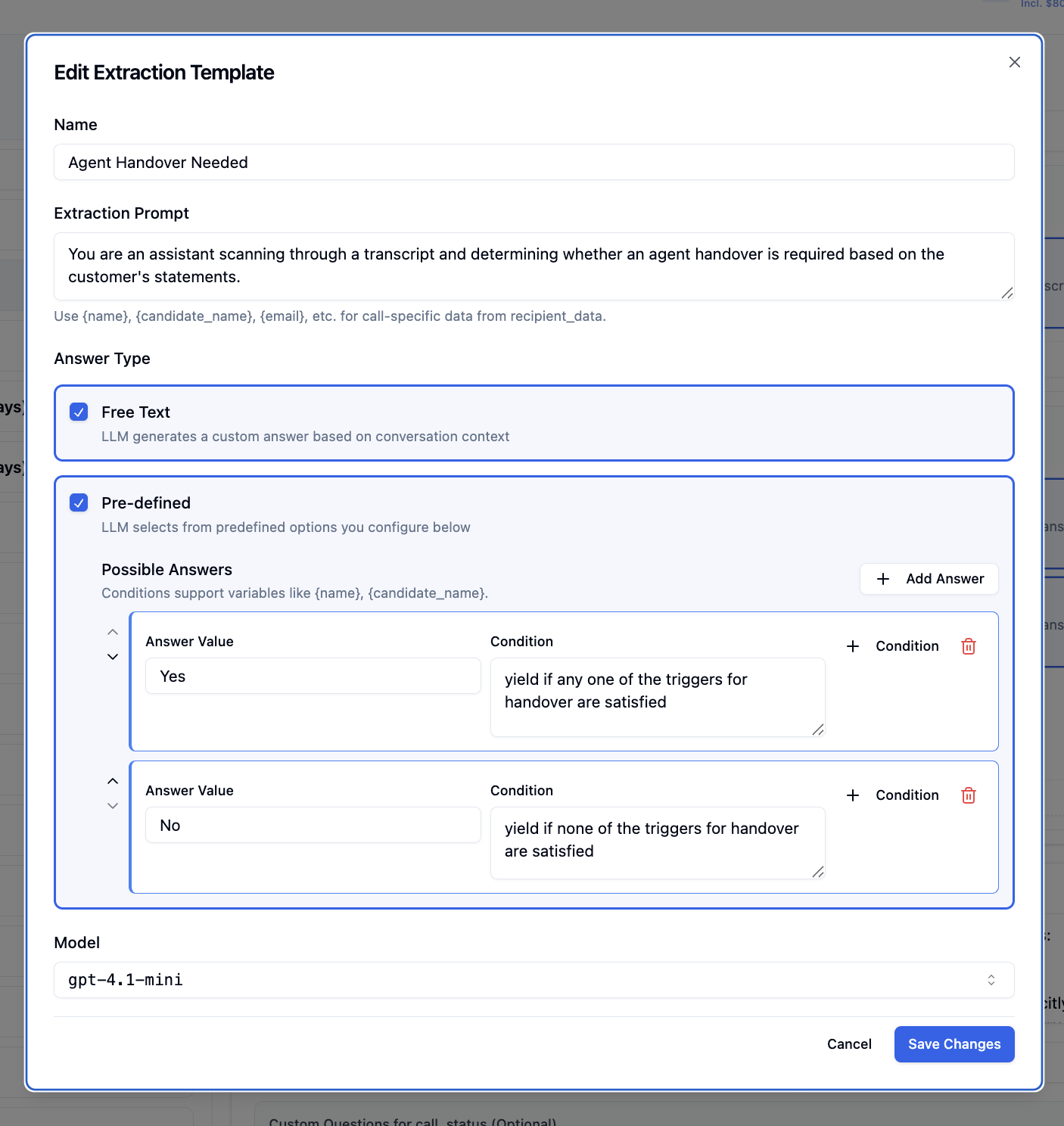
Use pre-defined options when you want structured, categorical responses.
 **Best for:**
* Yes/No questions
* Status classifications
* Lead scoring
* Outcome categorization
#### Configuring Pre-defined Answers
Each answer option consists of:
1. **Answer Value** - The value to return (e.g., "Yes", "No", "hot", "warm", "cold")
2. **Condition** - Instructions for when to select this answer
**Example: Agent Handover Detection**
**Answer 1:**
* Value: `Yes`
* Condition: `yield if any one of the triggers for handover are satisfied`
**Answer 2:**
* Value: `No`
* Condition: `yield if none of the triggers for handover are satisfied`
Conditions support variables like `{{name}}`, `{{candidate_name}}` for dynamic evaluation based on recipient data.
***
## Managing Extractions
### Edit an Extraction
1. Click the **edit icon** (pencil) on any extraction card
2. Modify the name, prompt, answer type, or model
3. Click **Save Changes**
### Delete an Extraction
1. Click the **delete icon** (trash) on any extraction card
2. Confirm deletion
***
## Testing Extractions
Before deploying extractions to production, test them against sample or real transcripts to validate accuracy and refine your prompts.
**Best for:**
* Yes/No questions
* Status classifications
* Lead scoring
* Outcome categorization
#### Configuring Pre-defined Answers
Each answer option consists of:
1. **Answer Value** - The value to return (e.g., "Yes", "No", "hot", "warm", "cold")
2. **Condition** - Instructions for when to select this answer
**Example: Agent Handover Detection**
**Answer 1:**
* Value: `Yes`
* Condition: `yield if any one of the triggers for handover are satisfied`
**Answer 2:**
* Value: `No`
* Condition: `yield if none of the triggers for handover are satisfied`
Conditions support variables like `{{name}}`, `{{candidate_name}}` for dynamic evaluation based on recipient data.
***
## Managing Extractions
### Edit an Extraction
1. Click the **edit icon** (pencil) on any extraction card
2. Modify the name, prompt, answer type, or model
3. Click **Save Changes**
### Delete an Extraction
1. Click the **delete icon** (trash) on any extraction card
2. Confirm deletion
***
## Testing Extractions
Before deploying extractions to production, test them against sample or real transcripts to validate accuracy and refine your prompts.
 ### How to Test Extractions
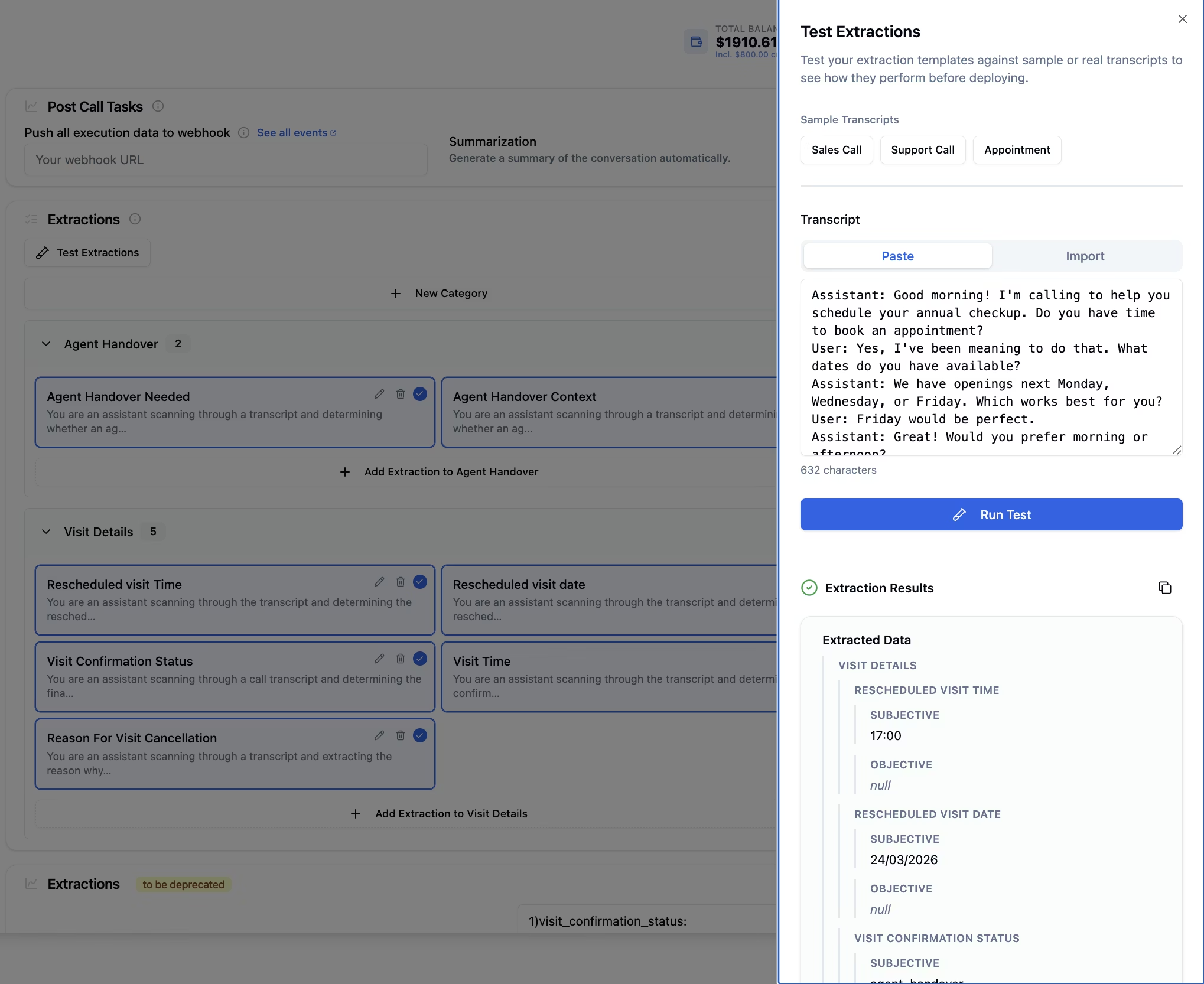
In the Extractions section, click the **Test Extractions** button to open the testing modal.
Select from sample transcripts (Sales Call, Support Call, Appointment) or provide your own:
* **Paste** - Paste a transcript directly into the text area
* **Import** - Upload a transcript file
Click the **Run Test** button to process the transcript through all your extraction templates.
View extraction results organized by category. Each extraction shows:
* **SUBJECTIVE** - Free text responses generated by the LLM
* **OBJECTIVE** - Pre-defined values selected by the LLM
### Understanding Test Results
Extraction results are displayed hierarchically by category. Each extraction shows its full result including confidence and reasoning:
```
CATEGORY NAME
├─ EXTRACTION NAME
│ ├─ SUBJECTIVE: [Free text response]
│ ├─ OBJECTIVE: [Pre-defined value or null]
│ ├─ CONFIDENCE: 0.92 (High)
│ ├─ REASONING (SUBJECTIVE): [LLM explanation]
│ └─ REASONING (OBJECTIVE): [LLM explanation]
```
**Example:**
```
VISIT DETAILS
├─ RESCHEDULED VISIT TIME
│ ├─ SUBJECTIVE: 14:00
│ ├─ OBJECTIVE: null
│ └─ CONFIDENCE: 0.89 (High)
├─ RESCHEDULED VISIT DATE
│ ├─ SUBJECTIVE: 24/03/2026
│ ├─ OBJECTIVE: null
│ └─ CONFIDENCE: 0.91 (High)
```
`null` appears when an extraction type isn't configured or no matching value is found. Low-confidence results (below 0.5) are worth reviewing manually.
### Testing Best Practices
Test your extractions against various conversation types to ensure they work across different scenarios.
If using both free text and pre-defined answers, verify both are extracting correctly.
If results aren't accurate, edit your extraction prompts and conditions, then test again.
For production validation, test with actual call transcripts from your agent.
### Sample Transcripts
The Test Extractions interface provides three sample transcript types:
* **Sales Call** - Conversation about products and services
* **Support Call** - Customer support interaction
* **Appointment** - Scheduling and booking conversation
These samples help you quickly validate extraction logic without needing your own transcripts.
***
## Working with Categories
### Rename a Category
Click the **edit icon** next to the category name to rename it.
### Delete a Category
Click the **delete icon** next to the category name. This will remove the category and all extractions within it.
Deleting a category is permanent and cannot be undone. All extractions in the category will be deleted.
### Add Extractions to a Category
Click **Add Extraction to \[Category Name]** button at the bottom of each category section.
***
### Extraction Output Format
Each extraction result is a JSON object with the following fields:
| Field | Type | Description |
| ---------------------- | ---------------- | ------------------------------------------------------------------------------------------------------------------------- |
| `subjective` | `string \| null` | Free Text LLM response. `""` if no relevant info found; `null` if `is_subjective` is `false` |
| `objective` | `string \| null` | Selected Pre-defined value. `null` if not configured or no condition matched |
| `confidence` | `float` | LLM confidence score from `0.0` to `1.0` |
| `confidence_label` | `string` | Human-readable label: `"High"` (≥ 0.8), `"Medium"` (≥ 0.5), or `"Low"` (\< 0.5) |
| `reasoning_subjective` | `string \| null` | LLM's reasoning for the free-text response. `null` if `is_subjective` is `false` |
| `reasoning_objective` | `string \| null` | LLM's reasoning for the pre-defined selection. `null` if `is_objective` is `false` |
| `validation` | `object \| null` | Post-LLM validation result for typed free-text responses. `null` for plain `text` type or when `is_subjective` is `false` |
Results are nested by category and extraction name under `extracted_data`:
```json theme={"system"}
{
"extracted_data": {
"Category Name": {
"Extraction Name": {
"subjective": "Free text response from LLM",
"objective": "Pre-defined value or null",
"confidence": 0.92,
"confidence_label": "High",
"reasoning_subjective": "LLM's explanation for the free-text answer",
"reasoning_objective": "LLM's explanation for the selected option",
"validation": null
}
}
}
}
```
**Complete Example:**
```json theme={"system"}
{
"extracted_data": {
"Lead Quality": {
"Call Outcome": {
"subjective": "Customer expressed strong interest and asked about enterprise pricing options.",
"objective": "interested",
"confidence": 0.92,
"confidence_label": "High",
"reasoning_subjective": "Customer asked about enterprise pricing and requested a follow-up demo.",
"reasoning_objective": "Customer explicitly expressed interest and agreed to a next step.",
"validation": null
}
},
"Contact Info": {
"Customer Email": {
"subjective": "user@example.com",
"objective": null,
"confidence": 0.95,
"confidence_label": "High",
"reasoning_subjective": "Customer clearly provided their email address during the call.",
"reasoning_objective": null,
"validation": {
"is_valid": true,
"expected_type": "email"
}
}
},
"Agent Handover": {
"Agent Handover Needed": {
"subjective": "",
"objective": "No",
"confidence": 0.88,
"confidence_label": "High",
"reasoning_subjective": null,
"reasoning_objective": "Customer did not request to speak with a human agent at any point.",
"validation": null
}
}
}
}
```
### Understanding the Output
Contains the **free text response** generated by the LLM based on the extraction prompt.
* Returns a string with the LLM's analysis
* Empty string `""` if no information found
* `"null"` (string) if extraction wasn't applicable
**Example:** `"The customer expressed interest and agreed to a demo appointment"`
Contains the **pre-defined value** selected by the LLM from configured answer options.
* Returns the configured answer value (e.g., `"Yes"`, `"No"`, `"hot"`, `"warm"`, `"cold"`)
* `null` if pre-defined answers aren't configured
* `null` if no matching condition was satisfied
**Example:** `"No"` (from answer options "Yes" or "No")
Every extraction result includes a **confidence score** explaining how certain the LLM was about its answer.
| Field | Type | Description |
| ------------------ | ------ | --------------------------------------------------------- |
| `confidence` | float | Score from `0.0` to `1.0` — higher means more certain |
| `confidence_label` | string | `"High"` (≥ 0.8), `"Medium"` (≥ 0.5), or `"Low"` (\< 0.5) |
Use these to build confidence-based routing — for example, flag `"Low"` results for human review.
Brief explanations from the LLM explaining *why* it produced each answer.
* `reasoning_subjective` — present when `is_subjective` is `true`; explains the free-text response
* `reasoning_objective` — present when `is_objective` is `true`; explains the pre-defined selection
Both are `null` when their respective answer type is disabled. Useful for auditing unexpected results.
Present when a Free Text extraction has an **Expected Format** constraint (anything other than plain `text`). Contains:
```json theme={"system"}
{
"is_valid": true,
"expected_type": "email"
}
```
* `is_valid: false` means the LLM's response didn't match the expected format — the original response is still returned in `subjective` so no data is lost
* `null` for plain `text` type or when `is_subjective` is `false`
Different empty states have different meanings:
| Value | Meaning |
| ------------------- | -------------------------------------------- |
| `""` (empty string) | No relevant information found in transcript |
| `"null"` (string) | Extraction wasn't applicable to this call |
| `null` (JSON null) | Field not configured OR no condition matched |
## Accessing Extraction Results
Extracted data is part of the call execution result and is available as `extracted_data` in every execution response. You can access it in the following ways:
Fetch any execution by ID using `GET /executions/{execution_id}` or list all executions for an agent using `GET /v2/agent/{agent_id}/executions`. The `extracted_data` field is returned in the response body.
```json theme={"system"}
{
"execution_id": "abc123",
"status": "completed",
"transcript": "...",
"extracted_data": {
"Agent Handover": {
"Agent Handover Needed": {
"subjective": "Customer asked to speak with a human.",
"objective": "Yes",
"confidence": 0.95,
"confidence_label": "High",
"reasoning_subjective": "Customer explicitly said they want to talk to a person.",
"reasoning_objective": "Customer requested a human agent.",
"validation": null
}
}
}
}
```
If you've configured a webhook, the `extracted_data` field is included in the post-call webhook payload, the same execution object sent to your endpoint after every call.
Open any call record from the **Call History** tab in the dashboard to see extraction results alongside the transcript and call summary.
For batch campaigns, `extracted_data` is returned in each execution record when fetching batch execution results.
## Common Use Cases
| Use Case | What to extract | What it enables |
| ----------------------- | ------------------------------------------ | ------------------------------------------------------------------ |
| **Agent Handover** | Did the caller ask for a human? | Route to a live agent in real time without manual review |
| **Lead Scoring** | Budget, timeline, decision-maker | Push hot leads to your CRM or Slack before the rep hangs up |
| **Appointment Sync** | Confirmed date, time, location | Write bookings to Google Calendar or Cal.com automatically |
| **Churn Prevention** | Sentiment, unresolved complaints | Flag unhappy customers and trigger a follow-up workflow |
| **Compliance Auditing** | Disclaimer read, consent given | Structured Yes/No record across thousands of calls |
| **Call Intelligence** | Objections, outcomes, cancellation reasons | Spot trends and measure what's working without reading transcripts |
***
## Best Practices
1. **Write specific prompts :** Clearly define what to capture and how to interpret the conversation. Avoid vague or multi-part instructions.
2. **Pick the right answer type :** Use Pre-defined for categorical data like Yes/No or status fields, and Free Text for open-ended responses.
3. **Keep extractions focused :** Split complex logic into multiple simple extractions rather than one long prompt.
4. **Test before deploying :** Run your extractions against real or sample transcripts to catch issues early.
***
## Next Steps
Access extractions programmatically
Receive extraction data in real-time
View extraction results for past calls
Configure other post-call tasks
### How to Test Extractions
In the Extractions section, click the **Test Extractions** button to open the testing modal.
Select from sample transcripts (Sales Call, Support Call, Appointment) or provide your own:
* **Paste** - Paste a transcript directly into the text area
* **Import** - Upload a transcript file
Click the **Run Test** button to process the transcript through all your extraction templates.
View extraction results organized by category. Each extraction shows:
* **SUBJECTIVE** - Free text responses generated by the LLM
* **OBJECTIVE** - Pre-defined values selected by the LLM
### Understanding Test Results
Extraction results are displayed hierarchically by category. Each extraction shows its full result including confidence and reasoning:
```
CATEGORY NAME
├─ EXTRACTION NAME
│ ├─ SUBJECTIVE: [Free text response]
│ ├─ OBJECTIVE: [Pre-defined value or null]
│ ├─ CONFIDENCE: 0.92 (High)
│ ├─ REASONING (SUBJECTIVE): [LLM explanation]
│ └─ REASONING (OBJECTIVE): [LLM explanation]
```
**Example:**
```
VISIT DETAILS
├─ RESCHEDULED VISIT TIME
│ ├─ SUBJECTIVE: 14:00
│ ├─ OBJECTIVE: null
│ └─ CONFIDENCE: 0.89 (High)
├─ RESCHEDULED VISIT DATE
│ ├─ SUBJECTIVE: 24/03/2026
│ ├─ OBJECTIVE: null
│ └─ CONFIDENCE: 0.91 (High)
```
`null` appears when an extraction type isn't configured or no matching value is found. Low-confidence results (below 0.5) are worth reviewing manually.
### Testing Best Practices
Test your extractions against various conversation types to ensure they work across different scenarios.
If using both free text and pre-defined answers, verify both are extracting correctly.
If results aren't accurate, edit your extraction prompts and conditions, then test again.
For production validation, test with actual call transcripts from your agent.
### Sample Transcripts
The Test Extractions interface provides three sample transcript types:
* **Sales Call** - Conversation about products and services
* **Support Call** - Customer support interaction
* **Appointment** - Scheduling and booking conversation
These samples help you quickly validate extraction logic without needing your own transcripts.
***
## Working with Categories
### Rename a Category
Click the **edit icon** next to the category name to rename it.
### Delete a Category
Click the **delete icon** next to the category name. This will remove the category and all extractions within it.
Deleting a category is permanent and cannot be undone. All extractions in the category will be deleted.
### Add Extractions to a Category
Click **Add Extraction to \[Category Name]** button at the bottom of each category section.
***
### Extraction Output Format
Each extraction result is a JSON object with the following fields:
| Field | Type | Description |
| ---------------------- | ---------------- | ------------------------------------------------------------------------------------------------------------------------- |
| `subjective` | `string \| null` | Free Text LLM response. `""` if no relevant info found; `null` if `is_subjective` is `false` |
| `objective` | `string \| null` | Selected Pre-defined value. `null` if not configured or no condition matched |
| `confidence` | `float` | LLM confidence score from `0.0` to `1.0` |
| `confidence_label` | `string` | Human-readable label: `"High"` (≥ 0.8), `"Medium"` (≥ 0.5), or `"Low"` (\< 0.5) |
| `reasoning_subjective` | `string \| null` | LLM's reasoning for the free-text response. `null` if `is_subjective` is `false` |
| `reasoning_objective` | `string \| null` | LLM's reasoning for the pre-defined selection. `null` if `is_objective` is `false` |
| `validation` | `object \| null` | Post-LLM validation result for typed free-text responses. `null` for plain `text` type or when `is_subjective` is `false` |
Results are nested by category and extraction name under `extracted_data`:
```json theme={"system"}
{
"extracted_data": {
"Category Name": {
"Extraction Name": {
"subjective": "Free text response from LLM",
"objective": "Pre-defined value or null",
"confidence": 0.92,
"confidence_label": "High",
"reasoning_subjective": "LLM's explanation for the free-text answer",
"reasoning_objective": "LLM's explanation for the selected option",
"validation": null
}
}
}
}
```
**Complete Example:**
```json theme={"system"}
{
"extracted_data": {
"Lead Quality": {
"Call Outcome": {
"subjective": "Customer expressed strong interest and asked about enterprise pricing options.",
"objective": "interested",
"confidence": 0.92,
"confidence_label": "High",
"reasoning_subjective": "Customer asked about enterprise pricing and requested a follow-up demo.",
"reasoning_objective": "Customer explicitly expressed interest and agreed to a next step.",
"validation": null
}
},
"Contact Info": {
"Customer Email": {
"subjective": "user@example.com",
"objective": null,
"confidence": 0.95,
"confidence_label": "High",
"reasoning_subjective": "Customer clearly provided their email address during the call.",
"reasoning_objective": null,
"validation": {
"is_valid": true,
"expected_type": "email"
}
}
},
"Agent Handover": {
"Agent Handover Needed": {
"subjective": "",
"objective": "No",
"confidence": 0.88,
"confidence_label": "High",
"reasoning_subjective": null,
"reasoning_objective": "Customer did not request to speak with a human agent at any point.",
"validation": null
}
}
}
}
```
### Understanding the Output
Contains the **free text response** generated by the LLM based on the extraction prompt.
* Returns a string with the LLM's analysis
* Empty string `""` if no information found
* `"null"` (string) if extraction wasn't applicable
**Example:** `"The customer expressed interest and agreed to a demo appointment"`
Contains the **pre-defined value** selected by the LLM from configured answer options.
* Returns the configured answer value (e.g., `"Yes"`, `"No"`, `"hot"`, `"warm"`, `"cold"`)
* `null` if pre-defined answers aren't configured
* `null` if no matching condition was satisfied
**Example:** `"No"` (from answer options "Yes" or "No")
Every extraction result includes a **confidence score** explaining how certain the LLM was about its answer.
| Field | Type | Description |
| ------------------ | ------ | --------------------------------------------------------- |
| `confidence` | float | Score from `0.0` to `1.0` — higher means more certain |
| `confidence_label` | string | `"High"` (≥ 0.8), `"Medium"` (≥ 0.5), or `"Low"` (\< 0.5) |
Use these to build confidence-based routing — for example, flag `"Low"` results for human review.
Brief explanations from the LLM explaining *why* it produced each answer.
* `reasoning_subjective` — present when `is_subjective` is `true`; explains the free-text response
* `reasoning_objective` — present when `is_objective` is `true`; explains the pre-defined selection
Both are `null` when their respective answer type is disabled. Useful for auditing unexpected results.
Present when a Free Text extraction has an **Expected Format** constraint (anything other than plain `text`). Contains:
```json theme={"system"}
{
"is_valid": true,
"expected_type": "email"
}
```
* `is_valid: false` means the LLM's response didn't match the expected format — the original response is still returned in `subjective` so no data is lost
* `null` for plain `text` type or when `is_subjective` is `false`
Different empty states have different meanings:
| Value | Meaning |
| ------------------- | -------------------------------------------- |
| `""` (empty string) | No relevant information found in transcript |
| `"null"` (string) | Extraction wasn't applicable to this call |
| `null` (JSON null) | Field not configured OR no condition matched |
## Accessing Extraction Results
Extracted data is part of the call execution result and is available as `extracted_data` in every execution response. You can access it in the following ways:
Fetch any execution by ID using `GET /executions/{execution_id}` or list all executions for an agent using `GET /v2/agent/{agent_id}/executions`. The `extracted_data` field is returned in the response body.
```json theme={"system"}
{
"execution_id": "abc123",
"status": "completed",
"transcript": "...",
"extracted_data": {
"Agent Handover": {
"Agent Handover Needed": {
"subjective": "Customer asked to speak with a human.",
"objective": "Yes",
"confidence": 0.95,
"confidence_label": "High",
"reasoning_subjective": "Customer explicitly said they want to talk to a person.",
"reasoning_objective": "Customer requested a human agent.",
"validation": null
}
}
}
}
```
If you've configured a webhook, the `extracted_data` field is included in the post-call webhook payload, the same execution object sent to your endpoint after every call.
Open any call record from the **Call History** tab in the dashboard to see extraction results alongside the transcript and call summary.
For batch campaigns, `extracted_data` is returned in each execution record when fetching batch execution results.
## Common Use Cases
| Use Case | What to extract | What it enables |
| ----------------------- | ------------------------------------------ | ------------------------------------------------------------------ |
| **Agent Handover** | Did the caller ask for a human? | Route to a live agent in real time without manual review |
| **Lead Scoring** | Budget, timeline, decision-maker | Push hot leads to your CRM or Slack before the rep hangs up |
| **Appointment Sync** | Confirmed date, time, location | Write bookings to Google Calendar or Cal.com automatically |
| **Churn Prevention** | Sentiment, unresolved complaints | Flag unhappy customers and trigger a follow-up workflow |
| **Compliance Auditing** | Disclaimer read, consent given | Structured Yes/No record across thousands of calls |
| **Call Intelligence** | Objections, outcomes, cancellation reasons | Spot trends and measure what's working without reading transcripts |
***
## Best Practices
1. **Write specific prompts :** Clearly define what to capture and how to interpret the conversation. Avoid vague or multi-part instructions.
2. **Pick the right answer type :** Use Pre-defined for categorical data like Yes/No or status fields, and Free Text for open-ended responses.
3. **Keep extractions focused :** Split complex logic into multiple simple extractions rather than one long prompt.
4. **Test before deploying :** Run your extractions against real or sample transcripts to catch issues early.
***
## Next Steps
Access extractions programmatically
Receive extraction data in real-time
View extraction results for past calls
Configure other post-call tasks