> ## Documentation Index
> Fetch the complete documentation index at: https://www.bolna.ai/docs/llms.txt
> Use this file to discover all available pages before exploring further.
# Book Calendar Slots with Bolna Voice AI and Cal.com
> Learn how to book calendar appointments during live calls using Bolna Voice AI integrated with Cal.com. Automate appointment scheduling with your voice agent.
## What is Book Calendar Slots?
The **Book Calendar Slots** function allows your Voice AI agent to schedule appointments directly into your Cal.com calendar during live conversations. After a caller selects a time slot, your agent can book it instantly.
 ***
## Configuration Options
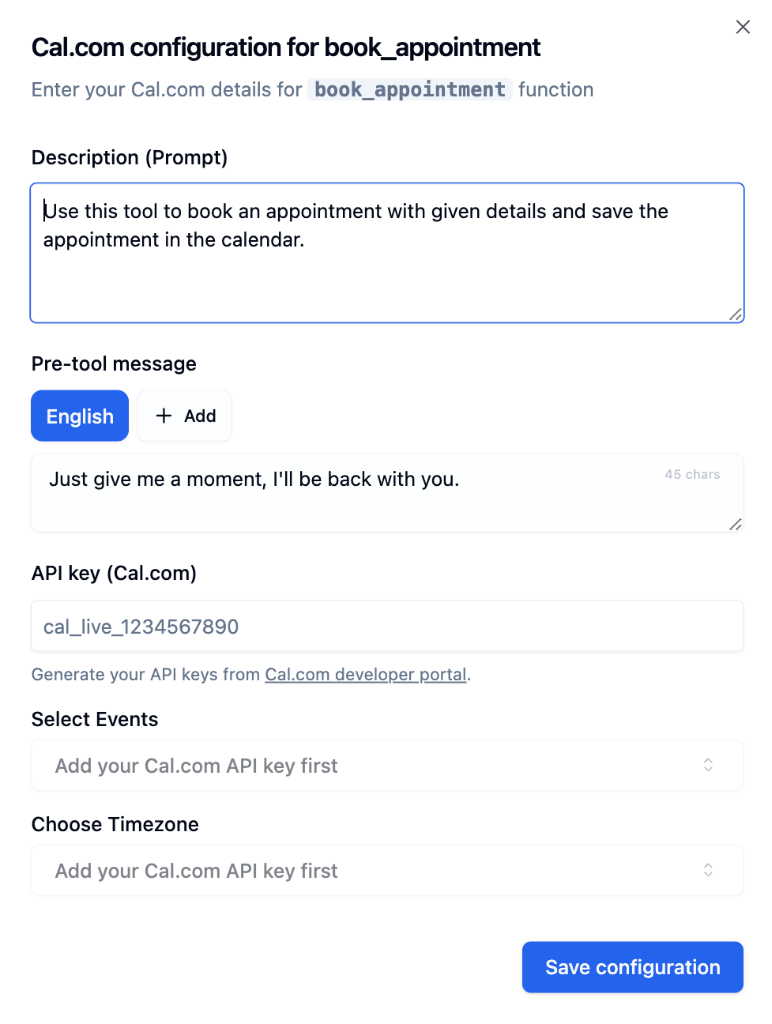
| Setting | Description |
| ------------------------ | ------------------------------------------------------------------------------------------------------------------------- |
| **Description (Prompt)** | When to book - e.g., *"Use this tool to book an appointment with given details and save the appointment in the calendar"* |
| **Pre-tool Message** | What agent says while booking - e.g., *"Just give me a moment, I'll be back with you"* |
| **API Key** | Your [Cal.com API key](https://app.cal.com/settings/developer/api-keys) |
| **Select Events** | Choose event types from your Cal.com account (15 min, 30 min, etc.) |
| **Choose Timezone** | Timezone for accurate slot booking |
**Select Events** and **Choose Timezone** dropdowns appear only after entering a valid Cal.com API key.
***
## How to Set Up
Navigate to [Tools Tab](/agent-setup/tools-tab) in your agent configuration.
Click **"Select functions"** → choose **"Book appointment (using Cal.com)"**.
Paste your Cal.com API key. Event types will load automatically once validated.
Choose which event to book - *15 min meeting*, *30 min meeting*, or your custom events.
Match your Cal.com event timezone for accurate booking.
Add a clear trigger description - e.g., *"Book the appointment after the caller confirms their preferred time slot."*
Click **Save configuration** to apply your settings.
***
## Example Conversation
**Caller**: "I'll take the 2 PM slot on Friday."
**Agent**: "Perfect! Let me book that for you. Just give me a moment..."
*Agent triggers book\_appointment function*
**Agent**: "Done! I've booked your appointment for Friday at 2 PM. You'll receive a calendar invite shortly. Is there anything else I can help with?"
***
## Best Practices
Combine with [Check Calendar Slots](/tool-calling/fetch-calendar-slots) - first fetch availability, then book
Ensure Bolna timezone matches Cal.com event timezone
Have your agent confirm the slot with the caller before booking
Ensure agent collects name and email before triggering the booking
**Pro workflow:** First use **Check Calendar Slots** to show availability, then use **Book Calendar Slots** after the caller confirms their preferred time.
**Test before deploying!** Verify appointments are being created correctly in your Cal.com calendar.
***
## Next Steps
Query available slots before booking
Build your own API integrations
Route calls to human agents
Complete guide to configuring functions
***
## Configuration Options
| Setting | Description |
| ------------------------ | ------------------------------------------------------------------------------------------------------------------------- |
| **Description (Prompt)** | When to book - e.g., *"Use this tool to book an appointment with given details and save the appointment in the calendar"* |
| **Pre-tool Message** | What agent says while booking - e.g., *"Just give me a moment, I'll be back with you"* |
| **API Key** | Your [Cal.com API key](https://app.cal.com/settings/developer/api-keys) |
| **Select Events** | Choose event types from your Cal.com account (15 min, 30 min, etc.) |
| **Choose Timezone** | Timezone for accurate slot booking |
**Select Events** and **Choose Timezone** dropdowns appear only after entering a valid Cal.com API key.
***
## How to Set Up
Navigate to [Tools Tab](/agent-setup/tools-tab) in your agent configuration.
Click **"Select functions"** → choose **"Book appointment (using Cal.com)"**.
Paste your Cal.com API key. Event types will load automatically once validated.
Choose which event to book - *15 min meeting*, *30 min meeting*, or your custom events.
Match your Cal.com event timezone for accurate booking.
Add a clear trigger description - e.g., *"Book the appointment after the caller confirms their preferred time slot."*
Click **Save configuration** to apply your settings.
***
## Example Conversation
**Caller**: "I'll take the 2 PM slot on Friday."
**Agent**: "Perfect! Let me book that for you. Just give me a moment..."
*Agent triggers book\_appointment function*
**Agent**: "Done! I've booked your appointment for Friday at 2 PM. You'll receive a calendar invite shortly. Is there anything else I can help with?"
***
## Best Practices
Combine with [Check Calendar Slots](/tool-calling/fetch-calendar-slots) - first fetch availability, then book
Ensure Bolna timezone matches Cal.com event timezone
Have your agent confirm the slot with the caller before booking
Ensure agent collects name and email before triggering the booking
**Pro workflow:** First use **Check Calendar Slots** to show availability, then use **Book Calendar Slots** after the caller confirms their preferred time.
**Test before deploying!** Verify appointments are being created correctly in your Cal.com calendar.
***
## Next Steps
Query available slots before booking
Build your own API integrations
Route calls to human agents
Complete guide to configuring functions