> ## Documentation Index
> Fetch the complete documentation index at: https://www.bolna.ai/docs/llms.txt
> Use this file to discover all available pages before exploring further.
# Check Calendar Slots with Bolna and Cal.com
> Integrate Bolna Voice Agents with Cal.com to fetch real-time available calendar slots during live conversations to check appointment availability automatically.
## What is Check Calendar Slots?
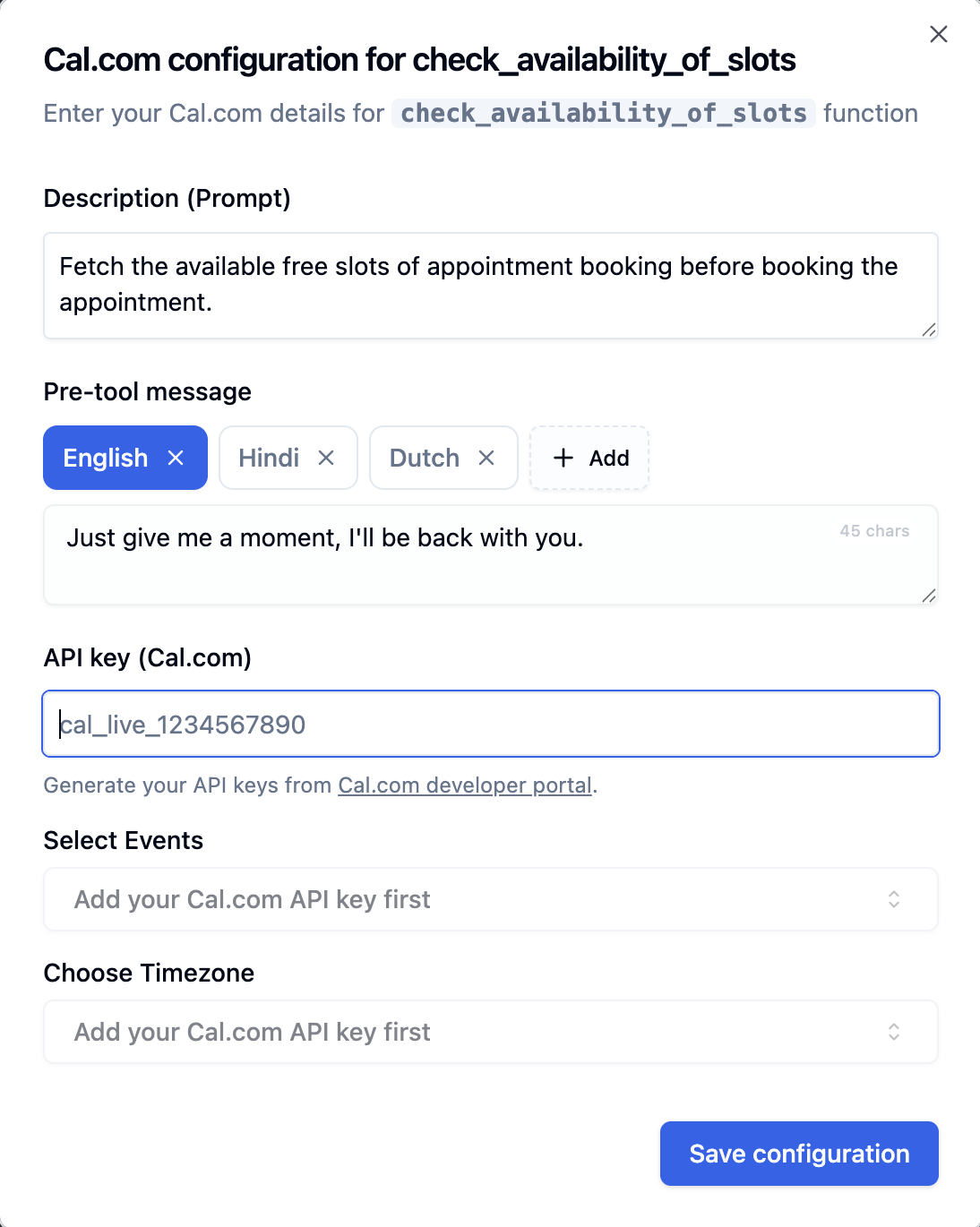
The **Check Calendar Slots** function lets your Voice AI agent query available appointment slots from Cal.com in real-time. When callers ask about availability, your agent instantly fetches open slots and presents options.
 ***
## Configuration Options
| Setting | Description |
| ------------------------ | ------------------------------------------------------------------------------------------ |
| **Description (Prompt)** | When to check availability - e.g., *"Fetch available slots before booking an appointment"* |
| **Pre-tool Message** | What agent says while fetching - e.g., *"Just a moment, let me check our availability"* |
| **API Key** | Your [Cal.com API key](https://app.cal.com/settings/developer/api-keys) |
| **Select Events** | Choose event types from your Cal.com account (15 min, 30 min, etc.) |
| **Choose Timezone** | Timezone for accurate slot times |
**Select Events** and **Choose Timezone** dropdowns appear only after entering a valid Cal.com API key.
***
## How to Set Up
Navigate to [Tools Tab](/agent-setup/tools-tab) in your agent configuration.
Click **"Select functions"** → choose **"Check slot availability (using Cal.com)"**.
Paste your Cal.com API key. Event types will load automatically once validated.
Choose which event to check - *15 min meeting*, *30 min meeting*, or your custom events.
Match your Cal.com event timezone for accurate time communication.
Add a clear trigger description - e.g., *"Check available slots when caller wants to schedule a meeting."*
***
## Example Conversation
**Caller**: "Hi, I'd like to schedule a meeting with your team."
**Agent**: "Of course! Let me check our available slots for you."
*Agent triggers check\_availability\_of\_slots function*
**Agent**: "I have openings tomorrow at 10 AM, 2 PM, and 4 PM. We also have slots on Friday at 11 AM and 3 PM. Which works best for you?"
***
## Best Practices
Use *"Fetch available slots when caller wants to schedule or asks about times"* instead of just "Check availability"
Ensure Bolna timezone matches Cal.com event timezone to avoid confusion
Set a friendly message like *"Just a moment..."* so callers know to wait
Verify slots are being fetched correctly with test calls
**Timezone matters!** Mismatched timezones cause the agent to communicate incorrect times to callers.
***
## Next Steps
After checking availability, book the appointment
Build your own API integrations
Route calls to human agents
Complete guide to configuring functions
***
## Configuration Options
| Setting | Description |
| ------------------------ | ------------------------------------------------------------------------------------------ |
| **Description (Prompt)** | When to check availability - e.g., *"Fetch available slots before booking an appointment"* |
| **Pre-tool Message** | What agent says while fetching - e.g., *"Just a moment, let me check our availability"* |
| **API Key** | Your [Cal.com API key](https://app.cal.com/settings/developer/api-keys) |
| **Select Events** | Choose event types from your Cal.com account (15 min, 30 min, etc.) |
| **Choose Timezone** | Timezone for accurate slot times |
**Select Events** and **Choose Timezone** dropdowns appear only after entering a valid Cal.com API key.
***
## How to Set Up
Navigate to [Tools Tab](/agent-setup/tools-tab) in your agent configuration.
Click **"Select functions"** → choose **"Check slot availability (using Cal.com)"**.
Paste your Cal.com API key. Event types will load automatically once validated.
Choose which event to check - *15 min meeting*, *30 min meeting*, or your custom events.
Match your Cal.com event timezone for accurate time communication.
Add a clear trigger description - e.g., *"Check available slots when caller wants to schedule a meeting."*
***
## Example Conversation
**Caller**: "Hi, I'd like to schedule a meeting with your team."
**Agent**: "Of course! Let me check our available slots for you."
*Agent triggers check\_availability\_of\_slots function*
**Agent**: "I have openings tomorrow at 10 AM, 2 PM, and 4 PM. We also have slots on Friday at 11 AM and 3 PM. Which works best for you?"
***
## Best Practices
Use *"Fetch available slots when caller wants to schedule or asks about times"* instead of just "Check availability"
Ensure Bolna timezone matches Cal.com event timezone to avoid confusion
Set a friendly message like *"Just a moment..."* so callers know to wait
Verify slots are being fetched correctly with test calls
**Timezone matters!** Mismatched timezones cause the agent to communicate incorrect times to callers.
***
## Next Steps
After checking availability, book the appointment
Build your own API integrations
Route calls to human agents
Complete guide to configuring functions