> ## Documentation Index
> Fetch the complete documentation index at: https://www.bolna.ai/docs/llms.txt
> Use this file to discover all available pages before exploring further.
# Function Calling for Voice AI Agents
> Use function tools with Bolna Voice AI agents to automate workflows. Integrate calendar booking, call transfers, and custom API endpoints during live conversations.
## What is Function Calling?
Function calling lets your Voice AI agent execute real-time actions during live conversations. Instead of just responding with text, your agent can transfer calls, book appointments, fetch data from APIs, or trigger any custom workflow.
 Function calling follows the [OpenAI specification](https://platform.openai.com/docs/guides/function-calling), so you can reuse existing function schemas with Bolna.
***
## Available Function Tools
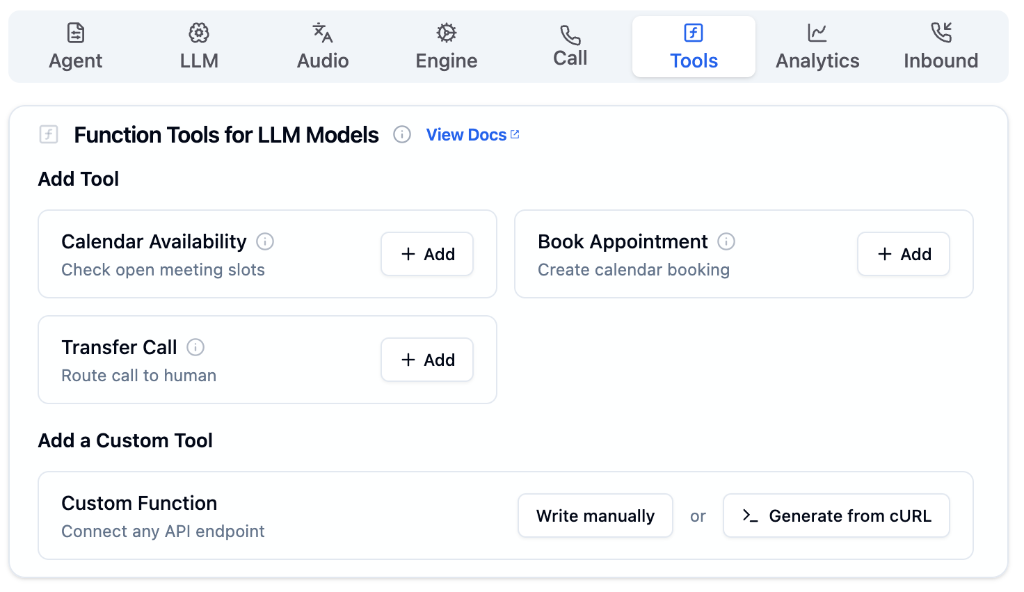
Bolna provides built-in tools for common use cases. Click **+ Add** next to any tool in the Tools Tab to enable it.
Check open meeting slots from Cal.com in real-time
Create calendar bookings via Cal.com during a call
Route the call to a human agent or another number
Connect any external API endpoint with a custom schema
For custom integrations, you can either **write the function schema manually** or **generate it from a cURL command** you already have. See the [Custom Functions guide](/tool-calling/custom-function-calls) for details.
***
## How It Works
The LLM sees your function's `name` and `description` to understand what the function does
Based on conversation context, the LLM decides if this function should be triggered
The LLM collects required parameter values from the conversation with the caller
Bolna makes the HTTP request to your API endpoint with the extracted parameters
The API response is returned to the LLM, which continues the conversation naturally
**The description is everything.** The LLM relies heavily on your function description to decide when to trigger it. A vague description leads to unreliable results.
***
## Context Variables
The following variables are automatically available in every conversation and can be passed to function parameters:
| Variable | Description |
| ---------------- | -------------------------------------------------------- |
| `{agent_id}` | The `id` of the agent |
| `{call_sid}` | Unique `id` of the phone call (from Twilio, Plivo, etc.) |
| `{from_number}` | Phone number that **initiated** the call |
| `{to_number}` | Phone number that **received** the call |
| Custom variables | Any variable you define in the agent prompt |
Variables defined in your agent prompt are automatically substituted in function parameters. Learn more in [Using Context Variables](/using-context).
***
## Next Steps
Complete guide to building custom API integrations
Set up call routing to human agents
Integrate Cal.com for appointment scheduling
Configure tools from the agent setup interface
Function calling follows the [OpenAI specification](https://platform.openai.com/docs/guides/function-calling), so you can reuse existing function schemas with Bolna.
***
## Available Function Tools
Bolna provides built-in tools for common use cases. Click **+ Add** next to any tool in the Tools Tab to enable it.
Check open meeting slots from Cal.com in real-time
Create calendar bookings via Cal.com during a call
Route the call to a human agent or another number
Connect any external API endpoint with a custom schema
For custom integrations, you can either **write the function schema manually** or **generate it from a cURL command** you already have. See the [Custom Functions guide](/tool-calling/custom-function-calls) for details.
***
## How It Works
The LLM sees your function's `name` and `description` to understand what the function does
Based on conversation context, the LLM decides if this function should be triggered
The LLM collects required parameter values from the conversation with the caller
Bolna makes the HTTP request to your API endpoint with the extracted parameters
The API response is returned to the LLM, which continues the conversation naturally
**The description is everything.** The LLM relies heavily on your function description to decide when to trigger it. A vague description leads to unreliable results.
***
## Context Variables
The following variables are automatically available in every conversation and can be passed to function parameters:
| Variable | Description |
| ---------------- | -------------------------------------------------------- |
| `{agent_id}` | The `id` of the agent |
| `{call_sid}` | Unique `id` of the phone call (from Twilio, Plivo, etc.) |
| `{from_number}` | Phone number that **initiated** the call |
| `{to_number}` | Phone number that **received** the call |
| Custom variables | Any variable you define in the agent prompt |
Variables defined in your agent prompt are automatically substituted in function parameters. Learn more in [Using Context Variables](/using-context).
***
## Next Steps
Complete guide to building custom API integrations
Set up call routing to human agents
Integrate Cal.com for appointment scheduling
Configure tools from the agent setup interface