> ## Documentation Index
> Fetch the complete documentation index at: https://www.bolna.ai/docs/llms.txt
> Use this file to discover all available pages before exploring further.
# Transfer Live Calls to Human Agents with Bolna Voice AI
> Learn how to transfer live phone calls to human agents or custom endpoints using Bolna Voice AI. Enable seamless handoffs based on conversation context.
## What is Call Transfer?
Call transfer enables your Voice AI agent to route live calls to human agents or specific phone numbers based on conversation context. Essential for escalations, specialized support, or when human intervention is needed.
***
## Configuration Options
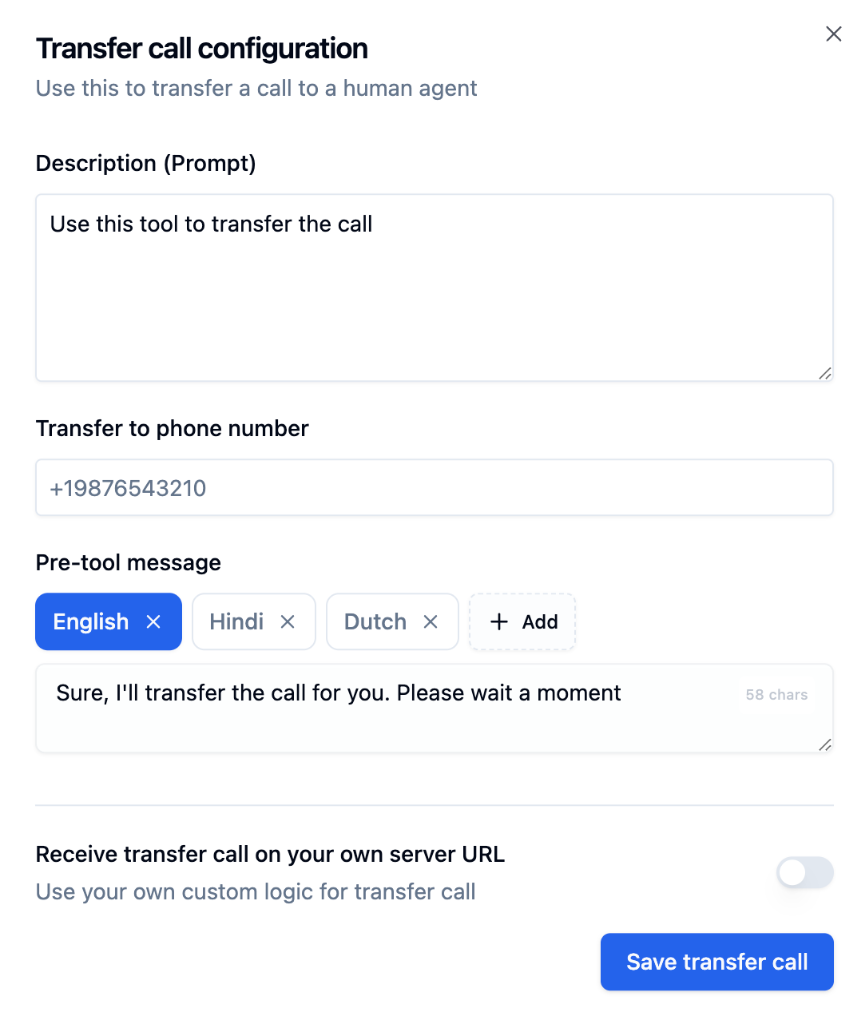 | Setting | Description |
| ---------------------------- | ------------------------------------------------------------------------------------------------------------------------------------------------------------------------------------- |
| **Description (Prompt)** | Tell the LLM when to trigger the transfer. Be specific - e.g., *"Transfer when caller requests to speak with a human agent or sales team."* |
| **Transfer to phone number** | Destination number in international format (e.g., `+19876543210`) |
| **Pre-tool message** | What the agent says while transferring - e.g., *"Sure, I'll transfer the call for you. Please wait a moment."* Supports multiple languages. |
| **Pre-call webhook** | Optionally notify a URL of your choice *before* the transfer happens — useful for sending the transfer reason to your system in real time. See [Pre-call Webhook](#pre-call-webhook). |
Add multiple languages for pre-tool messages using **+ Add** to support multilingual callers.
***
## Pre-call Webhook
The Transfer Call tool can fire an optional **pre-call webhook** — a notification sent to a URL of your choice *before* the call is transferred. A common use case is sending the transfer reason to your system so a human agent has context the moment the call connects.
The pre-call webhook is **fire-and-forget**. A slow or failing webhook endpoint never blocks or delays the transfer itself.
Two optional fields control the webhook:
| Field | Purpose |
| ------------------------ | --------------------------------------------------------------------------------------------------------------------------------------- |
| `pre_call_webhook_param` | The JSON body template to send, with `%(field)s` substitution. This is the on/off switch — if it is not set, no pre-call webhook fires. |
| `pre_call_webhook_url` | Where to send the webhook. If left blank, the agent-level [Webhook URL](/polling-call-status-webhooks) is used instead. |
### Available Substitution Fields
`pre_call_webhook_param` is a JSON template. You can reference the transfer tool's runtime arguments using the same `%(field)s` [substitution syntax](/tool-calling/custom-function-calls#format-specifiers) used elsewhere. The Transfer Call tool exposes:
| Field | Description |
| -------------------------- | -------------------------------------------------------------- |
| `%(reason)s` | Why the caller is being transferred, as determined by the LLM. |
| `%(summary)s` | A short summary of the conversation so far. |
| `%(call_transfer_number)s` | The destination number the call is being transferred to. |
| `%(call_sid)s` | The telephony provider's call identifier. |
Any field that is not available at transfer time is sent as an empty string rather than failing the substitution.
```json theme={"system"}
{
"pre_call_webhook_url": "https://your-api.com/pre-transfer-hook",
"pre_call_webhook_param": {
"transfer_reason": "%(reason)s",
"conversation_summary": "%(summary)s",
"transferred_to": "%(call_transfer_number)s",
"channel": "voice"
}
}
```
Static values (like `"channel": "voice"` above) are passed through as-is; `%(field)s` placeholders are substituted with the transfer tool's runtime arguments.
### What Your Endpoint Receives
The webhook body is the **same execution record** you receive on the [post-call execution webhook](/polling-call-status-webhooks) (execution id, agent id, telephony details, status, etc.), merged with the fields from your `pre_call_webhook_param`:
```json theme={"system"}
{
"id": "",
"agent_id": "",
"status": "in-progress",
"telephony_data": { "...": "..." },
"...": "...",
"transfer_reason": "caller asked for billing support",
"conversation_summary": "Caller could not resolve a billing issue with the agent.",
"transferred_to": "+19876543210",
"channel": "voice"
}
```
Because the call is still in progress when the pre-call webhook fires, fields that are only finalized at call end (transcript, cost, summary) won't be complete yet.
### URL Resolution Rules
| `pre_call_webhook_param` | `pre_call_webhook_url` | Result |
| ------------------------ | ---------------------- | ----------------------------------------------------------------------------------------------------- |
| Set | Set | Webhook sent to the transfer tool's `pre_call_webhook_url`. |
| Set | Not set | Webhook sent to the **agent-level Webhook URL** (the same URL used for post-call execution webhooks). |
| Not set | Set or not set | **No pre-call webhook fires.** |
**`pre_call_webhook_param` is the master switch.** If it is not set, no pre-call webhook fires — even if `pre_call_webhook_url` is configured. The agent's normal post-call webhook is unaffected.
**Agent-level URL fallback:** when `pre_call_webhook_param` is set without a `pre_call_webhook_url`, the pre-call webhook is sent to your agent's configured [Webhook URL](/polling-call-status-webhooks). If you already use that endpoint for post-call execution webhooks, it will now also receive pre-call webhooks. Distinguish them by the in-progress `status` and the extra fields from your `pre_call_webhook_param`.
### UI Configuration
In the agent dashboard, the Transfer Call configuration modal has a **Send a pre-call webhook before transfer** toggle. Turning it on reveals two inputs:
* **Pre-call webhook URL** — the endpoint to notify (`pre_call_webhook_url`). Leave blank to use the agent-level Webhook URL.
* **Pre-call webhook parameters** — the JSON body template with `%(field)s` substitution (`pre_call_webhook_param`).
Both save with the transfer tool and round-trip on edit.
***
## How to Set Up Call Transfer
Navigate to the [Tools Tab](/agent-setup/tools-tab) in your agent configuration.
Click **"Select functions"** → choose **"Transfer Call"** from the dropdown.
Enter the destination phone number where calls should be transferred.
Describe when the transfer should trigger - e.g., *"Transfer when caller asks for sales, pricing, or demos."*
Set the message your agent speaks while initiating the transfer.
Toggle **Send a pre-call webhook before transfer** to notify your system *before* the transfer happens — see [Pre-call Webhook](#pre-call-webhook).
Click **Save transfer call** to apply your settings.
**Multiple departments?** Add separate transfer functions for Sales, Support, Billing - each with its own phone number and trigger description.
***
## Example Conversation
**Caller**: "I'd like to speak with someone from your sales team."
**Agent**: "Sure, I'll transfer you to our sales team. Please wait a moment..."
*Agent triggers transfer\_call function → Call is routed to configured sales number*
***
## Best Practices
Use detailed descriptions like *"Transfer to sales when caller asks about pricing, demos, or purchasing"* instead of generic "Transfer call"
Verify destination numbers are correct and always reachable before deploying
Always set a friendly message so callers know they're being transferred
Have a fallback plan if the destination is busy or unavailable
**Test before deploying!** Failed transfers frustrate callers. Always verify phone numbers are correct and reachable.
***
## Next Steps
Build custom API integrations for your agent
Query availability via Cal.com integration
Schedule meetings during live calls
Complete function configuration guide
| Setting | Description |
| ---------------------------- | ------------------------------------------------------------------------------------------------------------------------------------------------------------------------------------- |
| **Description (Prompt)** | Tell the LLM when to trigger the transfer. Be specific - e.g., *"Transfer when caller requests to speak with a human agent or sales team."* |
| **Transfer to phone number** | Destination number in international format (e.g., `+19876543210`) |
| **Pre-tool message** | What the agent says while transferring - e.g., *"Sure, I'll transfer the call for you. Please wait a moment."* Supports multiple languages. |
| **Pre-call webhook** | Optionally notify a URL of your choice *before* the transfer happens — useful for sending the transfer reason to your system in real time. See [Pre-call Webhook](#pre-call-webhook). |
Add multiple languages for pre-tool messages using **+ Add** to support multilingual callers.
***
## Pre-call Webhook
The Transfer Call tool can fire an optional **pre-call webhook** — a notification sent to a URL of your choice *before* the call is transferred. A common use case is sending the transfer reason to your system so a human agent has context the moment the call connects.
The pre-call webhook is **fire-and-forget**. A slow or failing webhook endpoint never blocks or delays the transfer itself.
Two optional fields control the webhook:
| Field | Purpose |
| ------------------------ | --------------------------------------------------------------------------------------------------------------------------------------- |
| `pre_call_webhook_param` | The JSON body template to send, with `%(field)s` substitution. This is the on/off switch — if it is not set, no pre-call webhook fires. |
| `pre_call_webhook_url` | Where to send the webhook. If left blank, the agent-level [Webhook URL](/polling-call-status-webhooks) is used instead. |
### Available Substitution Fields
`pre_call_webhook_param` is a JSON template. You can reference the transfer tool's runtime arguments using the same `%(field)s` [substitution syntax](/tool-calling/custom-function-calls#format-specifiers) used elsewhere. The Transfer Call tool exposes:
| Field | Description |
| -------------------------- | -------------------------------------------------------------- |
| `%(reason)s` | Why the caller is being transferred, as determined by the LLM. |
| `%(summary)s` | A short summary of the conversation so far. |
| `%(call_transfer_number)s` | The destination number the call is being transferred to. |
| `%(call_sid)s` | The telephony provider's call identifier. |
Any field that is not available at transfer time is sent as an empty string rather than failing the substitution.
```json theme={"system"}
{
"pre_call_webhook_url": "https://your-api.com/pre-transfer-hook",
"pre_call_webhook_param": {
"transfer_reason": "%(reason)s",
"conversation_summary": "%(summary)s",
"transferred_to": "%(call_transfer_number)s",
"channel": "voice"
}
}
```
Static values (like `"channel": "voice"` above) are passed through as-is; `%(field)s` placeholders are substituted with the transfer tool's runtime arguments.
### What Your Endpoint Receives
The webhook body is the **same execution record** you receive on the [post-call execution webhook](/polling-call-status-webhooks) (execution id, agent id, telephony details, status, etc.), merged with the fields from your `pre_call_webhook_param`:
```json theme={"system"}
{
"id": "",
"agent_id": "",
"status": "in-progress",
"telephony_data": { "...": "..." },
"...": "...",
"transfer_reason": "caller asked for billing support",
"conversation_summary": "Caller could not resolve a billing issue with the agent.",
"transferred_to": "+19876543210",
"channel": "voice"
}
```
Because the call is still in progress when the pre-call webhook fires, fields that are only finalized at call end (transcript, cost, summary) won't be complete yet.
### URL Resolution Rules
| `pre_call_webhook_param` | `pre_call_webhook_url` | Result |
| ------------------------ | ---------------------- | ----------------------------------------------------------------------------------------------------- |
| Set | Set | Webhook sent to the transfer tool's `pre_call_webhook_url`. |
| Set | Not set | Webhook sent to the **agent-level Webhook URL** (the same URL used for post-call execution webhooks). |
| Not set | Set or not set | **No pre-call webhook fires.** |
**`pre_call_webhook_param` is the master switch.** If it is not set, no pre-call webhook fires — even if `pre_call_webhook_url` is configured. The agent's normal post-call webhook is unaffected.
**Agent-level URL fallback:** when `pre_call_webhook_param` is set without a `pre_call_webhook_url`, the pre-call webhook is sent to your agent's configured [Webhook URL](/polling-call-status-webhooks). If you already use that endpoint for post-call execution webhooks, it will now also receive pre-call webhooks. Distinguish them by the in-progress `status` and the extra fields from your `pre_call_webhook_param`.
### UI Configuration
In the agent dashboard, the Transfer Call configuration modal has a **Send a pre-call webhook before transfer** toggle. Turning it on reveals two inputs:
* **Pre-call webhook URL** — the endpoint to notify (`pre_call_webhook_url`). Leave blank to use the agent-level Webhook URL.
* **Pre-call webhook parameters** — the JSON body template with `%(field)s` substitution (`pre_call_webhook_param`).
Both save with the transfer tool and round-trip on edit.
***
## How to Set Up Call Transfer
Navigate to the [Tools Tab](/agent-setup/tools-tab) in your agent configuration.
Click **"Select functions"** → choose **"Transfer Call"** from the dropdown.
Enter the destination phone number where calls should be transferred.
Describe when the transfer should trigger - e.g., *"Transfer when caller asks for sales, pricing, or demos."*
Set the message your agent speaks while initiating the transfer.
Toggle **Send a pre-call webhook before transfer** to notify your system *before* the transfer happens — see [Pre-call Webhook](#pre-call-webhook).
Click **Save transfer call** to apply your settings.
**Multiple departments?** Add separate transfer functions for Sales, Support, Billing - each with its own phone number and trigger description.
***
## Example Conversation
**Caller**: "I'd like to speak with someone from your sales team."
**Agent**: "Sure, I'll transfer you to our sales team. Please wait a moment..."
*Agent triggers transfer\_call function → Call is routed to configured sales number*
***
## Best Practices
Use detailed descriptions like *"Transfer to sales when caller asks about pricing, demos, or purchasing"* instead of generic "Transfer call"
Verify destination numbers are correct and always reachable before deploying
Always set a friendly message so callers know they're being transferred
Have a fallback plan if the destination is busy or unavailable
**Test before deploying!** Failed transfers frustrate callers. Always verify phone numbers are correct and reachable.
***
## Next Steps
Build custom API integrations for your agent
Query availability via Cal.com integration
Schedule meetings during live calls
Complete function configuration guide