> ## Documentation Index
> Fetch the complete documentation index at: https://www.bolna.ai/docs/llms.txt
> Use this file to discover all available pages before exploring further.
# Search the web during live calls with Bolna Voice AI
> Let your Bolna Voice AI agent look up current information on the web during a live call, using OpenAI, Exa, Firecrawl or Parallel as the search provider.
## What is web search?
Web search lets your Voice AI agent look up current, public information during a live call, such as news, prices, scores, opening hours or anything else that may have changed since the model was trained. The agent searches only when a caller's question needs it, then answers in a sentence or two.
***
## Add web search to your agent
Open your agent in Agent Studio and go to the **Tools** tab.
Click **+ Add** next to **Web Search** under **Add Tool**.
Choose a search provider, fill in the settings below, and click **Save configuration**. Then save your agent.
Once added, the tool appears under **Active Tools** with the provider it uses. Click the gear icon to change its settings, or the trash icon to remove it.
 An agent can have one web search tool. Once it is added, the Web Search card moves from **Add Tool** to **Active Tools**.
***
## Configuration options
An agent can have one web search tool. Once it is added, the Web Search card moves from **Add Tool** to **Active Tools**.
***
## Configuration options
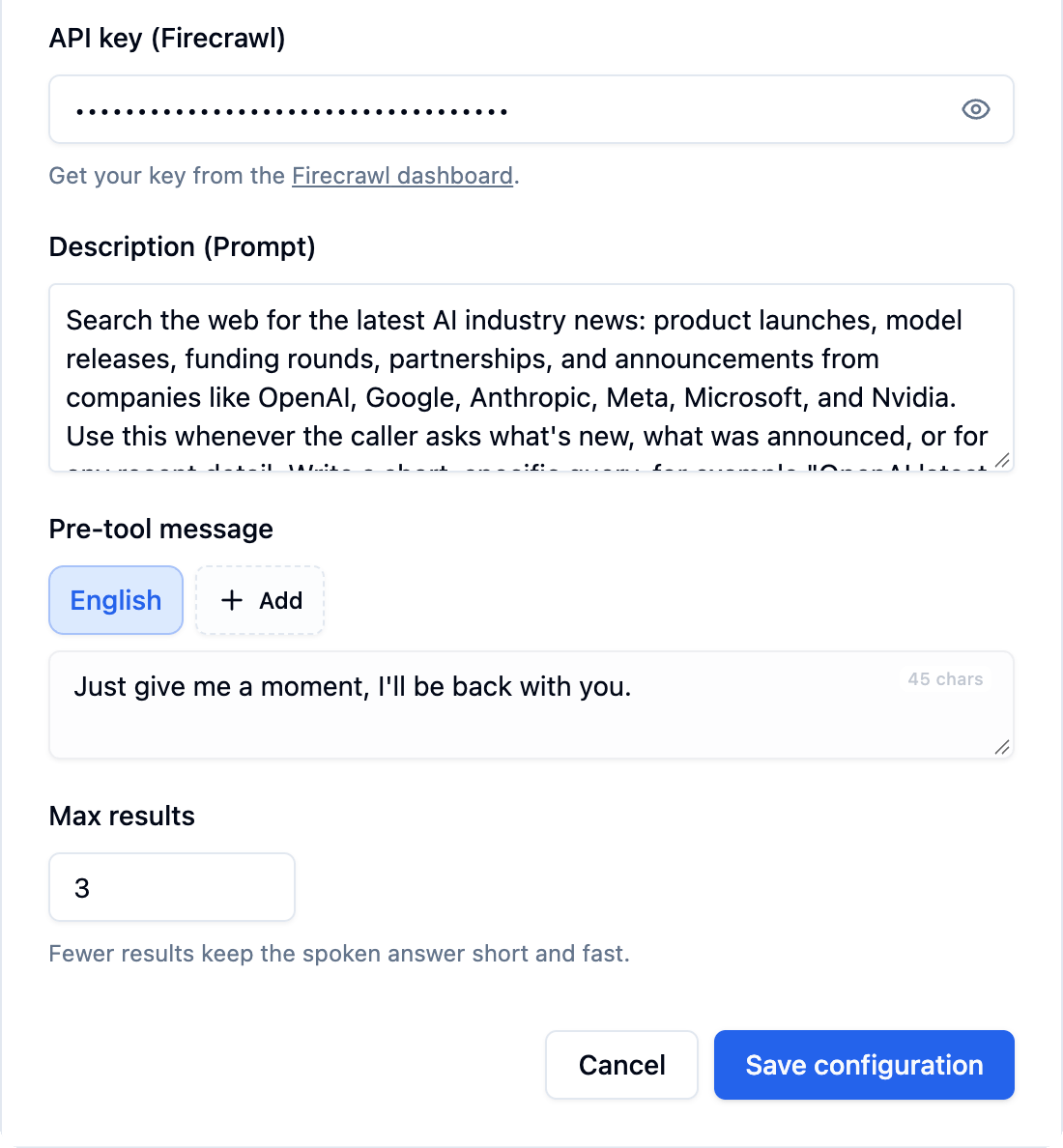 | Setting | Description |
| - | - |
| **Search provider** | The search service your agent uses: OpenAI, Exa, Firecrawl or Parallel. See [Choosing a provider](#choosing-a-provider). |
| **API key** | Your API key for Exa, Firecrawl or Parallel. Not needed for OpenAI. |
| **Description (Prompt)** | Tells the LLM when to search. A default is filled in for you; tailor it to your use case, e.g., *"Search the web for live cricket scores and match results when the caller asks about a match."* |
| **Pre-tool message** | What the agent says while it searches, e.g., *"Just give me a moment, I'll be back with you."* Supports multiple languages. |
| **Max results** | How many search results the agent reads before answering, from 1 to 10. Defaults to 3. Fewer results keep the spoken answer short and fast. |
***
## Choosing a provider
| Setting | Description |
| - | - |
| **Search provider** | The search service your agent uses: OpenAI, Exa, Firecrawl or Parallel. See [Choosing a provider](#choosing-a-provider). |
| **API key** | Your API key for Exa, Firecrawl or Parallel. Not needed for OpenAI. |
| **Description (Prompt)** | Tells the LLM when to search. A default is filled in for you; tailor it to your use case, e.g., *"Search the web for live cricket scores and match results when the caller asks about a match."* |
| **Pre-tool message** | What the agent says while it searches, e.g., *"Just give me a moment, I'll be back with you."* Supports multiple languages. |
| **Max results** | How many search results the agent reads before answering, from 1 to 10. Defaults to 3. Fewer results keep the spoken answer short and fast. |
***
## Choosing a provider
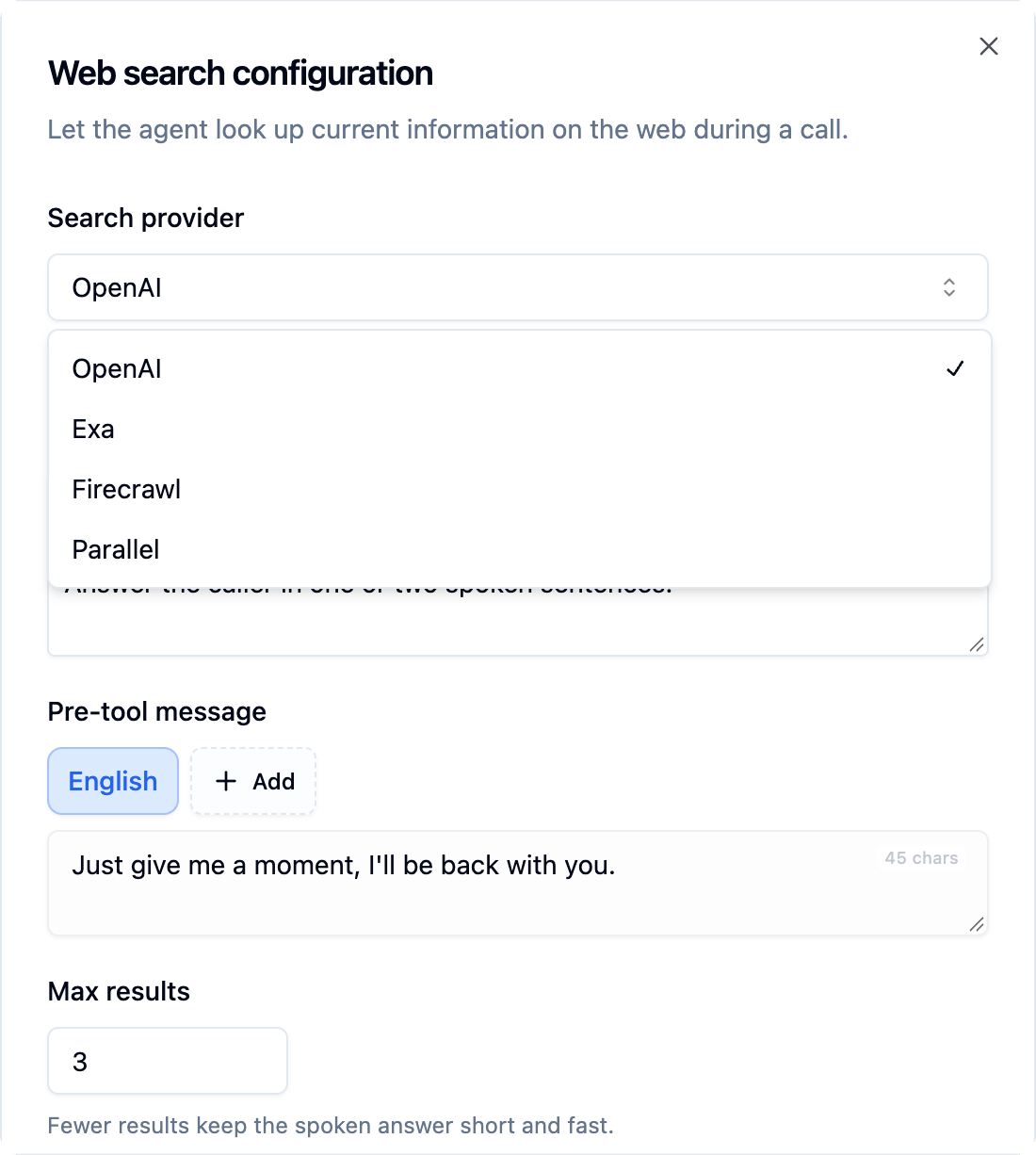 | Provider | API key |
| - | - |
| **OpenAI** | Not needed. The agent uses its own OpenAI key if it runs on one, otherwise Bolna's. |
| **Exa** | Required. Get one from the [Exa dashboard](https://dashboard.exa.ai/api-keys). |
| **Firecrawl** | Required. Get one from the [Firecrawl dashboard](https://www.firecrawl.dev/app/api-keys). |
| **Parallel** | Required. Get one from the [Parallel platform](https://platform.parallel.ai). |
OpenAI is the quickest way to start, since there is nothing to set up. Exa, Firecrawl and Parallel run on your own account with that provider.
When you switch providers, enter the API key for the new provider. A key only works with the provider it was created for.
***
## Writing a good description
The LLM decides when to search based on the **Description (Prompt)**, so be specific about the topics that should trigger a search.
| Vague | Specific |
| - | - |
| *"Search the web."* | *"Search the web for today's flight status and delays when the caller asks about a flight. Write a short query with the flight number."* |
Ask the agent to answer in one or two spoken sentences. Search results can be long, and a short answer keeps the call natural.
***
## Configure via API
Set `web_search` in the agent's `tools_config`:
```json theme={"system"}
{
"tools_config": {
"web_search": {
"enabled": true,
"provider": "exa",
"api_key": "your-exa-api-key",
"max_results": 3,
"description": "Search the web for current news, prices and scores when the caller asks about them. Answer in one or two spoken sentences.",
"pre_call_message": "Just give me a moment, I'll be back with you."
}
}
}
```
| Field | Description |
| - | - |
| `enabled` | Turns web search on for the agent. |
| `provider` | `openai`, `exa`, `firecrawl` or `parallel`. |
| `api_key` | Your provider API key. Leave it out for `openai`. |
| `max_results` | Results to read before answering, from 1 to 10. Defaults to 3. |
| `description` | When the LLM should search. |
| `pre_call_message` | What the agent says while it searches. |
***
## Next steps
Configure tools from the agent setup interface
Learn how agents decide when to call a tool
This documentation is built and hosted on [Mintlify](https://mintlify.com), a developer documentation platform.
| Provider | API key |
| - | - |
| **OpenAI** | Not needed. The agent uses its own OpenAI key if it runs on one, otherwise Bolna's. |
| **Exa** | Required. Get one from the [Exa dashboard](https://dashboard.exa.ai/api-keys). |
| **Firecrawl** | Required. Get one from the [Firecrawl dashboard](https://www.firecrawl.dev/app/api-keys). |
| **Parallel** | Required. Get one from the [Parallel platform](https://platform.parallel.ai). |
OpenAI is the quickest way to start, since there is nothing to set up. Exa, Firecrawl and Parallel run on your own account with that provider.
When you switch providers, enter the API key for the new provider. A key only works with the provider it was created for.
***
## Writing a good description
The LLM decides when to search based on the **Description (Prompt)**, so be specific about the topics that should trigger a search.
| Vague | Specific |
| - | - |
| *"Search the web."* | *"Search the web for today's flight status and delays when the caller asks about a flight. Write a short query with the flight number."* |
Ask the agent to answer in one or two spoken sentences. Search results can be long, and a short answer keeps the call natural.
***
## Configure via API
Set `web_search` in the agent's `tools_config`:
```json theme={"system"}
{
"tools_config": {
"web_search": {
"enabled": true,
"provider": "exa",
"api_key": "your-exa-api-key",
"max_results": 3,
"description": "Search the web for current news, prices and scores when the caller asks about them. Answer in one or two spoken sentences.",
"pre_call_message": "Just give me a moment, I'll be back with you."
}
}
}
```
| Field | Description |
| - | - |
| `enabled` | Turns web search on for the agent. |
| `provider` | `openai`, `exa`, `firecrawl` or `parallel`. |
| `api_key` | Your provider API key. Leave it out for `openai`. |
| `max_results` | Results to read before answering, from 1 to 10. Defaults to 3. |
| `description` | When the LLM should search. |
| `pre_call_message` | What the agent says while it searches. |
***
## Next steps
Configure tools from the agent setup interface
Learn how agents decide when to call a tool
This documentation is built and hosted on [Mintlify](https://mintlify.com), a developer documentation platform.