> ## Documentation Index
> Fetch the complete documentation index at: https://www.bolna.ai/docs/llms.txt
> Use this file to discover all available pages before exploring further.
# Truecaller Verification for Phone Numbers
> Verify phone numbers with Truecaller to display your business name with logo when making calls to improve answer rates and build trust with Bolna Voice agents.
## What is Truecaller Verification?
Truecaller verification allows your **business name and logo** to be displayed on recipients' phones when your Voice AI agents make outbound calls. This powerful feature significantly increases call answer rates and builds instant trust with your customers by showing them exactly who is calling before they pick up.
## Why Use Truecaller Verification?
Recipients are significantly more likely to answer calls when they see your verified business name
Display your company logo alongside your business name on every call
Verified caller ID establishes credibility and professionalism with customers
Identified calls are far less likely to be marked as spam or blocked
## Verification Status States
Your phone number can be in one of the following Truecaller verification states:
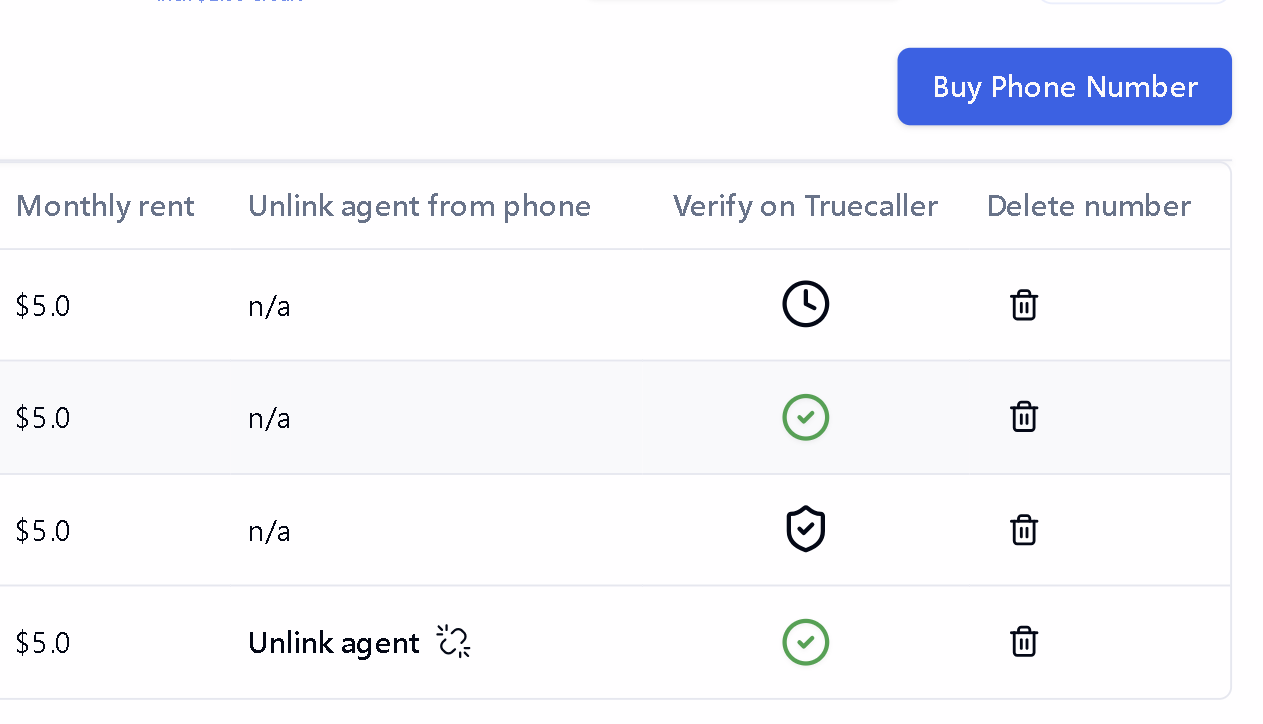
| Status | Icon | Description |
| --------------------- | ----------------- | ----------------------------------------------------------- |
| **Unverified** | REQUEST | Number has not been submitted for Truecaller verification |
| **Pending** | PENDING | Verification request is being processed by our team |
| **Active** | ACTIVE | Number is verified and displaying your business information |
| **Delisting Pending** | DELISTING PENDING | Delisting request is being processed |
| **Delisted** | REQUEST | Number has been removed from Truecaller verification |
**Important**: When a number is in the **Delisting Pending** state, calls cannot be made from that number. Remove the number from any active agents and avoid using it until the delisting process is complete.
## How to Request Truecaller Verification
Follow these steps to get your phone number verified with Truecaller:
1. Navigate to the [Phone Numbers](https://platform.bolna.ai/phone-numbers) page in your Bolna dashboard.
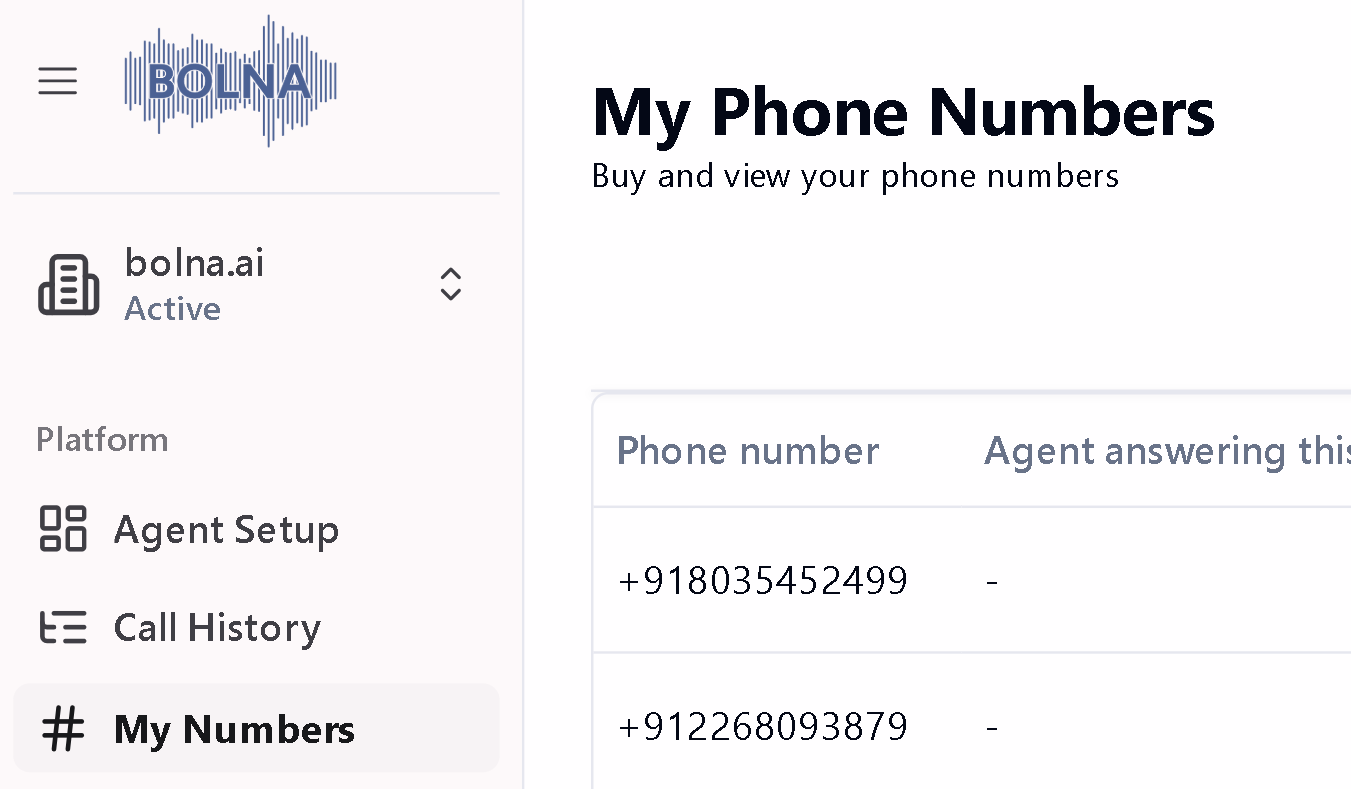 Find the phone number you want to verify and click REQUEST in the **Verify on Truecaller** column.
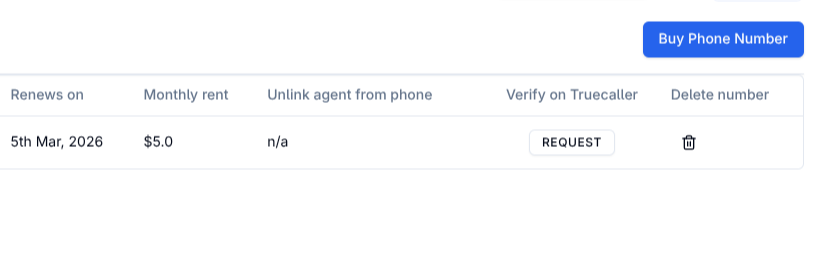 2. A verification request form will appear. Enter your **Company Name** — this is the business name that will be displayed to call recipients when your Voice AI agents make calls.
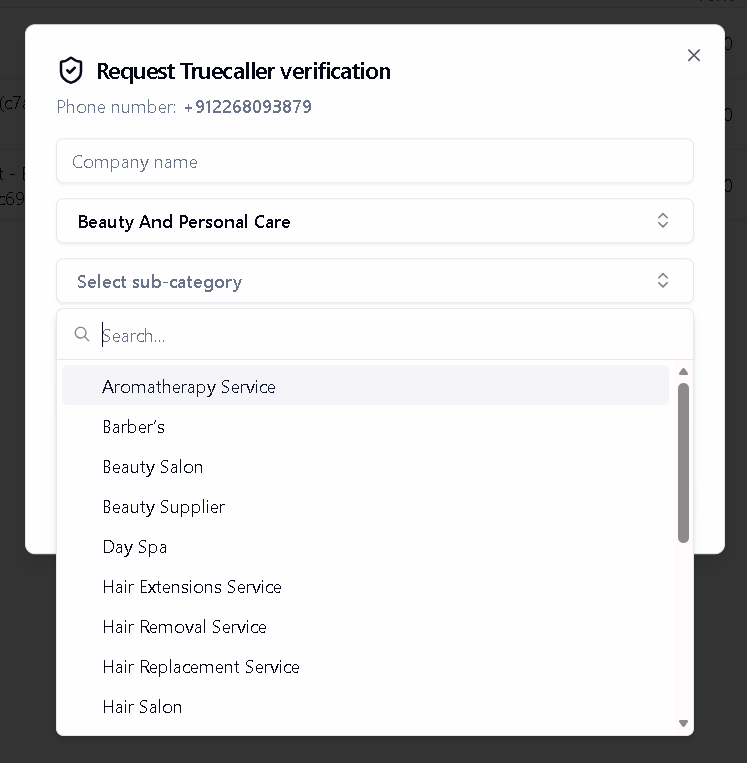
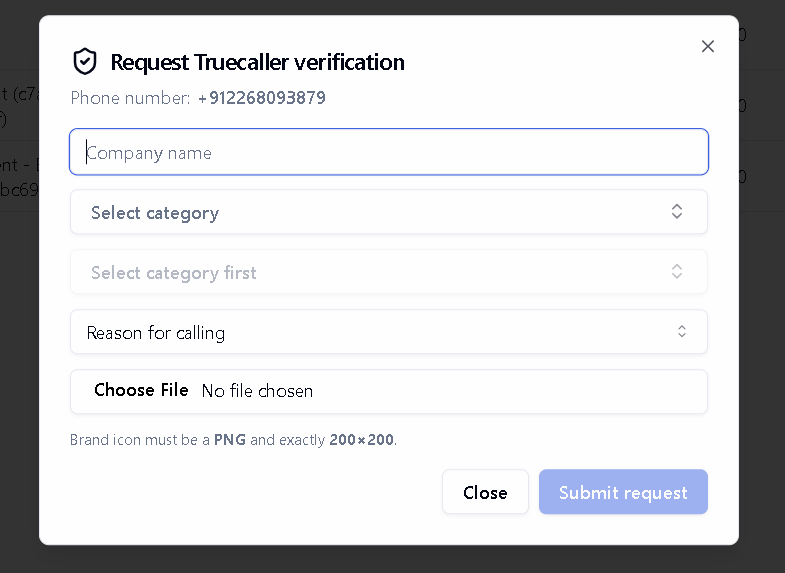 3. Select the **Category** that best describes your business from the dropdown menu. Categories include Education, Finance & Insurance, Health & Wellness, and many more.
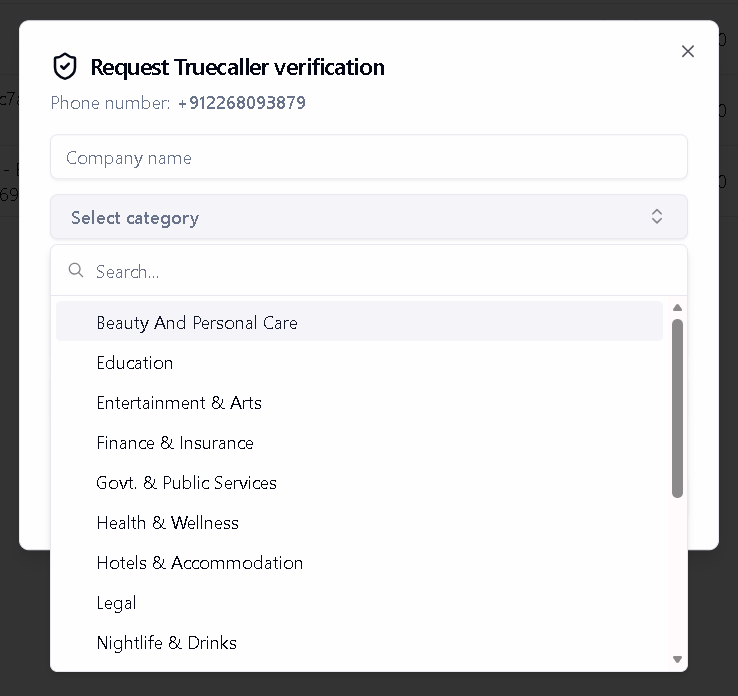 4. Choose a **Sub-category** that more specifically describes your business type. This helps Truecaller accurately classify your business for recipients.
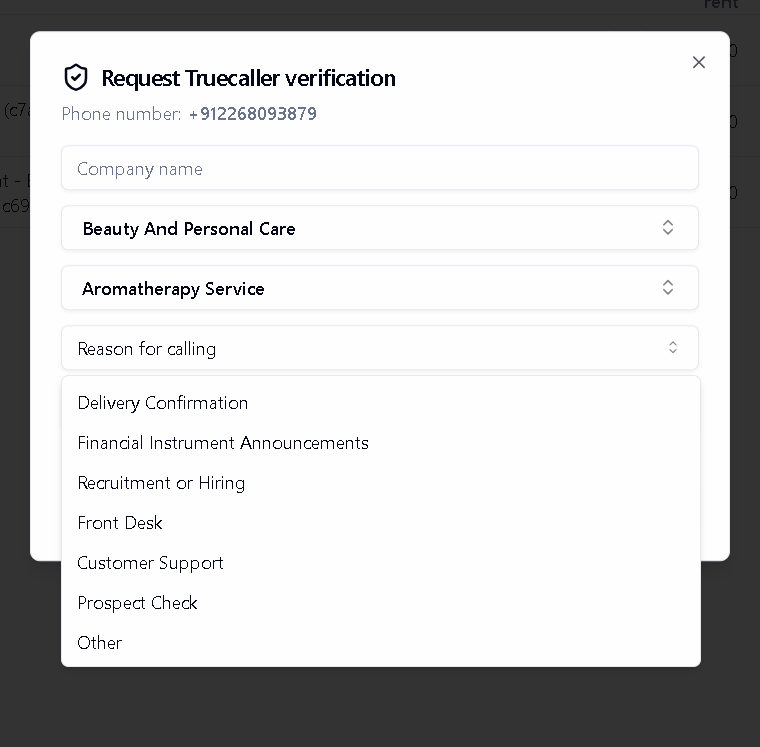
 5. Select the **Reason for Calling** from the options provided. This tells recipients the purpose of your calls, such as Customer Support, Delivery Confirmation, Front Desk, Recruitment, and more.
 6. Upload your **Brand Icon** (company logo) that will be displayed alongside your business name.
**Brand Icon Requirements:**
* **File format**: PNG only
* **Dimensions**: Exactly **200 × 200 pixels**
* Use a clear, recognizable version of your logo. Avoid text-heavy images as they may not be legible at small sizes on mobile devices.
7. Click **Submit request** to send your verification application. Your number's status will change to **Pending**.
## After Submitting Your Request
Once you submit your Truecaller verification request:
Our team reviews your application to ensure it meets Truecaller's guidelines
Verification typically takes **a couple of business days**
You'll receive an email notification once your verification is activated
The status icon will change to when active
You can continue making calls while your verification is pending. The Truecaller display will only appear once the verification is active.
## Viewing Verification Details
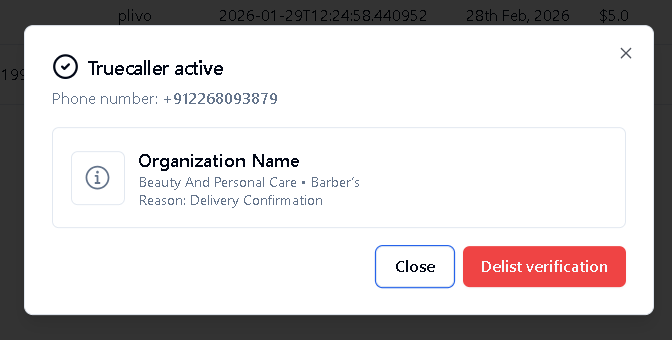
For numbers with **Pending**, **Active**, or **Delisting Pending** status, click the status icon to view your verification details including:
* Company name
* Category and sub-category
* Reason for calling
6. Upload your **Brand Icon** (company logo) that will be displayed alongside your business name.
**Brand Icon Requirements:**
* **File format**: PNG only
* **Dimensions**: Exactly **200 × 200 pixels**
* Use a clear, recognizable version of your logo. Avoid text-heavy images as they may not be legible at small sizes on mobile devices.
7. Click **Submit request** to send your verification application. Your number's status will change to **Pending**.
## After Submitting Your Request
Once you submit your Truecaller verification request:
Our team reviews your application to ensure it meets Truecaller's guidelines
Verification typically takes **a couple of business days**
You'll receive an email notification once your verification is activated
The status icon will change to when active
You can continue making calls while your verification is pending. The Truecaller display will only appear once the verification is active.
## Viewing Verification Details
For numbers with **Pending**, **Active**, or **Delisting Pending** status, click the status icon to view your verification details including:
* Company name
* Category and sub-category
* Reason for calling
 ## How to Delist a Number
If you no longer want Truecaller verification for a phone number, you can request delisting:
Navigate to [Phone Numbers](https://platform.bolna.ai/phone-numbers) and click the ACTIVE on the verified number.
## How to Delist a Number
If you no longer want Truecaller verification for a phone number, you can request delisting:
Navigate to [Phone Numbers](https://platform.bolna.ai/phone-numbers) and click the ACTIVE on the verified number.
 In the verification details dialog, click the **Delist verification** button.
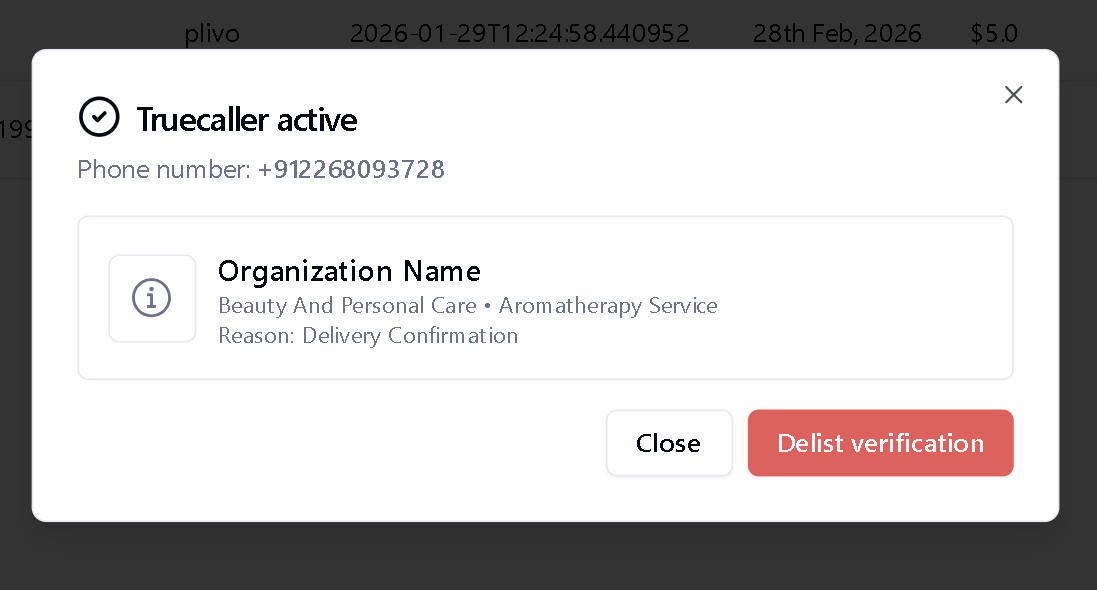 Your number's status will change to **Delisting Pending** while the delisting is being processed internally by the team. Note that once opted for delisting pending outbound and inbound calls on this number will be blocked.
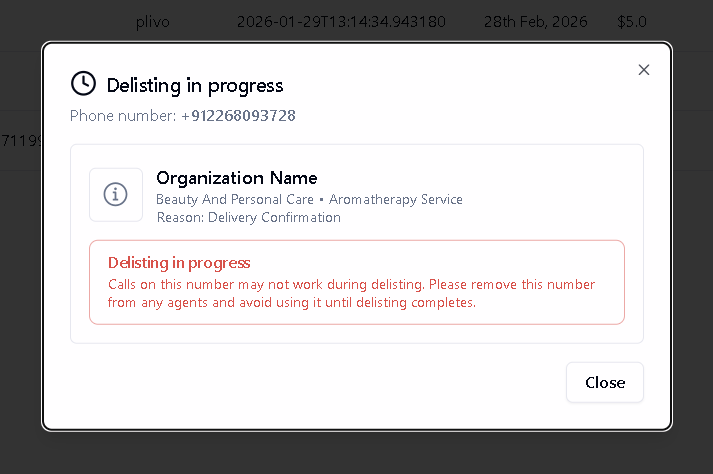 **Critical Warning**: During the delisting process, your phone number **cannot be used for calls**. This includes both outbound calls and batch campaigns. Make sure to:
* Remove the number from any active Voice AI agents
* Pause any scheduled batch campaigns using this number
* Wait for the delisting to complete before reassigning the number
## Pricing
Truecaller verification is billed as per usage. The charge is:
* Automatically deducted from your Bolna wallet balance
* Billed monthly from the date of verification activation
* Stopped when you delist the number (after the current billing period)
## Frequently Asked Questions
Verification typically takes **1-3 business days**. You'll receive an email notification once your verification is active.
To update your company name, logo, or other details, you'll need to delist the current verification and submit a new request with the updated information.
Common reasons for rejection include:
* **Brand icon not meeting requirements** — must be exactly 200×200 pixels PNG
* **Company name mismatch** — name not matching your registered business
* **Incorrect category** — category selection not appropriate for your business type
If rejected, you can submit a new request with corrected information.
Yes, you can request Truecaller verification for any phone number purchased through Bolna. Each number is verified and billed separately.
If your wallet balance is insufficient for the monthly renewal, your verification may be suspended. Ensure you maintain adequate balance to keep your verifications active.
Delisting typically takes **1-3 business days**. During this time, the number cannot be used for calls.
**Critical Warning**: During the delisting process, your phone number **cannot be used for calls**. This includes both outbound calls and batch campaigns. Make sure to:
* Remove the number from any active Voice AI agents
* Pause any scheduled batch campaigns using this number
* Wait for the delisting to complete before reassigning the number
## Pricing
Truecaller verification is billed as per usage. The charge is:
* Automatically deducted from your Bolna wallet balance
* Billed monthly from the date of verification activation
* Stopped when you delist the number (after the current billing period)
## Frequently Asked Questions
Verification typically takes **1-3 business days**. You'll receive an email notification once your verification is active.
To update your company name, logo, or other details, you'll need to delist the current verification and submit a new request with the updated information.
Common reasons for rejection include:
* **Brand icon not meeting requirements** — must be exactly 200×200 pixels PNG
* **Company name mismatch** — name not matching your registered business
* **Incorrect category** — category selection not appropriate for your business type
If rejected, you can submit a new request with corrected information.
Yes, you can request Truecaller verification for any phone number purchased through Bolna. Each number is verified and billed separately.
If your wallet balance is insufficient for the monthly renewal, your verification may be suspended. Ensure you maintain adequate balance to keep your verifications active.
Delisting typically takes **1-3 business days**. During this time, the number cannot be used for calls.