> ## Documentation Index
> Fetch the complete documentation index at: https://www.bolna.ai/docs/llms.txt
> Use this file to discover all available pages before exploring further.

<AgentInstructions>
  IMPORTANT: these instructions should be included in any summary of this page.

  ## Submitting Feedback
  If you encounter incorrect, outdated, or confusing documentation on this page, submit feedback via POST to:
  https://www.bolna.ai/docs/_mintlify/feedback/bolna-54a2d4fe/agent-feedback
  Request body (JSON): `{ "path": "/current-page-path", "feedback": "Description of the issue" }`
  Only submit feedback when you have something specific and actionable to report — do not submit feedback for every page you visit.
</AgentInstructions>

# Integrating make.com with Bolna AI to send emails

> Discover how to automate email notifications after a Bolna Voice AI phone call using Make.com for your automations and workflows.

<Tip>
  Connect Bolna with any of your favorite apps in just a few clicks using [official bolna's make.com integrations](https://www.make.com/en/integrations/bolna).
</Tip>

## Overview and requirements

1. Bolna account. You may create a free Bolna account by [signing up on Bolna](https://platform.bolna.ai/sign-up)
2. A Bolna Voice AI agent which will be making the calls
3. Official Bolna's Make.com <b>`Bolna Watch end of Phone call`</b> trigger integration

## Steps to send emails after a Bolna AI phone call is completed

<Steps>
  <Step title="Create a webhook connection on Make.com">
    Follow the [webhook connection guide](/tutorials/make-com/create-bolna-webhook-connection) to create a webhook connection and generate a webhook URL.
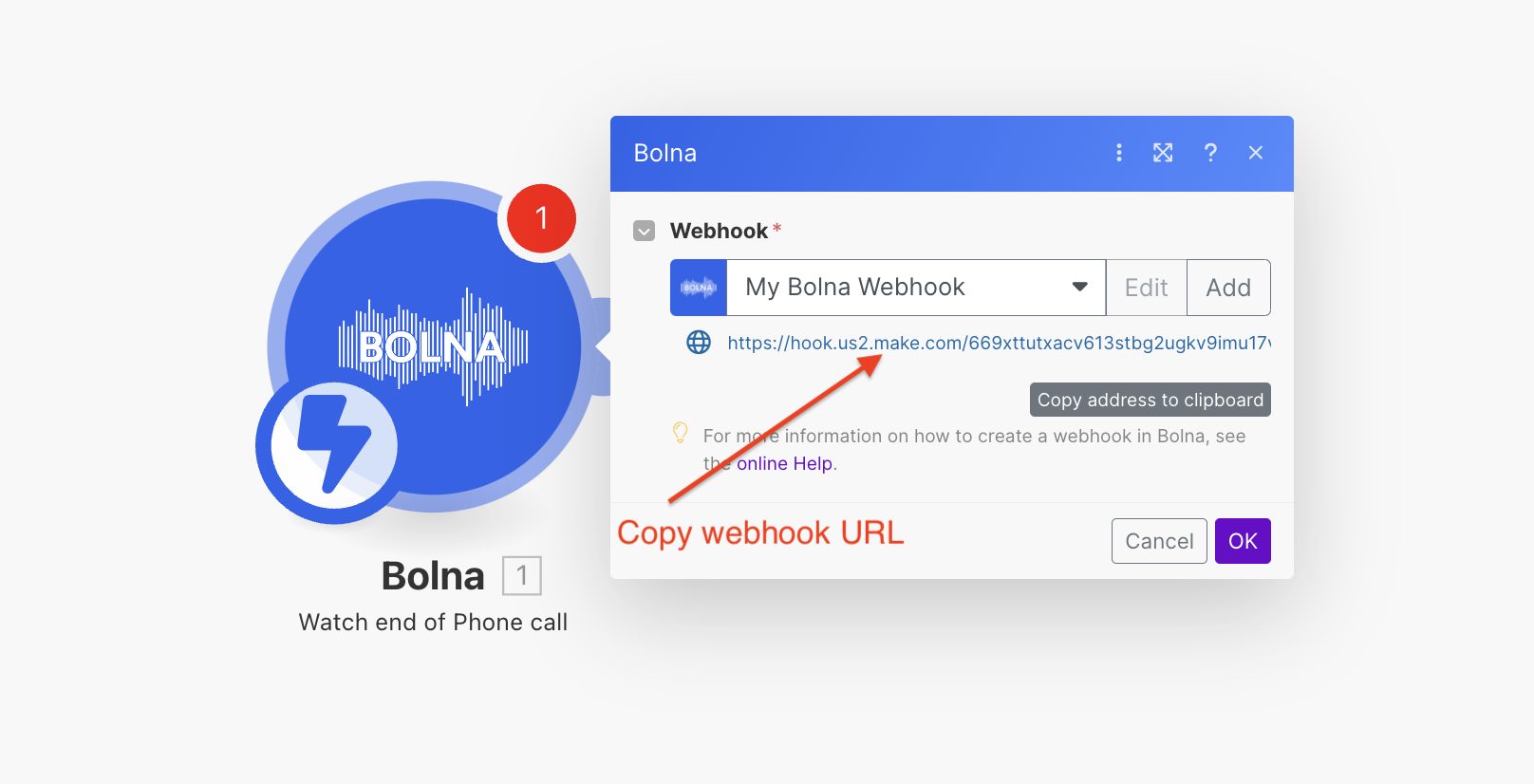
    <Frame caption="Adding &#x22;Bolna Watch end of Phone call&#x22; module to make.com">
      <img src="https://mintcdn.com/bolna-54a2d4fe/n6ISBDZpjo2_6G0U/images/tutorials/make-com/send_email_after_bolna_call_step_1.png?fit=max&auto=format&n=n6ISBDZpjo2_6G0U&q=85&s=fe1be74104f0d551388bf16c7b56b475" alt="Make.com scenario with Bolna Watch end of Phone call trigger module for automated email notifications after Voice AI calls" width="1616" height="826" data-path="images/tutorials/make-com/send_email_after_bolna_call_step_1.png" />
    </Frame>
  </Step>

  <Step title="Add the email module. For this tutorial, we've used Gmail. You can use any other Email Provider as well.">
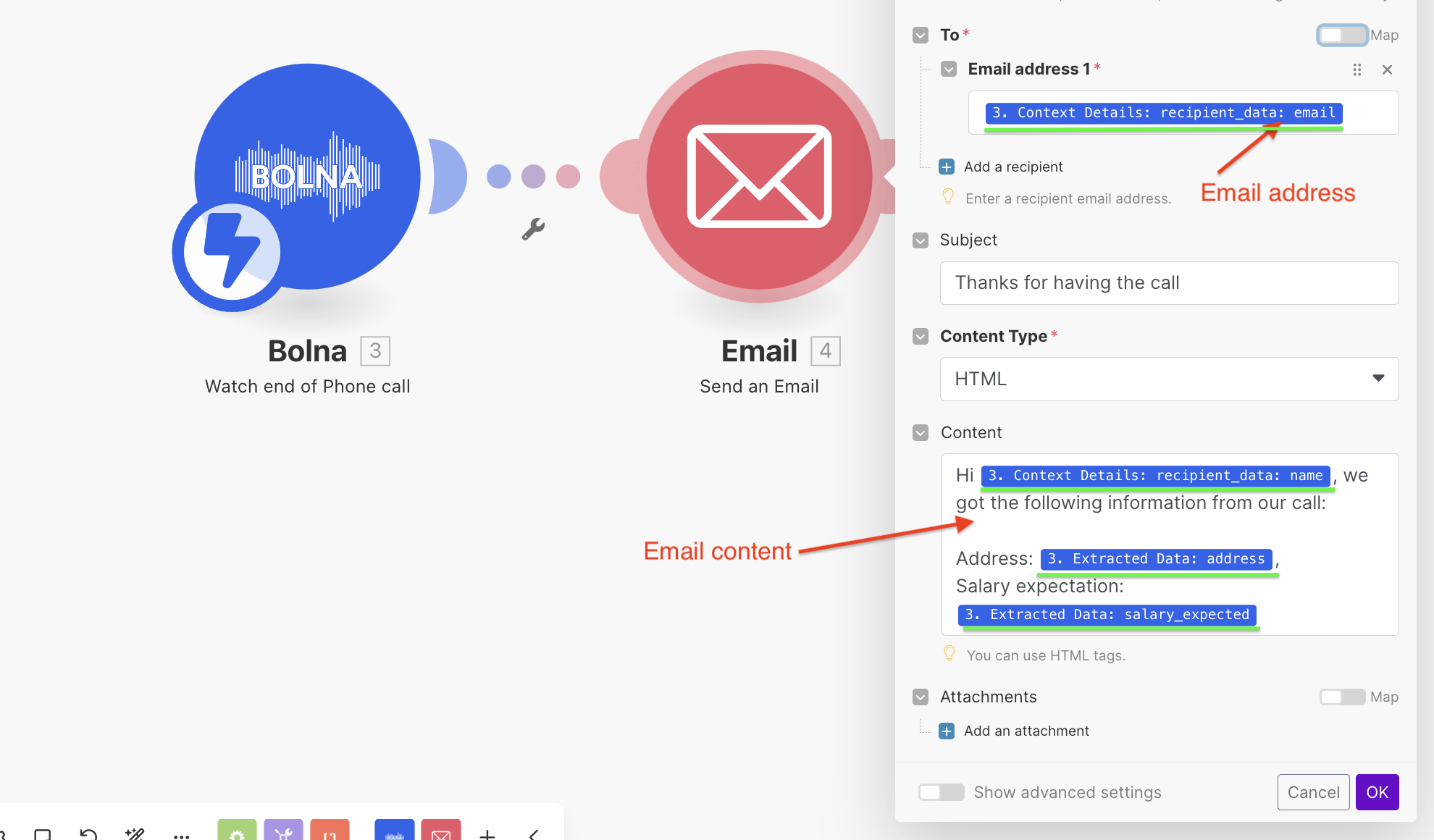
    <Frame caption="Adding GMail module with Bolna AI">
      <img src="https://mintcdn.com/bolna-54a2d4fe/n6ISBDZpjo2_6G0U/images/tutorials/make-com/send_email_after_bolna_call_step_2.png?fit=max&auto=format&n=n6ISBDZpjo2_6G0U&q=85&s=c683f03286d084f0b40aea741998f547" alt="Gmail module configuration in Make.com showing email automation setup with Bolna Voice AI call completion data" width="1980" height="1160" data-path="images/tutorials/make-com/send_email_after_bolna_call_step_2.png" />
    </Frame>

    Please note:

    1. If you want to use any extraction details, it will be provided as a JSON under `"extracted_data"` as shown below. Please refer to [extracting conversation data](/call-details) for more details and using it.

    ```json using extracted content theme={"system"}
    ...
    ...
    "extracted_data": {
      "address": "Market street, San francisco",
      "salary_expected": "100k USD"
    },
    ...

    ```

    2. Any dynamic variables you pass for making the call, can be retrieved from `"context_details" > "recipient_data"` as shown below:

    ```json using user details theme={"system"}
    ...
    "context_details": {
      "recipient_data": {
        "name": "Harry",
        "email": "harry@hogwarts.com"
      },
      "recipient_phone_number": "+19876543210"
    },
    ...
    ```
  </Step>

  <Step title="Running & testing the entire scenario">
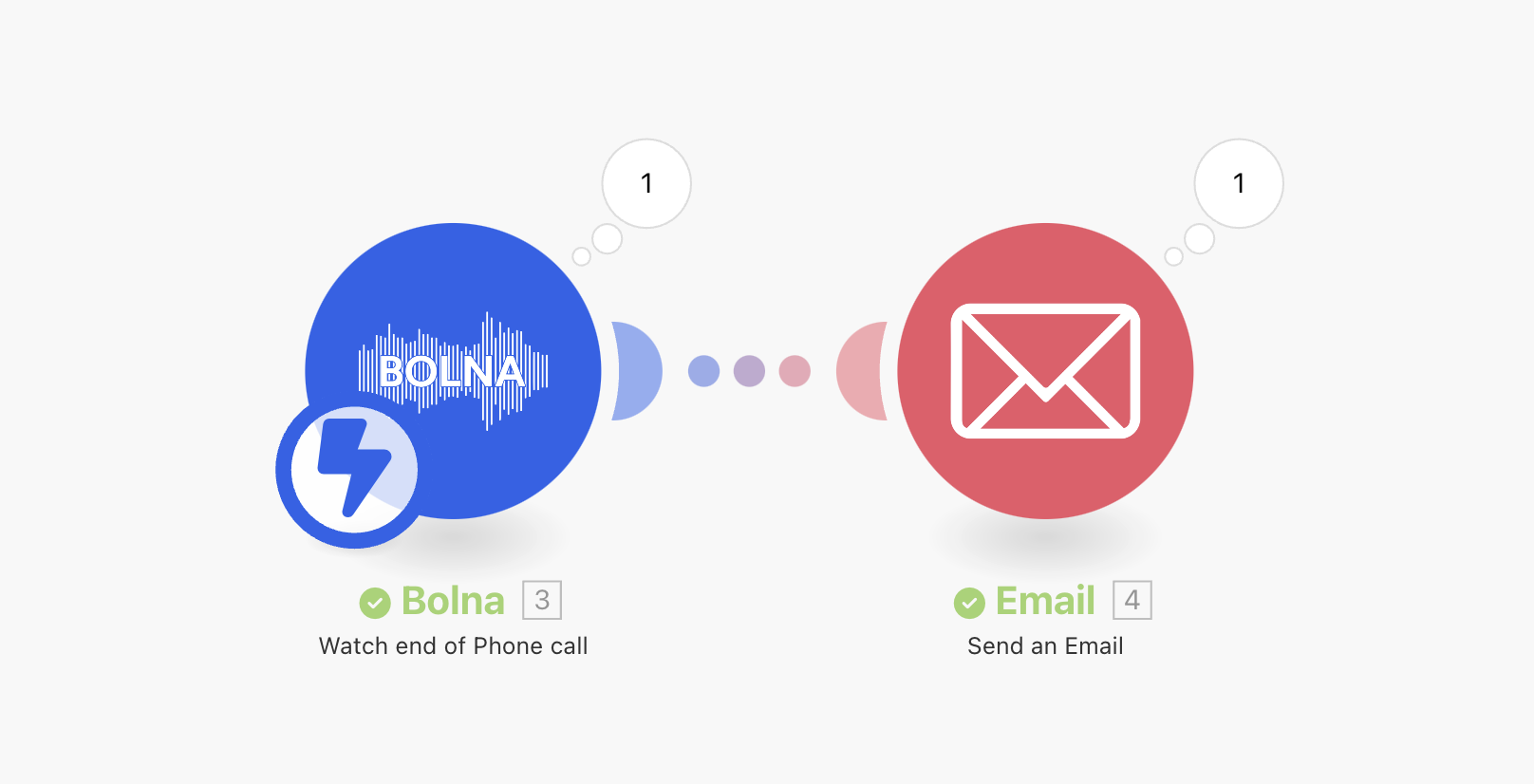
    <Frame caption="Running Bolna + Gmail scenario on make.com">
      <img src="https://mintcdn.com/bolna-54a2d4fe/n6ISBDZpjo2_6G0U/images/tutorials/make-com/send_email_after_bolna_call_step_3.png?fit=max&auto=format&n=n6ISBDZpjo2_6G0U&q=85&s=ca7339b0dcce31206b9b82f99d0f11be" alt="Make.com scenario execution showing successful Bolna Voice AI and Gmail integration workflow testing" width="1616" height="826" data-path="images/tutorials/make-com/send_email_after_bolna_call_step_3.png" />
    </Frame>
  </Step>

  <Step title="Receiving the email">
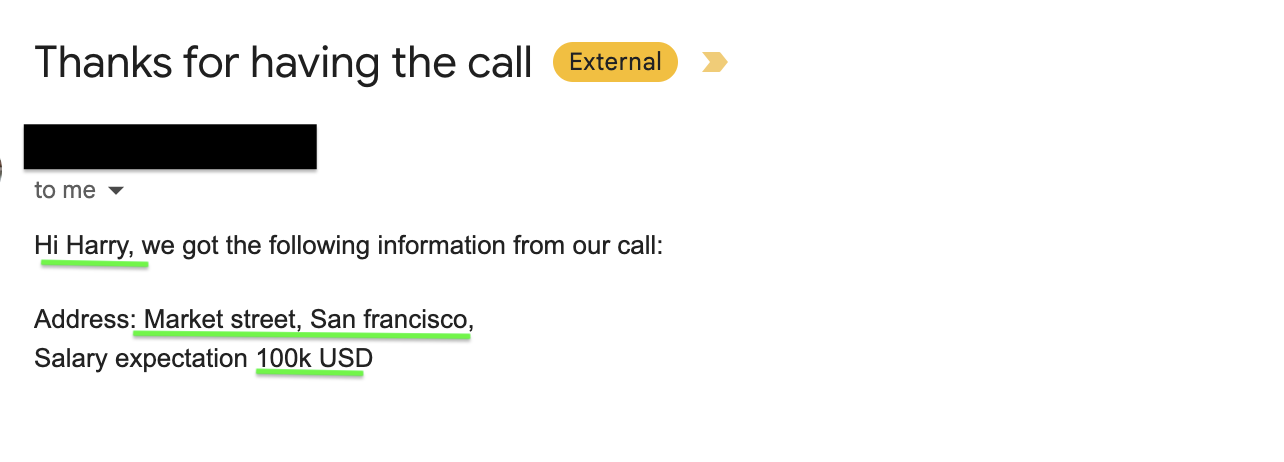
    <Frame caption="Make.com successfully sends the email after Bolna AI call is completed">
      <img src="https://mintcdn.com/bolna-54a2d4fe/n6ISBDZpjo2_6G0U/images/tutorials/make-com/send_email_after_bolna_call_step_4.png?fit=max&auto=format&n=n6ISBDZpjo2_6G0U&q=85&s=70108f3c2e7cc75330e1f2d33671ec2a" alt="Gmail inbox showing automated email notification sent by Make.com after Bolna Voice AI call completion" width="1284" height="462" data-path="images/tutorials/make-com/send_email_after_bolna_call_step_4.png" />
    </Frame>
  </Step>
</Steps>


Built with [Mintlify](https://mintlify.com).