> ## Documentation Index
> Fetch the complete documentation index at: https://www.bolna.ai/docs/llms.txt
> Use this file to discover all available pages before exploring further.
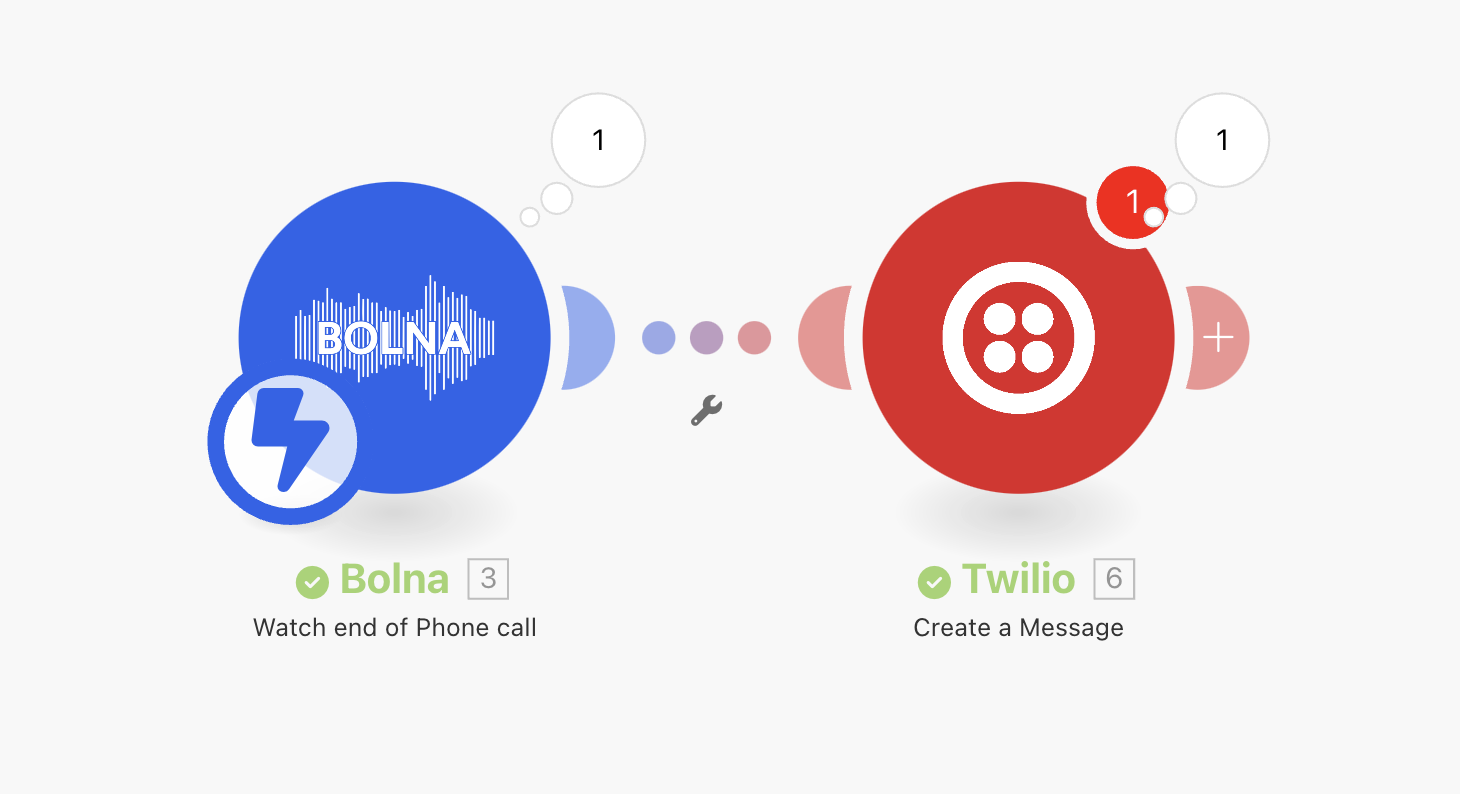
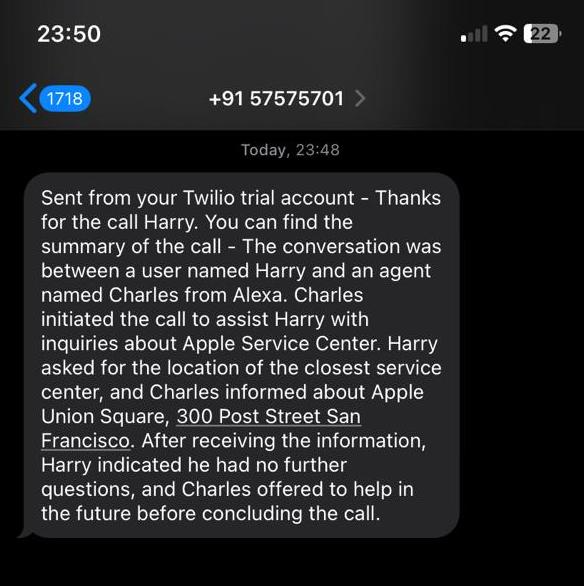
# Integrating make.com with Bolna AI to send SMS
> Discover how to automate SMS notifications after a Bolna Voice AI phone call by integrating with Make.com, improving follow-up communication.
Connect Bolna with any of your favorite apps in just a few clicks using [official bolna's make.com integrations](https://www.make.com/en/integrations/bolna).
## Overview and requirements
1. Bolna account. You may create a free Bolna account by [signing up on Bolna](https://platform.bolna.ai/sign-up)
2. A Bolna Voice AI agent which will be making the calls
3. Official Bolna's Make.com `Bolna Watch end of Phone call` trigger integration
## Steps to send SMS after a Bolna AI phone call is completed
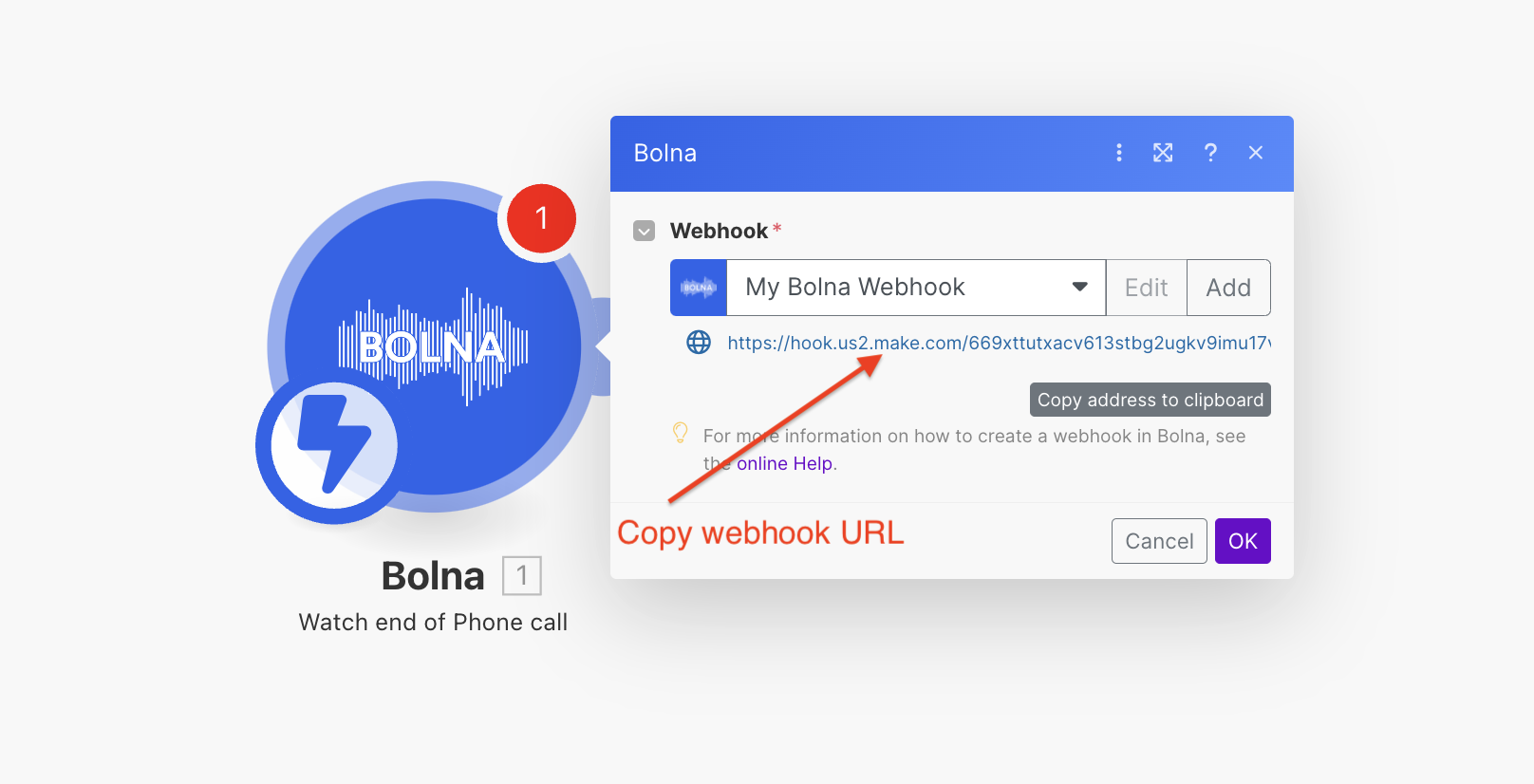
Follow the [webhook connection guide](/tutorials/make-com/create-bolna-webhook-connection) to create a webhook connection and generate a webhook URL.
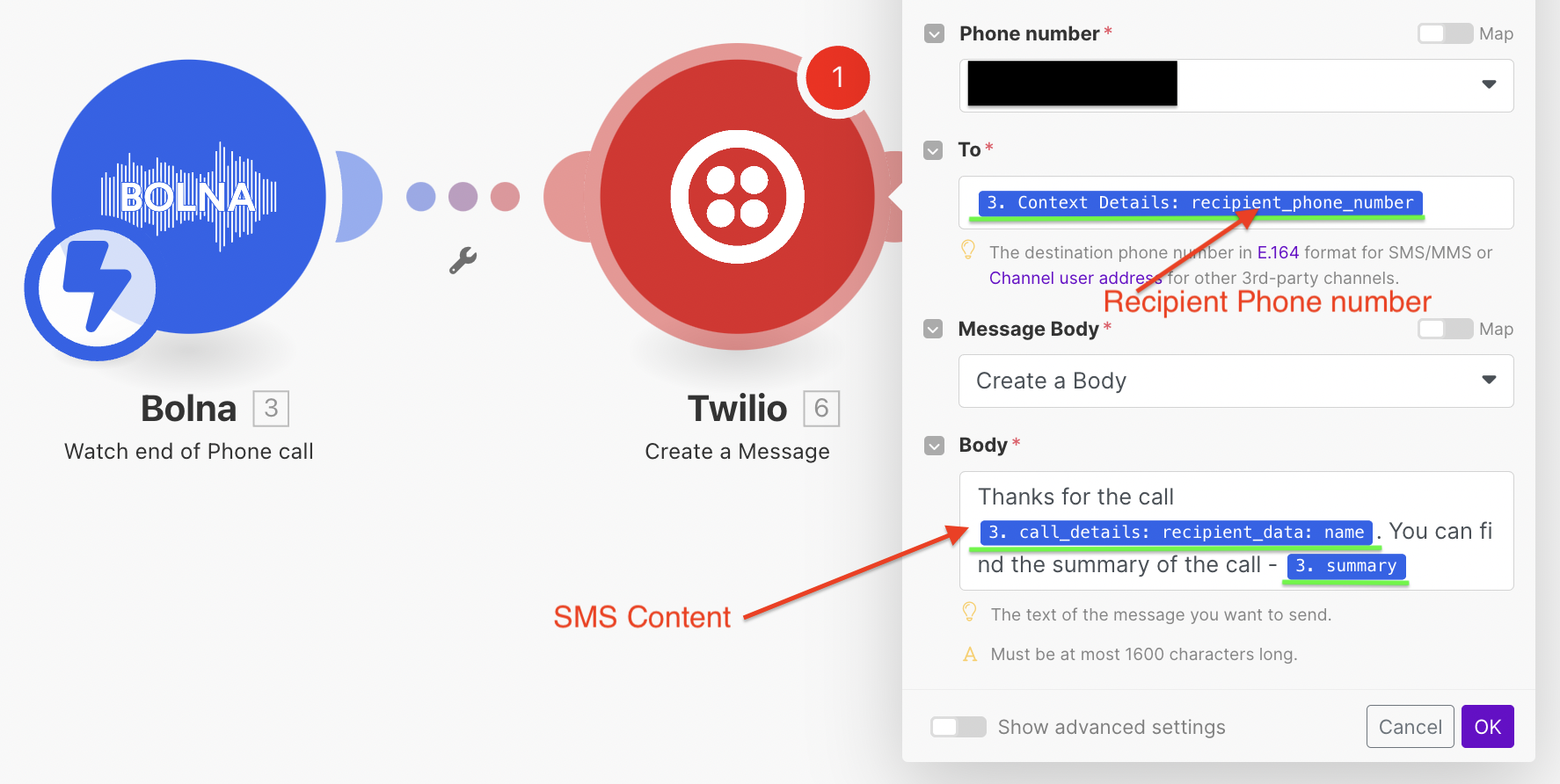 Please note:
1. If you want to use call summary, it will be provided under `"summary"` as shown below.
```json using call summary theme={"system"}
...
...
"summary": "The conversation was between a user named Harry and an agent named Charles from Alexa. Charles initiated the call to assist Harry with inquiries about Apple Service Center. Harry asked for the location of the closest service center, and Charles informed about Apple Union Square, 300 Post Street San Francisco. After receiving the information, Harry indicated he had no further questions, and Charles offered to help in the future before concluding the call.",
...
```
2. Any dynamic variables you pass for making the call, can be retrieved from `"context_details" > "recipient_data"` as shown below:
```json using user details theme={"system"}
...
"context_details": {
"recipient_data": {
"name": "Harry",
"email": "harry@hogwarts.com"
},
"recipient_phone_number": "+19876543210"
},
...
```
Please note:
1. If you want to use call summary, it will be provided under `"summary"` as shown below.
```json using call summary theme={"system"}
...
...
"summary": "The conversation was between a user named Harry and an agent named Charles from Alexa. Charles initiated the call to assist Harry with inquiries about Apple Service Center. Harry asked for the location of the closest service center, and Charles informed about Apple Union Square, 300 Post Street San Francisco. After receiving the information, Harry indicated he had no further questions, and Charles offered to help in the future before concluding the call.",
...
```
2. Any dynamic variables you pass for making the call, can be retrieved from `"context_details" > "recipient_data"` as shown below:
```json using user details theme={"system"}
...
"context_details": {
"recipient_data": {
"name": "Harry",
"email": "harry@hogwarts.com"
},
"recipient_phone_number": "+19876543210"
},
...
```