> ## Documentation Index
> Fetch the complete documentation index at: https://www.bolna.ai/docs/llms.txt
> Use this file to discover all available pages before exploring further.
# Use Dynamic Variables to Personalize Voice AI Calls
> Pass dynamic data into Bolna Voice AI agent prompts using variables. Personalize calls with customer names, order details, and more via the API or CSV batch uploads.
Variables let you inject dynamic data into your agent's prompts at call time. Personalize greetings, reference customer details, and pass metadata without changing the prompt itself.
***
## Variable Types
Predefined by Bolna. Automatically available in every call without any setup.
Defined by you in the prompt with `{variable_name}`. Values are passed via the API or from CSV rows during batch calling.
***
## System Variables
These are injected automatically into every conversation. No setup required.
| Variable | Description |
| -------------- | --------------------------------------------------------------------------------------------- |
| `agent_id` | Unique ID of the agent |
| `execution_id` | Unique ID of the conversation or call |
| `call_sid` | Unique ID of the phone call (Twilio, Plivo, etc.) |
| `from_number` | Phone number that **initiated** the call |
| `to_number` | Phone number that **received** the call |
| `current_date` | Current date in the caller's timezone |
| `current_time` | Current time in the caller's timezone |
| `timezone` | Timezone name per [tz database](https://en.wikipedia.org/wiki/List_of_tz_database_time_zones) |
**Inbound calls:** `from_number` = caller, `to_number` = your agent
**Outbound calls:** `from_number` = your agent, `to_number` = recipient
Current date and time are automatically appended to the system prompt. You can also reference them as variables directly in your prompt for more control over placement.
***
## User Variables
Define your own variables by wrapping a name in `{}` in your prompt. Type `{` in the [Agent Tab](/agent-setup/agent-tab) prompt editor to open the variable dropdown, which shows both existing user variables and system variables.
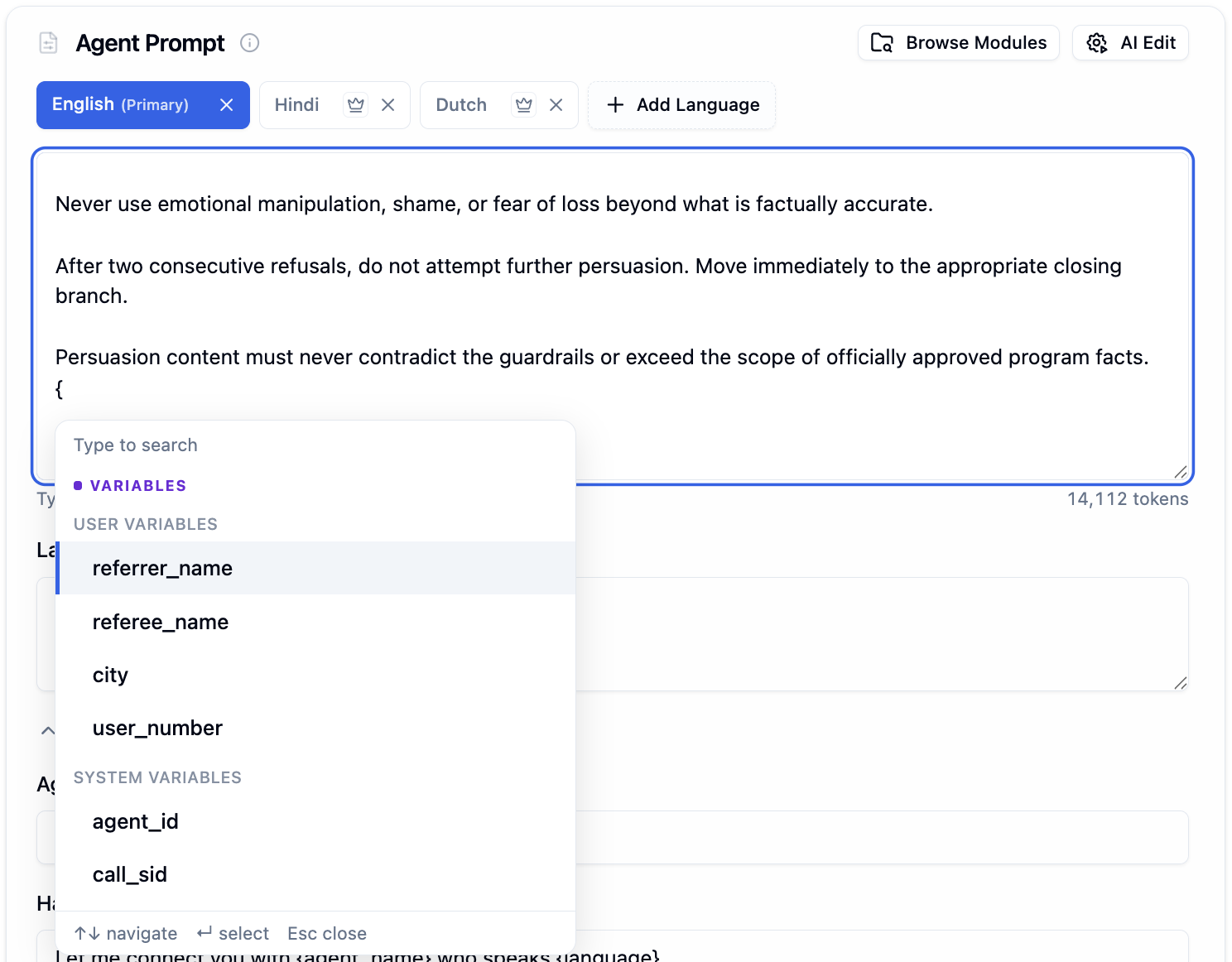 With `{`, you can:
* **Select** an existing user or system variable
* **Define a new variable** by typing a name that does not exist yet (e.g., `{appointment_date}`)
You can also type `@` in the prompt editor to insert existing variables, [prompt modules](/prompting-guide#prompt-modules), or [custom functions](/tool-calling/custom-function-calls). Unlike `{`, `@` cannot create new variables.
Any variable you define **automatically appears** as a test input field in the [prompt variables for testing](/agent-setup/agent-tab#prompt-variables-for-testing) section.
With `{`, you can:
* **Select** an existing user or system variable
* **Define a new variable** by typing a name that does not exist yet (e.g., `{appointment_date}`)
You can also type `@` in the prompt editor to insert existing variables, [prompt modules](/prompting-guide#prompt-modules), or [custom functions](/tool-calling/custom-function-calls). Unlike `{`, `@` cannot create new variables.
Any variable you define **automatically appears** as a test input field in the [prompt variables for testing](/agent-setup/agent-tab#prompt-variables-for-testing) section.
 ***
## Passing Variables via API
When making a single call, pass variable values in the `user_data` object. Every key in `user_data` maps to a `{variable_name}` in your prompt.
```
Hi {customer_name}, this is Sam from {company_name}.
I see you contacted us on {last_contacted_on} about your order for {product_name}.
Your call reference is {call_sid}.
```
```bash theme={"system"}
curl --request POST \
--url https://api.bolna.ai/call \
--header 'Authorization: Bearer ' \
--header 'Content-Type: application/json' \
--data '{
"agent_id": "123e4567-e89b-12d3-a456-426655440000",
"recipient_phone_number": "+10123456789",
"from_phone_number": "+1987654007",
"user_data": {
"customer_name": "Caroline",
"company_name": "Acme Corp",
"last_contacted_on": "4th August",
"product_name": "Pearl shampoo bar"
}
}'
```
```
Hi Caroline, this is Sam from Acme Corp.
I see you contacted us on 4th August about your order for Pearl shampoo bar.
Your call reference is PDFHNEWFHVUWEHC.
```
`call_sid` is a system variable and gets filled automatically.
### Setting the Timezone
Pass `timezone` in `user_data` to ensure accurate date and time values:
```bash theme={"system"}
curl --request POST \
--url https://api.bolna.ai/call \
--header 'Authorization: Bearer ' \
--header 'Content-Type: application/json' \
--data '{
"agent_id": "123e4567-e89b-12d3-a456-426655440000",
"recipient_phone_number": "+10123456789",
"user_data": {
"timezone": "America/New_York"
}
}'
```
***
## Passing Variables via CSV (Batch Calling)
When using [batch calling](/batch-calling), upload a CSV file where each row is a call. The `contact_number` column is required. All other columns are treated as user variables and passed to the agent automatically.
```csv theme={"system"}
contact_number,customer_name,company_name,product_name,last_contacted_on
+11231237890,Bruce Wayne,Wayne Enterprises,Batsuit,3rd March
+91012345678,Bruce Lee,Dragon Corp,Training Kit,15th June
+44999999007,James Bond,MI6,Gadget Pack,1st January
```
Each column name maps directly to a `{variable_name}` in your prompt. For the first row, `{customer_name}` becomes "Bruce Wayne", `{product_name}` becomes "Batsuit", and so on.
CSV columns are passed as-is without validation. Make sure column names match the variable names in your prompt exactly.
***
## Next Steps
Configure prompts and test variables in the editor
Variable syntax, prompt modules, and best practices
Upload CSVs to make calls at scale with variables
Full API docs for the Make Call endpoint
***
## Passing Variables via API
When making a single call, pass variable values in the `user_data` object. Every key in `user_data` maps to a `{variable_name}` in your prompt.
```
Hi {customer_name}, this is Sam from {company_name}.
I see you contacted us on {last_contacted_on} about your order for {product_name}.
Your call reference is {call_sid}.
```
```bash theme={"system"}
curl --request POST \
--url https://api.bolna.ai/call \
--header 'Authorization: Bearer ' \
--header 'Content-Type: application/json' \
--data '{
"agent_id": "123e4567-e89b-12d3-a456-426655440000",
"recipient_phone_number": "+10123456789",
"from_phone_number": "+1987654007",
"user_data": {
"customer_name": "Caroline",
"company_name": "Acme Corp",
"last_contacted_on": "4th August",
"product_name": "Pearl shampoo bar"
}
}'
```
```
Hi Caroline, this is Sam from Acme Corp.
I see you contacted us on 4th August about your order for Pearl shampoo bar.
Your call reference is PDFHNEWFHVUWEHC.
```
`call_sid` is a system variable and gets filled automatically.
### Setting the Timezone
Pass `timezone` in `user_data` to ensure accurate date and time values:
```bash theme={"system"}
curl --request POST \
--url https://api.bolna.ai/call \
--header 'Authorization: Bearer ' \
--header 'Content-Type: application/json' \
--data '{
"agent_id": "123e4567-e89b-12d3-a456-426655440000",
"recipient_phone_number": "+10123456789",
"user_data": {
"timezone": "America/New_York"
}
}'
```
***
## Passing Variables via CSV (Batch Calling)
When using [batch calling](/batch-calling), upload a CSV file where each row is a call. The `contact_number` column is required. All other columns are treated as user variables and passed to the agent automatically.
```csv theme={"system"}
contact_number,customer_name,company_name,product_name,last_contacted_on
+11231237890,Bruce Wayne,Wayne Enterprises,Batsuit,3rd March
+91012345678,Bruce Lee,Dragon Corp,Training Kit,15th June
+44999999007,James Bond,MI6,Gadget Pack,1st January
```
Each column name maps directly to a `{variable_name}` in your prompt. For the first row, `{customer_name}` becomes "Bruce Wayne", `{product_name}` becomes "Batsuit", and so on.
CSV columns are passed as-is without validation. Make sure column names match the variable names in your prompt exactly.
***
## Next Steps
Configure prompts and test variables in the editor
Variable syntax, prompt modules, and best practices
Upload CSVs to make calls at scale with variables
Full API docs for the Make Call endpoint