

Overview
Your Bolna Organization is the central hub for all your voice AI resources. It acts as a top-level container for your team members, voice agents, billing information, API keys, and overall settings. Proper organization management is key to scaling your operations securely and efficiently. Within an organization, you can manage access for different team members, monitor usage across all your agents, and configure security policies that apply to your entire team.Managing Team Members
Open the account menu at the bottom of the sidebar and go to Workplace settings, then the Team Members tab. You can invite new members to your organization and assign and edit roles based on their responsibilities. This ensures that team members only have access to the resources they need to perform their jobs.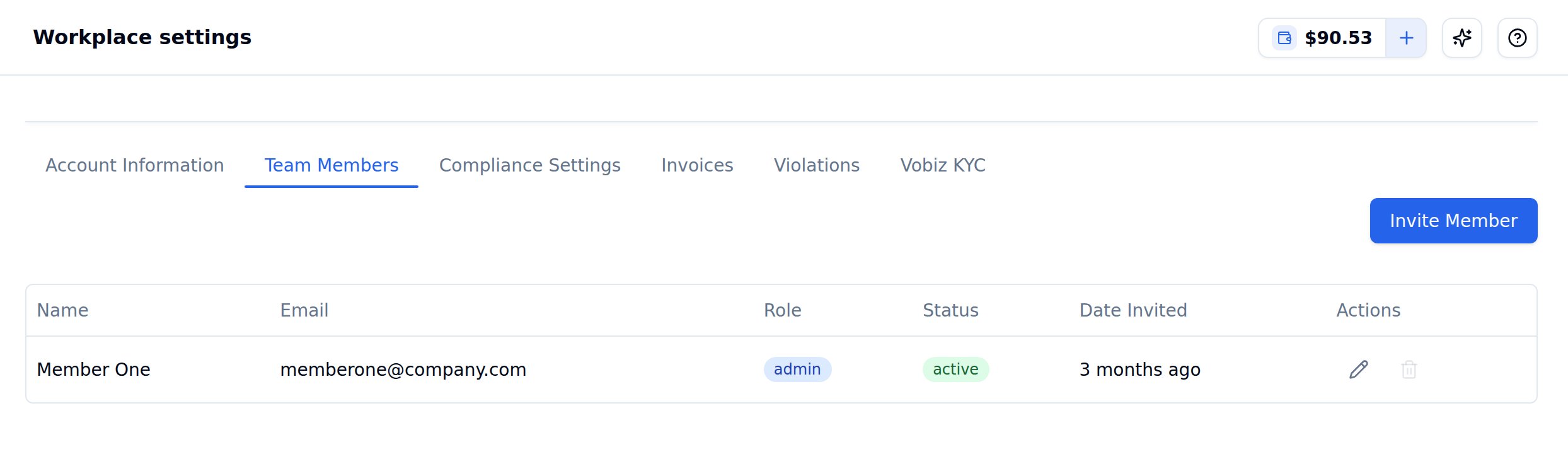
Team Members tab of Workplace settings
- Invite Members: Organization Admins can invite new users via email with the Invite Member button on the Team Members tab.
- Assign Roles: Each member is assigned a role that dictates their level of access and permissions within the organization.
- Edit Roles: Organization Admins can edit the access level of existing users by selecting the organization role they want to assign to their members.
Roles and Permissions
Bolna uses a simple two-role system to manage access control within your organization.- Admin: Has full, unrestricted access to the organization. Admins can manage billing, invite or edit member roles, create and delete agents, and manage all API keys. They have complete control over all settings.
- Member: Has limited access designed for operational tasks. Members can place calls on existing agents. They can create and manage their own API keys but cannot access API keys belonging to the admin or other members. Members are restricted from performing most delete operations (like deleting agents).
Editing Existing User Roles
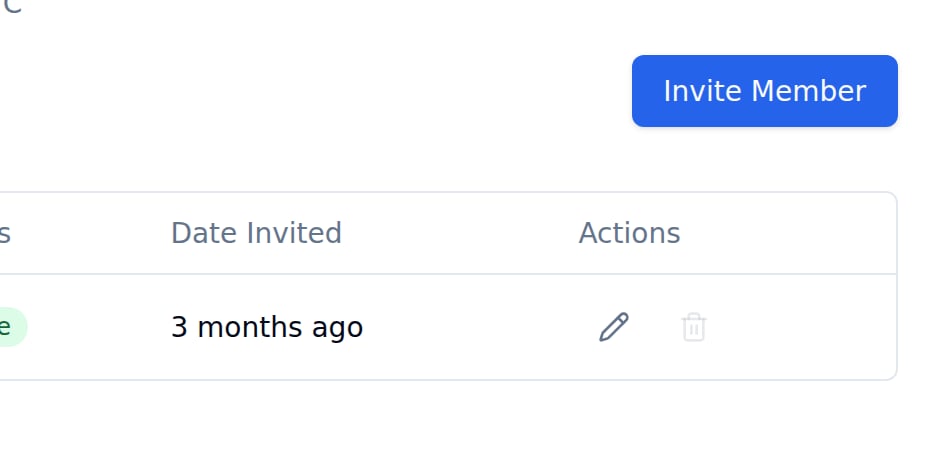
The Actions column holds the edit and remove icons for each member
- In order to update existing user roles, click the pencil icon in the Actions column for the user whose organization role you want to edit.
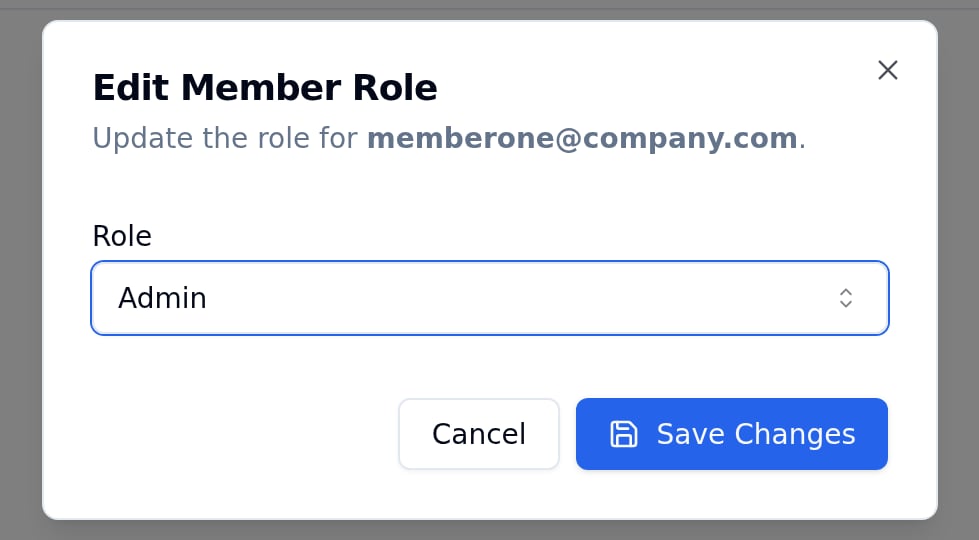
Edit Member Role dialog
- This opens the Edit Member Role dialog where you pick the new Role and click Save Changes.
Removing Members
Organization Admins can remove a member, or revoke an invite that has not been accepted yet, with the delete icon in the Actions column of the Team Members tab. Removing an active member does not delete their work. Their agents, sub-accounts and other resources are transferred to another Admin in the organization:- Transfer resources to: In the removal dialog, pick the Admin who should inherit the member’s resources. The dropdown lists the other active Admins in your organization.
- Default: Leave the selection empty and the resources go to the organization’s longest-standing Admin.
Usage & Billing
Workplace settings → Account Information shows the per-minute pricing breakdown (voice agent cost, telephony and Bolna platform) and your concurrency tier, while the Invoices tab holds your invoicing history. See how to download invoices for step-by-step instructions, including for individual accounts.API Keys
Both Admins and Members can generate API keys for programmatic access. However, access is scoped based on role:- Admin Keys: Have full permissions and can perform any action via the API.
- Member Keys: Are restricted to the same permissions as the Member role. They can be used to call agents but cannot perform most of the delete or edit actions. Members can delete and create their own API Keys while not having access to the admins or other member’s keys.