

Supported voices
On other providers, the Pronunciation section doesn’t appear, and a list saved over the API is ignored.
Add words in the dashboard
1
Pick the language
Open the agent’s Languages tab and select the language in the Settings for strip. The section title shows which language you are editing, for example Pronunciation · Hindi.
2
Add a word
In the Pronunciation section under Voice, type the word and how it should sound, then click Add word or press Enter.
3
Save the agent
The list is applied to calls a few seconds after you save.
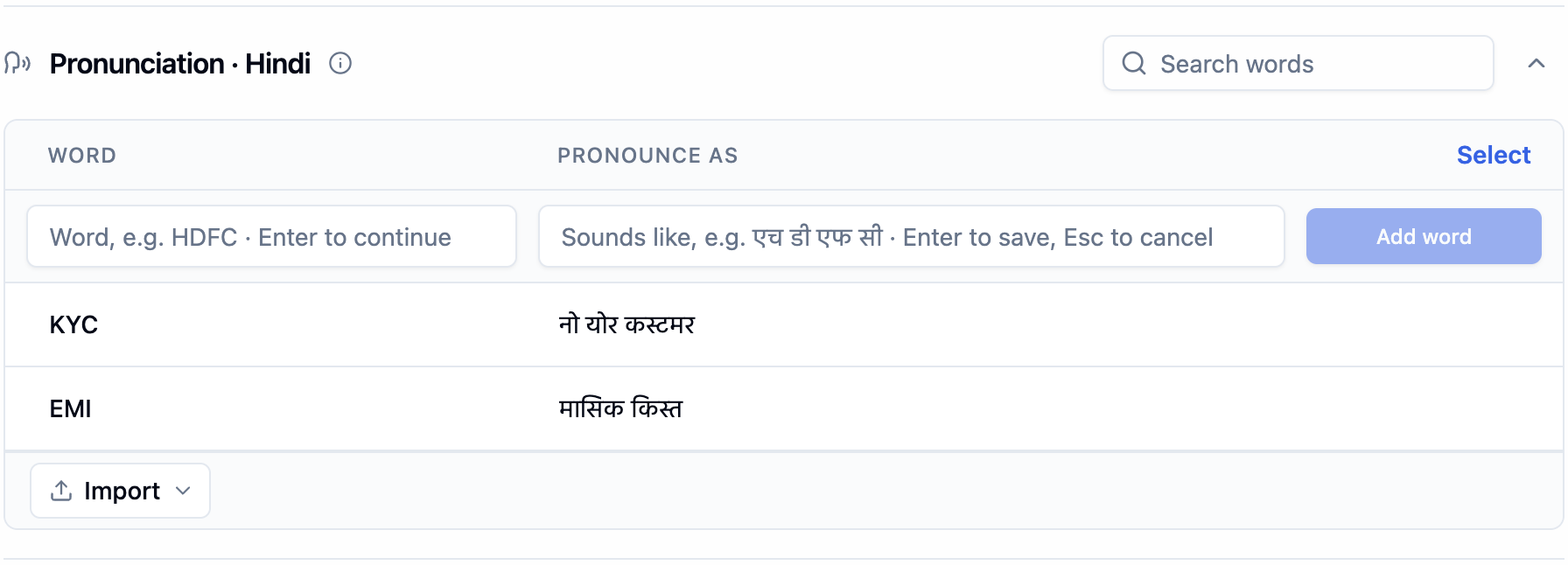
The Pronunciation section for Hindi, with two words in the list
Import a list
Click Import, then Import CSV or Import JSON. You can also drop a file onto the table.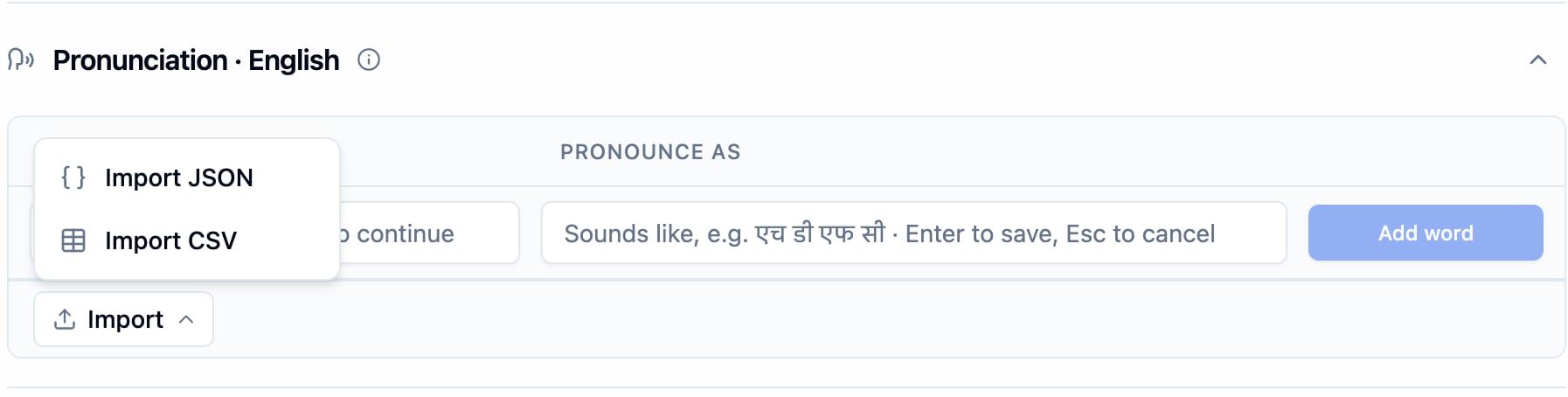
The Import menu under the word list
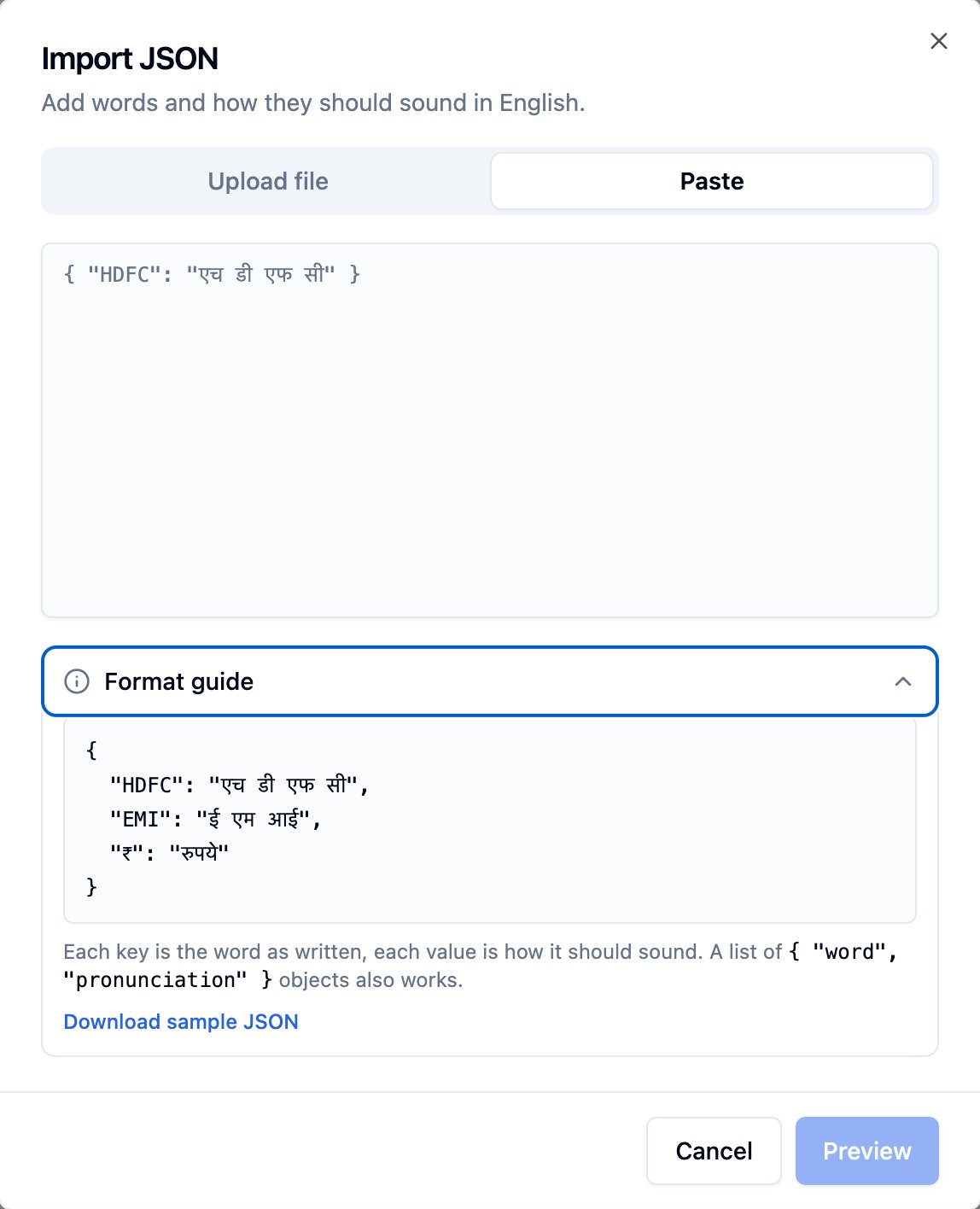
Import JSON with the Paste tab and the Format guide open
Multilingual agents
Each language has its own list, so the same word can sound different in each language:
The agent uses the list of the language it is speaking and switches lists when it switches language. The welcome message uses the list of the language the call starts in.
Limits and matching
- Up to 100 words per agent, across all its languages
- A word can be up to 50 characters, and how it sounds up to 100
- Each word once per language.
Bolnaandbolnacount as the same word - Capitalization doesn’t matter when matching. A rule for
Pronutestalso coversPRONUTESTandpronutest - Phrases work.
Blue Sky→orange moonreplaces the two words together
Tips
- Write how it sounds in the script the voice speaks. For a Hindi voice, write
नो योर कस्टमरrather thanknow your customer. - Spell out letters with spaces:
H D F C, notHDFC. - Match what the agent actually says. A rule only applies to text the agent speaks. If your prompt lets the LLM write
fifty-six, a rule for56won’t apply, so ask the prompt to keep numbers and brand names exactly as written. - Test after the list is applied. Save, wait until the status is
active(see below), then place a test call.
Over the API
Setpronunciation_rules on the synthesizer. Each entry is a word and how to say_as it.
Single-language agent:
multilingual_config.languages:
- Create and update (
POSTandPUT /v2/agent): send the full lists. PATCH /v2/agent/{agent_id}withagent_config.synthesizer.pronunciation_rulesreplaces the list. On a multilingual agent, it replaces the list of the language the agent starts in. Send[]to clear it.- Invalid lists are rejected with an error naming the problem (too many words, a duplicate word, or a value that’s too long), and nothing changes.
Check that the list is applied
GET /v2/agent/{agent_id}/pronunciation-dictionary-status returns:
Using your own provider key
If you connected your own ElevenLabs or Cartesia key under Providers, the list is created in your provider account, where you’ll see it namedbolna-…, and calls use your key. If you remove your key later, save the agent again so the list is applied without it.
You can also attach pronunciation dictionaries you made in your provider’s dashboard. This works over the API, with your own key connected:
- ElevenLabs:
provider_config.pronunciation_dictionary_locators, up to 3, each with apronunciation_dictionary_idandversion_id - Cartesia:
provider_config.pronunciation_dict_id, onsonic-3and newer
FAQ
Why don't I see the Pronunciation section?
Why don't I see the Pronunciation section?
The voice’s provider or model doesn’t support it. Switch to ElevenLabs, or to Cartesia
sonic-3 or newer.I saved a word but the agent still says it the old way
I saved a word but the agent still says it the old way
Check that the status is
active, and that you added the word under the language the agent was speaking. Then check the call transcript: the rule only applies if the agent’s reply contains the word exactly as you wrote it.Can one word sound different in two languages?
Can one word sound different in two languages?
Yes. Each language has its own list, so
56 can be “five six” in English and “पाँच छह” in Hindi.Related
- Languages Tab: where the Pronunciation section lives in the dashboard
- Writing prompts in non-English languages: getting natural speech in every language
- Patch update agent: update the list over the API