

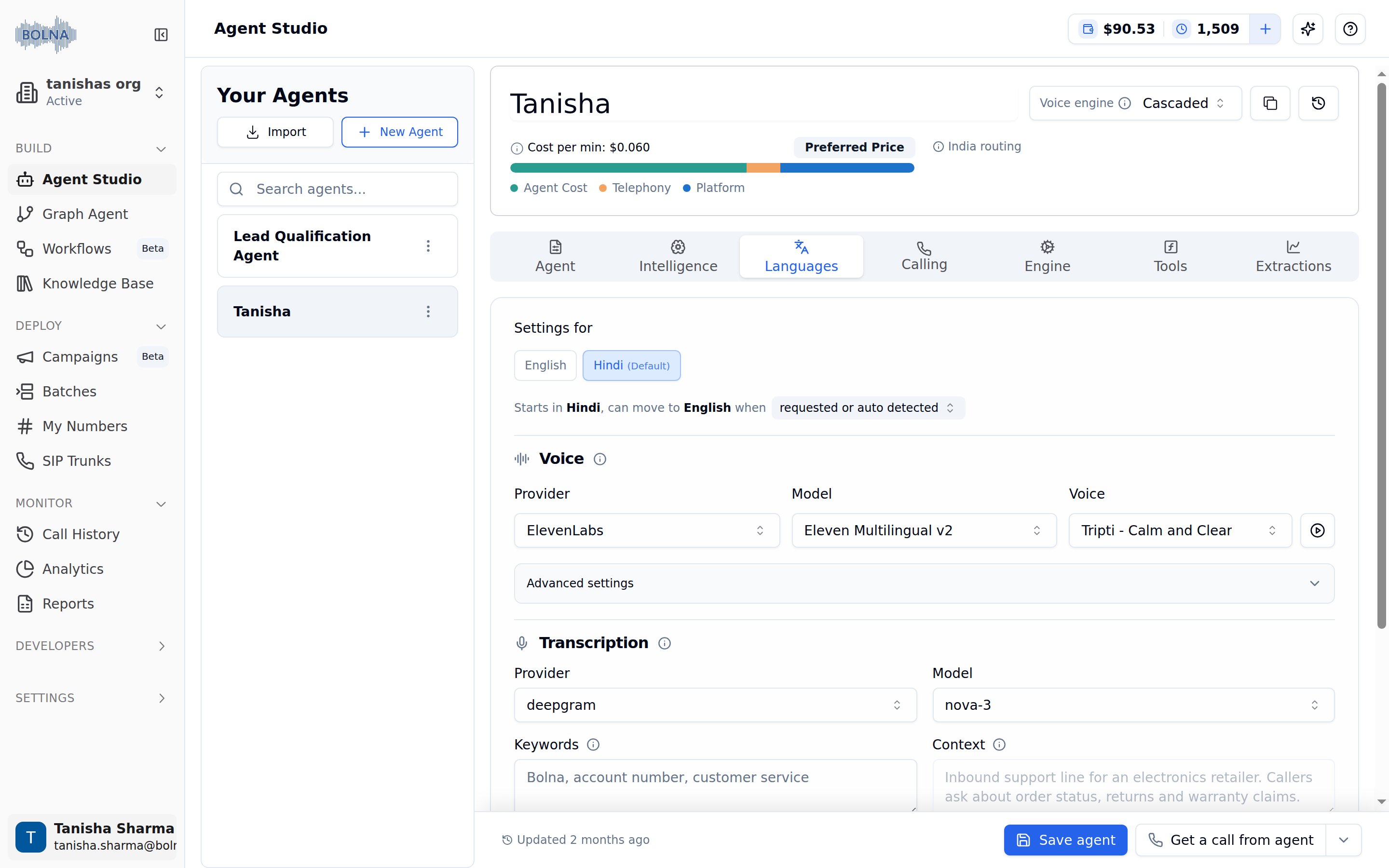
Languages Tab showing per-language Voice (ElevenLabs) and Transcription (Deepgram) settings
Languages
The strip at the top of the tab, labeled Settings for, selects which language the voice and transcription settings below apply to. The language marked(Default) is the one your agent opens every conversation in.

Settings for strip with Hindi as the default language and English as the additional language, and the switching-condition dropdown below
When the agent switches language
For multilingual agents, a summary under the strip recaps the setup — for example “Starts in English, can move to Hindi, Dutch when …” — and ends in a dropdown that controls when a switch is allowed: requested or auto detected (the default) or the caller requested for it. See When the Agent May Switch for what each option means, and How Language Switching Works for exactly what counts as “the caller speaking another language” — why a stray English word or a read-out order number won’t trip a switch.Supported languages
See the Supported languages page for the full list of languages Bolna can be configured with.Voice
Controls how your agent sounds when speaking to the caller. For multilingual agents, each language can have its own voice provider, model, and voice. Select a language in the strip above to configure its voice settings independently.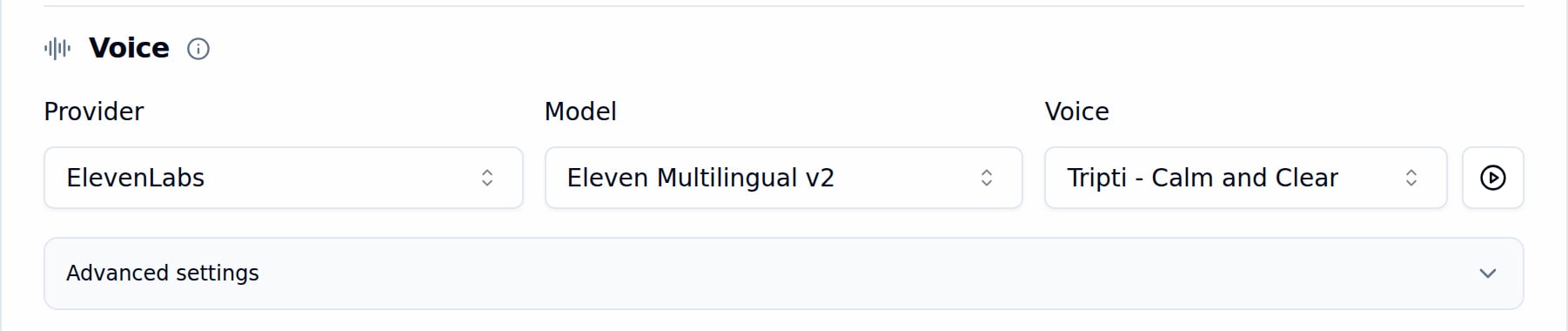
Voice configuration with ElevenLabs as provider, Eleven Multilingual v2 as model, and the Tripti voice selected, with the Advanced settings panel collapsed
Provider, model, and voice
Select a Provider
Pick a Model
eleven_turbo_v2_5 for low latency).Choose a Voice
Browsing voices
Click the Voice dropdown to see a searchable list of all available voices. Filter by gender using the All, Male, Female, and Neutral tabs. Each voice shows a play button so you can preview it before selecting.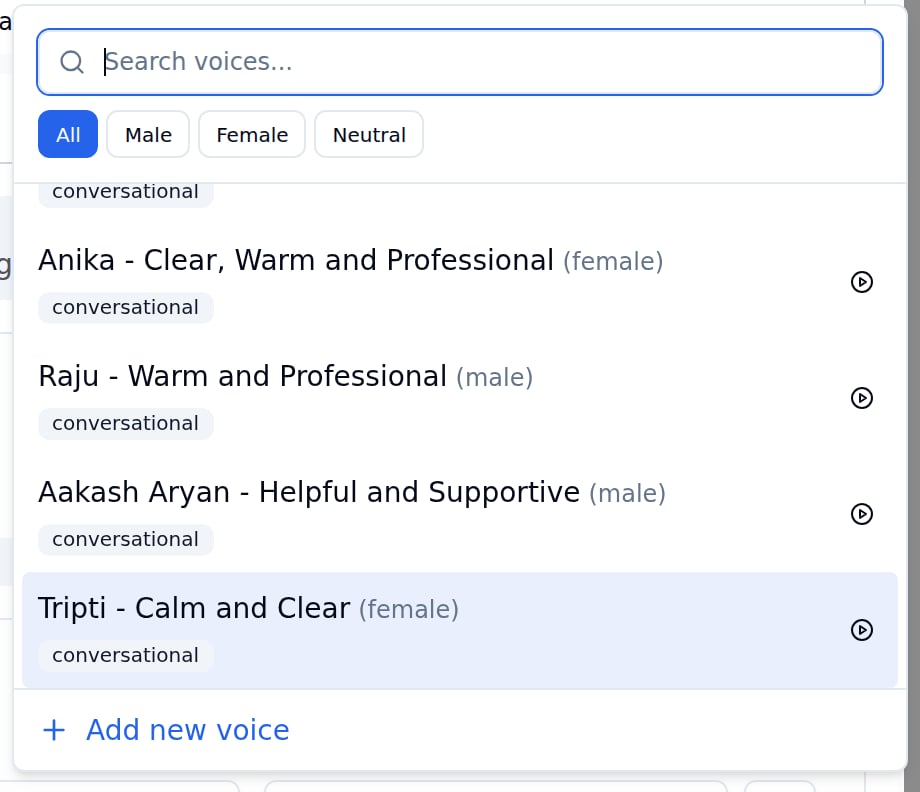
Voice selector dropdown showing a searchable list of voices with gender filter tabs and play preview buttons
Preview welcome message
Click the play button next to the Voice dropdown to hear the selected voice speak your agent’s welcome prompt (configured in the Agent Tab). This lets you test how the voice sounds before going live.Voice tuning parameters
Fine-tune your agent’s voice using the sliders under Advanced settings, below the voice selector. Available parameters may vary by provider.Extra request params
With a custom TTS voice selected, Advanced settings also shows Extra request params. Switch it on to send your server any request fields it supports as JSON, such as a speaking speed, a language or delivery instructions:{"speed": 1.2, "language": "English"}. The example button fills in a speed. See Extra request params.
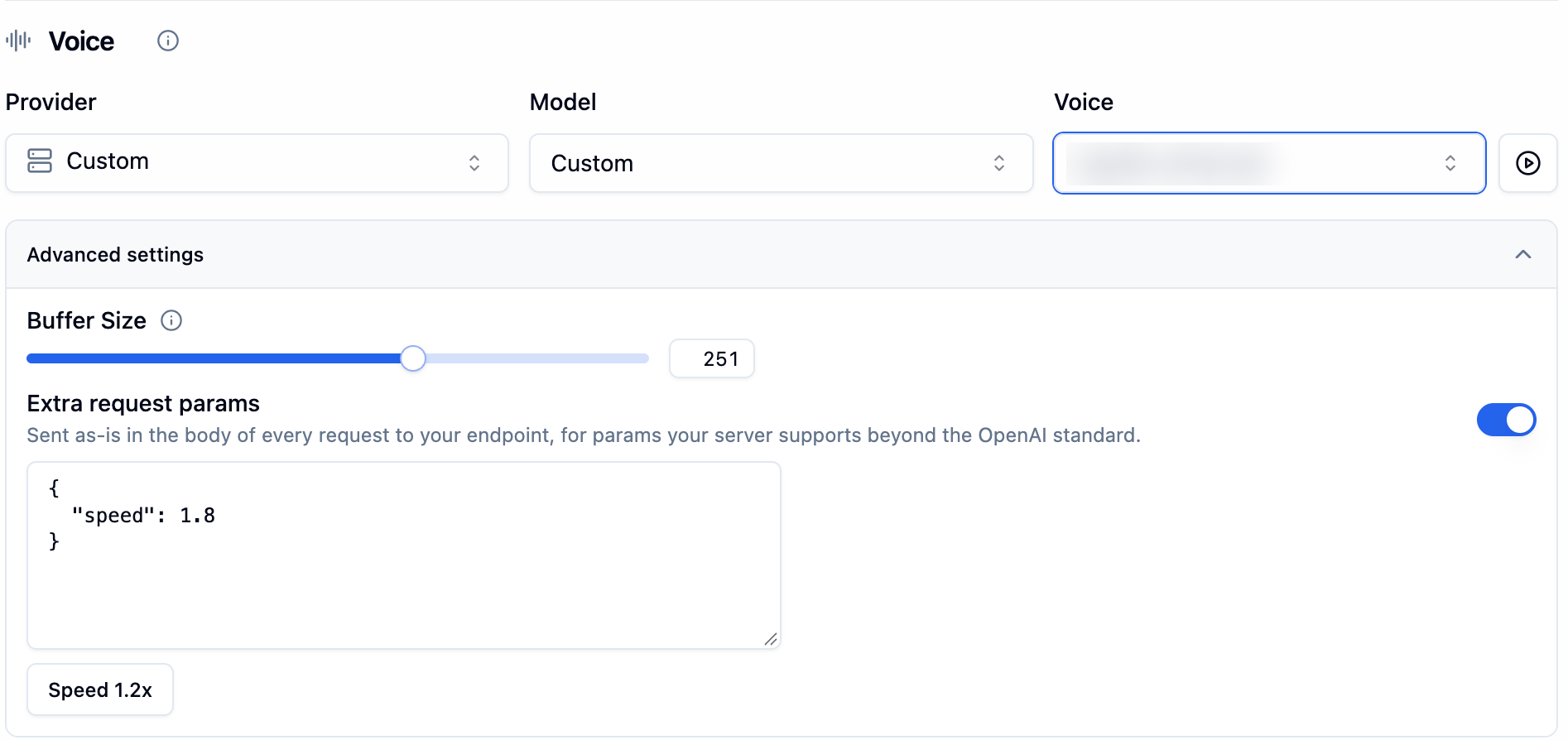
Extra request params under the voice's Advanced settings, shown when a custom TTS voice is selected
Pronunciation
On ElevenLabs voices, and Cartesiasonic-3 and newer, the Pronunciation section below the voice settings lists words and how the agent should say them, such as HDFC as “H D F C bank”. Each language has its own list. Add words one by one or import a CSV or JSON file. See Pronunciation.
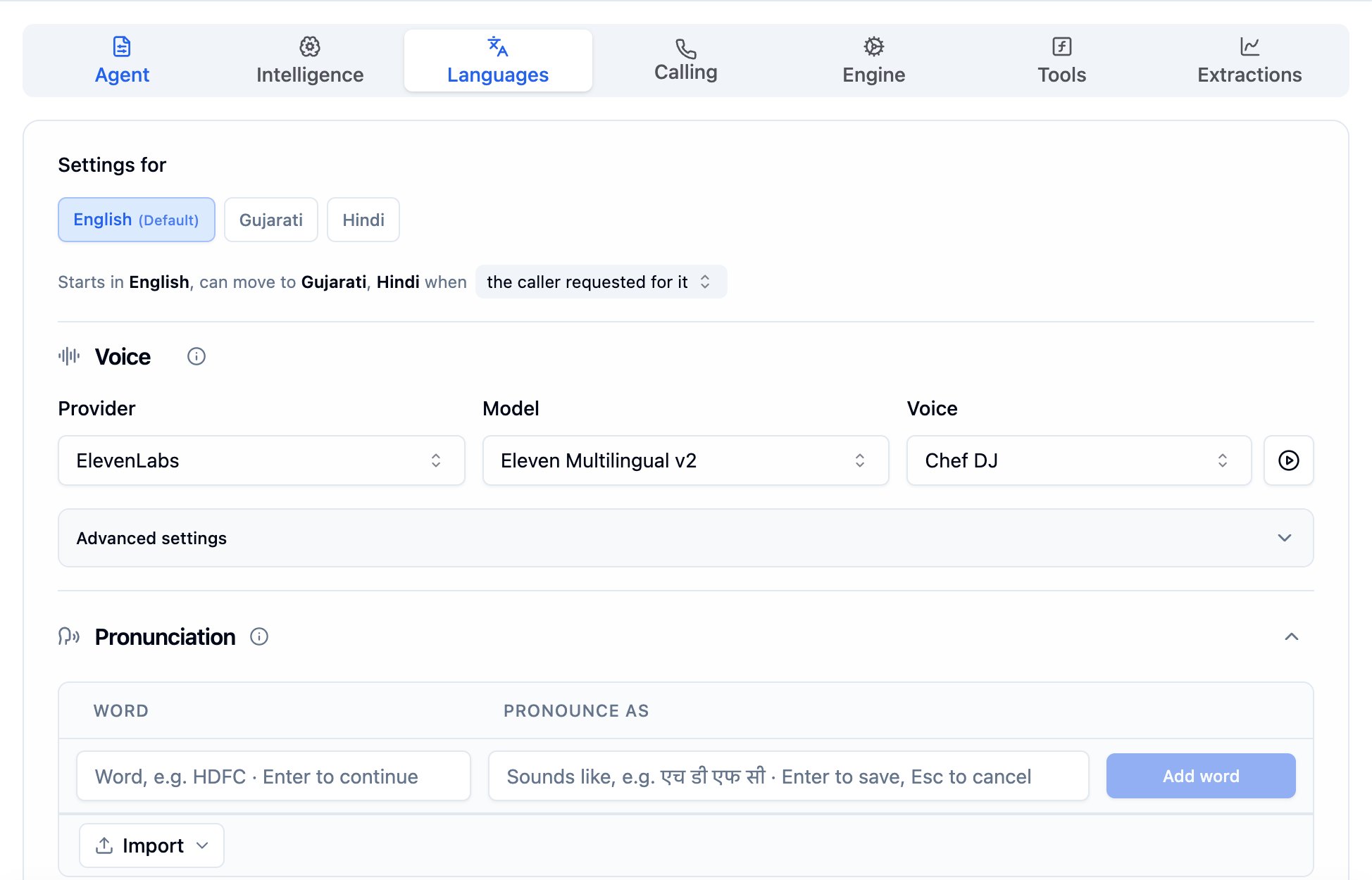
The Pronunciation section below the Voice settings, for the English voice of a multilingual agent
Adding and cloning voices
Open the Voice dropdown and click Add new voice at the bottom to add a custom voice by ID or clone one from an audio sample. This opens the Add Voice dialog.Add a voice by ID
Use this when you already have a voice ID from your provider’s voice library.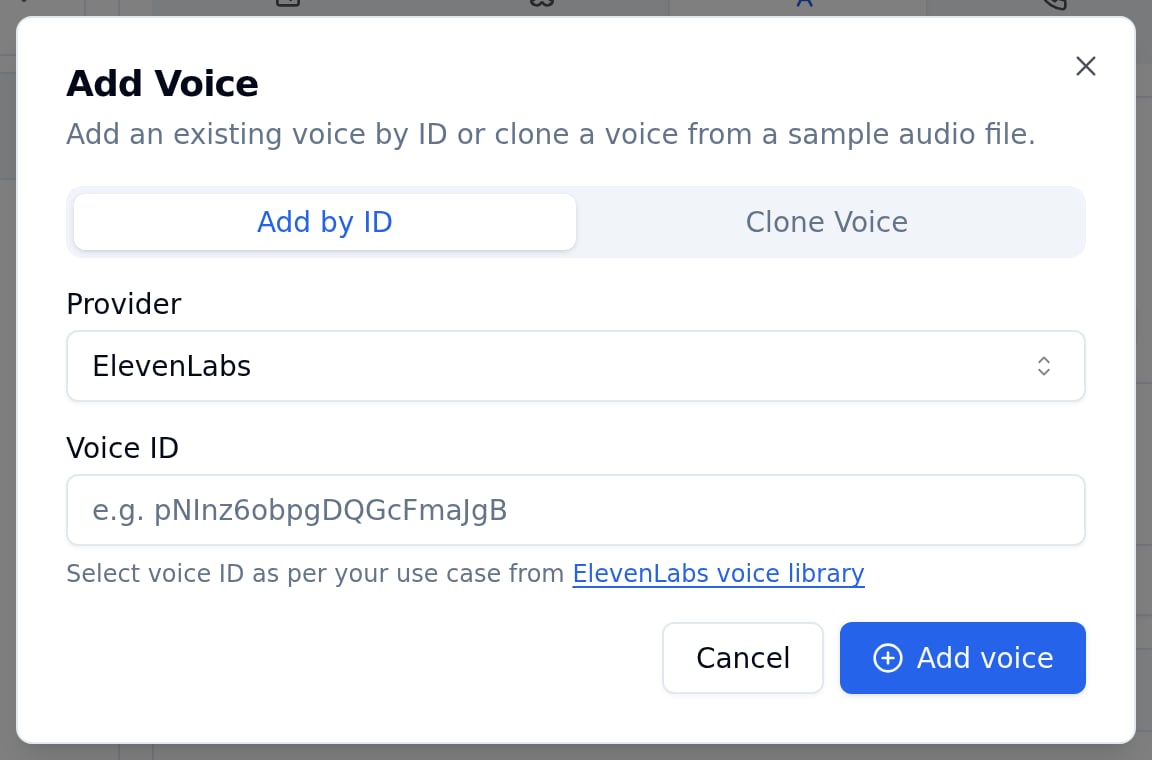
Add Voice dialog with the Add by ID tab selected, ElevenLabs as provider, and a Voice ID input field
Select the Add by ID tab
Choose a Provider
Enter the Voice ID
Click Add voice
Clone a voice
Create a new voice by uploading an audio recording. Useful for maintaining a consistent brand voice or using a specific person’s voice (with their permission).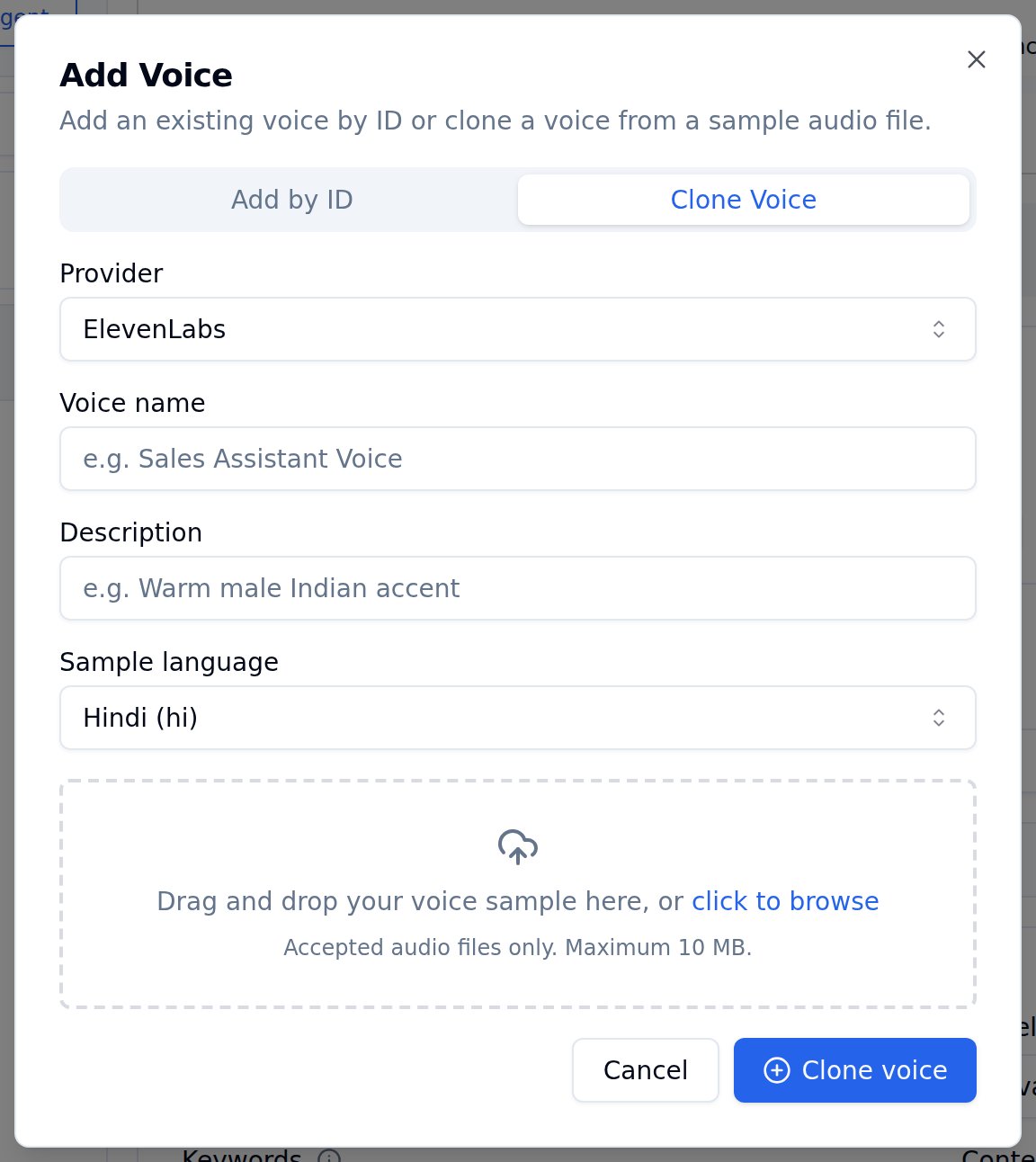
Clone Voice tab with fields for Provider, Voice name, Description, Sample language, and a file upload area
Select the Clone Voice tab
Choose a Provider
Enter Voice Details
Select Sample Language
Upload an Audio Sample
Click Clone voice
Supported languages for voice cloning
Both ElevenLabs and Cartesia support cloning in the same languages Bolna supports, plus an additional Indian Multilingual sample-language option.Transcription
Controls how your agent converts the caller’s spoken words into text before the LLM processes them. For multilingual agents, each language can have its own transcription provider and model. Select a language in the strip above to configure its transcription settings independently.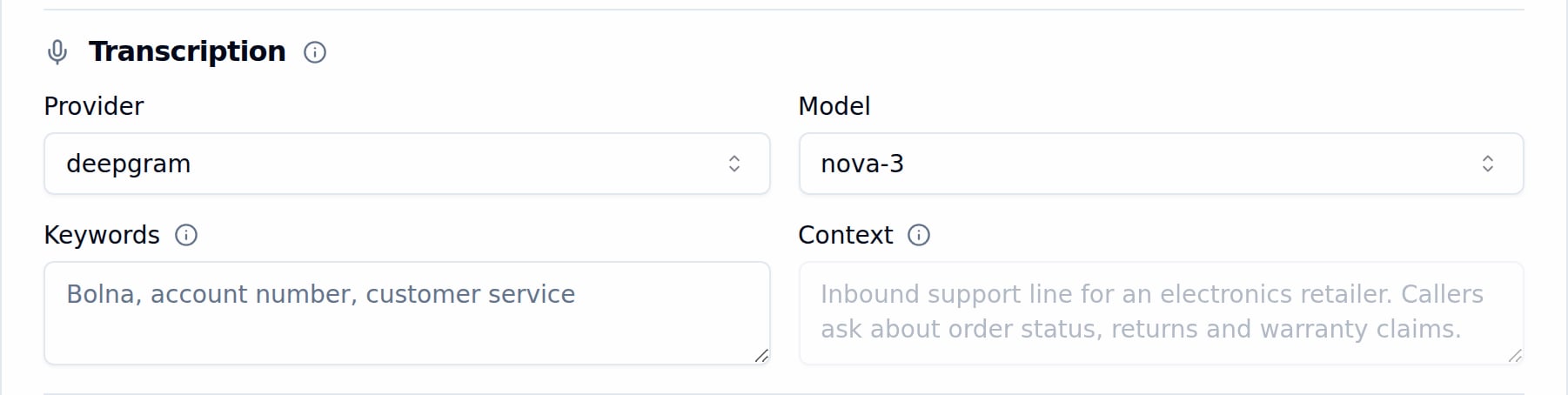
Transcription configuration with Deepgram nova-3 selected, plus Keywords and Context fields
Provider and model
Choose a transcription provider from the Provider dropdown, then pick the specific model from the Model dropdown.Keywords
Boost recognition accuracy for specific words the transcriber might miss, such as brand names, product names, or technical terms. Enter one term per entry, comma-separated (e.g.,Bruce, Acme, Meesho).
Advanced settings
Some transcribers have settings of their own, under Advanced settings below the Keywords and Context fields. The section is collapsed by default and only appears for a provider that has such settings.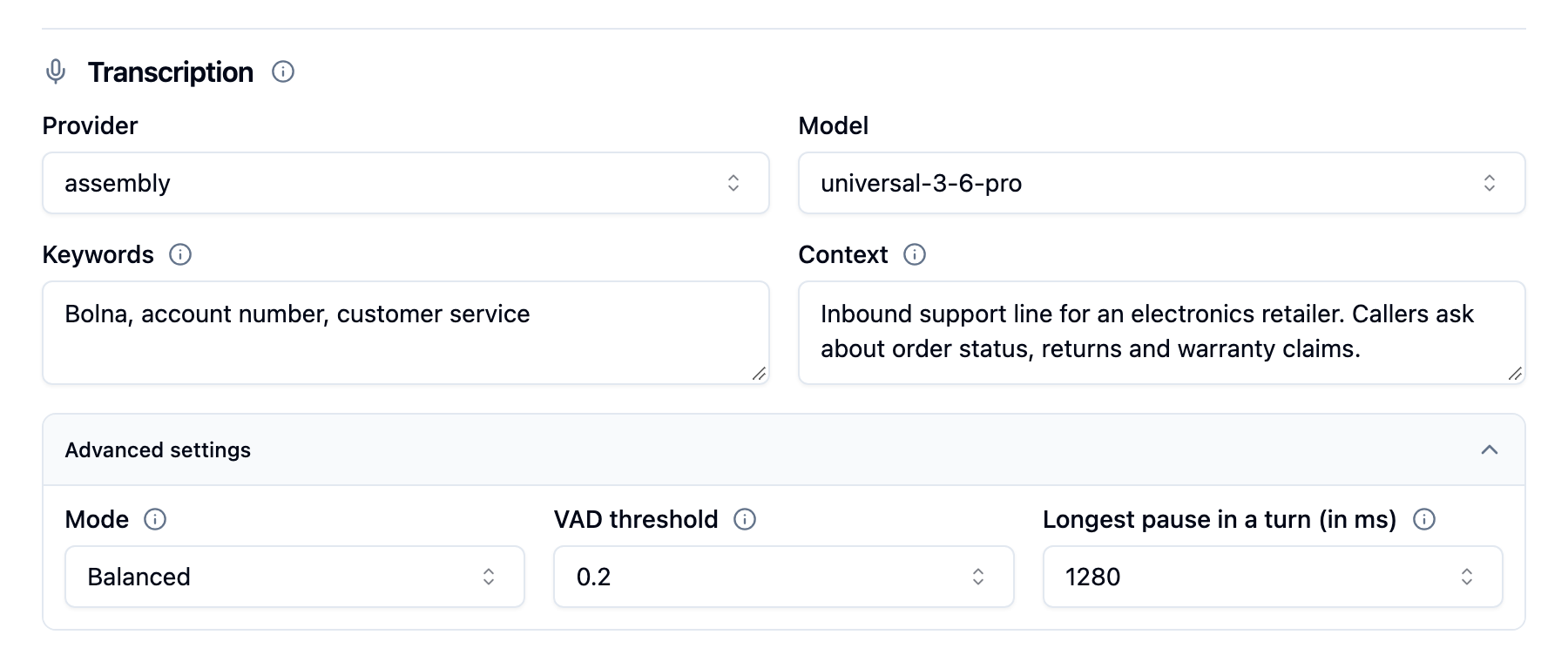
AssemblyAI transcription with Advanced settings expanded, showing Mode, VAD threshold and Longest pause in a turn at AssemblyAI's defaults