

Node types
Every node has a node type that controls how it responds.Node roles
The editor assigns each node a role based on its position and configuration. Roles are shown as a badge on the node card.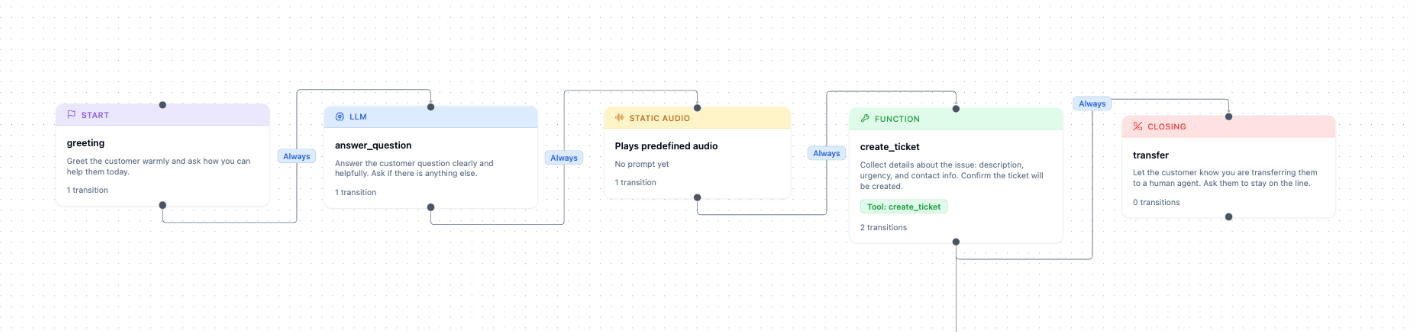
A node can only have one role. Precedence: Start > Closing > Function > Static > LLM.
Creating a node
Method 1 — Add node, or double-click the canvas Double-click any empty area of the canvas, or click Add node in the toolbar. The Add Node dialog opens with the three node types — LLM Node, Static Audio Node and Router Node. Pick one and click Create Node. Method 2 — drag from a transition handle Click an existing node to reveal its output handle (the small circle on its bottom edge). Drag from the handle to an empty area. A new node is created and a transition from the source node is added automatically. Method 3 — insert on an existing transition Click a transition arrow to select it. In the edge inspector, click Insert Node and choose a node type. The new node is inserted between the source and target, with two transitions replacing the original one.Editing a node
Click any node card to select it. The Node Inspector opens on the right.Node ID
The node’s unique identifier. Referenced by transitions and the start-node setting. Click the ID field to rename it.Set as start node
Click Make start node to make this node the entry point for new calls. The button shows Current start node when this node is already the start. Only one node can be the start node at a time. The current start node shows the purple Start badge.Node type toggle
Switch between LLM, Static and Router at the top of the node inspector. Switching to Static reveals the Spoken message field and hides the LLM-only fields; Router hides the prompt and speech fields entirely.Prompt (LLM nodes)
The instruction given to the response LLM when the conversation is in this node. Write exactly what the agent should do and say at this step.Spoken message (Static nodes)
The exact text to speak. Audio is pre-generated from this text using the agent’s configured TTS voice when the agent is saved. Changing this field requires a re-save to regenerate the cache.Examples
Optional per-language example responses. Guides tone and phrasing without restricting the LLM. Add entries for each language code your agent supports (e.g.en, hi).
Function call (LLM nodes)
Forces the response LLM’stool_choice to the selected tool when the node is entered. Use this on transfer nodes so the LLM always calls the transfer function without waiting for the user to ask.
Knowledge base (LLM nodes)
Attach one or more knowledge bases to this node. On every turn while the conversation is on this node, the user’s message is used to retrieve relevant chunks from the selected knowledge base and inject them into the LLM’s context. See Tools & RAG.Routing model
The routing LLM decides which transition to take when the conversation leaves this node. Leave the dropdown on Inherit from agent to use the agent’s routing model, or pick a model to override it for this node — a cheaper model where the branch is obvious, a stronger one where the classification is hard. Only the model is overridden. The routing call still runs on the agent’s routing provider and credentials, so the dropdown lists only the models that provider serves.If a saved override is no longer offered by the provider, it stays selected and is marked (unavailable). Pick another model or switch back to inherit before saving.
LLM overrides (LLM nodes)
Override the agent-level LLM settings for just this node.Auto-replay on silence
When enabled, the node replays automatically after a configurable number of seconds of user silence. The_silence_repeats counter increments on each replay and can be used in expression transitions to escalate (transfer, hang up). See Static nodes for a full example with the expression pattern.
Words to interrupt (override)
Sits directly below Auto-replay on silence on LLM and static nodes. Off by default, so the node inherits the agent-level Number of words for interruption from Agent setup. Turn the toggle on to set a threshold for this node only — 0 to 10 words, starting at 3. Setting it to 0 disables interruption on that node entirely: the agent finishes speaking no matter what the caller says. Use that on a fixed disclaimer or legal message that has to play in full.Duplicating a node
Open the node inspector and click Duplicate at the top of the inspector. A copy of the node is placed on the canvas with all the same settings. The copy gets a new unique ID (original ID +_copy suffix or a numeric suffix).