

What is the Intelligence tab?
The Intelligence tab (previously labeled LLM) is where you select and configure the intelligence behind your voice AI agent. Choose your language model provider, adjust response parameters, and connect knowledge bases for enhanced conversations.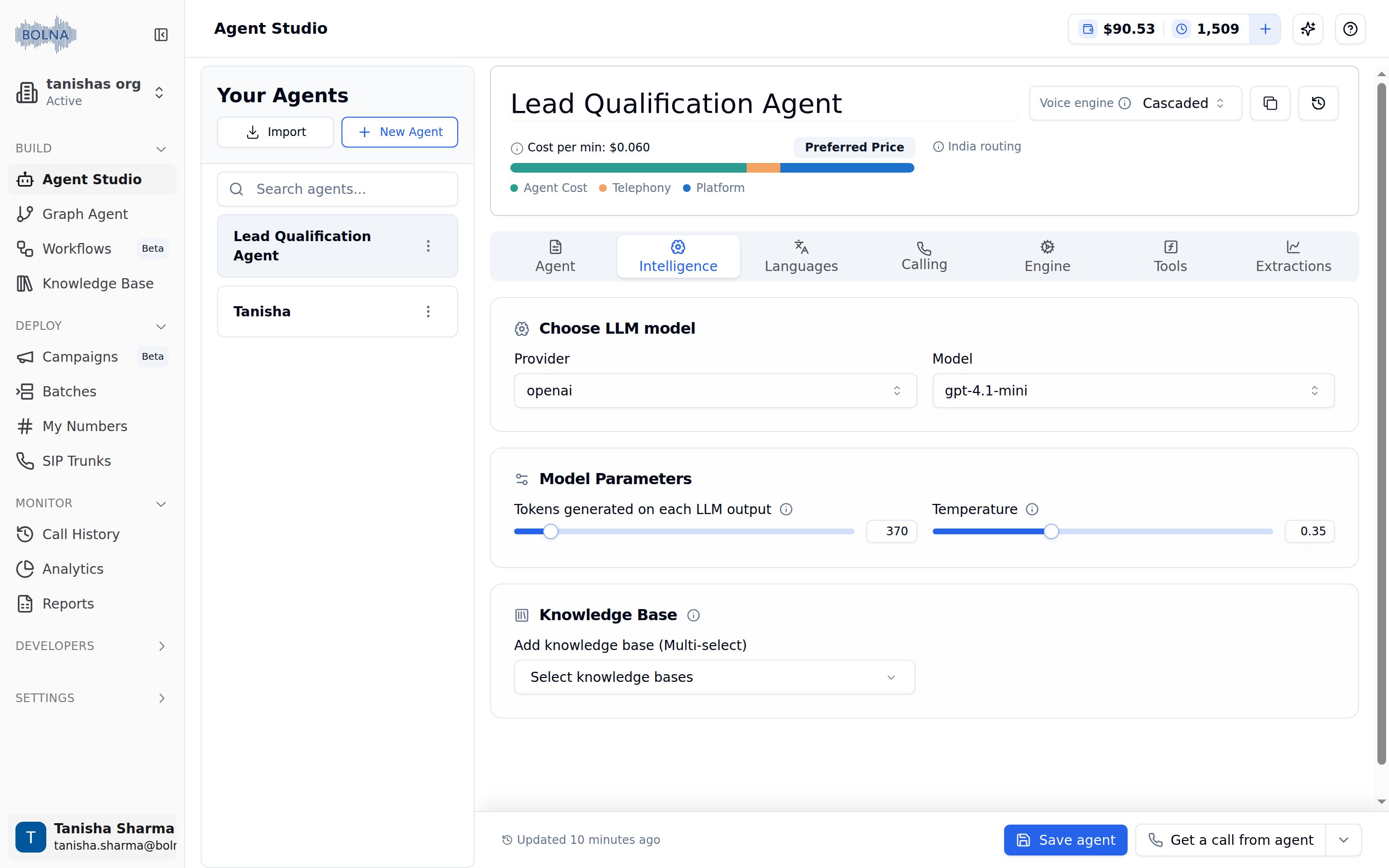
Intelligence Tab with the Choose LLM model, Model Parameters and Knowledge Base cards
Configuration options
Choose LLM model
Select your AI provider and model for conversation intelligence.
Choose LLM model card with the Provider and Model dropdowns
Provider selection
Choose from Azure, OpenAI, Anthropic, Groq, and more
Model selection
Pick the specific model (e.g.,
gpt-4.1-mini)Model parameters
Fine-tune how your agent generates responses.
Model Parameters card with the token limit and temperature sliders
On GPT-5 models, reasoning tokens are drawn from the same budget as Tokens generated on each LLM output, so raise the cap whenever you raise reasoning effort. The effort control lists only the values the selected model accepts, and the options change when you switch models. See OpenAI for the per-model values.
Extra request params
With a custom model selected, the tab also shows Extra request params. Switch it on to send your server parameters beyond the OpenAI standard as JSON, for example{"chat_template_kwargs": {"enable_thinking": false}} to turn Qwen3’s thinking off on vLLM. The example buttons fill in common ones. See Extra request params.
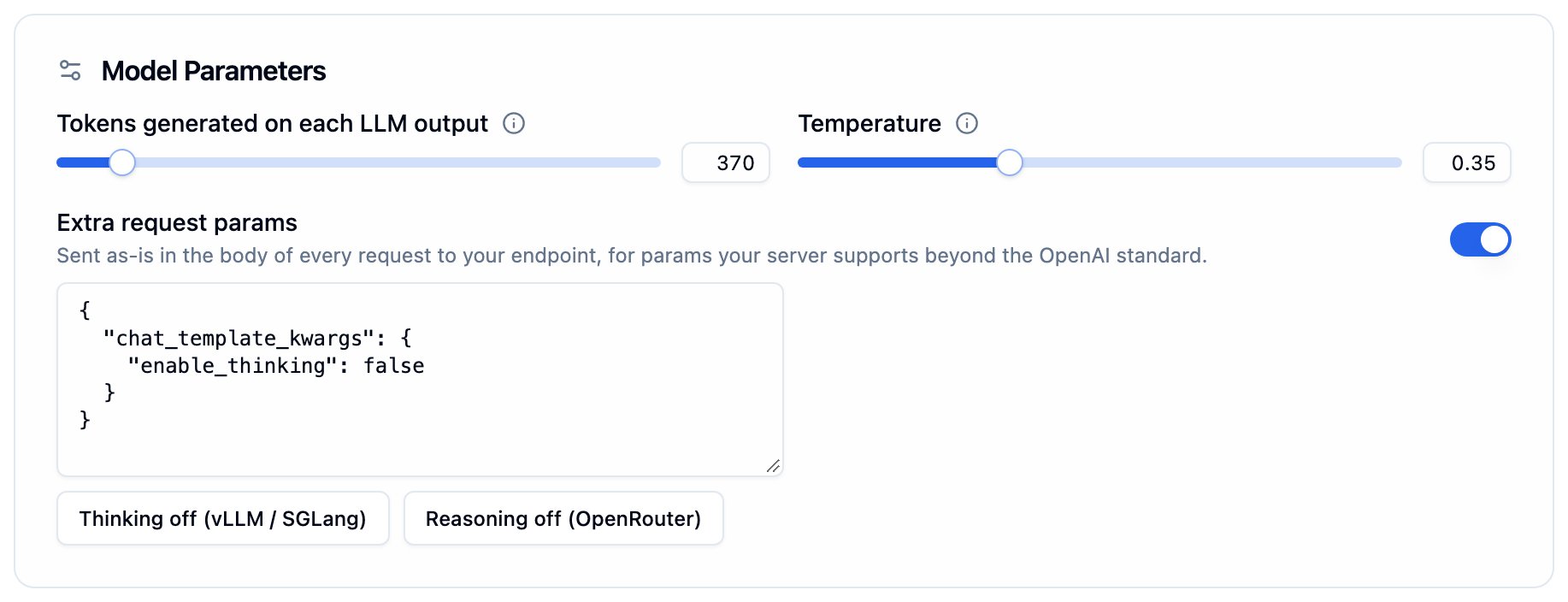
Extra request params under Model Parameters, shown when a custom model is selected
Add knowledge base
Connect your knowledge bases to give your agent accurate, contextual information.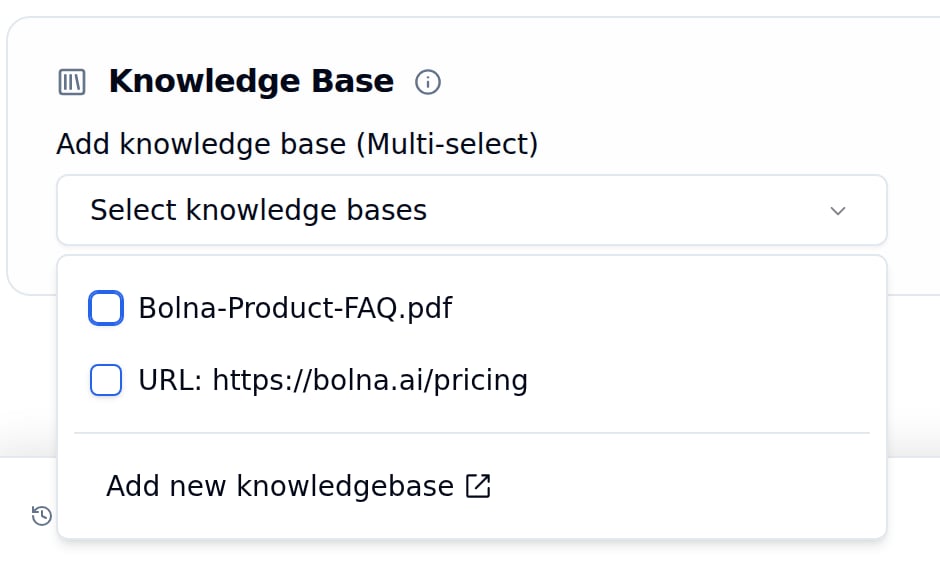
Knowledge Base card with the multi-select dropdown open
1
Click the Dropdown
Open the “Select knowledge bases” multi-select dropdown.
2
Select Knowledge Bases
Check one or more knowledge bases (PDFs, URLs) to connect.
3
Create New (Optional)
Click “Add new knowledgebase” to create and upload new content.
Knowledge bases enable your agent to answer questions with accurate, up-to-date information from your documents and URLs. Connect multiple knowledge bases for comprehensive coverage.
Next steps
Knowledge base
Create and manage knowledge bases
Agent tab
Configure prompts and welcome message
Languages tab
Set up voice, transcription, and languages
LLM providers
Connect your own LLM provider