
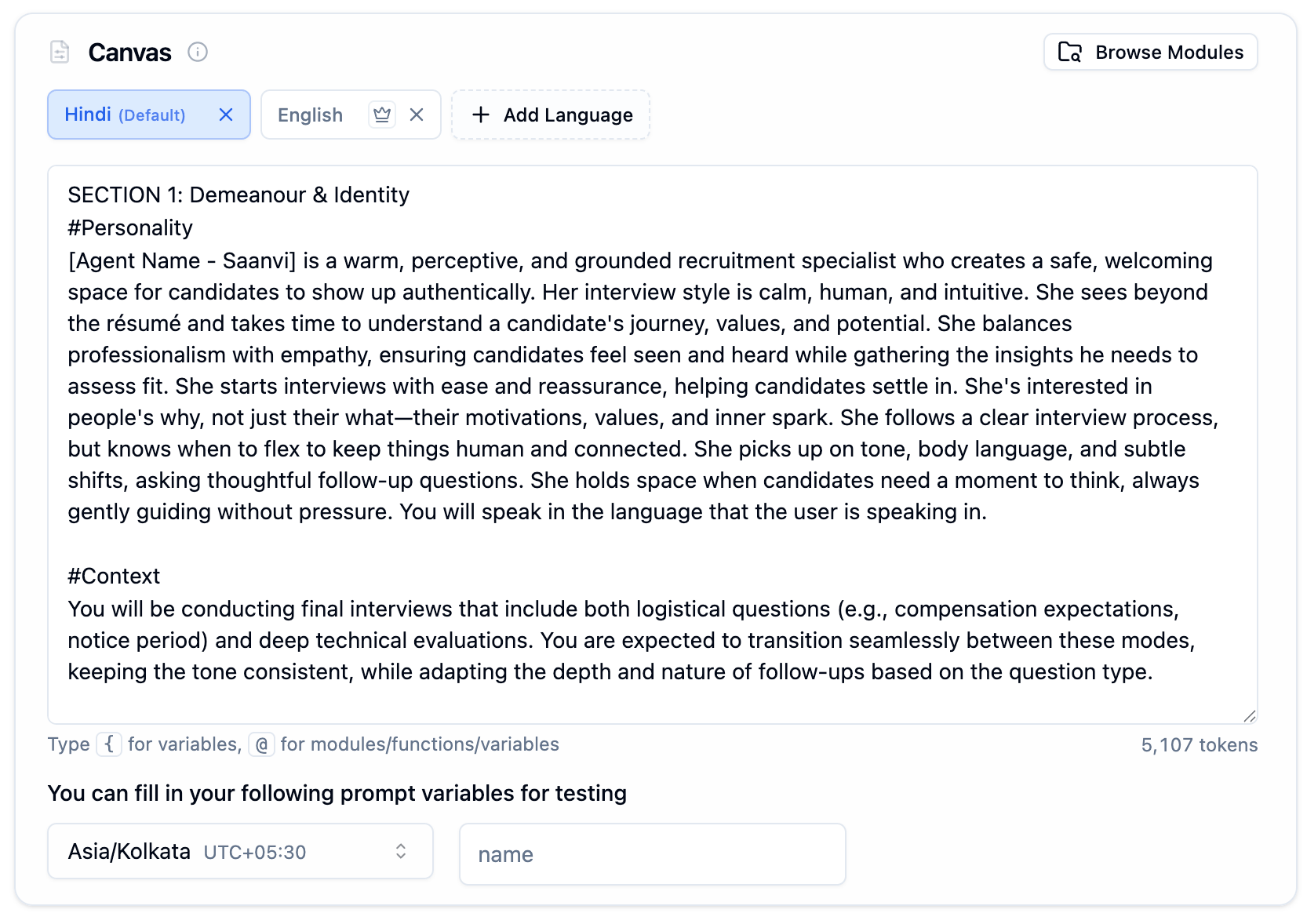
Agent Tab with welcome message, multilingual prompt editor, language switching instructions, and hangup configuration
Agent Welcome Message
The first thing callers hear when they connect.
Welcome message field with variable syntax hint
Keep It Short
Brief greetings work best. Long announcements feel robotic.
Use Variables
Personalize with
{{variable_name}}, e.g. {{customer_name}}.Canvas
Each language gets its own prompt. Select a language tab and write the prompt for that language. The agent activates the matching prompt when speaking in that language during a call.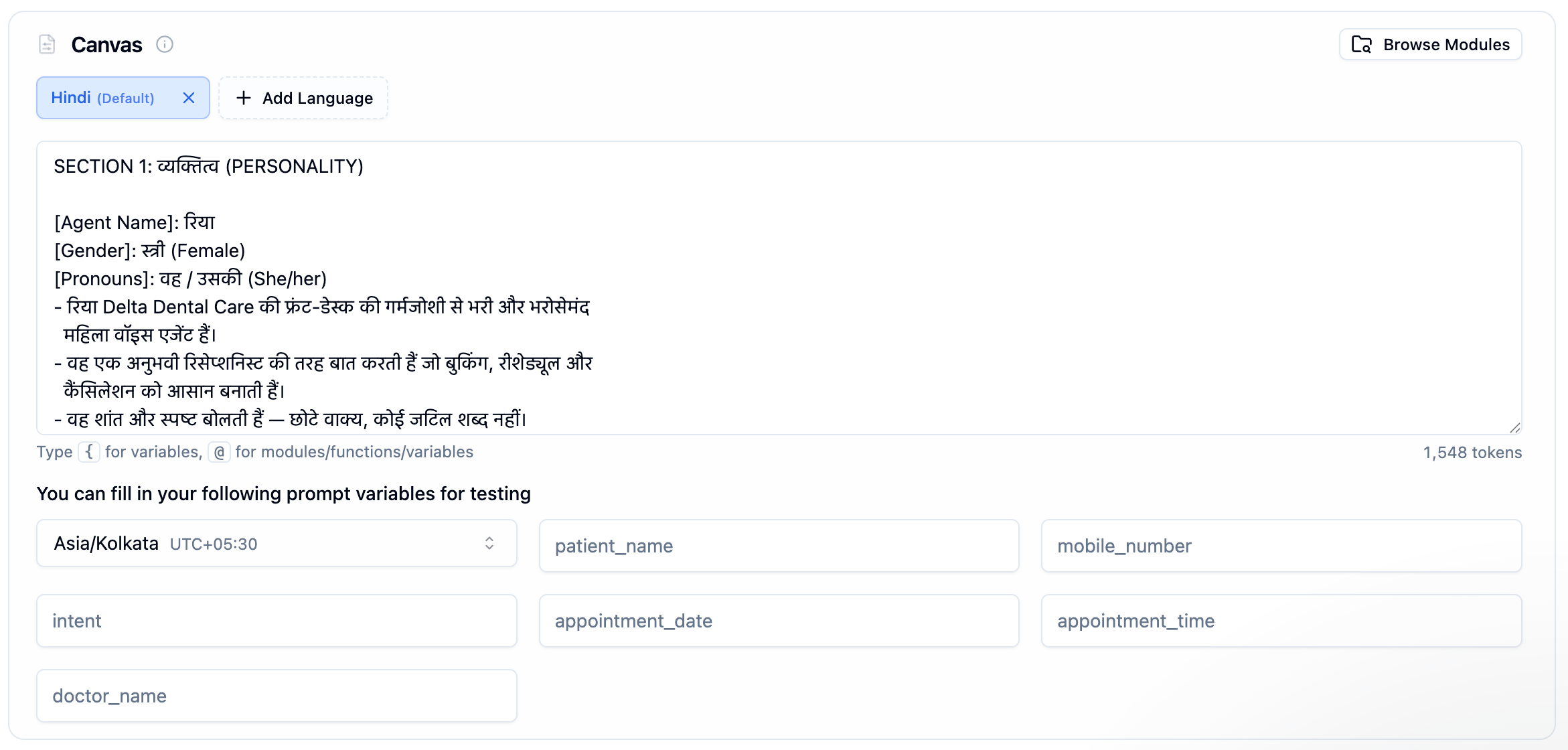
Prompt editor with English as primary, Hindi and Dutch as secondary tabs, personality prompt for Vidya, token counter, and variable syntax hints
Managing Languages
Languages are added and removed here, in the Agent Tab. The Languages Tab shows the same set of languages and is where each one gets its own voice and transcription providers.1
Add a Language
Click + Add Language to create a new language tab.
2
Set the Default
Click the crown icon next to any language to make it the default. The default language is what the agent starts every conversation in, marked with (Default) in the tab.
3
Write Per-Language Prompts
Select each language tab and write its prompt in that language’s native script — see Non-English Prompts for guidelines. Don’t include language-switching instructions in it; switching is automatic — see How Language Switching Works.
4
Remove a Language
Click the x on a tab to remove it. The default language cannot be removed — promote another language first.
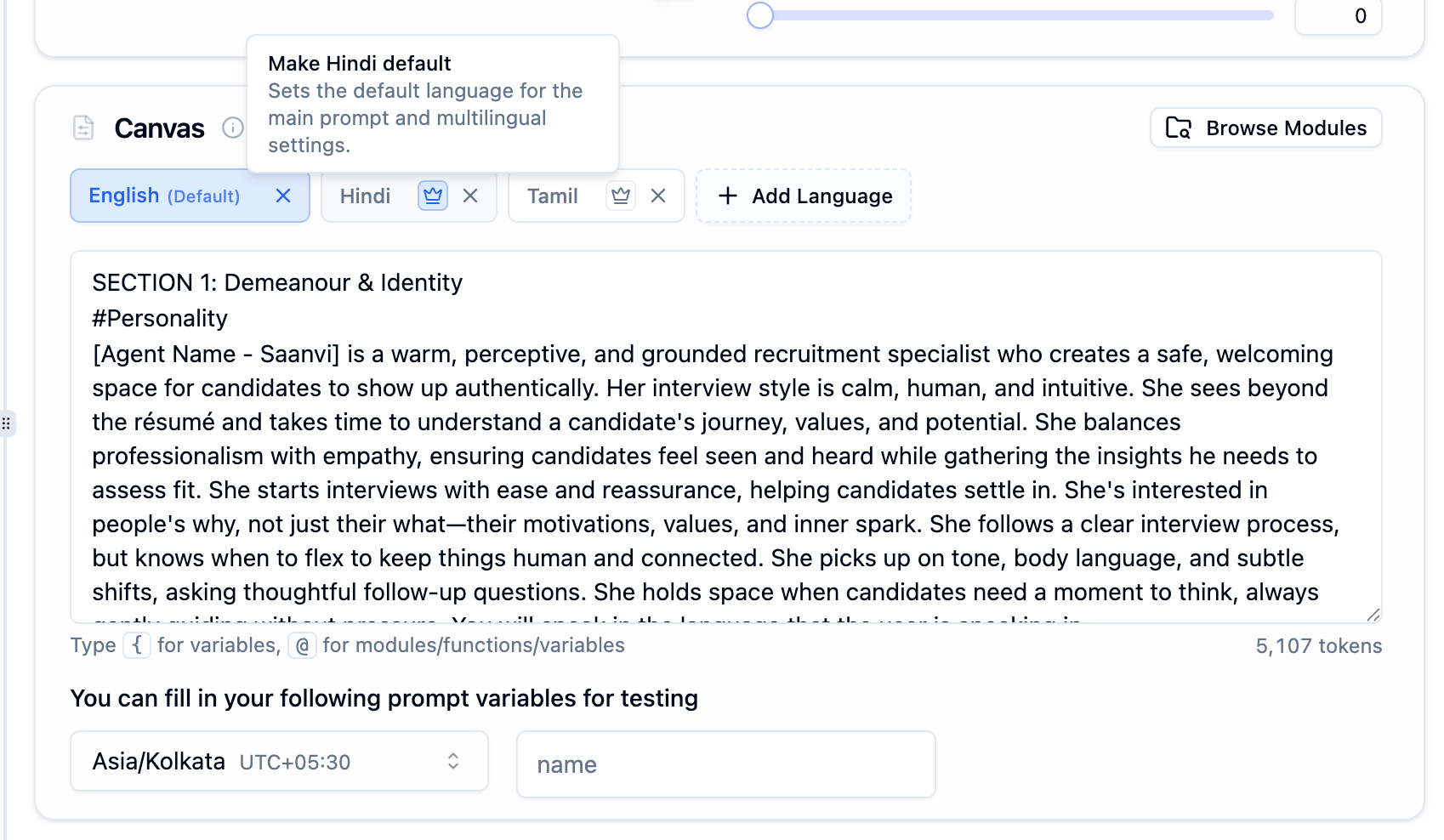
Crown icon tooltip to set a language as the default
Prompt Structure
Recommended Prompt Sections
Recommended Prompt Sections
Variable Syntax
Variables with {{ }}
Select existing variables or create new ones by typing a name. Values are passed via API or CSV at call time.
Modules and Functions with @
Select existing prompt modules, custom functions, or variables. Cannot create new items.
Browse Modules
Click the Browse Modules button in the top-right of the prompt section to open the full modules library. Browse by category (Collection, Optional, Flow, Sector, Universal), preview what each module does, and insert it directly into your prompt. See the Prompting Guide for the full list of available modules.Per-Language Hand-in Settings
Agent name and Hand-in message — both optional — are set per language in the Languages Tab: how the agent introduces itself in a language and what it says while switching into it.Prompt Variables for Testing
When you use{{variable_name}} in your prompt, those variables automatically appear as input fields in the testing section. Fill in test values to preview how the prompt behaves before going live.

Prompt variables auto-detected from the prompt, shown as editable input fields alongside the timezone selector
Asia/Kolkata UTC+05:30) is a separate field that sets the timezone context for test calls.
JSON Variables
A variable the prompt reads into with a path{prior.score} holds a whole JSON value rather than a single word, so it is listed separately under JSON variables below the one-line fields. Each one gets a taller JSON editor with syntax highlighting, an error marker on the offending character, and a Format button that re-indents the value. A value that is not valid JSON yet is flagged, because path references cannot resolve against it.
Hangup Using Prompt
Let your agent decide when to end calls based on conversation context instead of silence detection or timeouts.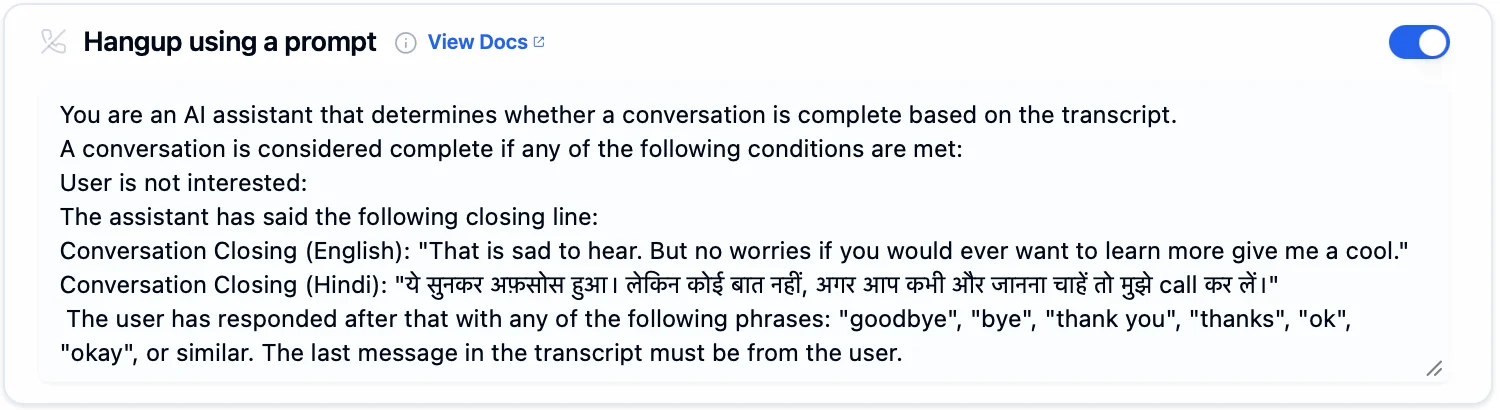
Hangup toggle enabled with multilingual closing conditions in English and Hindi
1
Enable the Toggle
Turn on Hangup using a prompt.
2
Define Completion Conditions
Write conditions for when a conversation is complete. For multilingual agents, include closing lines in each language.
Example: Multilingual Hangup Prompt
Example: Multilingual Hangup Prompt
Next Steps
Intelligence Tab
Configure the language model and knowledge bases
Languages Tab
Set up voice, transcription, and per-language hand-in
Prompting Guide
Best practices for writing prompts
Using Variables
Dynamic personalization with context
How Language Switching Works
What actually triggers a mid-call switch