

What is Knowledge Base?
Knowledge Base allows you to upload documents and add URLs that your AI agent can reference during conversations. Using RAG (Retrieval-Augmented Generation), your agent retrieves relevant information and provides accurate, context-aware responses.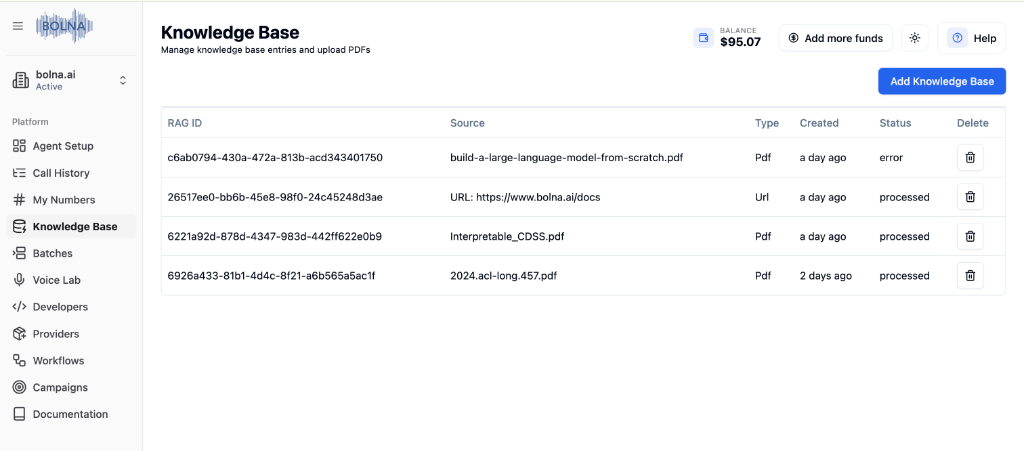
How to Access Knowledge Base
Go to Bolna Platform
Navigate to platform.bolna.ai
Adding a Knowledge Base
- Upload PDF
- Add URL
Upload PDF documents for your agent to reference.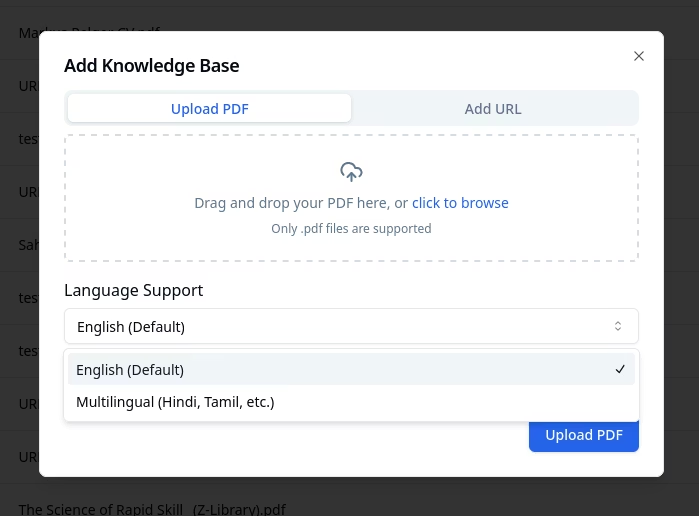
Select Language Support
Choose English (Default) or Multilingual (Hindi, Tamil, etc.) from the Language Support dropdown.
Only
.pdf files are supported for document upload.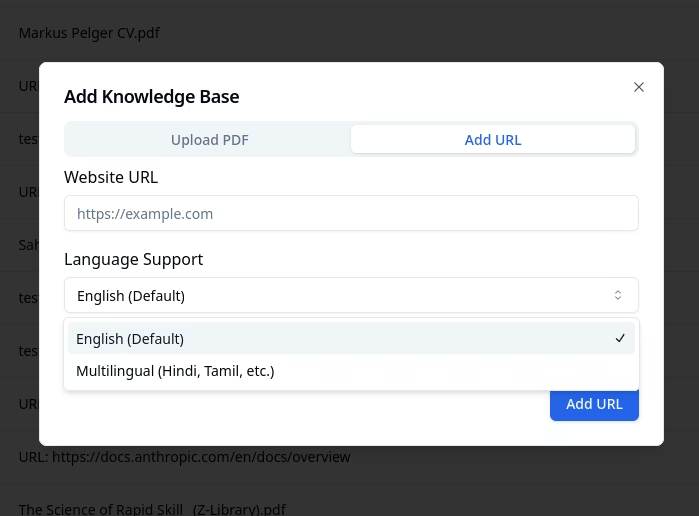
Multilingual Knowledge Bases
By default, knowledge bases are optimized for English content. If your documents are in non-English languages (Hindi, Spanish, French, etc.) or you need cross-lingual retrieval (e.g., query in English, retrieve from Hindi documents), enable Multilingual language support when creating a knowledge base.| Mode | Best for |
|---|---|
| Default (no selection) | English-only documents and queries |
| Multilingual | Non-English documents, mixed-language queries, cross-lingual retrieval |
Managing Your Knowledge Bases
Your uploaded knowledge bases are displayed in a table with full management capabilities.| Column | Description |
|---|---|
| RAG ID | Unique identifier for the knowledge base |
| Source | Original file name or URL |
| Type | Content type (Pdf, Url) |
| Created | When the knowledge base was added |
| Status | Processing status (processed, processing, error) |
| Delete | Remove the knowledge base |
Wait for the status to show “processed” before connecting to your agent. If status shows “error”, try re-uploading the file.
Connecting to Your Agent
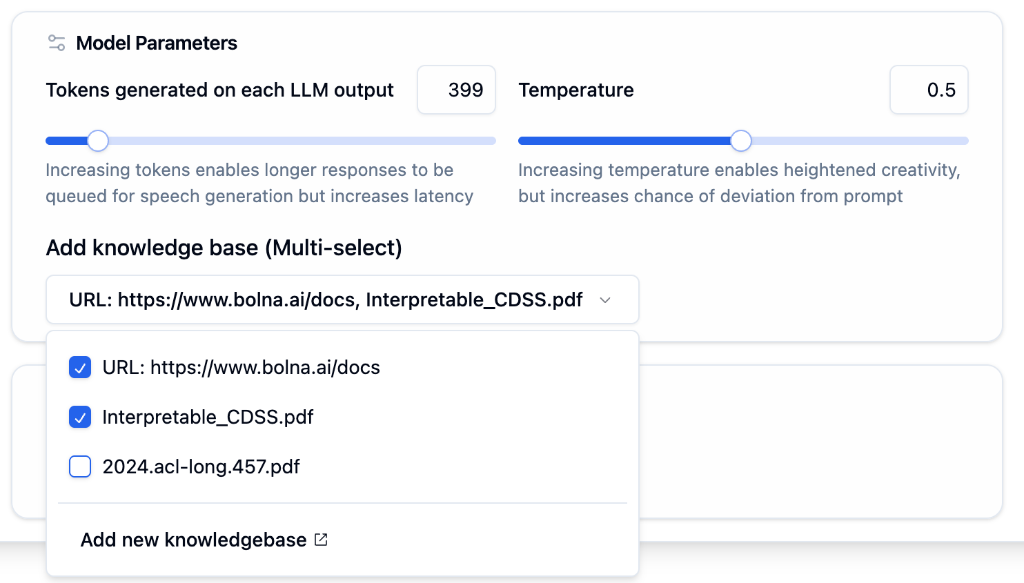
Open LLM Tab
Go to your agent’s LLM Tab.
Use Cases
Product Documentation
Answer questions about your products and services
FAQ Responses
Provide accurate answers from your FAQ pages
Policy Information
Reference company policies during calls
Training Materials
Help agents access training and onboarding content
Next Steps
LLM Tab
Connect knowledge base to your agent
Agent Tab
Configure prompts to use knowledge
Guardrails Guide
Set safety rules and structured responses
Tips & Tricks
Prompting best practices