

What is Truecaller Verification?
Truecaller verification allows your business name and logo to be displayed on recipients’ phones when your Voice AI agents make outbound calls. This powerful feature significantly increases call answer rates and builds instant trust with your customers by showing them exactly who is calling before they pick up.Why Use Truecaller Verification?
Higher Answer Rates
Brand Recognition
Build Customer Trust
Reduce Spam Reports
Verification Status States
Your phone number can be in one of the following Truecaller verification states:How to Request Truecaller Verification
Follow these steps to get your phone number verified with Truecaller:-
Navigate to the Phone Numbers page in your Bolna dashboard.
Find the phone number you want to verify and click REQUEST in the Verify on Truecaller column.
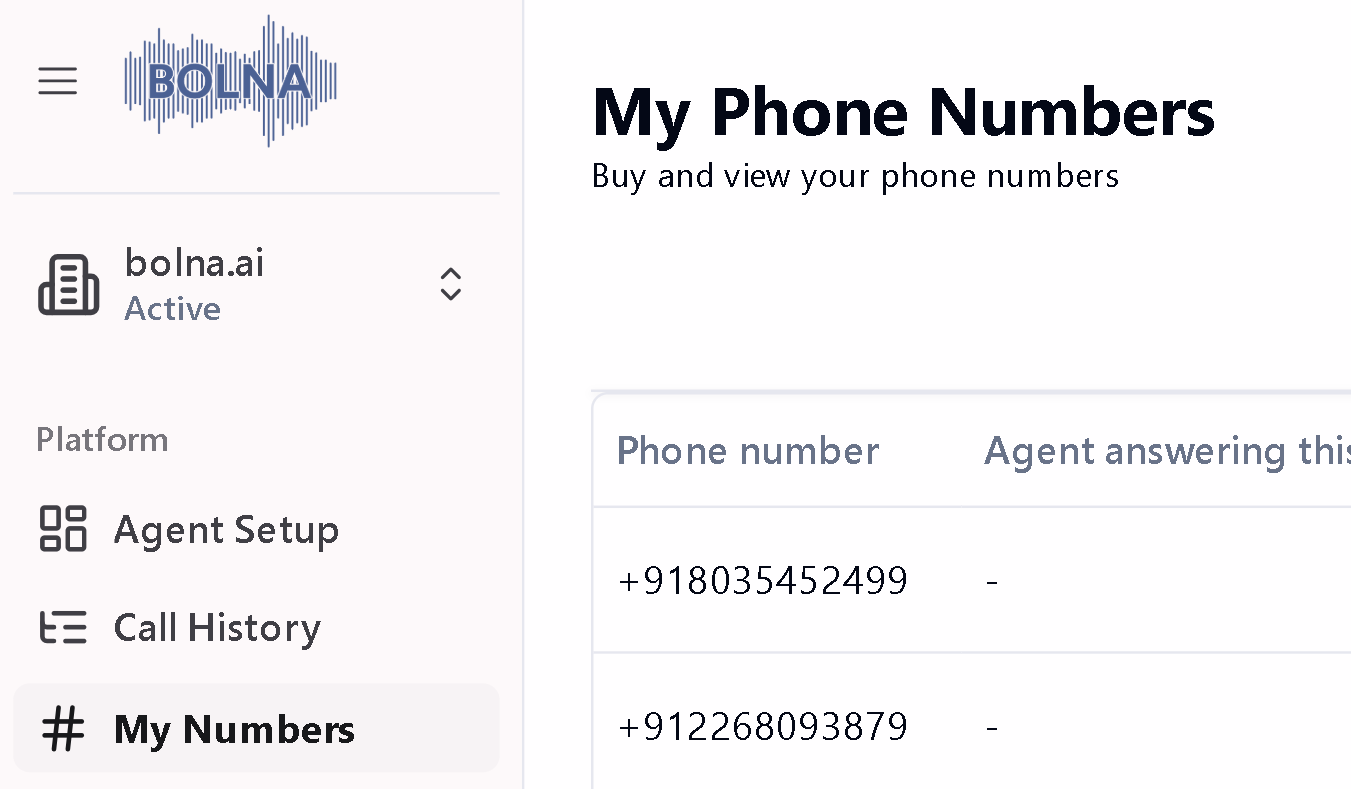
Phone Numbers page showing the Truecaller verification icon
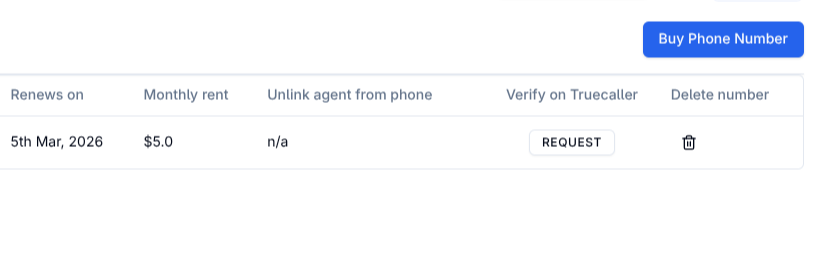
Phone Numbers page showing the option to request Truecaller verification
-
A verification request form will appear. Enter your Company Name — this is the business name that will be displayed to call recipients when your Voice AI agents make calls.
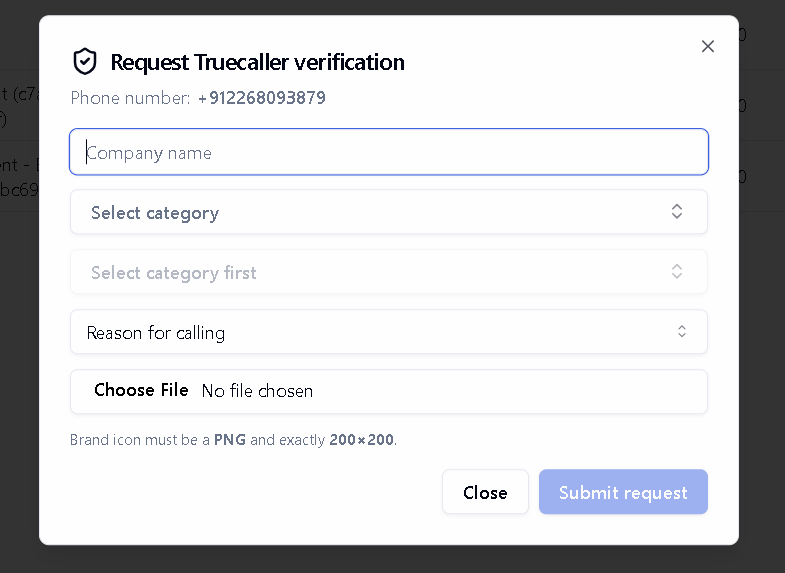
Truecaller verification form with company name field
-
Select the Category that best describes your business from the dropdown menu. Categories include Education, Finance & Insurance, Health & Wellness, and many more.
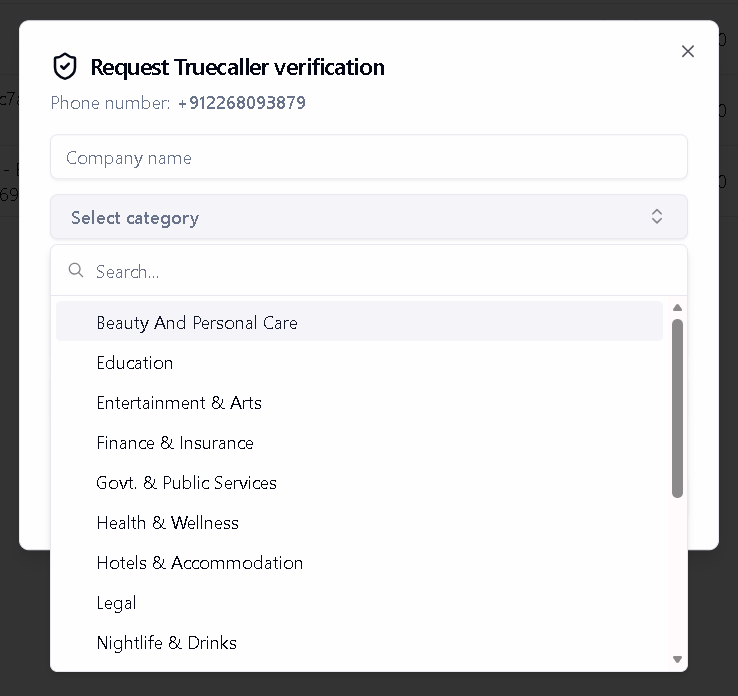
Select your business category from the dropdown
-
Choose a Sub-category that more specifically describes your business type. This helps Truecaller accurately classify your business for recipients.
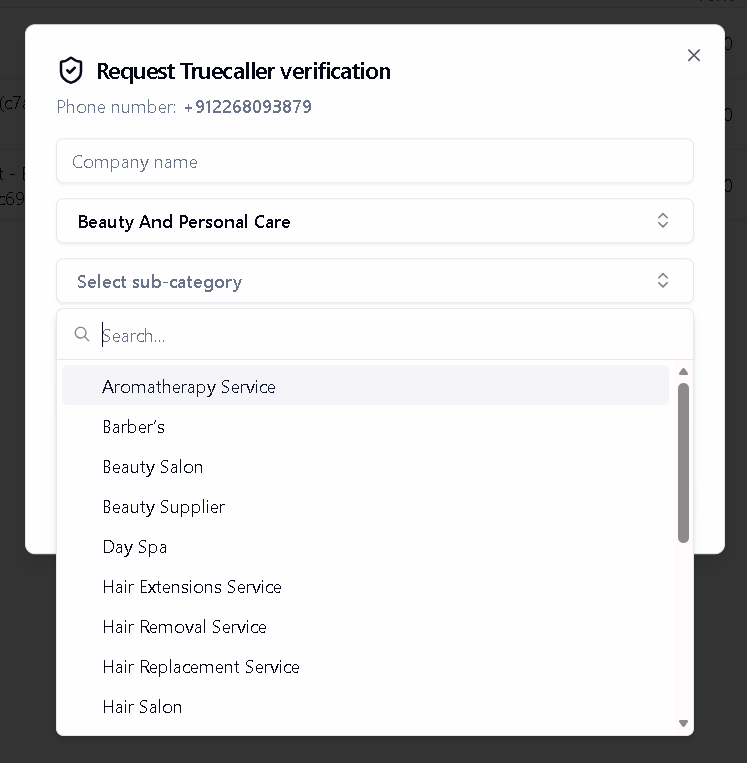
Select a sub-category for more specific classification
-
Select the Reason for Calling from the options provided. This tells recipients the purpose of your calls, such as Customer Support, Delivery Confirmation, Front Desk, Recruitment, and more.
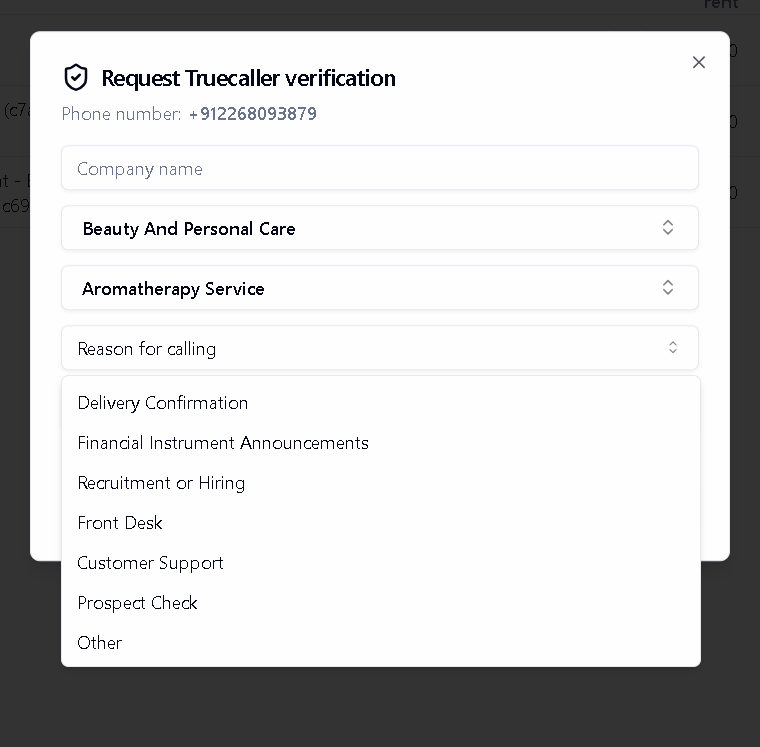
Choose the primary reason for your outbound calls
- Upload your Brand Icon (company logo) that will be displayed alongside your business name.
- Click Submit request to send your verification application. Your number’s status will change to Pending.
After Submitting Your Request
Once you submit your Truecaller verification request:Review Period
Processing Time
Email Notification
Status Update
Viewing Verification Details
For numbers with Pending, Active, or Delisting Pending status, click the status icon to view your verification details including:- Company name
- Category and sub-category
-
Reason for calling
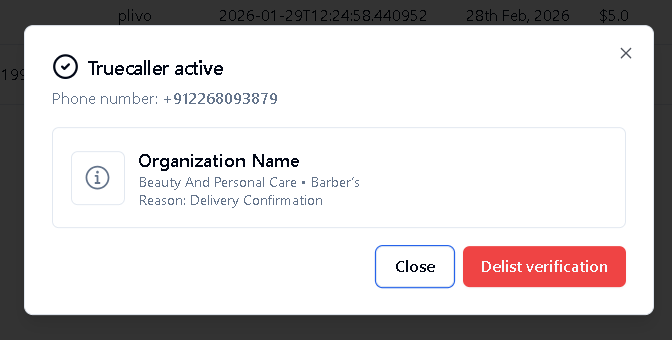
truecaller Verification Status Shown for Active status here
How to Delist a Number
If you no longer want Truecaller verification for a phone number, you can request delisting:Open Verification Details
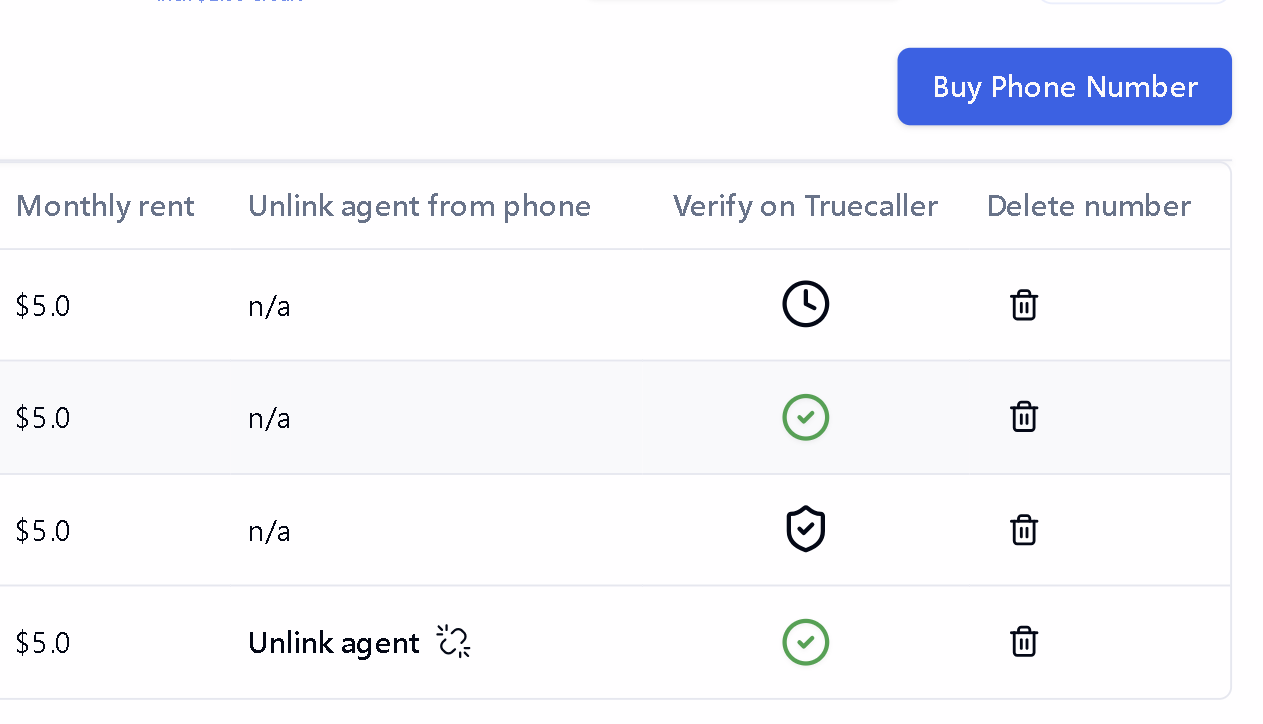
Click on the ACTIVE to check current status
Request Delisting
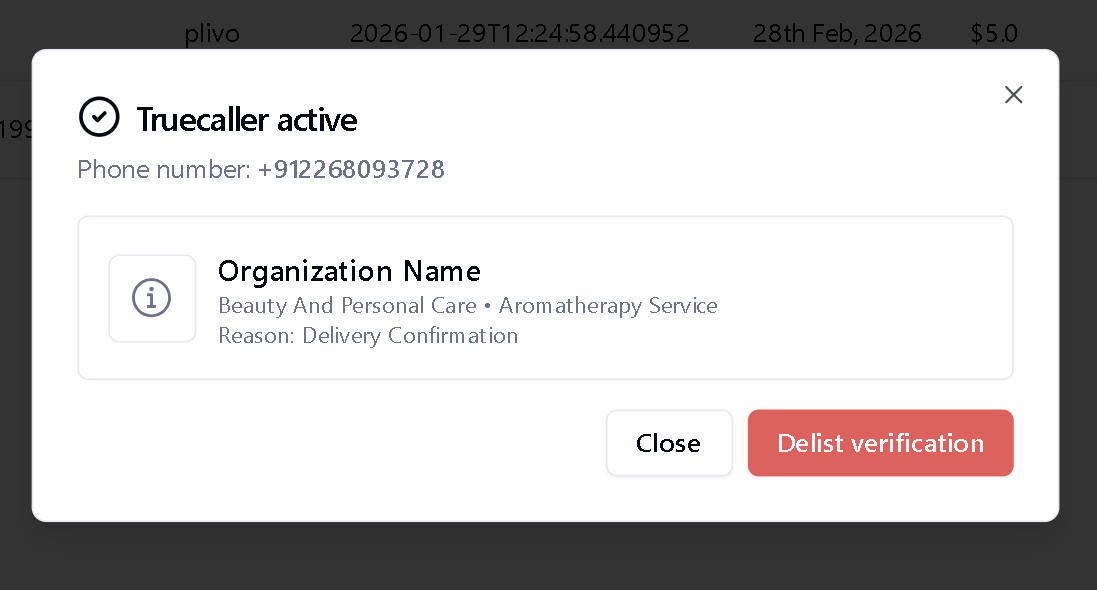
The Truecaller status is shown on the dialog box
Confirm Delisting
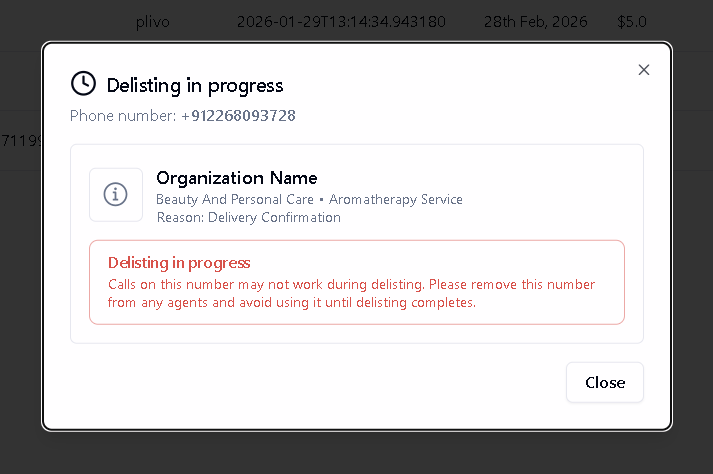
After confirming delisting, the status is shown as such.
Pricing
Truecaller verification is billed as per usage. The charge is:- Automatically deducted from your Bolna wallet balance
- Billed monthly from the date of verification activation
- Stopped when you delist the number (after the current billing period)
Frequently Asked Questions
How long does verification take?
How long does verification take?
Can I change my company details after verification?
Can I change my company details after verification?
Why was my verification request rejected?
Why was my verification request rejected?
- Brand icon not meeting requirements — must be exactly 200×200 pixels PNG
- Company name mismatch — name not matching your registered business
- Incorrect category — category selection not appropriate for your business type
Can I verify multiple phone numbers?
Can I verify multiple phone numbers?
What happens if I don't have sufficient wallet balance?
What happens if I don't have sufficient wallet balance?
How long does delisting take?
How long does delisting take?