

What is Call Transfer?
Call transfer enables your Voice AI agent to route live calls to human agents, specific phone numbers, or your own SIP trunk based on conversation context. Essential for escalations, specialized support, or when human intervention is needed.Configuration Options
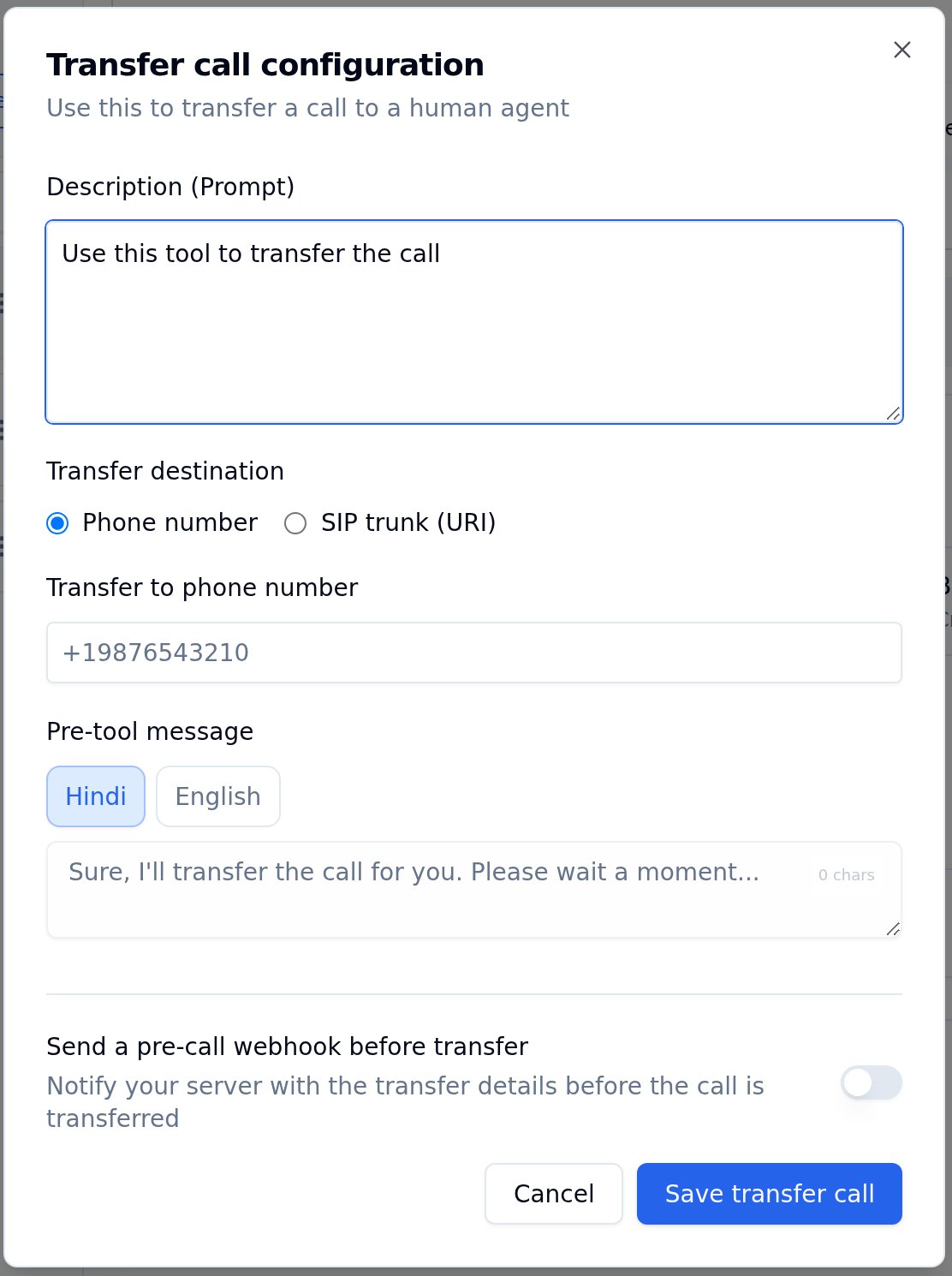
Transfer Call Configuration Modal
Transfer to a SIP trunk
An agent on Plivo telephony can transfer a call straight to your own SIP trunk instead of a phone number. Set the destination to a SIP URI and the call is delivered to that trunk.Custom SIP headers
Alongside the destination, a transfer tool can carry custom SIP headers. Each header is delivered on the outgoing INVITE with the name exactly as you write it, which lets your trunk route or annotate the call.%(field)s substitution syntax used elsewhere, resolved from the variables you pass when placing the call. A variable the call does not supply resolves to an empty string, so pass every variable your headers reference.
Headers must satisfy the following, and any header that does not is left off the INVITE:
Header values are delivered exactly as written, with no encoding applied, so your trunk reads them verbatim.
UI Configuration
In the agent dashboard, the Transfer Call configuration modal offers a Transfer destination choice between a phone number and a SIP trunk URI when the agent runs on Plivo telephony. Choosing SIP trunk (URI) reveals the URI field and a Custom SIP headers list where each row is a header name and value. Values accept%(field)s placeholders, and a picker inserts the variables your agent already references.
Pre-call Webhook
The Transfer Call tool can fire an optional pre-call webhook — a notification sent to a URL of your choice before the call is transferred. A common use case is sending the transfer reason to your system so a human agent has context the moment the call connects.The pre-call webhook is fire-and-forget. A slow or failing webhook endpoint never blocks or delays the transfer itself.
Available Substitution Fields
pre_call_webhook_param is a JSON template. You can reference the transfer tool’s runtime arguments using the same %(field)s substitution syntax used elsewhere. The Transfer Call tool exposes:
Any field that is not available at transfer time is sent as an empty string rather than failing the substitution.
"channel": "voice" above) are passed through as-is; %(field)s placeholders are substituted with the transfer tool’s runtime arguments.
What Your Endpoint Receives
The webhook body is the same execution record you receive on the post-call execution webhook (execution id, agent id, telephony details, status, etc.), merged with the fields from yourpre_call_webhook_param:
Because the call is still in progress when the pre-call webhook fires, fields that are only finalized at call end (transcript, cost, summary) won’t be complete yet.
URL Resolution Rules
UI Configuration
In the agent dashboard, the Transfer Call configuration modal has a Send a pre-call webhook before transfer toggle. Turning it on reveals two inputs:- Pre-call webhook URL — the endpoint to notify (
pre_call_webhook_url). Leave blank to use the agent-level Webhook URL. - Pre-call webhook parameters — the JSON body template with
%(field)ssubstitution (pre_call_webhook_param).
How to Set Up Call Transfer
1
Open Tools Tab
Navigate to the Tools Tab in your agent configuration.
2
Add Transfer Call
Find Transfer Call in the tool catalog and click Add.
3
Configure the Destination
Enter the phone number where calls should be transferred. On Plivo telephony you can instead choose SIP trunk (URI) and enter a SIP URI with optional custom SIP headers.
4
Write a Clear Description
Describe when the transfer should trigger - e.g., “Transfer when caller asks for sales, pricing, or demos.”
5
Add Pre-tool Message
Set the message your agent speaks while initiating the transfer.
6
(Optional) Enable a Pre-call Webhook
Toggle Send a pre-call webhook before transfer to notify your system before the transfer happens — see Pre-call Webhook.
7
Save Configuration
Click Save transfer call to apply your settings.
Multiple departments? Add separate transfer functions for Sales, Support, Billing - each with its own phone number and trigger description.
Example Conversation
Caller requests human agent
Caller requests human agent
Caller: “I’d like to speak with someone from your sales team.”Agent: “Sure, I’ll transfer you to our sales team. Please wait a moment…”Agent triggers transfer_call function → Call is routed to configured sales number
Best Practices
Be Specific
Use detailed descriptions like “Transfer to sales when caller asks about pricing, demos, or purchasing” instead of generic “Transfer call”
Test Phone Numbers
Verify destination numbers are correct and always reachable before deploying
Use Pre-tool Messages
Always set a friendly message so callers know they’re being transferred
Handle Failures
Have a fallback plan if the destination is busy or unavailable
Next Steps
Custom Functions
Build custom API integrations for your agent
Check Calendar Slots
Query availability via Cal.com integration
Book Appointments
Schedule meetings during live calls
Tools Tab Guide
Complete function configuration guide