

What is Book Calendar Slots?
The Book Calendar Slots function allows your Voice AI agent to schedule appointments directly into your Cal.com calendar during live conversations. After a caller selects a time slot, your agent can book it instantly.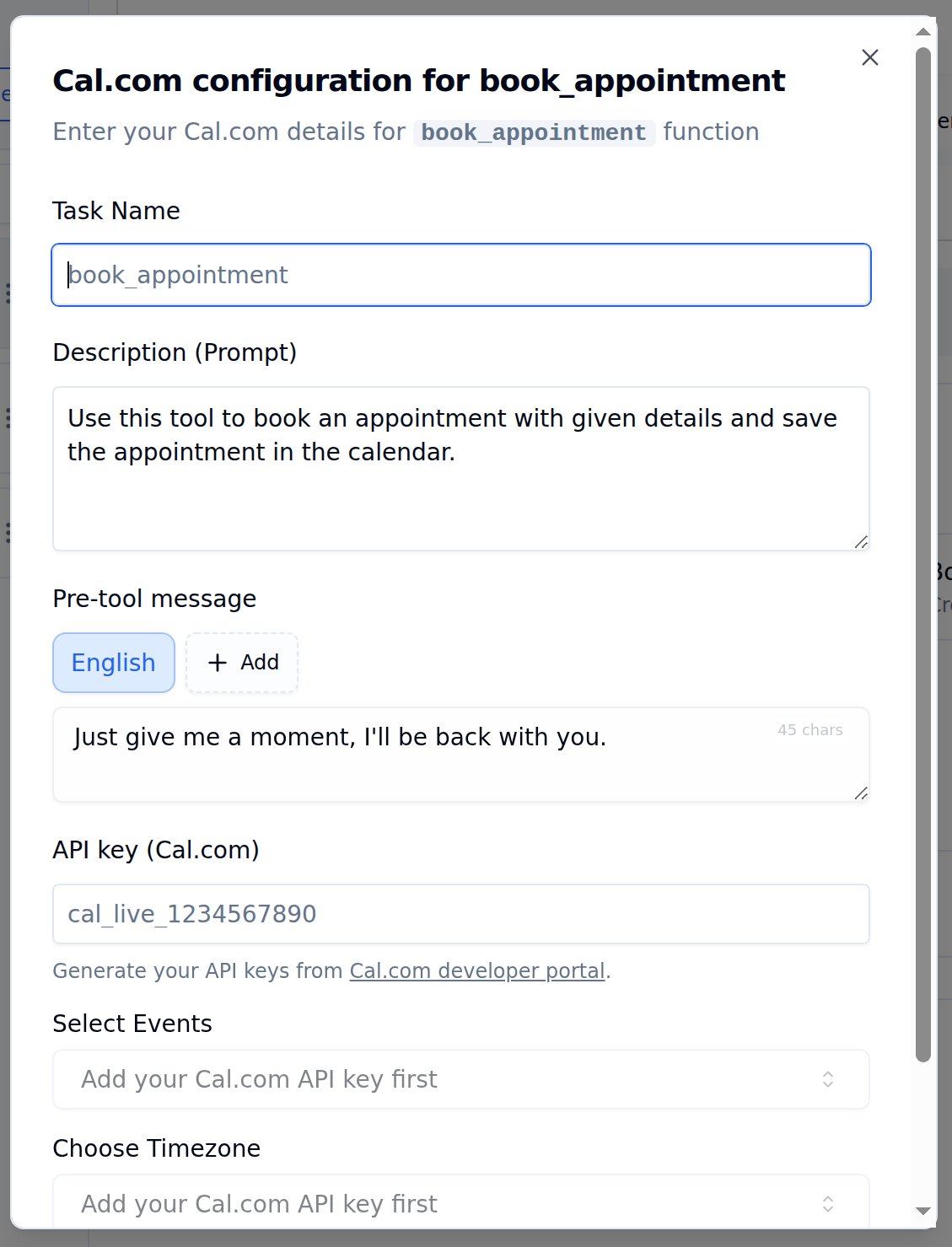
Cal.com configuration for book_appointment
Configuration Options
Select Events and Choose Timezone dropdowns appear only after entering a valid Cal.com API key.
How to Set Up
1
Open Tools Tab
Navigate to Tools Tab in your agent configuration.
2
Add Book Appointment
Find Book Appointment in the tool catalog and click Add.
3
Enter API Key
Paste your Cal.com API key. Event types will load automatically once validated.
4
Select Event Type
Choose which event to book - 15 min meeting, 30 min meeting, or your custom events.
5
Set Timezone
Match your Cal.com event timezone for accurate booking.
6
Write Description
Add a clear trigger description - e.g., “Book the appointment after the caller confirms their preferred time slot.”
7
Save Configuration
Click Save configuration, then Save agent to persist the tool on the agent.
Example Conversation
Caller confirms appointment time
Caller confirms appointment time
Caller: “I’ll take the 2 PM slot on Friday.”Agent: “Perfect! Let me book that for you. Just give me a moment…”Agent triggers book_appointment functionAgent: “Done! I’ve booked your appointment for Friday at 2 PM. You’ll receive a calendar invite shortly. Is there anything else I can help with?”
Best Practices
Use with Check Slots
Combine with Check Calendar Slots - first fetch availability, then book
Match Timezones
Ensure Bolna timezone matches Cal.com event timezone
Confirm Before Booking
Have your agent confirm the slot with the caller before booking
Collect Required Info
Ensure agent collects name and email before triggering the booking
Next Steps
Check Calendar Slots
Query available slots before booking
Custom Functions
Build your own API integrations
Transfer Calls
Route calls to human agents
Tools Tab Guide
Complete guide to configuring functions