

What is web search?
Web search lets your Voice AI agent look up current, public information during a live call, such as news, prices, scores, opening hours or anything else that may have changed since the model was trained. The agent searches only when a caller’s question needs it, then answers in a sentence or two.Add web search to your agent
1
Open the Tools tab
Open your agent in Agent Studio and go to the Tools tab.
2
Add the Web Search tool
Click + Add next to Web Search under Add Tool.
3
Configure and save
Choose a search provider, fill in the settings below, and click Save configuration. Then save your agent.

Web Search under Active Tools
An agent can have one web search tool. Once it is added, the Web Search card moves from Add Tool to Active Tools.
Configuration options
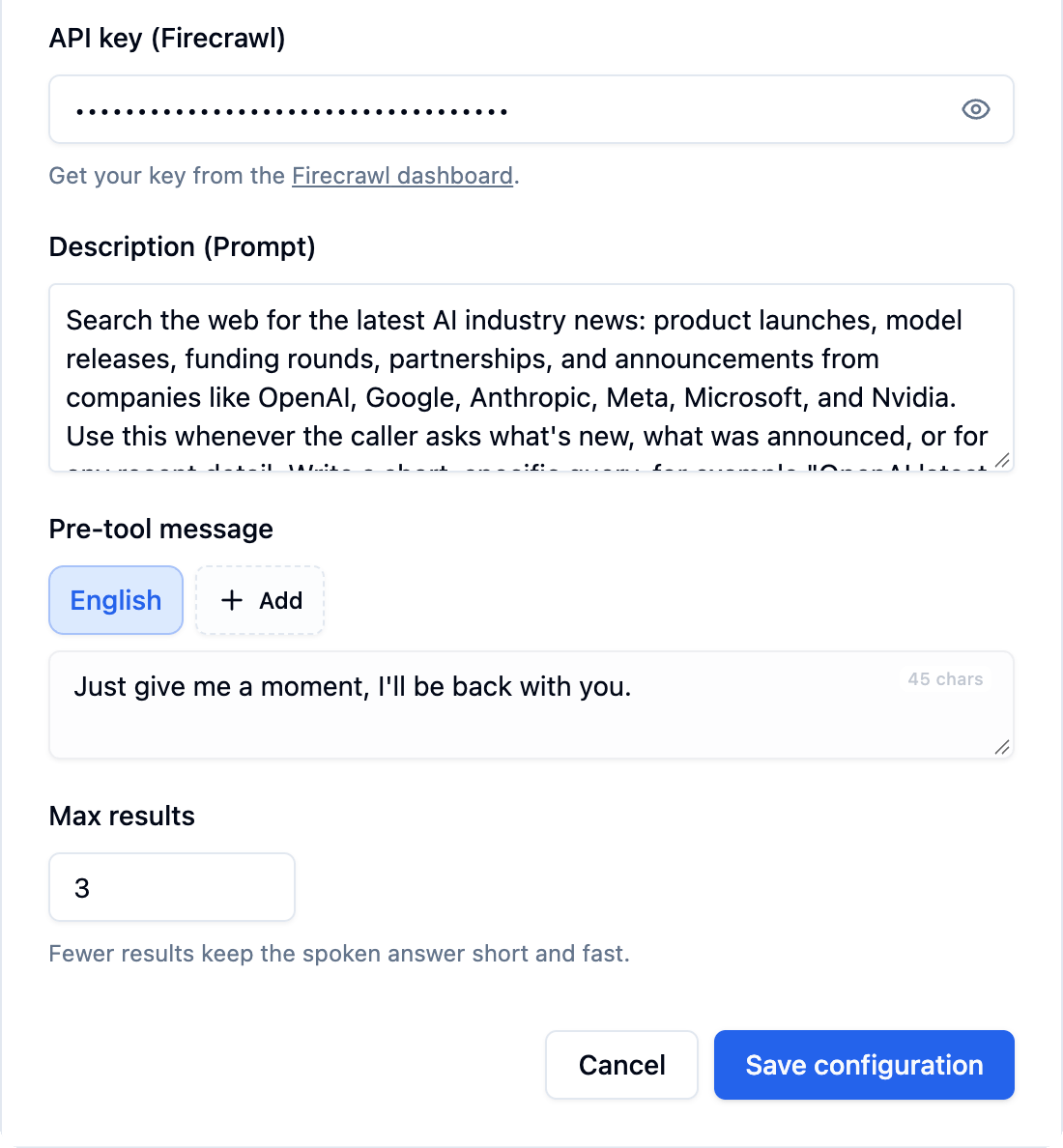
Web search configuration
Choosing a provider
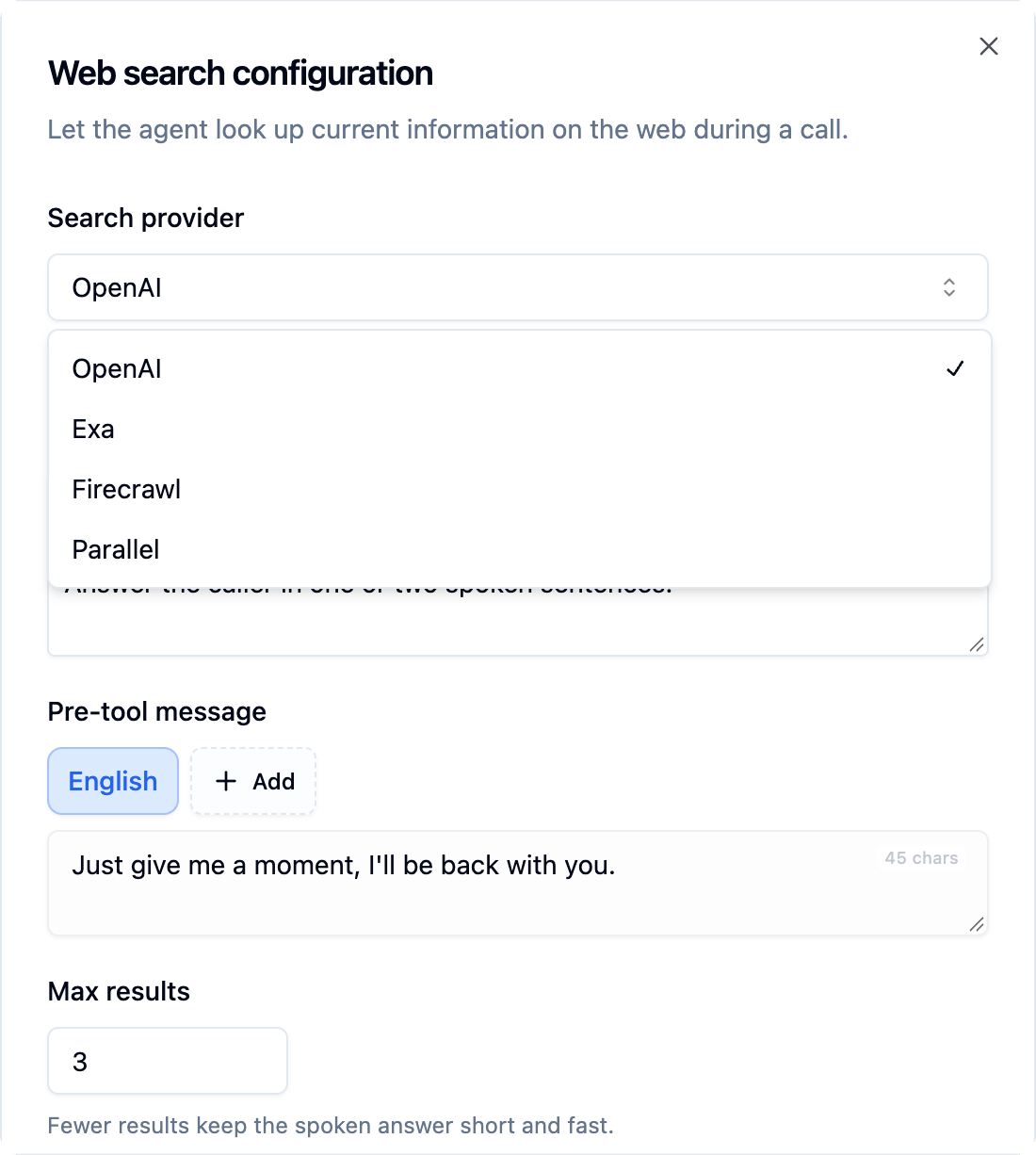
Search provider options
OpenAI is the quickest way to start, since there is nothing to set up. Exa, Firecrawl and Parallel run on your own account with that provider.
Writing a good description
The LLM decides when to search based on the Description (Prompt), so be specific about the topics that should trigger a search.Configure via API
Setweb_search in the agent’s tools_config:
Next steps
Tools tab
Configure tools from the agent setup interface
How tool calling works
Learn how agents decide when to call a tool