What is Batch Calling?

Batch calling lets you automate outbound calls to hundreds or thousands of contacts by uploading a CSV file with phone numbers and custom data. Ideal for lead qualification, customer outreach, appointment reminders, and other high-volume calling campaigns.

CSV File Format

Your CSV file must follow these rules:
1

Use E.164 Phone Format

All phone numbers must include the country prefix in E.164 format (e.g., +11231237890).
2

Use contact_number Header

The phone number column must use contact_number as the header.
3

Add Custom Variables

Include any additional variables (name, address, etc.) as separate columns. These are passed to the agent as context.
example_batch_file.csv
contact_number,first_name,last_name
+11231237890,Bruce,Wayne
+91012345678,Bruce,Lee
+00021000000,Satoshi,Nakamoto
+44999999007,James,Bond
In Excel, typing + at the beginning of a cell is interpreted as a formula. Add an apostrophe (') before the plus sign to retain it.
Download an example CSV file
Only the contact_number column is validated for correctness. Other columns (custom variables like first_name, address, etc.) are passed through as-is without any validation.

Using the Dashboard

You can upload batches, schedule them, and configure auto-retry directly from the Bolna dashboard.
1

Open the Batches Tab

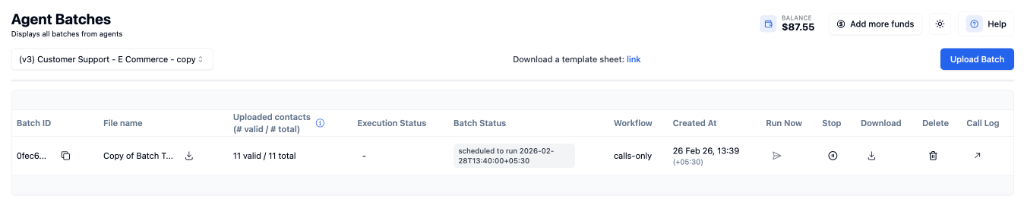
Navigate to your agent → Batches tab. You’ll see a list of all your past batches along with their status, execution details, and actions like Run Now, Stop, Download, and Delete.Click Upload Batch to get started.
Agent Batches list
2

Upload Your CSV

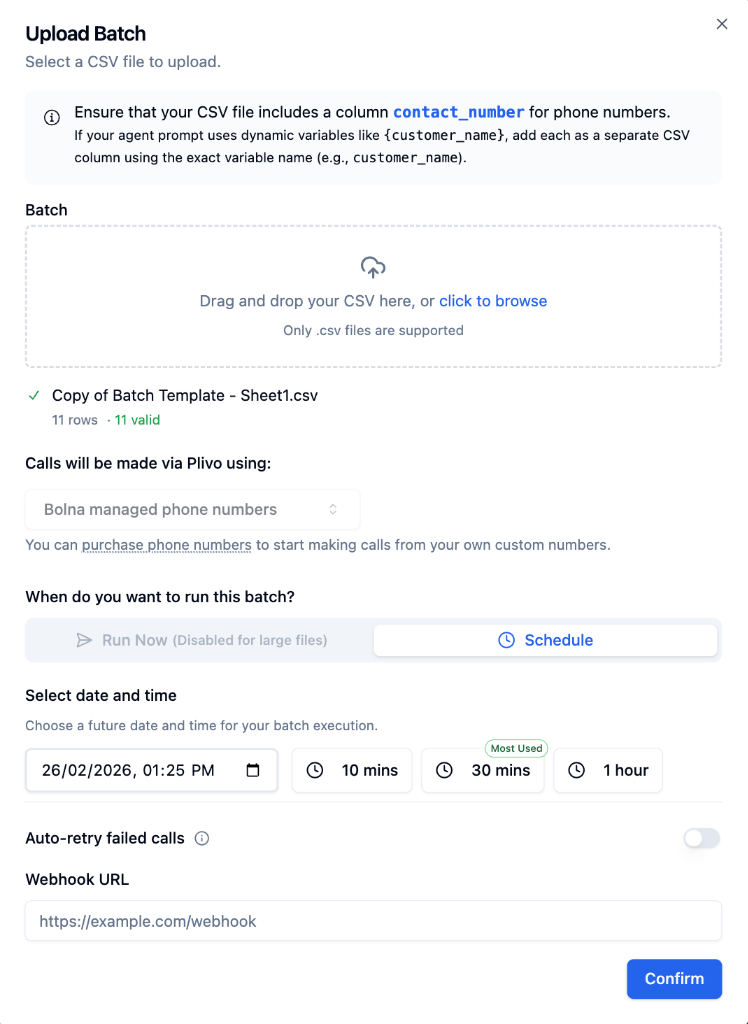
Drag and drop your CSV file or click to browse. After uploading, you’ll see how many rows were parsed and how many contacts have valid phone numbers.
Upload Batch dialog
In this dialog you can:
  • Select a phone number to make calls from (Bolna managed or your own)
  • Choose to Run Now or Schedule the batch for a future date and time
  • Enable auto-retry for failed calls
  • Set a webhook URL to receive real-time call status updates
3

Schedule or Run Now

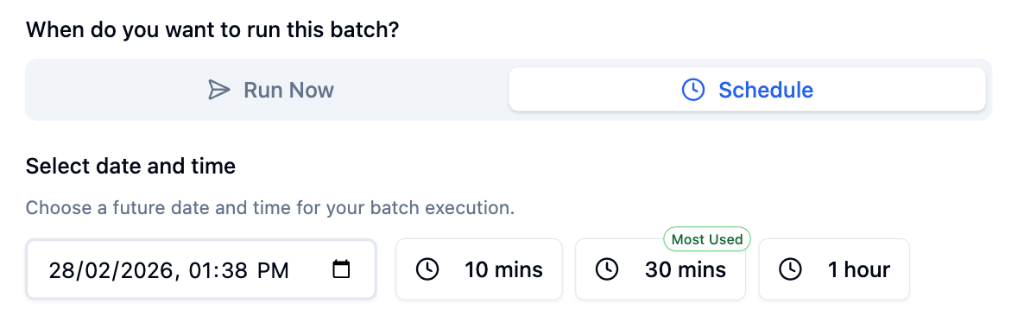
Select Run Now to start calls immediately, or click Schedule to pick a future date and time. Use the quick-select buttons to schedule 10 minutes, 30 minutes, or 1 hour from now.
Schedule batch options
4

Configure Auto-Retry (Optional)

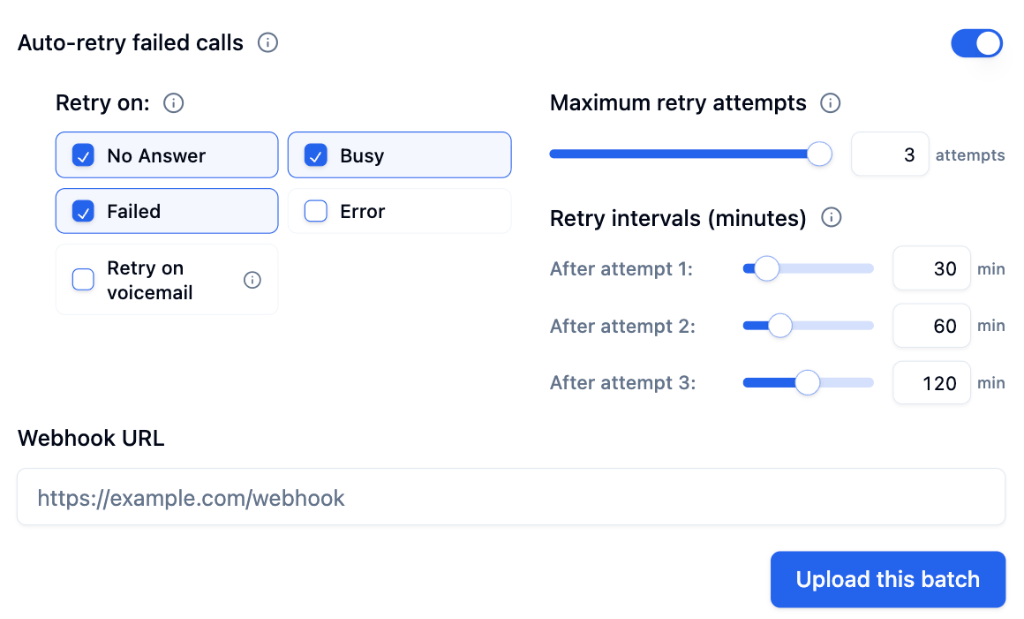
Enable Auto-retry failed calls to automatically re-attempt calls that didn’t connect. You can configure:
  • Retry on: Select which call outcomes trigger a retry (No Answer, Busy, Failed, Error, Voicemail)
  • Maximum retry attempts: Set up to 3 retry attempts per contact
  • Retry intervals: Define increasing delays between attempts (e.g., 30 min, 60 min, 120 min)
Auto-retry configuration
Click Upload this batch to confirm. Your batch will appear in the batches list with its scheduled time and status.

Webhook Notifications

You can provide a Webhook URL in the upload dialog to receive real-time updates as each call in the batch completes. Bolna sends a POST request to your webhook endpoint with the call’s execution data, including the call status, transcript, extracted data, and cost breakdown. This is useful for syncing call results to your CRM, triggering follow-up workflows, or logging outcomes in real time without polling the API.
If you don’t set a webhook, you can still retrieve all results later using the List Batch Executions API.


Using the Batch API

1

Create a Batch

Upload your CSV file using the Create Batch API:
curl --location 'https://api.bolna.ai/batches' \
--header 'Authorization: Bearer <api_key>' \
--form 'agent_id="aaaaaaaa-bbbb-cccc-dddd-eeeeeeeeeeee"' \
--form 'file=@"/my-first-batch.csv"' \
--form 'from_phone_numbers="+919876543210"' \
--form 'from_phone_numbers="+919876543211"'
2

Schedule the Batch

Use the batch_id to schedule via the Schedule Batch API. The date and time must be in ISO 8601 format with timezone:
curl --location 'https://api.bolna.ai/batches/abcdefghijklmnopqrstuvwxyz012345/schedule' \
--header 'Authorization: Bearer <api_key>' \
--form 'scheduled_at="2024-03-20T04:05:00+00:00"'
3

Check Batch Status

Monitor progress using the Get Batch API:
curl --location 'https://api.bolna.ai/batches/abcdefghijklmnopqrstuvwxyz012345' \
--header 'Authorization: Bearer <api_key>'
4

Retrieve Executions

After the batch completes, fetch all execution results using the List Batch Executions API:
curl --location 'https://api.bolna.ai/batches/abcdefghijklmnopqrstuvwxyz012345/executions' \
--header 'Authorization: Bearer <api_key>'

Complete Example

batch_script.py
import asyncio
import os
from dotenv import load_dotenv
import aiohttp

# Load environment variables from .env file
load_dotenv()

# Load from .env
host = "https://api.bolna.ai"
api_key = os.getenv("api_key", None)
agent_id = 'ee153a6c-19f8-3a61-989a-9146a31c7834'  # Agent to create batch for
file_path = '/path/of/csv/file'
schedule_time = '2024-06-01T04:10:00+05:30'
from_phone_numbers = ['+919876543210', '+919876543211']


async def schedule_batch(api_key, batch_id, scheduled_at):
    print("Scheduling batch for batch_id: {}".format(batch_id))
    url = f"{host}/batches/{batch_id}/schedule"
    headers = {'Authorization': f'Bearer {api_key}'}
    data = {'scheduled_at': scheduled_at}

    try:
        async with aiohttp.ClientSession() as session:
            async with session.post(url, headers=headers, data=data) as response:
                response_data = await response.json()
                if response.status == 200:
                    return response_data
                else:
                    raise Exception(f"Error scheduling batch: {response_data}")
    except aiohttp.ClientError as e:
        print(f"HTTP Client Error: {str(e)}")
    except Exception as e:
        print(f"Unexpected error: {str(e)}")


async def get_batch_status(api_key, batch_id):
    print("Getting batch status for batch_id: {}".format(batch_id))
    url = f"{host}/batches/{batch_id}"
    headers = {'Authorization': f'Bearer {api_key}'}

    try:
        async with aiohttp.ClientSession() as session:
            async with session.get(url, headers=headers) as response:
                response_data = await response.json()
                if response.status == 200:
                    return response_data
                else:
                    raise Exception(f"Error getting batch status: {response_data}")
    except aiohttp.ClientError as e:
        print(f"HTTP Client Error: {str(e)}")
    except Exception as e:
        print(f"Unexpected error: {str(e)}")


async def get_batch_executions(api_key, batch_id):
    print("Getting batch executions for batch_id: {}".format(batch_id))
    url = f"{host}/batches/{batch_id}/executions"
    headers = {'Authorization': f'Bearer {api_key}'}

    try:
        async with aiohttp.ClientSession() as session:
            async with session.get(url, headers=headers) as response:
                response_data = await response.json()
                if response.status == 200:
                    return response_data
                else:
                    raise Exception(f"Error getting batch executions: {response_data}")
    except aiohttp.ClientError as e:
        print(f"HTTP Client Error: {str(e)}")
    except Exception as e:
        print(f"Unexpected error: {str(e)}")


async def create_batch():
    url = f"{host}/batches"
    headers = {'Authorization': f'Bearer {api_key}'}

    with open(file_path, 'rb') as f:
        form_data = aiohttp.FormData()
        form_data.add_field('agent_id', agent_id)
        form_data.add_field('file', f, filename=os.path.basename(file_path))

        # Add multiple from_phone_numbers
        for phone in from_phone_numbers:
            form_data.add_field('from_phone_numbers', phone)

        async with aiohttp.ClientSession() as session:
            async with session.post(url, headers=headers, data=form_data) as response:
                response_data = await response.json()
                if response_data.get('state') == 'created':
                    batch_id = response_data.get('batch_id')
                    res = await schedule_batch(api_key, batch_id, scheduled_at=schedule_time)
                    if res.get('state') == 'scheduled':
                        check = True
                        while check:
                            # Check status every 1 minute
                            await asyncio.sleep(60)
                            res = await get_batch_status(api_key, batch_id)
                            if res.get('status') == 'completed':
                                check = False
                                break
                    if not check:
                        res = await get_batch_executions(api_key, batch_id)
                        print(res)
                        return res


if __name__ == "__main__":
    asyncio.run(create_batch())

Next Steps

Concurrency Limits

Understand outbound calling concurrency limits

Buy Phone Numbers

Set up dedicated phone numbers for campaigns

Context Variables

Personalize each call with dynamic data

Auto-Retry

Automatically retry failed calls