

What are Extractions?
Extractions allow you to automatically capture structured data from call transcripts. Organize extractions into categories and define custom questions to extract specific information like lead quality, appointment details, customer sentiment, and more.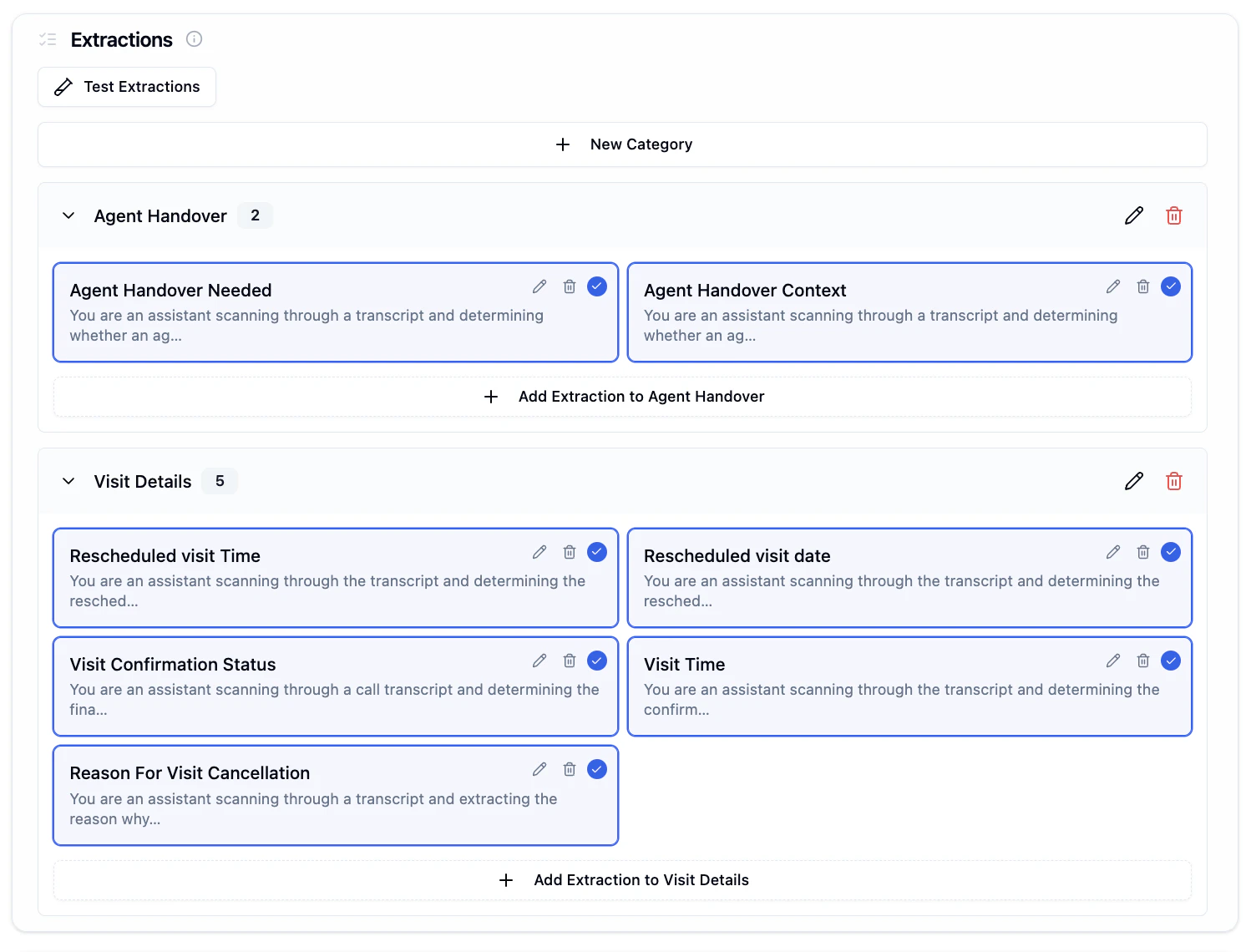
Getting Started with Extractions
Step 1: Access the Analytics Tab
Navigate to the Analytics tab in your agent configuration to find the Extractions section.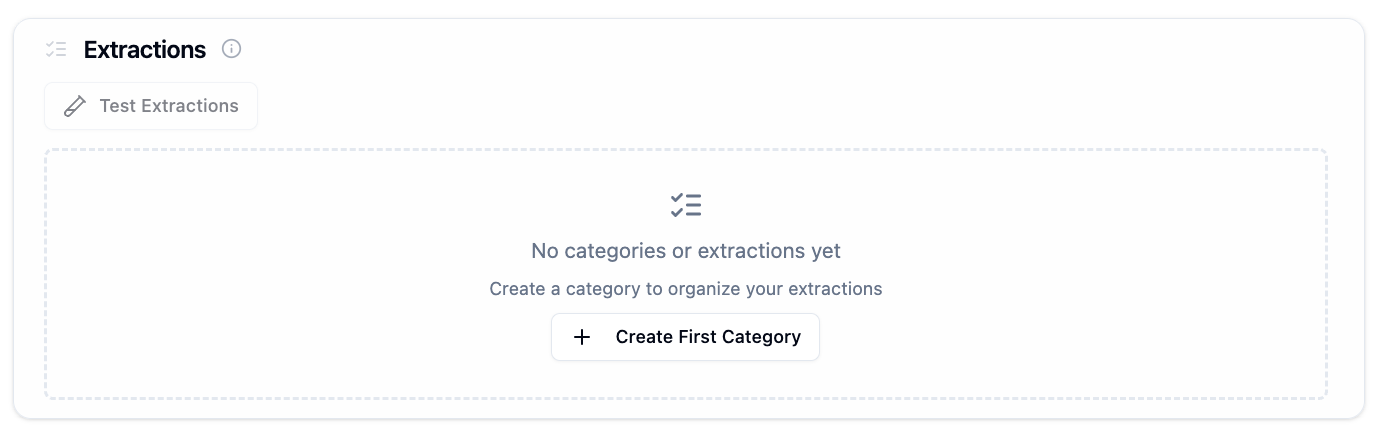
Creating Categories
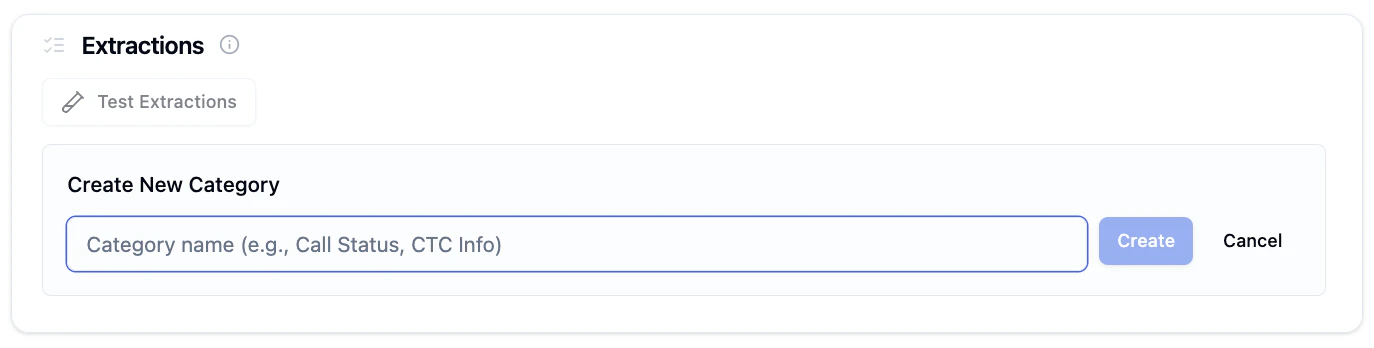
Categories help you organize related extractions together. For example, “Agent Handover”, “Visit Details”, or “Lead Qualification”.Click Create First Category or New Category
Start by creating a category to organize your extractions.
Creating Extractions
Within each category, you can create multiple extraction templates to capture different data points.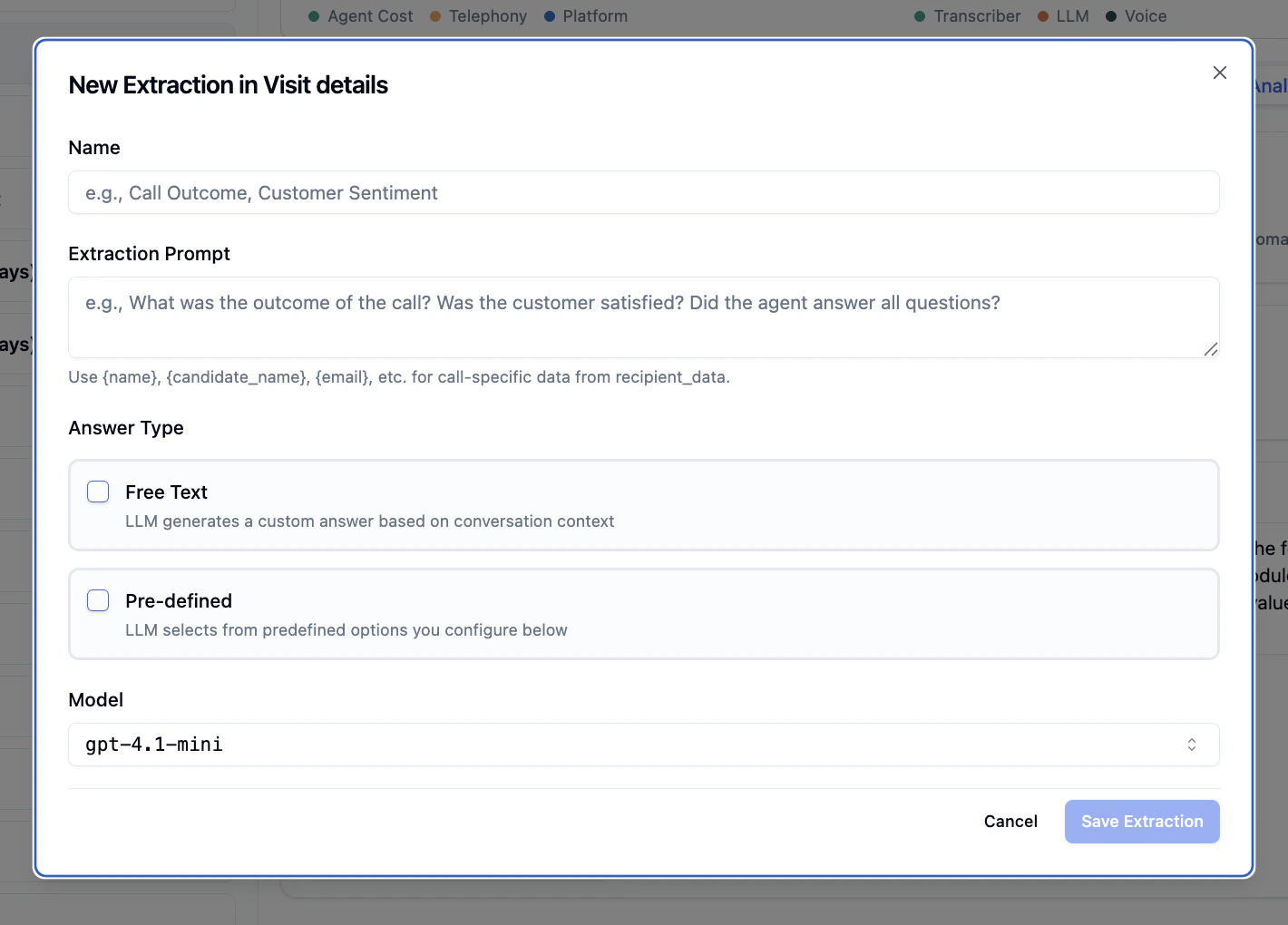
Extraction Fields
Name
Name
A descriptive name for the extraction (e.g., “Call Outcome”, “Customer Sentiment”, “Agent Handover Needed”).This name will appear in your extraction results and webhooks.
Extraction Prompt
Extraction Prompt
Instructions that guide the LLM on what to extract from the transcript.Example prompts:
Answer Type
Answer Type
Choose how the LLM should structure its response:Free Text
- LLM generates a custom answer based on conversation context
- Best for open-ended questions and detailed responses
- Example: “Describe the customer’s main concern”
- LLM selects from predefined options you configure
- Best for categorical data and structured responses
- Example: Lead quality (hot/warm/cold), Yes/No questions
Expected Format
Expected Format
When creating extractions with Free Text enabled, you can constrain the response format using the Expected Format dropdown:
When Custom Regex is selected, two additional fields appear:
| Format | Description | Example Value |
|---|---|---|
| Text (default) | Any free-form text | "Customer was satisfied with the demo" |
| Timestamp | ISO 8601 date/time | "2026-04-08T14:30:00" |
| Numeric | Integer or decimal number | "42", "3.14" |
| Boolean | Exactly true or false | "true" |
| Valid email address | "user@example.com" | |
| Custom Regex | Matches a custom regex pattern | "1234567890" |
- Pattern (required) — The regex the response must match (e.g.,
^\d{10}$) - Description (optional) — Human-readable label (e.g., “10-digit phone number”)
Model
Model
Select the LLM model for extraction processing.Default:
gpt-4.1-mini (recommended for most use cases)Answer Types Explained
Free Text Extractions
Use free text when you want the LLM to generate custom responses based on the conversation. Best for:- Summarizing customer concerns
- Extracting reasons or explanations
- Capturing qualitative feedback
- Open-ended questions
- Name: “Customer Concern”
- Prompt: “Summarize the main issue the customer raised during the call”
- Answer Type: Free Text
Pre-defined Extractions
Use pre-defined options when you want structured, categorical responses.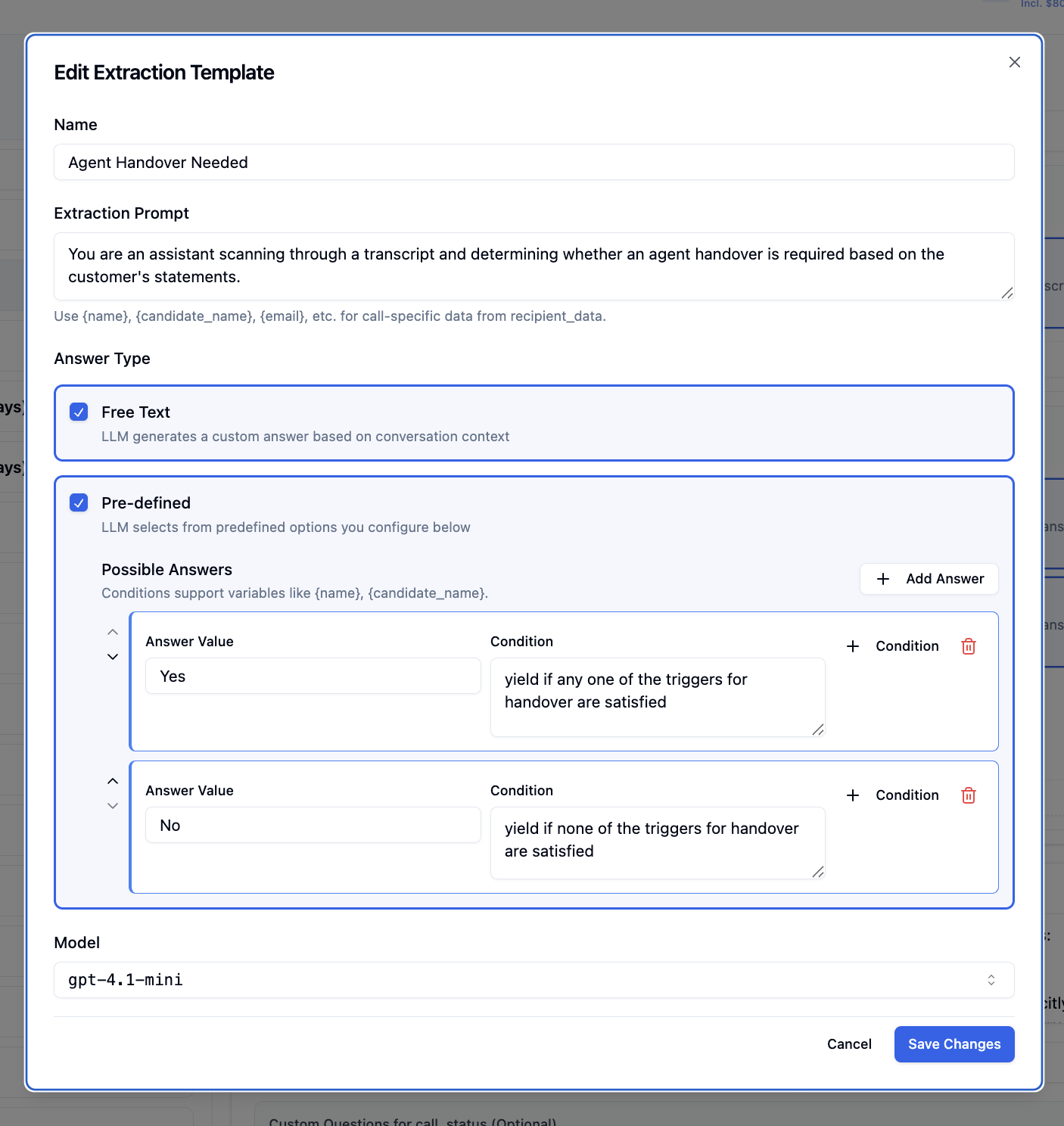
- Yes/No questions
- Status classifications
- Lead scoring
- Outcome categorization
Configuring Pre-defined Answers
Each answer option consists of:- Answer Value - The value to return (e.g., “Yes”, “No”, “hot”, “warm”, “cold”)
- Condition - Instructions for when to select this answer
- Value:
Yes - Condition:
yield if any one of the triggers for handover are satisfied
- Value:
No - Condition:
yield if none of the triggers for handover are satisfied
Managing Extractions
Edit an Extraction
- Click the edit icon (pencil) on any extraction card
- Modify the name, prompt, answer type, or model
- Click Save Changes
Delete an Extraction
- Click the delete icon (trash) on any extraction card
- Confirm deletion
Testing Extractions
Before deploying extractions to production, test them against sample or real transcripts to validate accuracy and refine your prompts.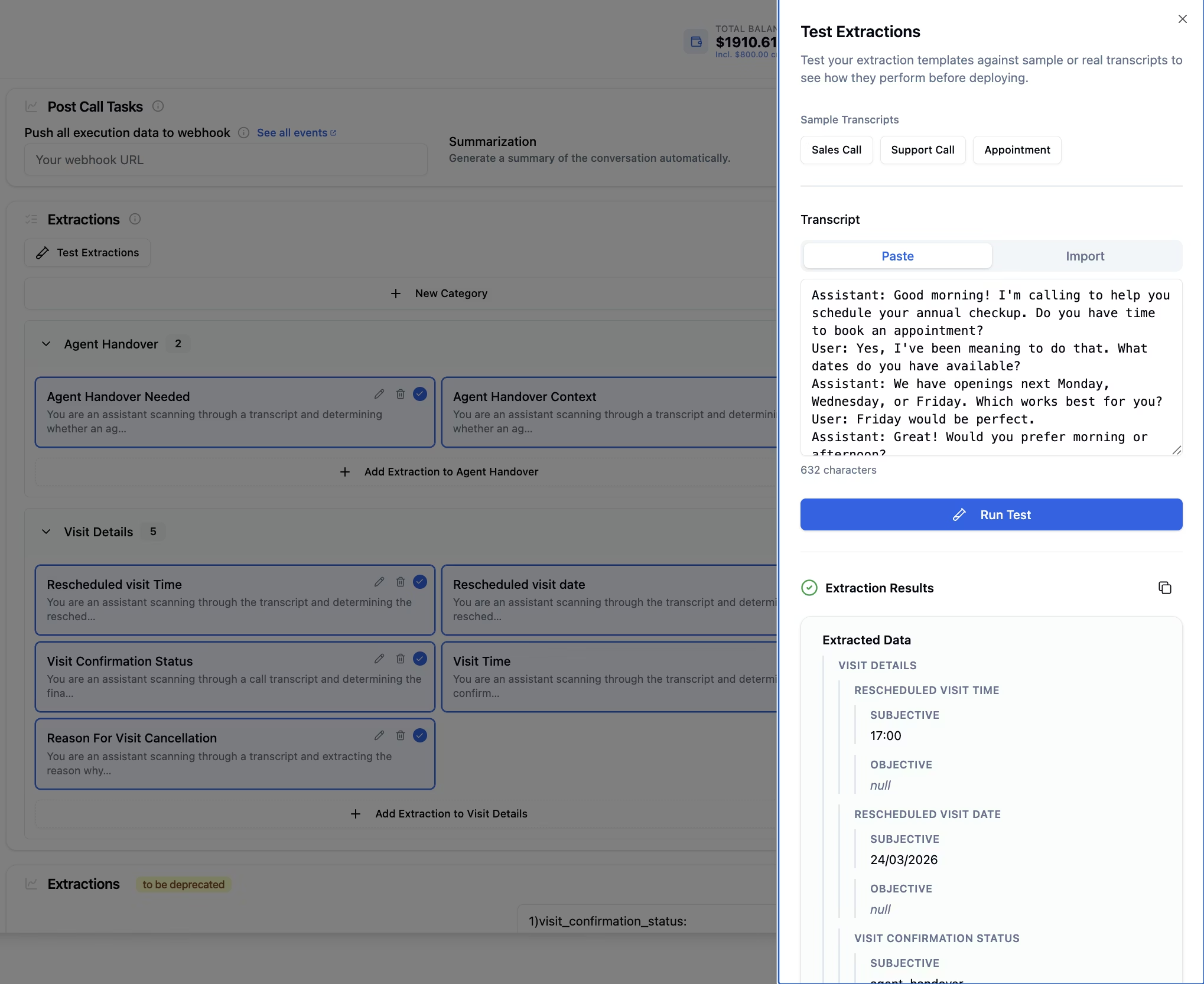
How to Test Extractions
Click Test Extractions
In the Extractions section, click the Test Extractions button to open the testing modal.
Choose a Transcript
Select from sample transcripts (Sales Call, Support Call, Appointment) or provide your own:
- Paste - Paste a transcript directly into the text area
- Import - Upload a transcript file
Understanding Test Results
Extraction results are displayed hierarchically by category. Each extraction shows its full result including confidence and reasoning:null appears when an extraction type isn’t configured or no matching value is found. Low-confidence results (below 0.5) are worth reviewing manually.Testing Best Practices
Test with Multiple Transcripts
Test with Multiple Transcripts
Test your extractions against various conversation types to ensure they work across different scenarios.
Validate Both Answer Types
Validate Both Answer Types
If using both free text and pre-defined answers, verify both are extracting correctly.
Refine Based on Results
Refine Based on Results
If results aren’t accurate, edit your extraction prompts and conditions, then test again.
Use Real Transcripts
Use Real Transcripts
For production validation, test with actual call transcripts from your agent.
Sample Transcripts
The Test Extractions interface provides three sample transcript types:- Sales Call - Conversation about products and services
- Support Call - Customer support interaction
- Appointment - Scheduling and booking conversation
Working with Categories
Rename a Category
Click the edit icon next to the category name to rename it.Delete a Category
Click the delete icon next to the category name. This will remove the category and all extractions within it.Add Extractions to a Category
Click Add Extraction to [Category Name] button at the bottom of each category section.Extraction Output Format
Each extraction result is a JSON object with the following fields:| Field | Type | Description |
|---|---|---|
subjective | string | null | Free Text LLM response. "" if no relevant info found; null if is_subjective is false |
objective | string | null | Selected Pre-defined value. null if not configured or no condition matched |
confidence | float | LLM confidence score from 0.0 to 1.0 |
confidence_label | string | Human-readable label: "High" (≥ 0.8), "Medium" (≥ 0.5), or "Low" (< 0.5) |
reasoning_subjective | string | null | LLM’s reasoning for the free-text response. null if is_subjective is false |
reasoning_objective | string | null | LLM’s reasoning for the pre-defined selection. null if is_objective is false |
validation | object | null | Post-LLM validation result for typed free-text responses. null for plain text type or when is_subjective is false |
extracted_data:
Understanding the Output
subjective field
subjective field
Contains the free text response generated by the LLM based on the extraction prompt.
- Returns a string with the LLM’s analysis
- Empty string
""if no information found "null"(string) if extraction wasn’t applicable
"The customer expressed interest and agreed to a demo appointment"objective field
objective field
Contains the pre-defined value selected by the LLM from configured answer options.
- Returns the configured answer value (e.g.,
"Yes","No","hot","warm","cold") nullif pre-defined answers aren’t configurednullif no matching condition was satisfied
"No" (from answer options “Yes” or “No”)confidence and confidence_label
confidence and confidence_label
Every extraction result includes a confidence score explaining how certain the LLM was about its answer.
Use these to build confidence-based routing — for example, flag
| Field | Type | Description |
|---|---|---|
confidence | float | Score from 0.0 to 1.0 — higher means more certain |
confidence_label | string | "High" (≥ 0.8), "Medium" (≥ 0.5), or "Low" (< 0.5) |
"Low" results for human review.reasoning_subjective and reasoning_objective
reasoning_subjective and reasoning_objective
Brief explanations from the LLM explaining why it produced each answer.
reasoning_subjective— present whenis_subjectiveistrue; explains the free-text responsereasoning_objective— present whenis_objectiveistrue; explains the pre-defined selection
null when their respective answer type is disabled. Useful for auditing unexpected results.validation field
validation field
Present when a Free Text extraction has an Expected Format constraint (anything other than plain
text). Contains:is_valid: falsemeans the LLM’s response didn’t match the expected format — the original response is still returned insubjectiveso no data is lostnullfor plaintexttype or whenis_subjectiveisfalse
Empty vs Null
Empty vs Null
Different empty states have different meanings:
| Value | Meaning |
|---|---|
"" (empty string) | No relevant information found in transcript |
"null" (string) | Extraction wasn’t applicable to this call |
null (JSON null) | Field not configured OR no condition matched |
Accessing Extraction Results
Extracted data is part of the call execution result and is available asextracted_data in every execution response. You can access it in the following ways:
Via the Executions API
Via the Executions API
Fetch any execution by ID using
GET /executions/{execution_id} or list all executions for an agent using GET /v2/agent/{agent_id}/executions. The extracted_data field is returned in the response body.Via Webhooks
Via Webhooks
If you’ve configured a webhook, the
extracted_data field is included in the post-call webhook payload, the same execution object sent to your endpoint after every call.Via the Dashboard
Via the Dashboard
Open any call record from the Call History tab in the dashboard to see extraction results alongside the transcript and call summary.
Via Batch Executions
Via Batch Executions
For batch campaigns,
extracted_data is returned in each execution record when fetching batch execution results.Common Use Cases
| Use Case | What to extract | What it enables |
|---|---|---|
| Agent Handover | Did the caller ask for a human? | Route to a live agent in real time without manual review |
| Lead Scoring | Budget, timeline, decision-maker | Push hot leads to your CRM or Slack before the rep hangs up |
| Appointment Sync | Confirmed date, time, location | Write bookings to Google Calendar or Cal.com automatically |
| Churn Prevention | Sentiment, unresolved complaints | Flag unhappy customers and trigger a follow-up workflow |
| Compliance Auditing | Disclaimer read, consent given | Structured Yes/No record across thousands of calls |
| Call Intelligence | Objections, outcomes, cancellation reasons | Spot trends and measure what’s working without reading transcripts |
Best Practices
- Write specific prompts : Clearly define what to capture and how to interpret the conversation. Avoid vague or multi-part instructions.
- Pick the right answer type : Use Pre-defined for categorical data like Yes/No or status fields, and Free Text for open-ended responses.
- Keep extractions focused : Split complex logic into multiple simple extractions rather than one long prompt.
- Test before deploying : Run your extractions against real or sample transcripts to catch issues early.
Next Steps
Extractions API
Access extractions programmatically
Webhooks
Receive extraction data in real-time
Call History
View extraction results for past calls
Analytics Tab
Configure other post-call tasks