
A transition (edge) connects two nodes and tells the agent when to move from one to the other. The editor supports three trigger types: Intent (LLM-evaluated), Rule (deterministic expression), and Always (unconditional).
Creating a transition
Method 1 — drag from a node handle
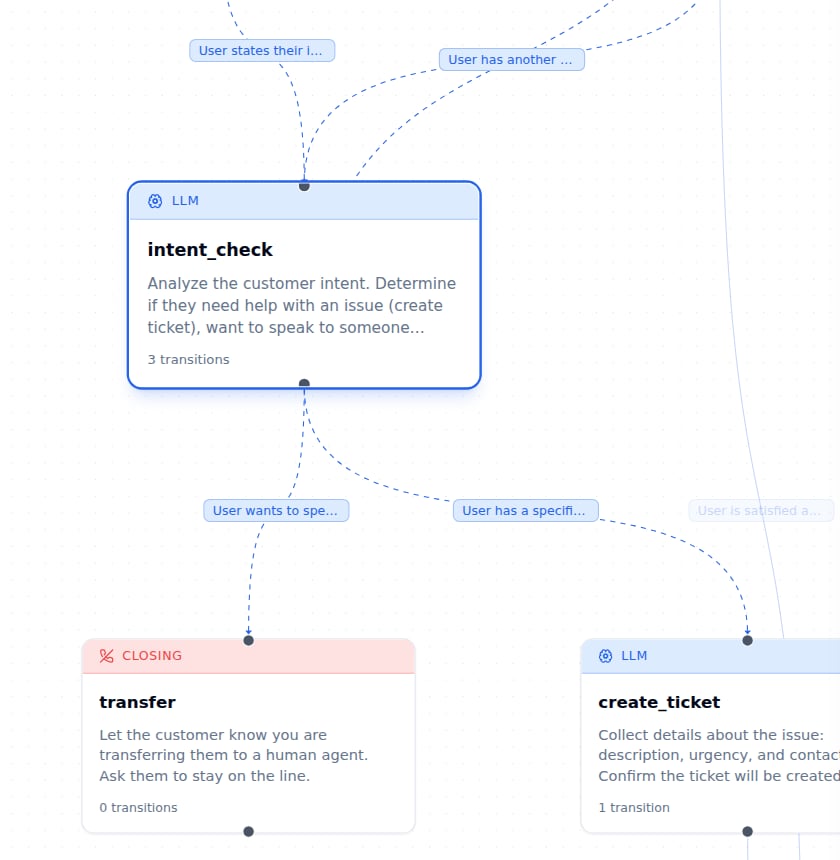
Click a node to reveal its output handle (the circle on its bottom edge). Drag from the handle onto another node. The Create transition form opens.
Method 2 — from the node inspector
Open the node inspector for a source node. Click Transition at the top of the inspector. The Create transition form opens.
| Field | Description |
|---|
| Transition to | The node to transition to. Select from a dropdown of all nodes. |
| Trigger | Intent, Rule, or Always. |
| When the user says something like… | Visible for Intent only. Free-text description of when to take this transition. |
Trigger types
Intent (LLM-evaluated)
The routing LLM reads the condition text and decides whether the customer’s last message matches it.
Customer provides a valid order number
The condition text becomes the tool description passed to the routing LLM. Write it as a factual statement about what should have happened, not as an instruction.
Make conditions specific and mutually exclusive. “Customer is interested” is ambiguous; “Customer confirms they want to proceed with purchase” is not.
Rule (expression)
A rule-based check on context variables. Fires instantly before the routing LLM runs — zero latency, zero LLM cost.
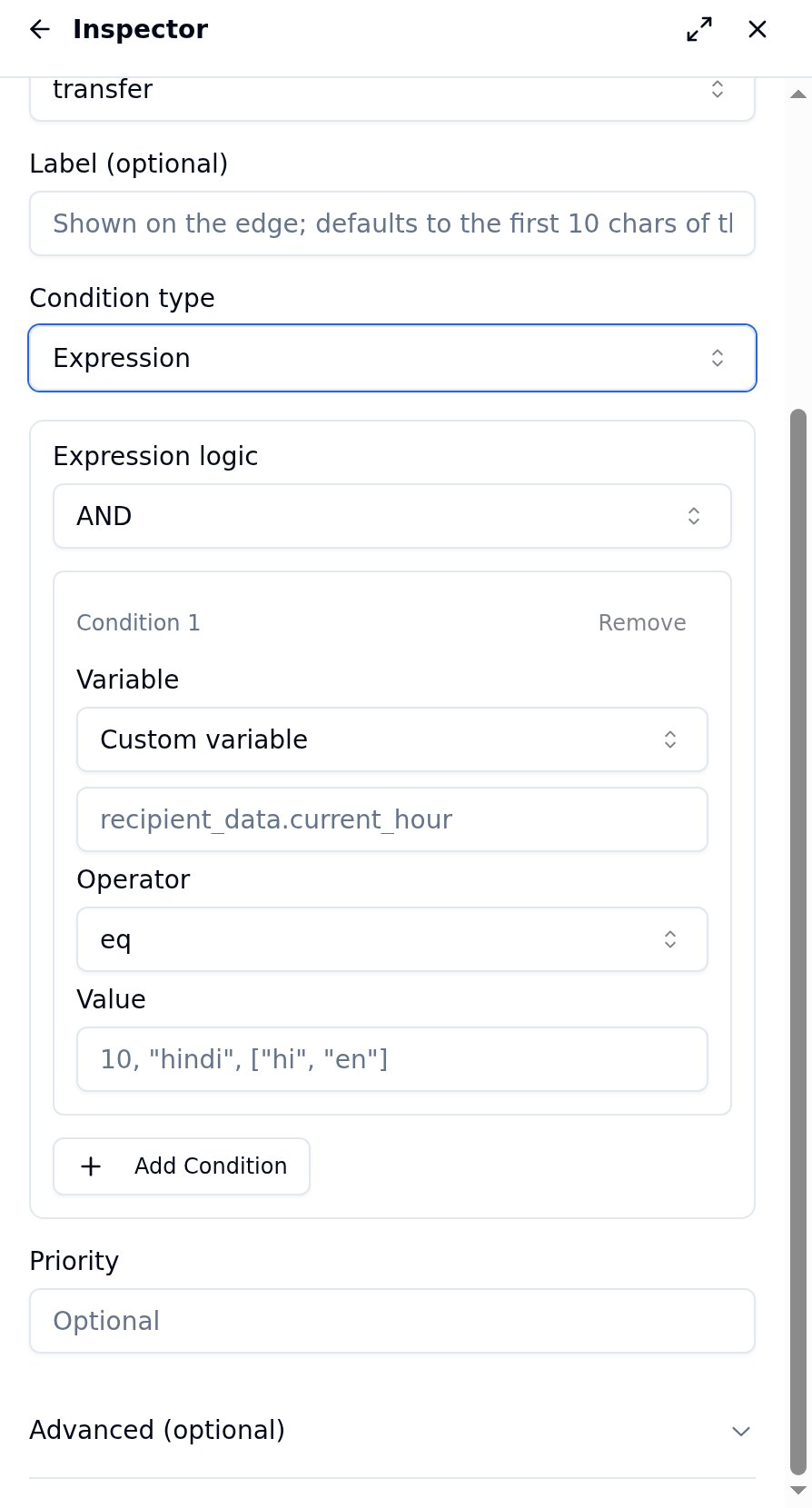
The expression builder in the edge inspector has:
- Logic:
AND (all conditions must be true) or OR (any one is enough)
- Conditions: one or more rows, each with a variable, operator, and value
| Operator | Use case |
|---|
eq / neq | Exact match or not-match |
gt / gte / lt / lte | Numeric comparisons |
contains | String contains substring |
in / not_in | Value is (or is not) in a list |
exists / not_exists | Variable has a value (or is missing) |
Built-in variables available in every expression (populated automatically per call):
| Variable | Type | Notes |
|---|
recipient_data.current_hour | int (0–23) | Hour in the call’s timezone |
recipient_data.current_minute | int (0–59) | |
recipient_data.current_weekday | string | Lowercase, e.g. "wednesday" |
recipient_data.current_day | int (1–31) | |
recipient_data.current_month | int (1–12) | |
recipient_data.current_year | int | |
recipient_data.current_date | string | Full date string, e.g. "2026-06-23" |
recipient_data.current_time | string | Time string in the call’s timezone |
recipient_data.timezone | string | e.g. "Asia/Kolkata" |
recipient_data.user_number | string | E.164 phone number |
detected_language | string | e.g. "hindi", "en" |
_node_turns | int | User messages on the current node; resets on transition |
_total_turns | int | User messages in the entire call |
You can also reference any variable captured via transition parameters (see Inline data extraction) or passed in recipient_data when the call was created.
Example — route to transfer after 2 failed attempts on a node:
Set _node_turns gte 2.
Example — route to after-hours node outside 10 AM–6 PM:
Logic: OR
recipient_data.current_hour lt 10
recipient_data.current_hour gte 18
Always (unconditional)
Takes this transition on every routing evaluation, regardless of what the user said. Use when a node has exactly one possible next step.
An Always transition fires before the routing LLM runs. If a node has both an Intent transition and an Always transition, the Always transition fires first and the Intent transition never evaluates. To prevent this, give the Always transition a higher priority number (e.g. 101) so the Intent transitions are evaluated first.
Event
A fourth trigger type — Event — fires only when a matching external event arrives via the Bolna REST API, not during speech routing. It is used for payment webhooks, form submissions, and other external signals. See Event injection for the full reference.
Edge inspector
Click any transition arrow on the canvas to open the edge inspector.
Fields
| Field | Description |
|---|
| From | Read-only. The source node for this transition. |
| To | Select dropdown. Change which node this transition leads to. |
| Condition type | Select between LLM (default), Expression, or Unconditional. |
| Condition | (LLM only) The routing LLM’s tool description. |
| Expression builder | (Expression only) Logic selector (AND/OR) + condition rows. |
| Label (optional) | Short label displayed on the arrow in the canvas. |
| Priority | Lower number fires first. Default: 0 for Expression/Unconditional, 100 for LLM. |
| Routing tool name override | Optional: override the auto-generated routing tool name (default: transition_to_<target_id>). Found under Advanced (optional). |
| Routing tool description override | Optional: override the auto-generated routing tool description shown to the routing LLM. Found under Advanced (optional). |
Priority
When a node has multiple deterministic transitions (Rule or Always), they are evaluated in ascending priority order. The first one that matches fires. Use distinct priorities to make evaluation order explicit — e.g. priority 0 for the retry escalation check, priority 1 for the after-hours check.
Intent transitions can capture typed values from the user’s reply during routing. Add a parameter name and type (e.g. order_id: string). After the transition fires, the value is available as {order_id} in node prompts and as a variable in expression rules. To add parameters, expand the Advanced (optional) accordion in the edge inspector and use the Extract parameters section — see Inline data extraction.
Deleting a transition
From the canvas: Click the transition arrow to select it, then click the Delete button in the edge inspector.
From the node inspector: In the Transitions list at the bottom of the node inspector, click the trash icon on the row for the transition you want to remove.
Transition display on the canvas
The canvas draws a bezier curve for each transition with a label in the middle. When two nodes have multiple transitions between them (parallel edges), the curves are offset horizontally so they don’t overlap. Each curve shows the condition text (or “Always” for unconditional edges) as a label.