

Opening version history
Click Version history in the toolbar — the clock icon, which appears once the agent has been saved at least once. A sheet slides in over the right side of the canvas, listing all saved versions in reverse chronological order.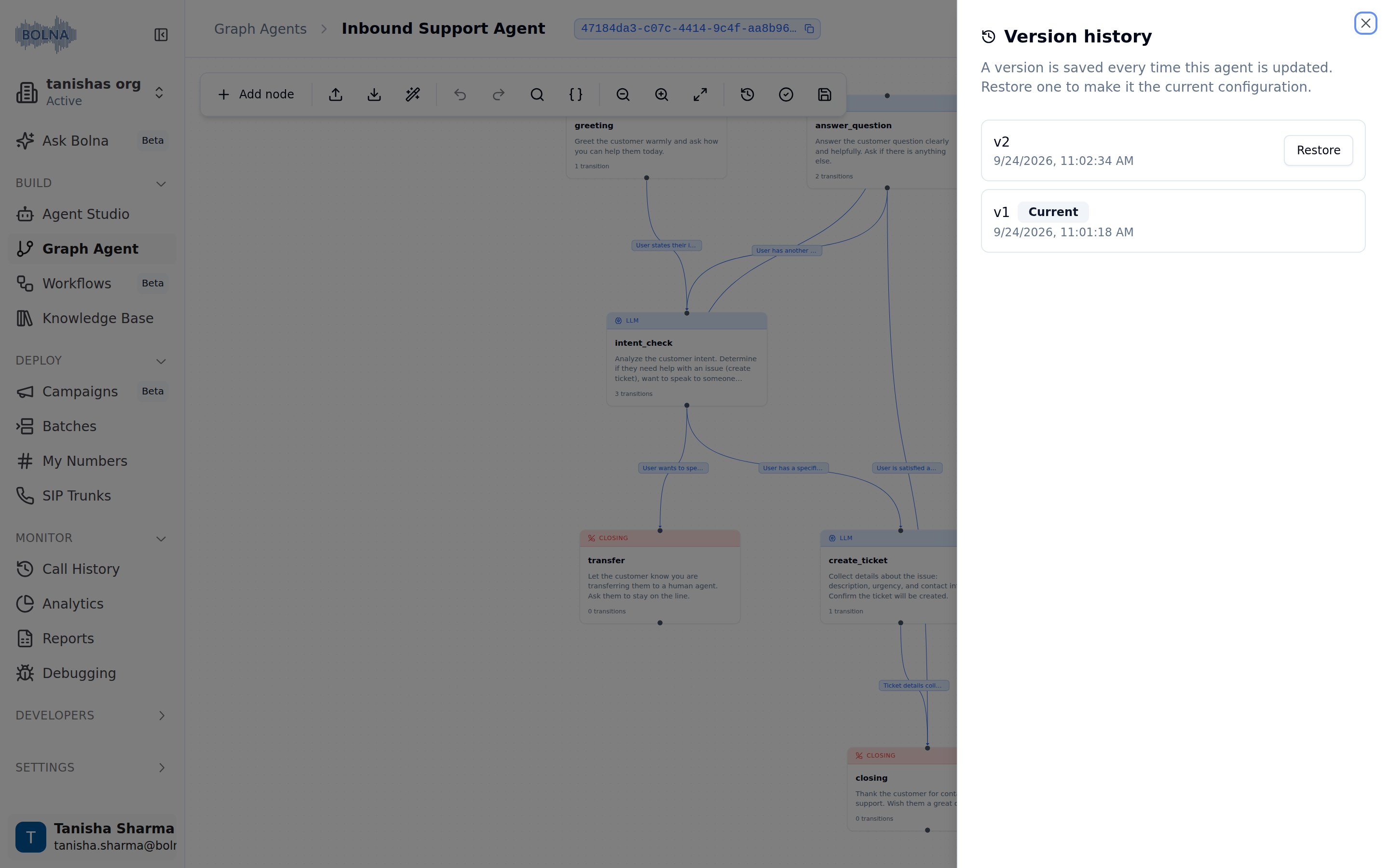
Version list
Each version row shows:- Version number —
v1,v2, and so on, in save order. - Saved at — the date and time the version was created.
- Current — badge on the version the agent is running.
- Restore — button on every other version.
Restoring a version
- Find the version you want to restore in the list.
- Click Restore on that row.
- The editor reloads with the restored version’s graph.
Restoring a version creates a new save rather than overwriting history. The restored version appears as the new most-recent entry. The full version history is preserved.
Versioning vs export
Use version history for routine rollbacks. Use export when you need a portable copy to share or archive.