

Opening the editor
In the left sidebar, expand Build and click Graph Agent, then either:- Click Create to start a new graph agent — the dialog offers a blank graph or a ready-made template.
- Click an existing graph agent to open it for editing.
Editor layout
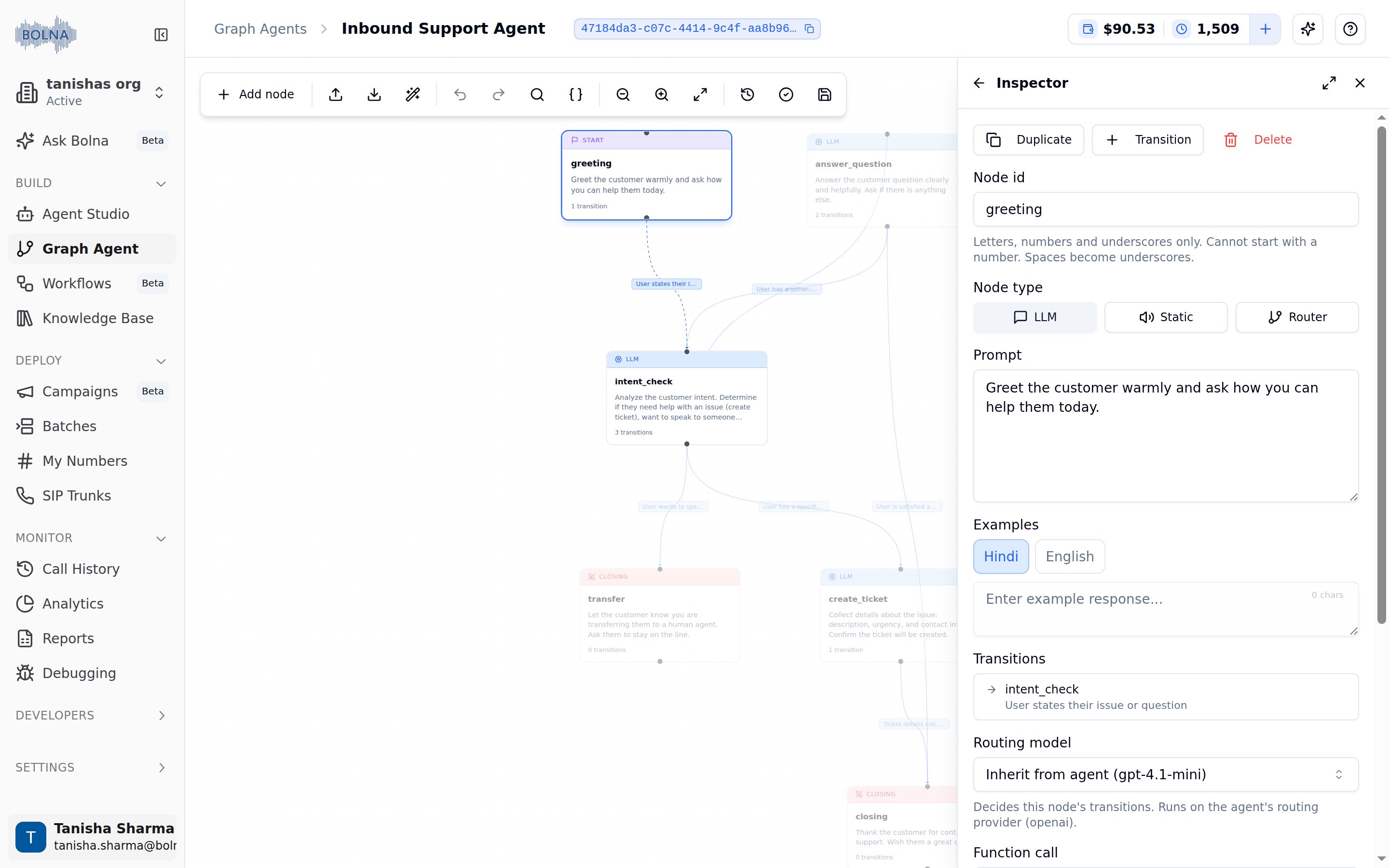
Canvas
The canvas is the central workspace where your graph lives. Each node appears as a card; each transition appears as a directed arrow between nodes.Inspector panel
The inspector opens on the right side of the canvas. Its contents change based on what is selected:
When a node, transition, or pending transition is selected, a back arrow appears to the left of the inspector’s title. Clicking it — or pressing
Esc — clears the selection and returns the inspector to its Agent setup, Tools, and Test agent tabs, without closing the panel. Esc is ignored while you are typing in a field, and while a dialog, dropdown, or popover is open — there it closes that instead.
Click the ✕ button at the top of the inspector to close it. To reopen the inspector, click the Inspector button (panel-right icon) in the top-right corner of the canvas.
Toolbar
The toolbar runs along the top of the canvas and contains all editor-level actions.
The Save button’s tooltip reads Saved · about 2 hours ago once everything is persisted, or Unsaved changes · last saved 5 minutes ago while edits are pending. Saves older than a day show an exact date and time instead. When an agent has never been saved, the tooltip just reads Save or Unsaved changes.
Keyboard shortcuts
Undo snapshots are coalesced — rapid successive edits (e.g. typing in a prompt field) are grouped into a single undo step, captured after ~800ms of inactivity.
Next steps
Managing nodes
Create, edit, duplicate, and delete nodes in the canvas.
Managing transitions
Wire nodes together with intent, rule, and always-transition edges.
Agent setup
Configure welcome message, LLM, voice, and conversation settings.
Validation
Find and fix errors before saving.