

Manage your knowledge bases
Your uploaded knowledge bases are displayed in a table with full management capabilities.Wait for the status to show “processed” before connecting to your agent. If status shows “error”, try re-uploading the file.
Connect a knowledge base to your agent
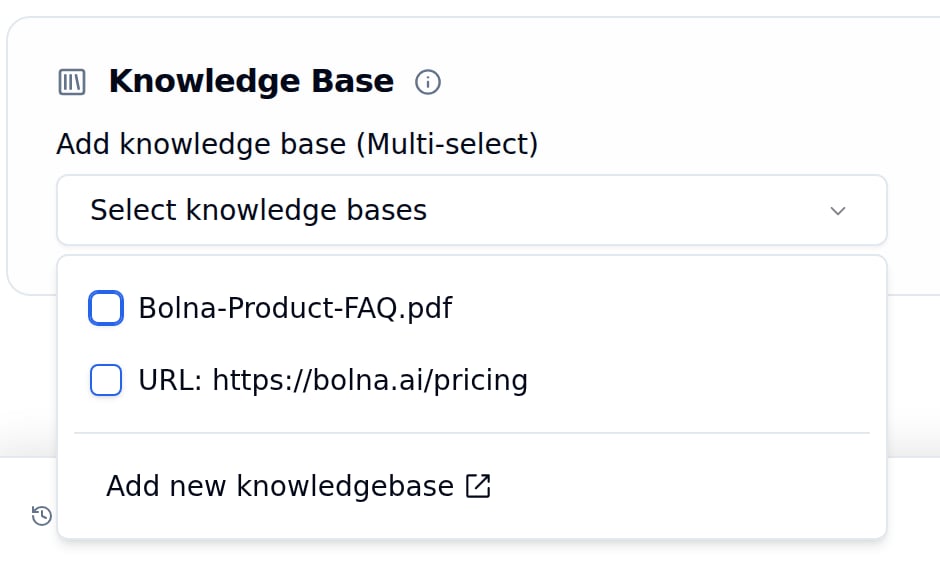
Knowledge Base card in the Intelligence Tab with the multi-select open
1
Open Intelligence Tab
Go to your agent’s Intelligence Tab.
2
Find Knowledge Base Section
Locate Add knowledge base (Multi-select).
3
Select Knowledge Bases
Check one or more knowledge bases from the dropdown.
4
Save Changes
Click Save agent to apply changes.
Next steps
Intelligence tab
The rest of the agent’s LLM settings
Agent tab
Configure prompts to use knowledge
Knowledge bases API
Manage knowledge bases programmatically
Knowledge base overview
How knowledge bases work