

What are extractions?
Extractions allow you to automatically capture structured data from call transcripts. Organize extractions into categories and define custom questions to extract specific information like lead quality, appointment details, customer sentiment, and more.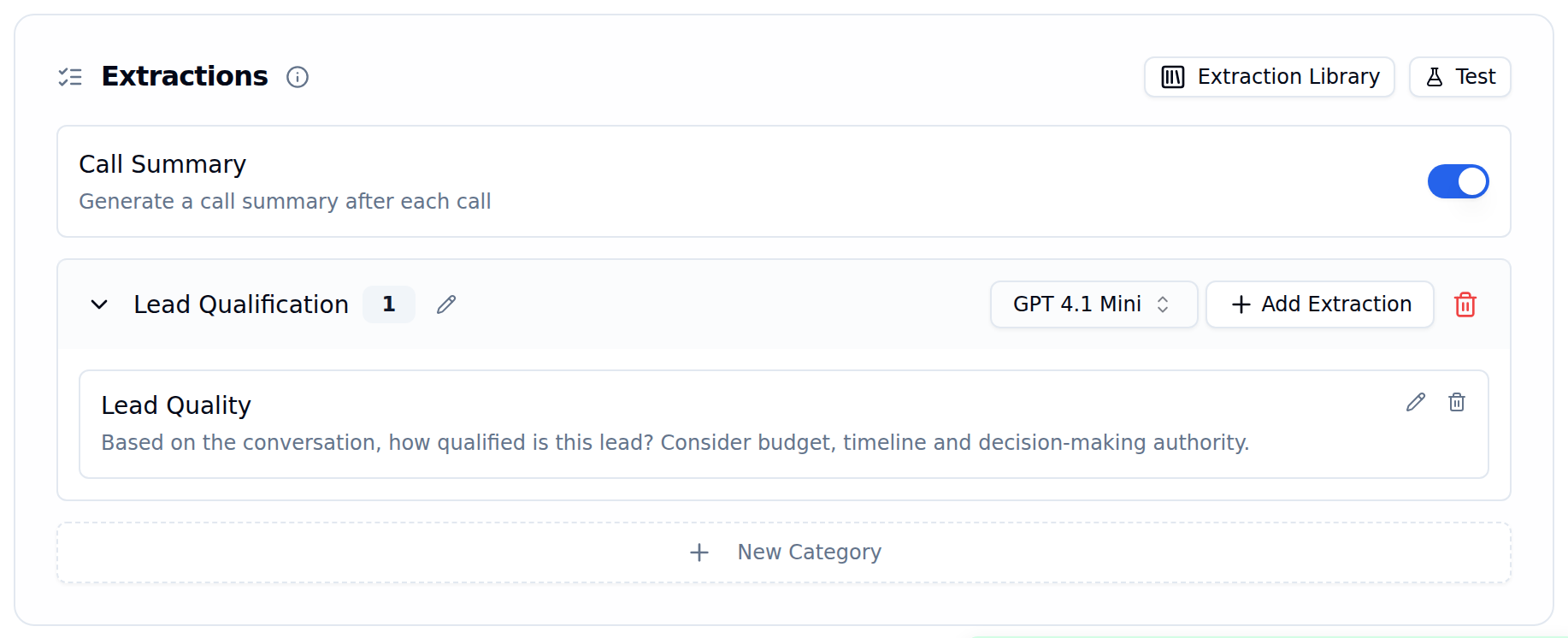
Extractions card with a category and one extraction template
Configuring extractions via the API instead of the dashboard? The new Extractions feature is powered by the Dispositions API.
Getting started with extractions
Step 1: Access the Extractions tab
Navigate to the Extractions tab in your agent configuration to find the Extractions section.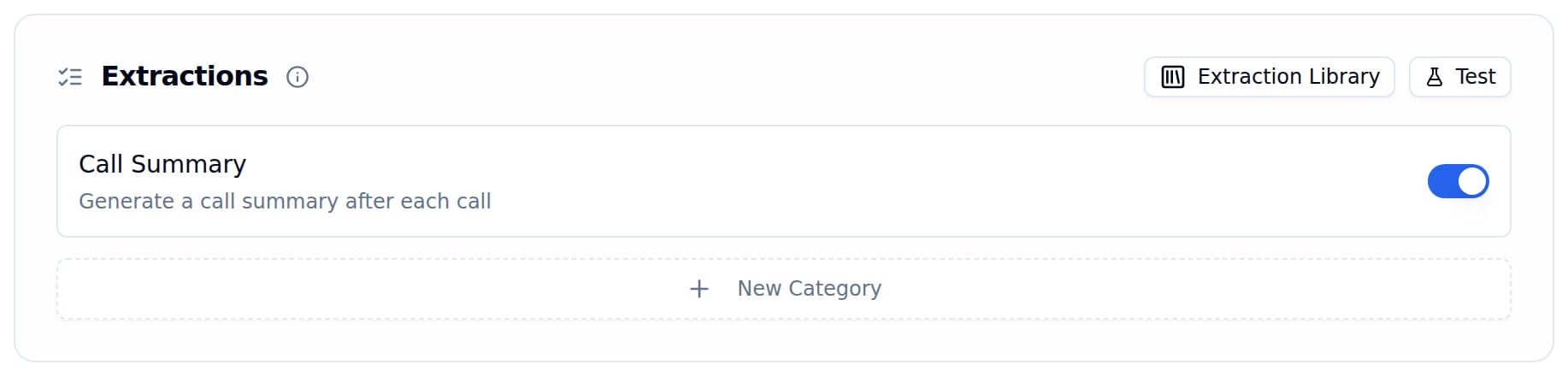
Extractions card on an agent with no categories yet
Creating categories
Categories help you organize related extractions together. For example, “Agent Handover”, “Visit Details”, or “Lead Qualification”.1
Click New Category
Start by creating a category to organize your extractions.
2
Enter Category Name and Model
Choose a descriptive name like “Agent Handover” or “Visit Details”, and pick the LLM model for the category. The model applies to every extraction in the category — each category is evaluated in a single LLM pass.
3
Click Create Category
Your category is now ready for extractions.
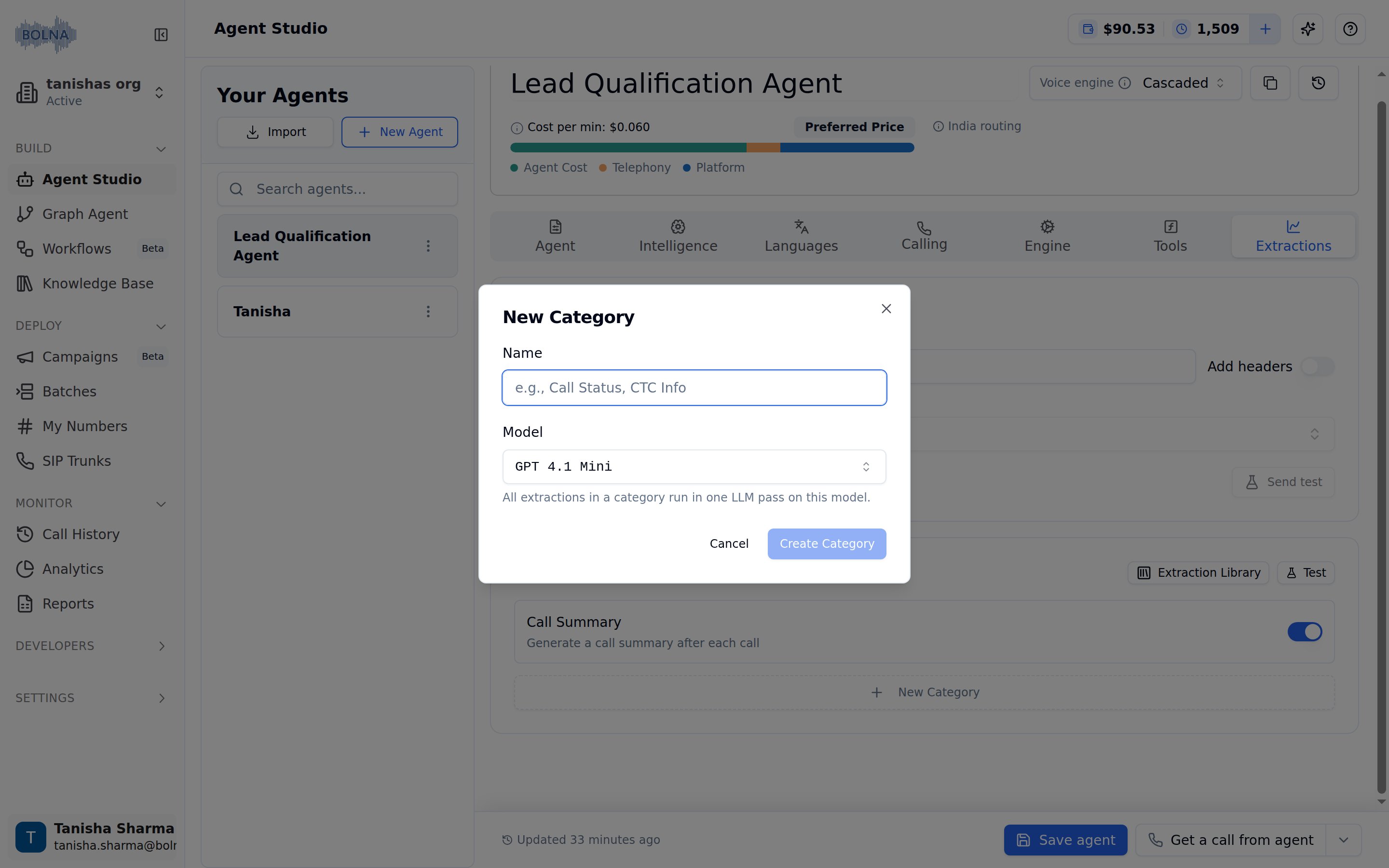
New Category dialog with the name and model fields
Creating extractions
Within each category, you can create multiple extraction templates to capture different data points.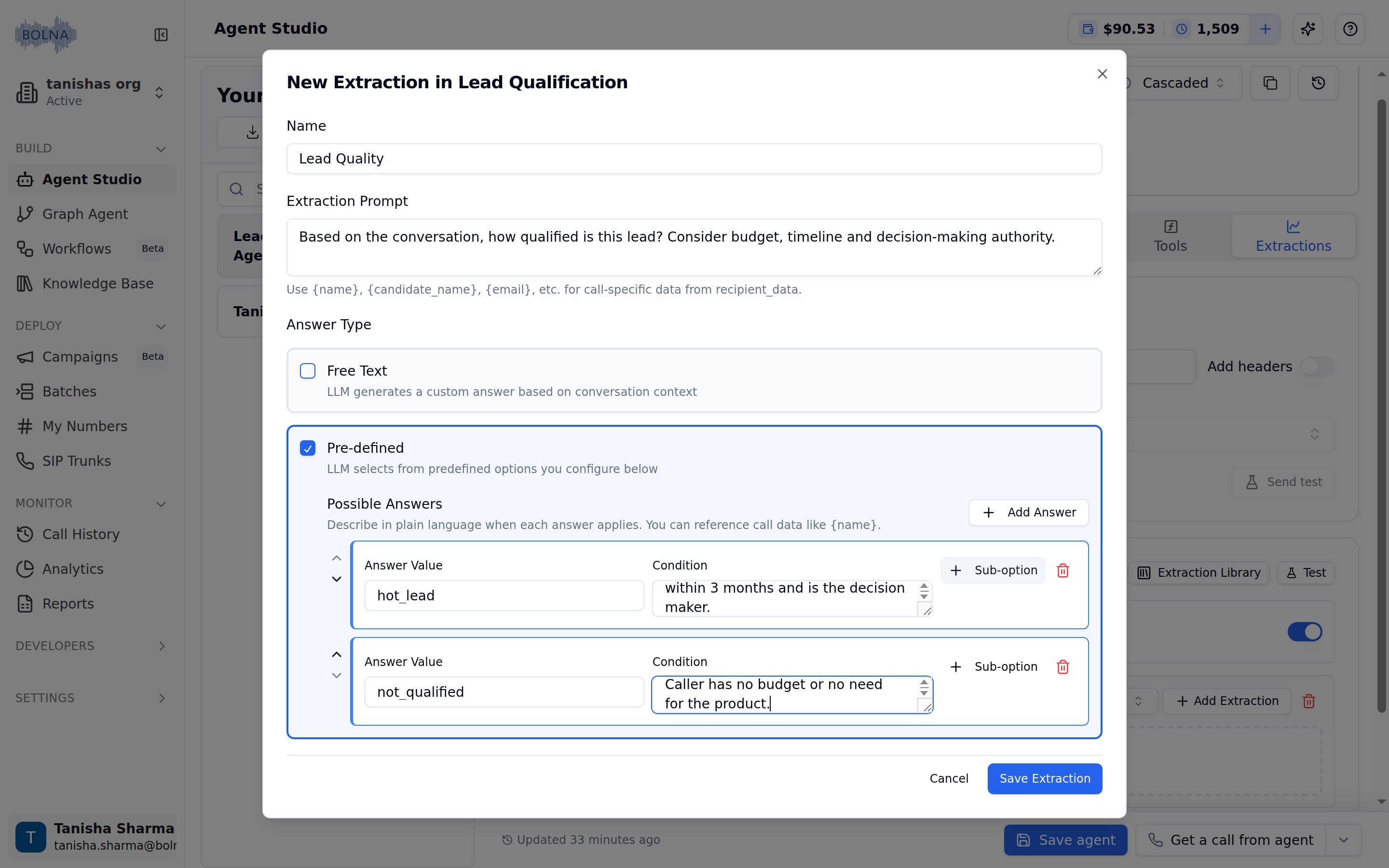
New extraction form with pre-defined answers
Extraction fields
Name
Name
A descriptive name for the extraction (e.g., “Call Outcome”, “Customer Sentiment”, “Agent Handover Needed”).This name will appear in your extraction results and webhooks.
Extraction Prompt
Extraction Prompt
Instructions that guide the LLM on what to extract from the transcript.Example prompts:
Answer Type
Answer Type
Choose how the LLM should structure its response:Free Text
- LLM generates a custom answer based on conversation context
- Best for open-ended questions and detailed responses
- Example: “Describe the customer’s main concern”
- LLM selects from predefined options you configure
- Best for categorical data and structured responses
- Example: Lead quality (hot/warm/cold), Yes/No questions
subjective value and a pre-defined objective value.Expected Format
Expected Format
When creating extractions with Free Text enabled, you can constrain the response format using the Expected Format dropdown:
When Custom Regex is selected, two additional fields appear:
- Pattern (required) — The regex the response must match (e.g.,
^\d{10}$) - Description (optional) — Human-readable label (e.g., “10-digit phone number”)
Model
Model
The LLM model is set on the category and applies to every extraction in it — each category is evaluated in a single LLM pass.Default:
gpt-4.1-mini (recommended for most use cases)OpenAI, Azure OpenAI (azure/ models) and Google Gemini models are available. Azure models can run on your own Azure resource; see Azure OpenAI models.Answer types explained
Free text extractions
Use free text when you want the LLM to generate custom responses based on the conversation. Best for:- Summarizing customer concerns
- Extracting reasons or explanations
- Capturing qualitative feedback
- Open-ended questions
- Name: “Customer Concern”
- Prompt: “Summarize the main issue the customer raised during the call”
- Answer Type: Free Text
Pre-defined extractions
Use pre-defined options when you want structured, categorical responses.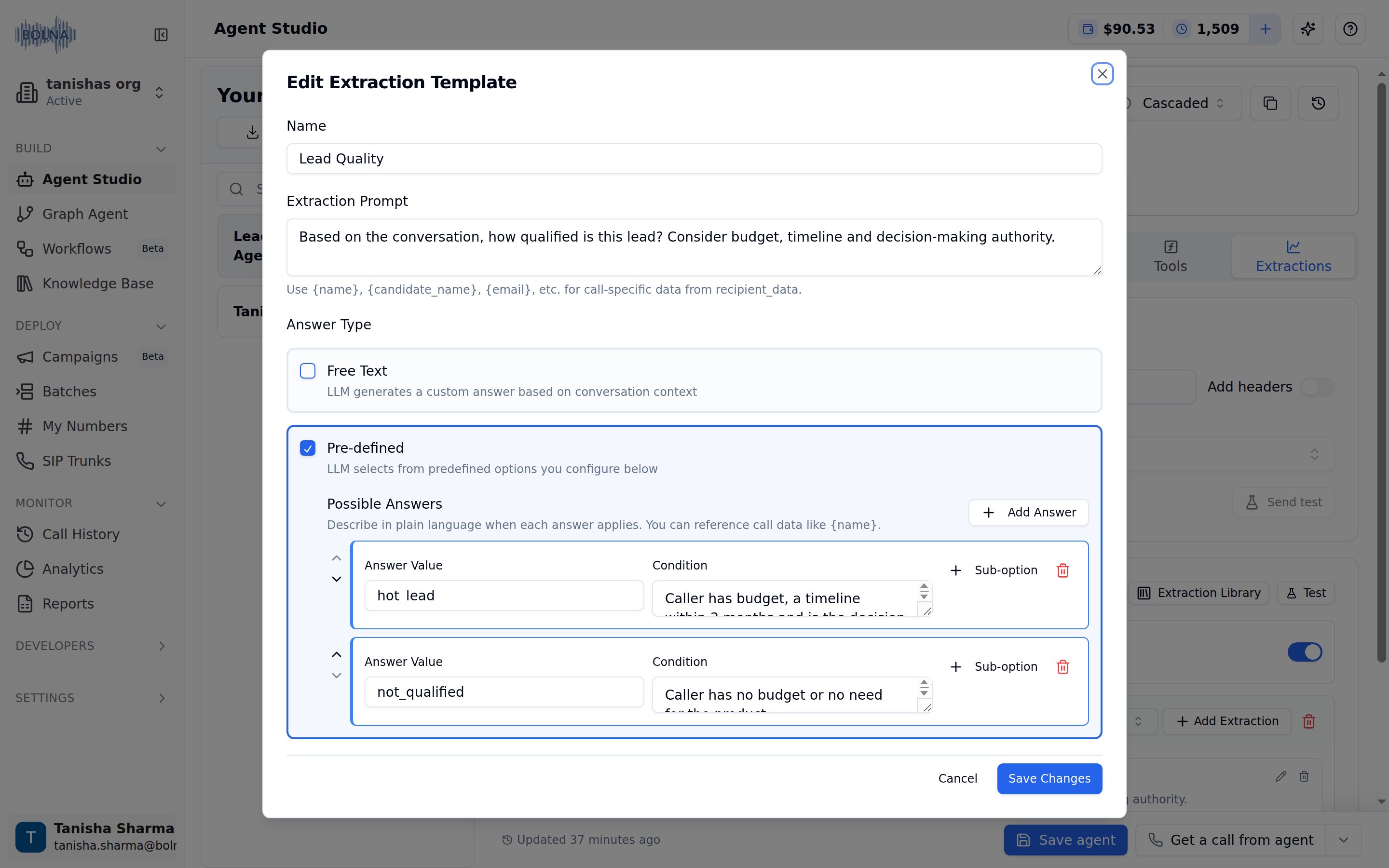
Edit Extraction Template with pre-defined answers
- Yes/No questions
- Status classifications
- Lead scoring
- Outcome categorization
Configuring pre-defined answers
Each answer option consists of:- Answer Value - The value to return (e.g., “Yes”, “No”, “hot”, “warm”, “cold”)
- Condition - Instructions for when to select this answer
No), the arrows to reorder options, and Add Answer to append a new one.
Example: Agent Handover Detection
Answer 1:
- Value:
Yes - Condition:
yield if any one of the triggers for handover are satisfied
- Value:
No - Condition:
yield if none of the triggers for handover are satisfied
Managing extractions
Edit an extraction
- Click the edit icon (pencil) on any extraction card
- Modify the name, prompt, answer type, or model
- Click Save Changes
Delete an extraction
- Click the delete icon (trash) on any extraction card
- Confirm deletion
Test and read results
Test extractions
Output format & results
Reusing extractions from the library
Click Extraction Library in the Extractions card to add an existing extraction to a category instead of writing one from scratch.- My Extractions — every extraction already defined across your workspace’s agents, grouped by category, with a Used in list showing which agents use it
- Library — Bolna’s ready-made templates grouped by industry (All Industries, Ed Tech, and more)
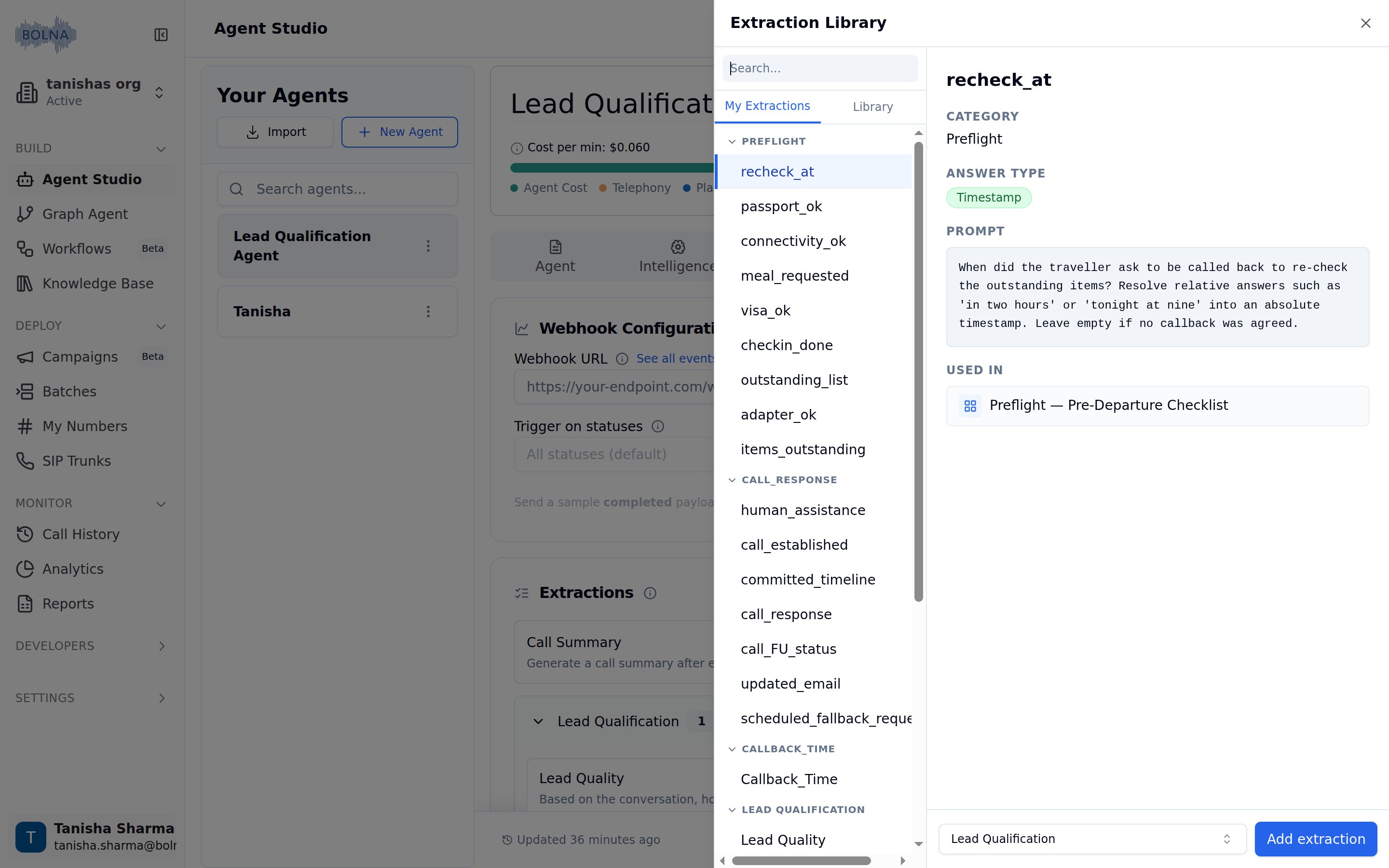
Extraction Library showing extractions already used in the workspace
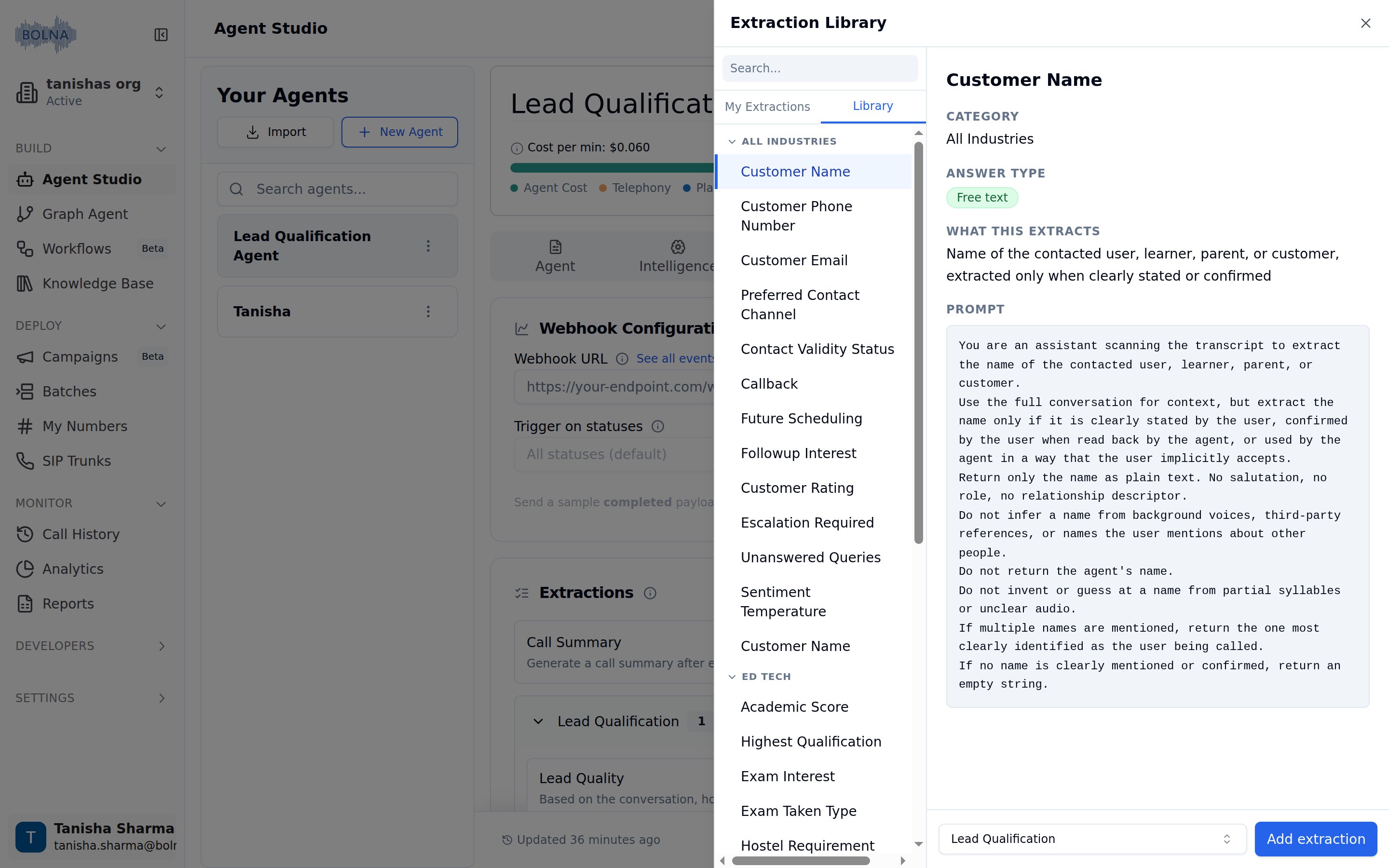
Library tab with Bolna's ready-made extraction templates
Working with categories
Rename a category
Click the edit icon next to the category name to rename it.Delete a category
Click the delete icon next to the category name. This will remove the category and all extractions within it.Add extractions to a category
Click Add Extraction to [Category Name] button at the bottom of each category section.Call summary
The call summary is an agent-level toggle (call_summary_enabled), off by default. When on, Bolna runs a dedicated platform summary pass after each call and writes the result in two places:
- the execution’s
summaryfield extracted_dataunderGeneral > Call Summary, with only asubjectivevalue
objective, confidence, reasoning_*, and validation fields do not apply to it, and it is not configured through dispositions or categories. Agents with the toggle off produce no call summary. Enable it from the agent’s settings in the dashboard or by setting call_summary_enabled via the agent APIs.
Common use cases
Best practices
- Write specific prompts : Clearly define what to capture and how to interpret the conversation. Avoid vague or multi-part instructions.
- Pick the right answer type : Use Pre-defined for categorical data like Yes/No or status fields, and Free Text for open-ended responses.
- Keep extractions focused : Split complex logic into multiple simple extractions rather than one long prompt.
- Test before deploying : Run your extractions against real or sample transcripts to catch issues early.